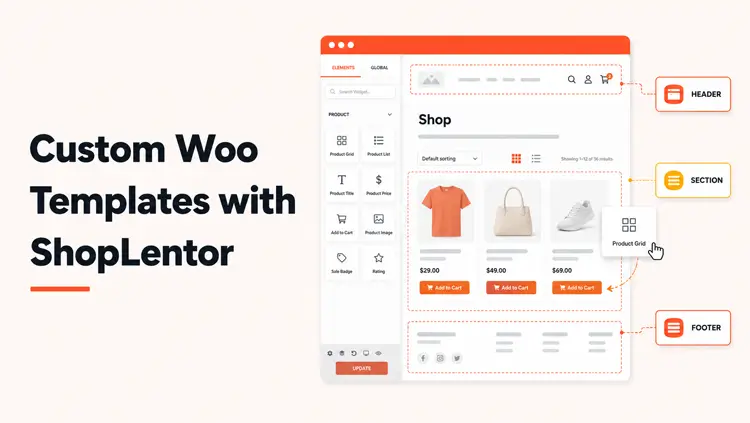
Learning how to build custom WooCommerce templates is essential for store owners seeking a competitive advantage. ShopLentor is a powerful page builder plugin that transforms how you build custom WooCommerce templates without coding.
This comprehensive guide shows you exactly how to build custom WooCommerce templates using professional design tools. You’ll master every template type from shop pages to product pages. Let’s get started.
Table of Contents
Key Takeaways
- Building custom WooCommerce templates increases conversion rates by up to 40%.
- ShopLentor enables anyone to learn how to build custom WooCommerce templates without coding knowledge.
- Mobile-optimized custom templates achieve 30% higher conversions than the default page.
- Custom WooCommerce templates reduce cart abandonment and improve user experience.
- SEO-optimized templates rank higher on Google and drive more organic traffic.
- Templates built with ShopLentor load 42% faster, directly improving revenue growth.
ShopLentor- WooCommerce Builder for Elementor & Gutenberg
A versatile page builder to build modern and excellent online stores with more than 100k+ Active Installations.
Why You Need Custom WooCommerce Templates
Default WooCommerce templates are generic and basic. They don’t reflect your brand or convert visitors into customers effectively. Building custom WooCommerce templates is essential for competitive ecommerce stores.
Custom WooCommerce templates help you increase conversion rates, boost user experience, stand out from competitors, and improve SEO rankings. According to research, stores using custom WooCommerce templates experience 15% higher average order value.
Increase Conversion Rates
A custom checkout reduces friction by 40%. This means more customers complete their purchases. ShopLentor’s checkout field manager lets you remove unnecessary fields and simplify the buying process.
Boost User Experience
88% of online shoppers won’t return after a poor experience. Custom templates ensure fast load times and beautiful designs that keep visitors engaged.
Stand Out from Competitors
Generic templates blend in. Custom WooCommerce templates make your store memorable and professional.
Improve SEO Rankings
Optimized custom templates help Google better understand your content. This leads to higher search rankings and more organic traffic.
Getting Started: Install ShopLentor
Step 1: Access WordPress Dashboard
Log in to your WordPress admin panel. Navigate to the Plugins section.
Step 2: Search for ShopLentor
Click “Add New” and search for “ShopLentor.” Look for the official plugin by WooLentor.
Step 3: Install and Activate
Click “Install Now,” then activate the plugin. The plugin appears in your dashboard menu immediately.
Step 4: Review Settings
Go to ShopLentor settings in your WordPress dashboard. Choose which WooCommerce elements to customize. Enable the template builder option.
How to Build Custom Shop Page Templates
A shop page is where customers browse your products. Learning how to build custom WooCommerce shop page templates increases engagement and sales significantly.
Method 1: How to Build Custom Shop Templates Using Elementor
Step 1: Open Template Builder
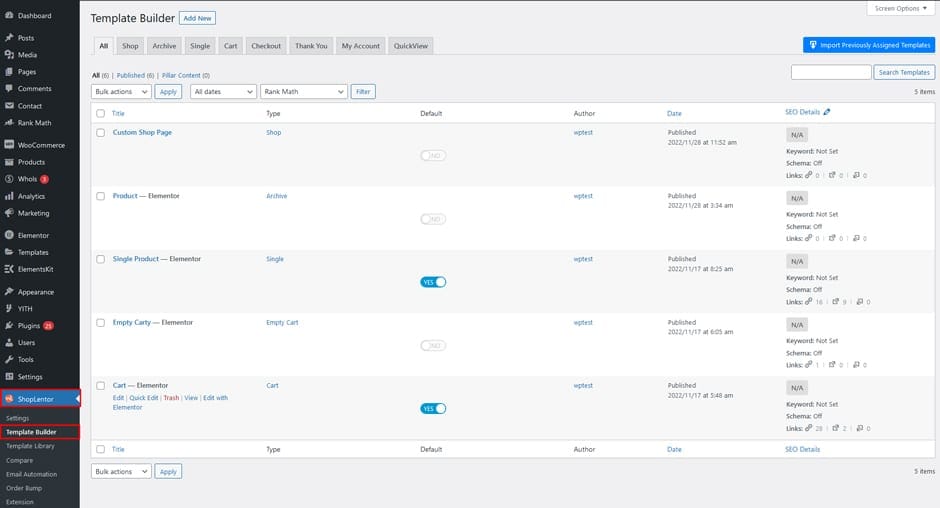
Navigate to ShopLentor > Template Builder in your dashboard. Click the “Add New” button.
Step 2: Configure Template Settings
- Enter a name for your template
- Select “Shop” as the template type
- Choose Elementor as your editor
- Enable “Set Default” to apply this custom template site-wide
Step 3: Save Settings
Click “Save Settings.” Then click “Edit with Elementor” button to start building.
Step 4: Design Your Custom Shop Page
Elementor’s drag-and-drop interface appears. You can now build custom WooCommerce templates by adding:
- Product grids and layouts
- Product filters for browsing
- Custom page layouts
- Call-to-action buttons
- Promotional banners
ShopLentor’s Elementor widgets connect directly to your product database for seamless integration.
Step 5: Preview and Publish
Use Elementor’s preview feature to test on desktop and mobile. Once satisfied, click Publish.
Method 2: Build Custom Shop Templates Using Gutenberg Blocks
Step 1: Navigate to Template Builder
Go to ShopLentor menu > Template Builder. Click “Add New.”
Step 2: Set Template Details
- Give your template a clear name
- Select “Shop” as the type
- Choose Gutenberg as the editor
- Enable “Set Default”
Step 3: Save and Edit
Click “Save Settings,” then “Edit with Gutenberg.”
Step 4: Add Blocks to Build Your Template
ShopLentor’s Gutenberg blocks appear in your editor. Simply drag and drop to build custom WooCommerce templates:
- Product Grid blocks
- Product Filter blocks
- Category blocks
- Search blocks
- Sort options
Step 5: Customize Block Settings
Each block has customization options. Adjust colors, spacing, and layouts to match your brand.
Step 6: Test the Page
Preview your shop page in different browsers and devices. Ensure everything displays correctly.
How to Build Custom Product Page Templates
Your product pages sell your items. Learning how to build effective custom product page templates requires conversion-focused design strategies.
Step 1: Create a New Product Template
Go to Template Builder. Click “Add New.”
Enter a template name. Select “Product” as the type.
Step 2: Choose Your Editor
Select Elementor or Gutenberg. Both work equally well for building custom product templates.
Step 3: Add Essential Sections to Your Template
With Elementor, drag and drop these sections to build custom WooCommerce templates:
- Product Images – Show images clearly with zoom capability
- Product Title – Display the product name prominently
- Product Price – Show pricing clearly
- Product Description – Include key benefits and features
- Product Tabs – Add additional information tabs
- Add to Cart Button – Make it easy to purchase
- Related Products – Suggest complementary items
- Product Reviews – Display customer testimonials
Step 4: Customize for Conversions
- Keep the layout clean and focused
- Use high-quality images
- Make the add-to-cart button stand out
- Add trust badges and security icons
- Include customer reviews prominently
Step 5: Mobile Optimization
Test your custom template on mobile devices. Ensure:
- Text is readable without zooming
- Buttons are easy to tap
- Images load quickly
- Navigation is simple
How to Build Custom Category Page Templates
Category pages help customers find products. Understanding how to build custom WooCommerce category templates increases browsing time and sales.
Step 1: Access Template Builder

Navigate to ShopLentor > Template Builder. Click “Add New.”
Step 2: Set Type to Archive
- Name your custom template
- Select “Archive” or “Category” as the type
- Choose Elementor or Gutenberg to build your template
Step 3: Design Your Custom Layout
Add these elements to build custom WooCommerce templates:
- Category Title: Clear, descriptive heading
- Category Description: Brief explanation of products
- Product Filters: Help customers narrow choices
- Product Grid: Display products in an organized layout
- Sort Options: Let customers sort by price, rating, etc.
- Pagination: Enable customers to browse multiple pages
Step 4: Apply Filters and Sorting
ShopLentor includes AJAX product filters. These updates result in a page refresh, improving user experience significantly.
Step 5: Test and Publish
Preview on all devices. Ensure filters work smoothly on your custom template.
How to Customize Your Checkout Page
The checkout process is where customers complete purchases. Building a custom checkout template reduces friction and abandoned carts.
ShopLentor includes a checkout field manager for Pro users.
What You Can Customize
- Remove unnecessary fields – Keep only essential information
- Reorder fields – Put important fields first
- Change field labels – Use customer-friendly language
- Make fields conditional – Show fields based on customer selection
- Add custom fields – Collect specific information you need
Best Practices
- Ask for minimum required information
- Use autocomplete for addresses
- Show progress indicator
- Offer guest checkout option
- Display trust badge
SEO Best Practices for Custom WooCommerce Templates
Building SEO-optimized custom WooCommerce templates helps pages rank higher on Google. Custom templates offer significant SEO advantages when built correctly.
Use Clean URLs
- Keep product URLs short and descriptive
- Include target keywords naturally
- Avoid special characters
- Use hyphens to separate words
Example: /blue-leather-wallet instead of /product123
Optimize Meta Titles
Meta titles appear in search results. Make them:
- 50-60 characters long
- Include target keyword near the beginning
- Compelling and descriptive
Write Unique Meta Descriptions
Meta descriptions appear below titles in search results. Write unique ones for each page.
- 150-160 characters
- Include target keyword
- Include a call-to-action
Add Schema Markup
Use structured data markup to help Google understand your products. ShopLentor supports schema markup.
Benefits:
- Rich snippets in search results
- Higher click-through rates
- Better search visibility
Optimize Product Images
- Use descriptive file names
- Add alt text to all images
- Compress images for faster loading
- Use WebP format for modern browsers
Create Unique Product Descriptions
- Write original descriptions
- Include target keywords naturally
- Focus on customer benefits
- Keep paragraphs short and scannable
Implement Breadcrumbs
Breadcrumbs improve user experience and SEO. They show page hierarchy clearly.
Example: Home > Products > Men’s Wallets > Blue Leather Wallet
Enable Pagination
For category pages with many products, use pagination:
- Helps Google crawl pages efficiently
- Improves user experience
- Prevents loading issues
Performance Optimization Tips
Fast sites rank higher on Google and convert better. Optimize your custom WooCommerce templates for speed.
Enable Caching
Use a caching plugin to store your pages. Returning visitors see cached versions instantly.
Compress Images
Large images slow down your site. Compress without losing quality:
- Use image compression plugins
- Choose appropriate file formats
- Implement lazy loading
Minimize Code
- Remove unused CSS and JavaScript
- Combine files when possible
- Use minification plugins
Use a CDN
A Content Delivery Network serves images from servers near your visitors. This speeds up load times globally.
Monitor Performance
Use Google PageSpeed Insights or GTmetrix to:
- Test your site speed
- Identify performance issues
- Get improvement suggestions
Test Mobile Performance
Mobile optimization is crucial. Use Google Mobile-Friendly Test to ensure your custom templates work perfectly on phones and tablets.
Common Mistakes to Avoid When Building Custom Templates
Mistake 1: Cluttered Design
Don’t overload pages with too many elements. Keep designs clean and focused.
Mistake 2: Poor Mobile Design
Test on mobile devices. Ensure buttons are easy to tap and text is readable.
Mistake 3: Slow Load Times
Optimize images and enable caching. Slow sites hurt rankings and conversions.
Mistake 4: Weak Call-to-Action
Make your call-to-action buttons clear and compelling. Use contrasting colors.
Mistake 5: Duplicate Content
Write unique product descriptions. Duplicate content hurts SEO.
Mistake 6: Missing Product Information
Include all relevant details:
- Specifications
- Shipping information
- Return policy
- Customer reviews
Mistake 7: Complicated Navigation
Keep navigation simple. Customers should find products easily.
Frequently Asked Questions About Building Custom WooCommerce Templates
Do I need coding knowledge to build custom WooCommerce templates with ShopLentor?
No. ShopLentor’s drag-and-drop interface requires no coding. Anyone can build professional custom templates.
Is ShopLentor compatible with other plugins when building templates?
Yes. ShopLentor is compatible with most WooCommerce plugins. Some exceptions exist with non-WooCommerce-compatible plugins.
Will building custom templates with ShopLentor slow down my site?
No. ShopLentor is optimized for speed. Most users report faster sites after building templates.
Can I use ShopLentor to build custom templates with a custom theme?
Yes. ShopLentor works with any WooCommerce theme when building templates.
How often should I update my custom WooCommerce templates?
Review and refresh templates quarterly to maintain SEO and design relevance.
Can I create multiple custom templates for different pages?
Yes. Create unlimited templates for different product categories or pages.
Does ShopLentor include pre-built templates to customize?
Yes. The template library includes professionally designed templates you can customize.
Can I use both Elementor and Gutenberg to build templates?
Yes. Use either builder for building different custom templates.
Getting Started: Build Your First Custom WooCommerce Template Today
Learning how to build custom WooCommerce templates with ShopLentor is straightforward:
- Install ShopLentor from the WordPress plugin directory
- Access Template Builder from your dashboard
- Create a new template for shop, product, or category pages
- Choose your page builder (Elementor or Gutenberg)
- Drag and drop elements to build your custom template
- Customize styling to match your brand
- Test on mobile and desktop devices
- Publish and monitor performance
Conclusion
Mastering how to build custom WooCommerce templates is essential for modern store success. ShopLentor transforms how you build custom WooCommerce templates without requiring coding or expensive developers.
Whether you’re a beginner or experienced store owner, ShopLentor gives you the tools to build professional, conversion-focused custom templates. Start learning how to build custom WooCommerce templates today and watch your conversions increase.
Your dream store is just a few clicks away with ShopLentor. Begin building custom WooCommerce templates now and transform your online business into a revenue-generating powerhouse.