Who doesn’t love a good discount? Shoppers actively seek deals, and studies show that 93% of consumers use discount codes throughout the year. Discounts don’t just boost sales, they create urgency, attract new buyers, and encourage repeat purchases.
However, manually managing coupons in WooCommerce can be tedious and time-consuming. While WooCommerce offers built-in coupon functionality, it lacks automation, making it difficult to run large-scale promotions efficiently. That’s where the WooCommerce Coupon Code Generator comes in.
Automating the creation and distribution of discount codes, this tool saves time and ensures your customers get the right offers at the right moment.
In this guide, you’ll learn how to automate discounts with WooCommerce coupon code generator to streamline your store’s discount strategy.
Why Automating Discounts is Essential for eCommerce
Did you know? A study found that 38% of shoppers ended up spending more than planned after receiving a coupon.
Managing discounts manually in WooCommerce can be a hassle, especially when running large-scale promotions or time-sensitive deals. Automating discounts with a WooCommerce Coupon Code Generator simplifies the process, making it easier to attract and retain customers.
Here’s why automation is worth considering:
- Saves time and effort by eliminating the need to create and manage coupons manually.
- Reduces errors and ensures that discounts are applied consistently across your store.
- Improves customer experience by delivering discounts at the right time, increasing satisfaction and loyalty.
- Boosts conversion rates and sales by encouraging impulse purchases and repeat business.
Understanding WooCommerce’s Default Coupon System
WooCommerce provides built-in coupon functionality, but it has several limitations that make it impractical for large-scale promotions:
- Manual coupon creation: Store owners have to set up and manage each coupon manually.
- No automation options: WooCommerce doesn’t support scheduled or automatic discount generation.
- Limited bulk coupon creation: You can’t generate multiple unique coupon codes at once.
- No advanced targeting: Limited options for country, user role, or payment method restrictions.
- Basic URL functionality: No built-in URL-based coupon distribution system.
Because of these drawbacks, many WooCommerce store owners turn to a WooCommerce Coupon Code Generator for automation. These tools allow businesses to streamline coupon management, saving time while ensuring discounts reach the right customers.
Advanced Automation Features to Look For
When choosing a WooCommerce coupon generator, focus on these essential features that will save you time and increase sales:
1. Bulk Coupon Generation: Create hundreds of unique discount codes in seconds instead of hours:
- Generate 500+ codes at once for large campaigns
- Add custom prefixes like “SAVE-” or “WINTER-” for easy tracking
- Perfect for affiliate programs or influencer partnerships
2. Scheduled Discounts: Set up promotions weeks in advance:
- Launch Black Friday sales automatically at midnight
- Show custom messages like “Sale starts soon!” before activation
- Never miss a campaign launch again
3. Smart Customer Targeting: Send the right discount to the right customer:
- Restrict coupons by country (US customers only)
- Target specific user groups (VIP members, wholesale buyers)
- Limit to certain payment methods (PayPal users get an extra 5% off)
4. URL Coupons: Make discounts easier to use:
- Create clickable links that apply discounts automatically
- Perfect for email newsletters and social media
- Customers don’t need to remember or type coupon codes
Why Choose ShopLentor’s Advanced Coupon Module
ShopLentor’s Advanced Coupon module stands out as a comprehensive solution for WooCommerce discount automation. With over 100,000+ active installations, this versatile WooCommerce builder offers:
Key Advantages:
- Complete bulk coupon generation with customizable prefixes and suffixes
- Smart scheduling features with custom start dates and error messages
- URL coupons for seamless email marketing integration
- Advanced restrictions by country, user role, payment methods, and shipping options
- User-friendly interface that integrates seamlessly with WooCommerce
- Proven reliability with a large user base and regular updates
ShopLentor- WooCommerce Builder for Elementor & Gutenberg
A versatile page builder to build modern and excellent online stores with more than 100k+ Active Installations.
How to Automate Discounts with ShopLentor’s Advanced Coupon Module
If you’re looking to automate discounts in WooCommerce, the ShopLentor WooCommerce page builder plugin provides a seamless solution with its Advanced Coupon module. This module enables automated discount functionalities. This feature eliminates the hassle of manually creating and managing coupons by allowing you to generate bulk coupons. You can set automatic discounts and schedule offers effortlessly.
With ShopLentor, you can ensure your customers receive timely discounts without extra effort on your part.
Here’s how to set it up:
Step 1: Install and Activate the Plugin

Start by getting ShopLentor installed on your site. Just head over to your WordPress dashboard and look for the Plugins menu on the left. Click “Add New” and type “ShopLentor” in the search bar.
Once you spot it, hit that “Install Now” button. After it finishes installing (it only takes a few seconds), just click “Activate”.
Step 2: Enable the Advanced Coupon Module
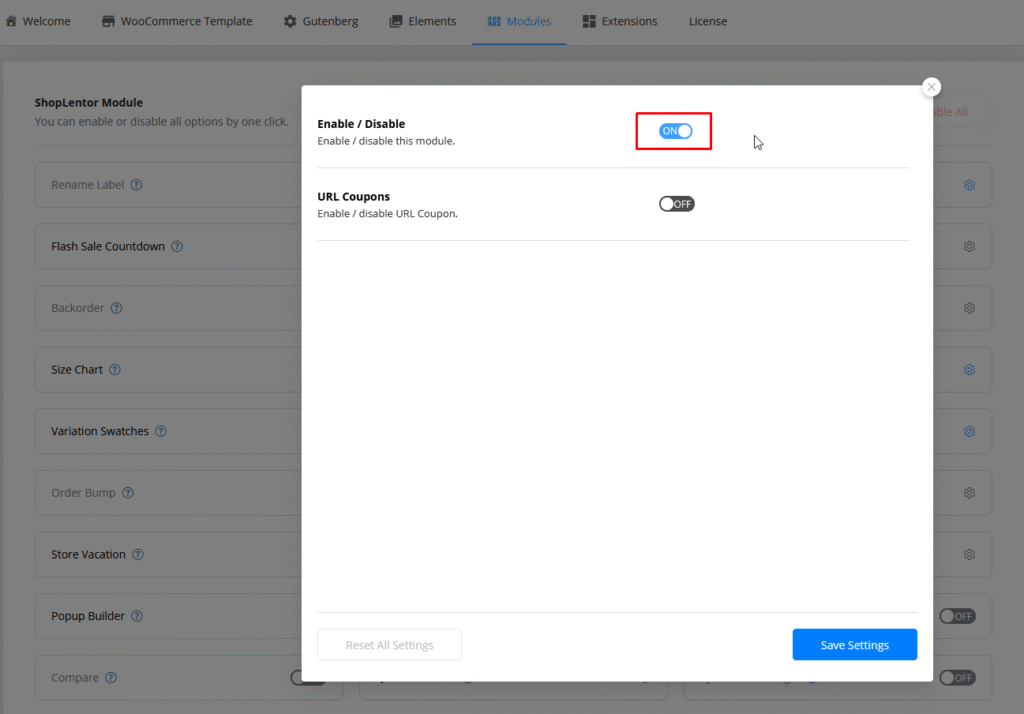
Once ShopLentor is active, you need to enable the Advanced Coupon module to access its features.
Go to the ShopLentor Settings page in the dashboard. Navigate to the Modules tab. Locate the Advanced Coupon option and toggle it to “Enable.”
This activates the feature, allowing you to create dynamic, automated discounts.
Step 3: Create a New Coupon
Once the module is enabled, navigate to Marketing > Coupons to create and configure coupons using both the default WooCommerce options and the advanced features provided by ShopLentor.
Click on “Add New” to start creating a fresh coupon for your promotion.
Next, choose a coupon code. You can either come up with a unique code yourself or let WooCommerce generate one automatically. If you plan to distribute this coupon widely, a simple and easy-to-remember code might work best.
Finally, add a short description. This is just for internal use, so write a quick note about the purpose of this coupon to keep track of your promotions.
Step 4: Configure General Settings and Advanced Options
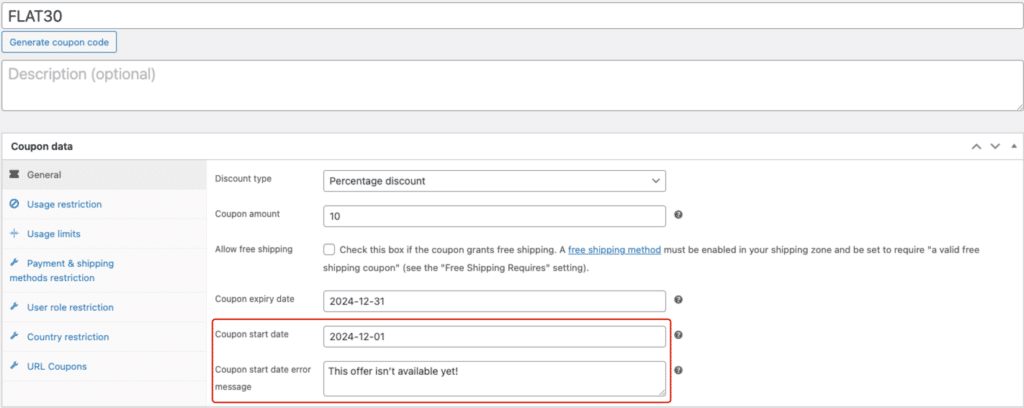
Now, let’s get into the specifics of your coupon. First, choose the discount type, whether it’s a percentage, fixed cart discount, or fixed product discount.
Then, enter the coupon amount, specifying how much of a discount the customer will get.
ShopLentor’s Advanced Coupon Module introduces enhanced features that give you more control over your coupon campaigns:
Coupon Start Date: Set a start date for when the coupon becomes active.
Coupon Start Date Error Message: Customize the message that will display if a user tries to apply the coupon before its start date.
For example, set a coupon to start on Black Friday, November 29, 2025, and customize an error message like, “This offer isn’t available yet!” for early attempts.
Step 5: Apply Advanced Usage Restrictions
Now, let’s make sure the coupon is used exactly how you want. You can set a minimum or maximum spend requirement, meaning the customer has to meet a certain cart total for the discount to apply.
If you want to be specific, you can also choose which products or categories the coupon applies to, or even exclude certain items.
ShopLentor’s Advanced Coupon module provides powerful restriction options:
Payment & Shipping Methods Restriction:
This feature allows you to limit coupon applicability based on the customer’s selected payment and shipping methods. For example, restrict a coupon to be used only with “Flat rate” and PayPal payments.
- Shipping Methods: Select specific shipping methods eligible for the coupon.
- Shipping Restrict Type: Define whether the coupon is allowed or restricted based on shipping methods.
- Shipping Error Message: Set a message to display if the selected shipping method is ineligible for the coupon.
- Payment Methods: Select which payment methods the coupon applies to.
- Payment Restrict Type: Define whether the coupon is allowed or restricted based on payment methods.
- Payment Error Message: Customize the message that appears if a restricted payment method is selected.
User Role Restriction: Limit the coupon’s usage to specific user roles (e.g., customers, subscribers). For example, create a coupon exclusive to “Premium Dealer” and show a message like, “This coupon is available for Wholesale customers only.”
- User Roles: Choose which roles can use the coupon.
- Role Restrict Type: Specify if the coupon is allowed or restricted for selected roles.
- User Role Error Message: Set a message for users who do not meet the role requirement.
Country Restriction: Control coupon usage based on the customer’s shipping or billing country. For example, restrict a coupon to orders shipped to the US and Canada, with an error message like, “This offer is available for US and Canadian customers only.”
- Country Check In Type: Select whether to check based on billing or shipping country.
- Countries: Choose eligible or ineligible countries.
- Country Restrict Type: Define if the coupon is allowed or restricted based on the selected countries.
- Country Error Message: Customize the error message for country-based restrictions.
Step 6: Set Up URL Coupons and Bulk Generation
ShopLentor’s Advanced Coupon module offers two powerful automation features:
URL Coupons: URL Coupons allow you to create a coupon that generates a unique URL, enabling customers to apply the coupon by simply clicking the link. This feature is especially useful for email marketing campaigns.
- Enable URL Coupons: Activate this option to allow coupons to be applied through URLs.
- Coupon URL: Once a coupon is created, a URL will be generated. Customers who visit this URL will automatically have the coupon applied to their cart.
- Modify the Coupon URL: You can customize the URL slug to align with your marketing campaign or branding strategy.
- Redirect Visitors to: After the coupon is applied via the URL, redirect customers to a specific page, such as a product page or checkout.
- Success Message: Customize the message that will appear to customers after they successfully apply the coupon using the URL.
Make sure the URL Coupons option is enabled from the ShopLentor settings page to ensure that the URL Coupons feature works properly.
Bulk Coupon Generate: The Bulk Coupon Generate feature in ShopLentor allows you to create multiple coupons simultaneously using the same settings. This helps save a significant amount of time, especially when generating a large number of coupons for promotional events, bulk discounts, or campaigns.
- Generate Number of Coupons: Enter the number of coupons you wish to generate in this field. For example, if you need 20 coupons, input “20”.
- Coupon Prefix (Do not use a space): This option allows you to add a custom prefix to all generated coupons. The prefix will appear at the beginning of each coupon code. For example, if you input “wlc-“, the generated coupon codes will start with “wlc-“.
- Coupon Suffix (Do not use space): Similarly, you can add a suffix to the end of each coupon code. For example, if you input “-sac”, the generated coupon codes will end with “-sac”.
Step 7: Save and Test Your Coupon
Before rolling it out:
Save Changes: Click “Publish” or “Update” to activate the coupon.
Test the Coupon: Visit your store as a customer would, add applicable products to your cart, and verify that the discount applies correctly based on your configured settings or through the generated URL if you enabled URL coupons.
Advanced ShopLentor Features for Maximum Automation
1. Bulk Coupon Generation for Large Campaigns: ShopLentor’s bulk generation feature is perfect for seasonal sales, product launches, or affiliate marketing campaigns. Generate hundreds of unique codes in seconds with consistent branding through prefixes and suffixes.
2. URL Coupons for Email Marketing Success: Transform your email marketing with URL coupons. Instead of asking customers to remember codes, send them direct links that automatically apply discounts. This reduces cart abandonment and increases conversion rates.
3. Smart Restrictions and Targeting: Create highly targeted campaigns with ShopLentor’s advanced restriction options:
- Geographic targeting for region-specific promotions
- Customer segmentation based on user roles
- Payment-specific offers to encourage preferred payment methods
- Shipping promotions tied to delivery options
Best Practices for Using Automated Discounts Effectively
To maximize the effectiveness of automated discounts, it’s essential to follow best practices and adjust your strategies as needed to optimize sales and conversion rates.
- Avoid Overuse: Don’t rely too heavily on discounts to maintain the perceived value of your products.
- Personalize Discounts: Tailor discounts based on customer behavior to increase engagement and drive conversions.
- Track Performance: Use WooCommerce analytics to monitor discount performance and adjust strategies for optimal results.
- Test Different Approaches: Use ShopLentor’s bulk generation to A/B test different discount amounts and targeting criteria.
- Leverage URL Coupons: Integrate URL coupons into your email sequences and social media campaigns for seamless customer experience.
Common Issues and Troubleshooting
Occasionally, you may encounter some hiccups with automated discounts. Here are a few common issues and how to fix them:
- Coupons Not Applying Correctly: If the discount doesn’t apply as expected, double-check the conditions you’ve set for the coupon. Ensure the coupon is valid for the right products, categories, or user roles.
- Compatibility Issues with Other Plugins: Sometimes, your coupon generator plugin might conflict with other WooCommerce plugins. To resolve this, deactivate other plugins one by one and test the coupon functionality. This will help identify any compatibility issues.
- Customer Facing Problems: If customers are having trouble using coupons, ensure the discount rules are clear and easy to follow. You can provide an FAQ or support page that guides users on how to apply their coupons correctly.
- Scheduled Discounts Not Working: If scheduled discounts aren’t activating, double-check your timezone settings and ensure that the start and end dates are correctly set. Sometimes, a mismatch in timezone settings can cause discounts to appear at the wrong time.
- Coupon Codes Not Being Accepted: This can occur if the code is entered incorrectly or if there are restrictions based on minimum cart value, products, or other conditions. Ensure that your terms and conditions for the coupon are communicated to customers.
- URL Coupons Not Working: Ensure the URL Coupons feature is enabled in ShopLentor settings. Check that the generated URLs are complete and haven’t been modified.
ShopLentor- WooCommerce Builder for Elementor & Gutenberg
A versatile page builder to build modern and excellent online stores with more than 100k+ Active Installations.
Frequently Asked Questions
Can I set up recurring discounts for customers?
Yes, ShopLentor’s Advanced Coupon module allows you to set up scheduled discounts with specific start dates, making it easy to plan recurring promotional campaigns.
How do I prevent the misuse of automated discounts?
You can set restrictions such as minimum order amounts, specific customer roles, or limited use per customer to avoid misuse of discounts. ShopLentor offers advanced restrictions, including country-based limitations and user role targeting.
Can I automate discounts for abandoned cart recovery?
Yes, integrating ShopLentor’s URL coupons with email marketing tools can help you automatically send discount links to customers with abandoned carts.
Can ShopLentor generate hundreds of coupon codes at once?
Yes, ShopLentor’s bulk generation feature allows you to create hundreds or thousands of unique coupon codes simultaneously with custom prefixes and suffixes.
How do URL coupons work with email campaigns?
URL coupons generate unique links that automatically apply discounts when clicked. Simply include these URLs in your email campaigns as buttons or links for a seamless customer experience.
Can I restrict coupons to specific countries or user roles?
Absolutely! ShopLentor’s Advanced Coupon module offers comprehensive restrictions, including country-based limitations (billing or shipping), user role targeting, and payment method restrictions.
What if my automated discounts conflict with other promotions?
You can configure your coupon generator to prevent automated discounts from stacking with other promotions, or set prioritization rules to avoid conflicts.
Conclusion
Who doesn’t love a good discount, right? Offering your customers a seamless, automatic discount experience makes them feel like they’re always getting the best deal. Automating discounts with ShopLentor’s Advanced Coupon module saves you time and ensures your customers never miss out on a great offer.
By automating your discount process, you can focus on growing your business while ensuring that your promotions are always timely, accurate, and effective. From creating coupons to setting automatic rules, with features like bulk generation, URL coupons, and smart targeting options, you now have the tools to streamline your discount strategy and boost conversions.
Ready to transform your WooCommerce discount strategy? Install ShopLentor today and start leveraging the power of automated coupon management to boost your sales and enhance customer satisfaction!