When shopping online, wouldn’t it be convenient to have all important details just a click away? That’s the magic of WooCommerce product tabs. They help organize crucial product information. This makes it easier for customers to decide.
Research indicates that 88% of online shoppers are less likely to return after having a poor experience. Customizing your product tabs makes your store more user-friendly. This significantly improves conversions by presenting information in a clear and concise manner.
We will show you several methods to streamline existing tabs. You’ll also learn to add custom ones for unique product needs. Ready to transform your WooCommerce product pages? Let’s get started!
Table of Contents
Key Takeaways
- Gain insights into the purpose and functionality of WooCommerce product tabs
- Discover simple methods to add new product tabs to enhance pages
- Explore ways to customize tabs to align with your brand
- Learn how to remove default tabs you don’t need
- Understand the importance of tab content for search engine rankings
What Are WooCommerce Product Tabs?
WooCommerce product tabs are organized sections on product pages. They provide detailed information about your products. These tabs display below the main product description. They offer additional details, specifications, or relevant content.
By default, WooCommerce includes three primary tabs:
- Description Tab: Displays the product’s detailed description. It offers customers insights into features, benefits, and specifications.
- Reviews Tab: Allows customers to leave and read reviews. This adds social proof and influences purchasing decisions.
- Additional Information Tab: Shows extra details like product dimensions. These are often pulled from product attributes.
These tabs are essential for enhancing user experience and improving engagement. According to a Baymard Institute report, 64% of users rely on detailed descriptions. Meanwhile, 53% consider reviews critical in their purchasing process.
By presenting information in a structured format, product tabs help reduce bounce rates. They also improve conversions significantly.
Organized content boosts usability, with 77% of users preferring easy navigation. WooCommerce product tabs ensure your store meets these expectations. This fosters better customer interactions and trust.
Why Customize WooCommerce Product Tabs?
Customizing WooCommerce product tabs isn’t just about aesthetics. It’s about making your product pages work harder for you. You’re not just managing tabs by customizing. You’re also creating a better user experience that drives sales.
Let’s break it down:
- Better organization: Tidy up your product information tabs effectively. Customers can quickly find details such as shipping policies and specifications.
- Enhanced experience: A well-structured tab design enables users to navigate easily. When it’s simple, they’re happy, and happy customers buy more.
- Business Alignment: Do you need to add FAQs, size charts, or warranty information? Custom tabs let you cater to your shoppers’ specific needs.
- Clear product presentation: Complex products? No problem. Customization helps you nail your product description perfectly.
Recommended Blogs for You:
👉 How to Automate Discounts with WooCommerce
👉 Bulk Coupon Code Generator in WooCommerce
👉 What is a Cart Abandoned in WooCommerce? The Complete Guide (2025)
How to Add WooCommerce Product Tabs
Adding custom product tabs requires understanding the different capabilities of various plugins. ShopLentor offers styling options but does not provide new tab creation. For completely new custom tabs, dedicated solutions are required.
Method 1: Add Product Tabs using ShopLentor
ShopLentor’s “Product Tab” widget is designed for product showcases:
How to Use ShopLentor Product Tab Widget:
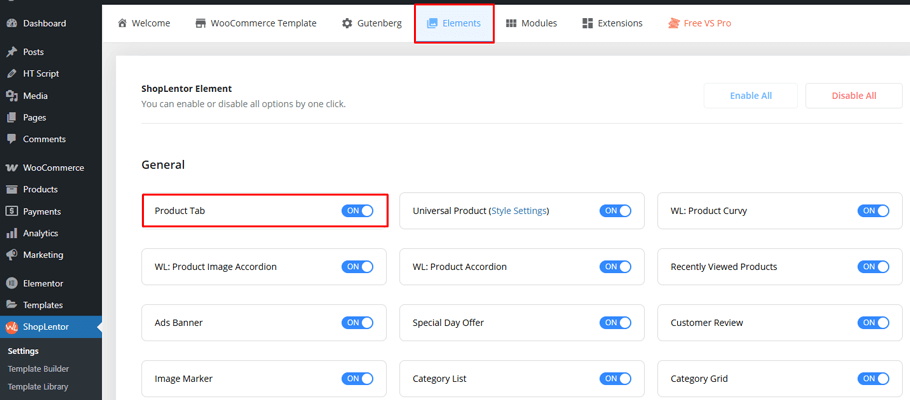
Enable the Widget. Go to ShopLentor> Settings > Elements. Turn ON “Product Tab” widget.
Add to Template Search for “WL: Product Tab” in Elementor. Drag and drop onto your template.
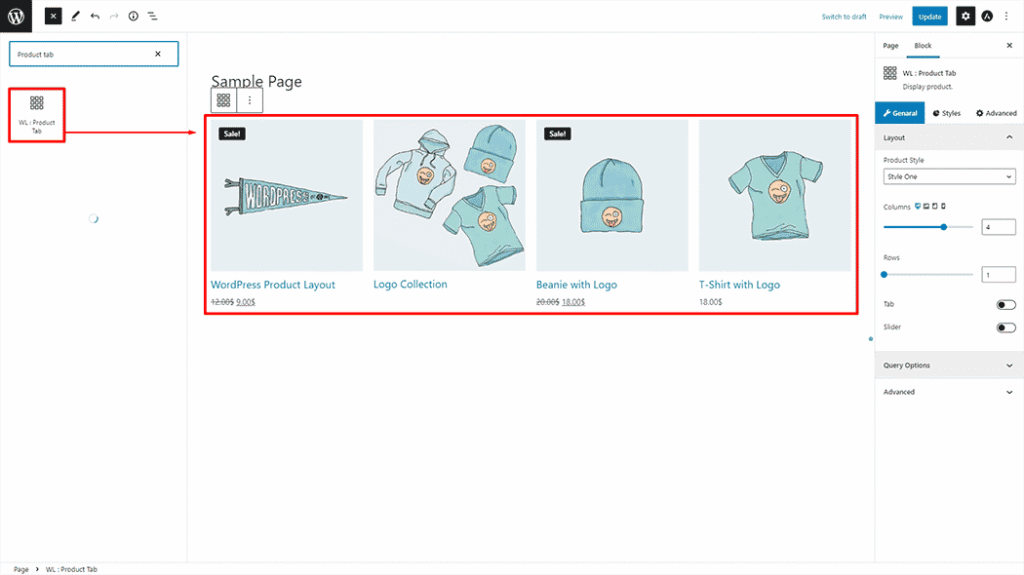
Important Note: This creates product showcase tabs, not individual product information tabs.
Method 2: Custom Code Solution
For developers comfortable with PHP, here’s the correct code snippet:
add_filter( 'woocommerce_product_tabs', 'add_custom_product_tab' );

function add_custom_product_tab( $tabs ) {
    $tabs['custom_tab'] = array(
        'title' => __( 'Custom Details', 'yourtheme' ),
        'callback' => 'custom_tab_content',
        'priority' => 25
    );
    return $tabs;
}

function custom_tab_content() {
    echo '<h2>Custom Tab Content</h2>';
    echo '<p>Add your custom content here.</p>';=
}
However, dedicated tab plugins provide the easiest solution for adding new tabs.
How to Customize WooCommerce Product Tabs
Customizing your WooCommerce product tabs improves the overall shopping experience. Here’s how you can do it using different methods:
Method 1: Using ShopLentor for Styling
ShopLentor specializes in styling existing tabs, not creating new ones.
Once you’ve added the Product Tab widget to your page, you can customize it through various styling and configuration options:
Product Settings
Control how your products are displayed and organized:
- Product Style: Select from available layout designs to match your store’s aesthetic
- Filter By: Set filtering criteria such as categories, tags, or custom taxonomies
- Columns & Rows: Define your grid layout structure for optimal product arrangement
- Number of Products: Specify how many products to display in each tab
- Product Categories: Choose specific categories to feature in your tabs
- Custom Order: Arrange products by date, popularity, sales, rating, or custom criteria
- Product Slider: Enable slider functionality for seamless navigation between products
- Custom Product Tab: Create personalized tabs with specific product selections
Tab Menu Style
Customize the appearance and behavior of your tab navigation:
- Alignment: Position tab menu (left, center, right, or justified)
- Typography: Configure font family, size, weight, and text styling
- Colors: Set text colors for active, inactive, and hover states
- Background: Apply background colors or gradients to tab menus
- Border: Add borders with customizable type, width, and color
- Border Radius: Create rounded corners for modern appearance
- Spacing: Adjust padding and margins for perfect spacing
- Custom Styling: Apply additional CSS for advanced customization
Product Tab Style Customization
Fine-tune the overall appearance of your product tabs:
- Layout Options: Choose from various predefined style templates
- Color Schemes: Apply consistent color themes across all tab elements
- Animation Effects: Add smooth transitions and hover effects
- Responsive Behavior: Ensure optimal display across all device sizes
- Custom CSS: Apply advanced styling for unique design requirements
Action Button Configuration
Customize the call-to-action buttons within your product tabs:
- Button Colors: Set text color for optimal readability and brand alignment
- Background Colors: Choose background colors that complement your design
- Font Size: Adjust button text size for better visibility and hierarchy
- Hover States: Configure interactive effects for better user engagement
- Button Styling: Apply rounded corners, shadows, and other visual enhancements
- Custom Actions: Set up personalized button behaviors and destinations
Navigate to your Product Page or the page where you’ve added the Product Tab widget to see the final result.
ShopLentor- WooCommerce Builder for Elementor & Gutenberg
A versatile page builder to build modern and excellent online stores with more than 100k+ Active Installations.
Method 2: Code-Based Customization
Renaming Existing Tabs
Add this code to your child theme’s functions.php file:
php
add_filter( 'woocommerce_product_tabs', 'wpb_rename_tabs', 98 );

function wpb_rename_tabs( $tabs ) {
    $tabs['description']['title'] = __( 'More Information', 'text-domain' );
    $tabs['reviews']['title'] = __( 'Ratings', 'text-domain' );
    $tabs['additional_information']['title'] = __( 'Product Data', 'text-domain' );

    return $tabs;

}
Changing Tab Order
Use this corrected code snippet to reorder tabs:
php
add_filter( 'woocommerce_product_tabs', 'wpb_reorder_tabs', 98 );

function wpb_reorder_tabs( $tabs ) {
    $tabs['reviews']['priority'] = 5;
    $tabs['description']['priority'] = 10;
    $tabs['additional_information']['priority'] = 15;

    return $tabs;

}
Security Note: Always test code changes in a staging environment first. Incorrect code can break your website functionality.
Removing and Hiding Product Tabs
Managing tabs effectively sometimes means removing unwanted ones. This helps declutter your product pages significantly.
Method 1: Using ShopLentor Template Builder
WooLentor removes tabs through template customization, not direct tab removal.
Important Clarification: WooLentor doesn’t directly remove tabs from products. Instead, you create custom templates without unwanted tab widgets.
How It Works:
- Create a custom Single Product Template in WooLentor
- Simply don’t include the Product Data Tabs widget in your template
- Or customize which content appears in existing tabs
- Use other widgets like Product Description, Reviews separately
Method 2: Code-Based Tab Removal
If you’re comfortable with coding, use this method for precise control. Add custom code to your child theme’s functions.php file.
Warning: Incorrect code can break your site. Proceed cautiously or consult a developer.
php
add_filter( 'woocommerce_product_tabs', 'wpb_remove_product_tabs', 98 );

function wpb_remove_product_tabs( $tabs ) {
    unset( $tabs['description'] ); // Remove description tab
    unset( $tabs['reviews'] ); // Remove reviews tab
    unset( $tabs['additional_information'] ); // Remove additional info tab

    return $tabs;

}
WooCommerce Product Tab Optimization Best Practices
Optimizing your product tabs directly impacts user experience and conversion rates. Follow these proven strategies to maximize tab effectiveness.
Content Strategy and Organization
Structure your content to guide customers toward purchase decisions:
- Prioritize essential information in the first visible tab
- Keep descriptions scannable with bullet points and short paragraphs
- Place technical specifications in separate “Additional Information” tabs
- Add FAQ sections to address common customer concerns
- Include size charts, care instructions, or warranty details where relevant
Content hierarchy matters for user engagement. Research shows customers spend only 15 seconds scanning product information initially.
User Experience Design Principles
Create visually appealing and functional tab interfaces:
- Maintain consistent typography, colors, and spacing across all tabs
- Use high-contrast colors for tab headers to improve accessibility
- Implement intuitive tab navigation with clear active states
- Include icons or visual cues to help identify tab content quickly
- Ensure sufficient white space around text for better readability
Professional presentation builds trust and credibility with potential buyers.
Search Engine Optimization Tactics
Optimize tab content to improve product page rankings:
- Include primary keywords naturally in tab titles and content
- Write unique descriptions for each product to avoid duplicate content
- Use semantic HTML structure with proper heading tags (H2, H3)
- Add internal links to related products or category pages
- Optimize image alt text with descriptive, keyword-rich phrases
- Implement structured data markup for product information
Well-optimized tabs can increase organic search visibility by up to 25%.
Technical Performance Optimization
Ensure fast loading times and smooth functionality:
- Compress all images using WebP format when possible
- Minify CSS and JavaScript files to reduce bandwidth usage
- Enable browser caching for static content and images
- Use lazy loading for tab content that isn’t immediately visible
- Optimize database queries for dynamic content loading
- Monitor Core Web Vitals using Google PageSpeed Insights
Page speed directly correlates with conversion rates. Every 1-second delay reduces conversions by approximately 7%.
Mobile-First Design Approach
Mobile optimization is crucial for modern ecommerce success:
- Design tabs with touch-friendly interfaces and adequate spacing
- Test tab switching functionality on various mobile devices
- Ensure content remains readable on smaller screen sizes
- Consider accordion-style layouts for mobile presentations
- Optimize images for different screen resolutions and densities
Mobile commerce accounts for over 54% of all online purchases. Poor mobile experience directly impacts sales and customer satisfaction.
Common Mistakes to Avoid
When managing WooCommerce product tabs, avoid these critical mistakes:
1. Overcrowding Tabs
Adding too many tabs can overwhelm customers and confuse navigation. While including every detail may seem tempting, tab overload can frustrate buyers.
Stick to essential information and prioritize quality over quantity. Clear, concise tabs significantly improve readability. Overcrowded tabs also slow down page load times and negatively impact SEO.
2. Inconsistent Styling
Disorganized tab styles negatively impact your store’s professional appearance. Using varying fonts, colors, or layouts confuses users.
Ensure a uniform design that aligns with your theme perfectly. Consistent styling improves navigation and user experience. This indirectly supports search engine rankings.
3. Redundant Information
Repeating exact details across multiple tabs dilutes information value. For instance, avoid mentioning specifications in both the description and additional tabs.
Allocate specific content to relevant tabs for better organization. Unique content ensures better readability and search indexing. This enhances your overall SEO strategy.
4. Ignoring Mobile Users
Failing to optimize tabs for mobile devices hurts user experience. Many customers shop primarily on smartphones and tablets.
Test your tabs on various screen sizes regularly. Ensure touch-friendly navigation and readable content always.
Troubleshooting Guide
Managing product tabs is generally straightforward, but issues can arise. Here’s how to tackle common challenges effectively:
Plugin Conflicts
Conflicts between plugins can cause tabs to disappear completely. Disable all plugins except WooCommerce first. Then reactivate them individually to identify the problematic one.
Replace or update the conflicting plugin if needed.
Theme Compatibility Problems
Custom themes sometimes override WooCommerce templates, causing tab malfunctions. Switch to the Storefront theme to test compatibility. If the problem is theme-related, consult your developer.
Use child themes to make necessary adjustments safely.
Performance Issues
Slow-loading tabs annoy visitors and harm your SEO rankings. Compress images and media in tabs to reduce size.
Utilize caching plugins to significantly speed up loading times. Avoid adding too many heavy files or scripts. Regularly check your site speed using Google PageSpeed Insights.
Code Errors
PHP errors can break your entire website functionality. Always use proper syntax when adding custom code. Test changes in the staging environment before going live.
Keep regular backups in case you need to restore.
Advanced Customization Options
- Conditional Tab Display: Show different tabs based on product categories or attributes. This creates personalized experiences for different product types. Advanced plugins allow conditional logic for tab visibility. Set up unique tabs based on specific criteria.
- Custom Tab Content with Shortcodes: Utilize shortcodes to dynamically add content to tabs. This includes contact forms, image galleries, or pricing tables.
Many plugins support shortcode integration for enhanced functionality.
Video Presentation
Frequently Asked Questions
Can I reorder tabs in WooCommerce?
Yes, WooCommerce allows tab reordering through coding or plugins. Many plugins provide user-friendly interfaces for managing positions.
Is coding required to customize product tabs?
No, coding isn’t required for basic customization. Several plugins allow you to add, remove, or customize tabs. However, coding provides more advanced control options.
Can I add multimedia content to tabs?
Yes, you can include images, videos, or other multimedia easily. This makes your product pages more engaging. Most plugins let you add multimedia content effortlessly.
How can I remove existing WooCommerce product tabs?
To remove tabs, use custom code or a plugin. Add snippets to your functions.php file for coding approach. Alternatively, plugins make the process dashboard-friendly.
Can I create different tabs for different products?
Yes, you can create product-specific tabs easily. Advanced plugins like ShopLentor allow conditional tab display. Set up unique tabs based on categories or attributes.
Will tab changes affect search engine rankings?
Product tabs can influence SEO in several ways. Additional content provides more indexable text for search engines. Ensure that tab content is always relevant, keyword-rich, and informative. Avoid duplicate content and maintain fast loading speeds.
Conclusion
Effectively managing WooCommerce product tabs can significantly enhance customer engagement. They provide seamless shopping experiences through the organized presentation of information.
Tabs like descriptions, reviews, and specifications play crucial roles. They present product information in user-friendly, accessible ways.
By leveraging proper tab management strategies, you create appealing customizations. This enhances your online store’s information architecture effectively.
Ready to transform your product pages? Design unique tabs and create exceptional user experiences! Start optimizing your WooCommerce product tabs today!