
Quick-Answer: To fix empty cart page in WooCommerce, use ShopLentor Pro’s Template Builder to replace the default blank page with a fully custom, branded design — complete with a clear message, return-to-shop button, and product discovery elements. No coding required.
If you need to fix empty cart page in WooCommerce, you’re dealing with one of the most overlooked conversion problems in any online store. The default page is a dead end — a plain message with no visuals, no CTA, and no reason for a visitor to do anything except leave.
That’s not just a design problem — it’s a revenue problem.
According to data compiled from 48+ studies by the Baymard Institute, the average cart abandonment rate in eCommerce is 70.19%. For WooCommerce stores specifically, that rate sits between 70% and 75%.
If your store handles 100 carts a day at a $50 average order value, you’re losing up to $3,500 in potential sales daily.
The good news: most of that loss is fixable. This guide shows you exactly how.
Table of Contents
Two Problems Behind the “Empty Cart” Issue
Before jumping into fixes, it’s worth understanding what you’re actually dealing with. There are two distinct problems, and most guides only cover one of them.
Problem 1: The Cart Page Is Technically Broken or Blank
Sometimes the cart page shows as empty even when items have been added. This is a technical issue — not a UX one. Common causes include:
- Caching plugins storing the cart as a static page
- Plugin conflicts between WooCommerce and other installed plugins
- Outdated permalink settings that break WooCommerce page routing
- Theme incompatibilities with WooCommerce cart templates
Quick technical checklist to fix a blank WooCommerce cart page:
- Go to Settings > Permalinks and click Save Changes (no edits needed — this resets rewrite rules)
- Go to WooCommerce > Status and confirm the cart page is correctly assigned
- Go to WooCommerce > Status > Tools and click Clear customer sessions
- Temporarily disable your caching plugin and test the cart
- Switch to a default theme (like Storefront or Twenty Twenty-Five) to rule out a theme conflict
- Deactivate all plugins except WooCommerce, then reactivate one by one to identify the conflict
If the blank cart issue resolves after these steps, you’ve fixed the technical layer. Now move on to the bigger opportunity.
Problem 2: The Default Empty Cart Page Has Zero Conversion Value
This is the more costly problem — and far more common. WooCommerce’s default empty cart page shows a generic message and, maybe, a “Return to shop” link. There is no branded messaging, no visual, no suggested products, no urgency, and no reason for a shopper to continue.
When a customer removes all their items or navigates directly to the cart, they hit this dead end and bounce. You lose the visit completely.
The fix here is a custom empty cart page template that turns this dead end into a discovery moment.
How to Fix Empty Cart Page in WooCommerce with ShopLentor
ShopLentor’s Template Builder lets you build a custom empty cart page with Elementor or Gutenberg — no code required. Here’s the exact process.
Step 1: Enable the Template Builder
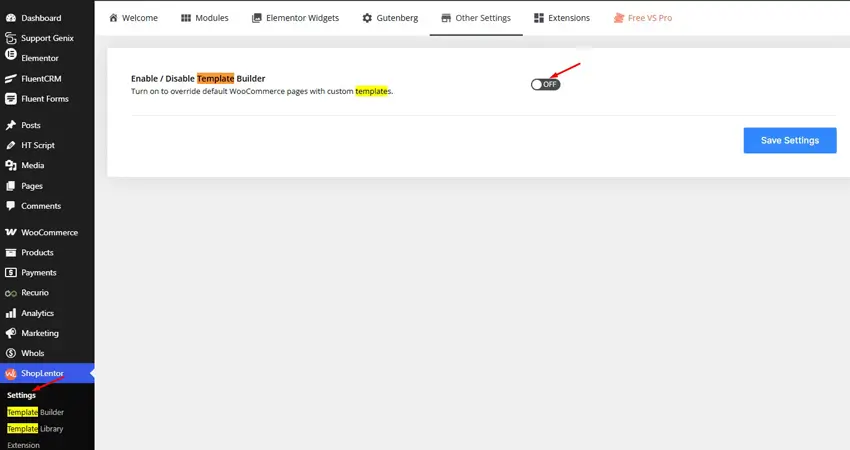
Go to WordPress Dashboard > WooLentor > Settings > WooCommerce Template and toggle ON the “Enable / Disable Template Builder” option.
This activates ShopLentor’s ability to override WooCommerce’s default templates, including the cart and empty cart pages.
Step 2: Create a New Empty Cart Page Template
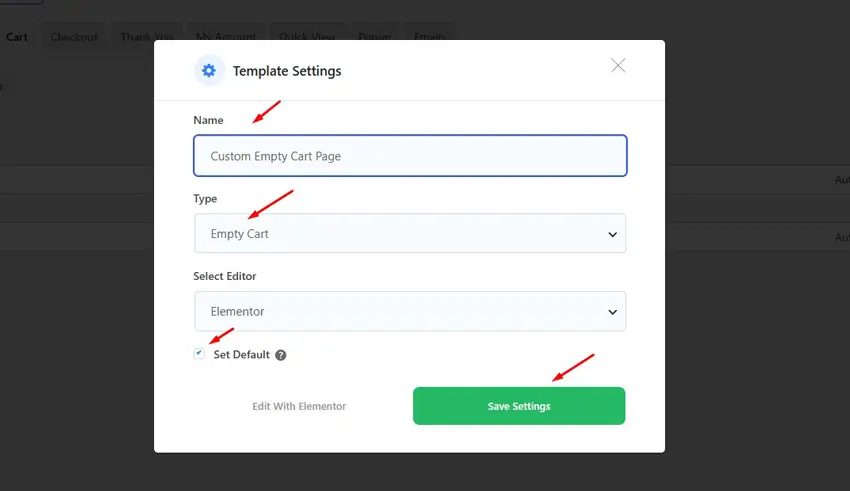
Go to Dashboard > WooLentor > Template Builder and click the “Add New” button at the top right.
In the popup that appears:
- Enter a name for your template (e.g., “Custom Empty Cart Page”).
- From the Type dropdown, select “Empty Cart”.
- Check the “Set Default” checkbox — this tells WooLentor to use this template when the cart is empty.
- Click “Save Settings”.
Note: The Empty Cart template type requires ShopLentor Pro. On the free plan, the Type dropdown shows Shop, Archive, Single, and Popup only. You can upgrade it.
Step 3: Edit with Elementor or Gutenberg
For Elementor users:
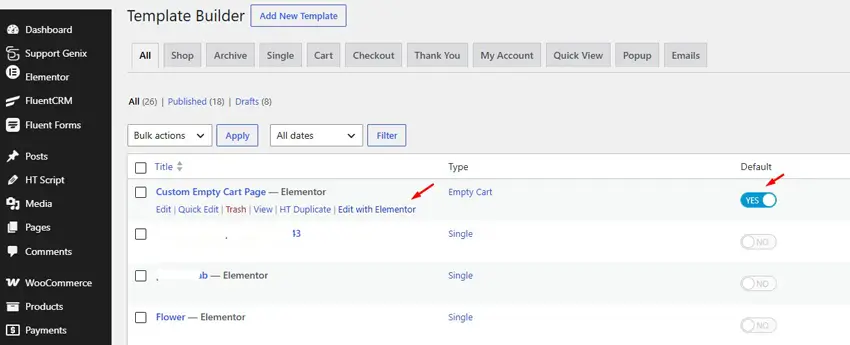
Click “Edit with Elementor” to open the visual builder.
- Search for “Empty Cart Message” in the widget panel and select the widget with the “WL” badge.
- Drag it onto your canvas
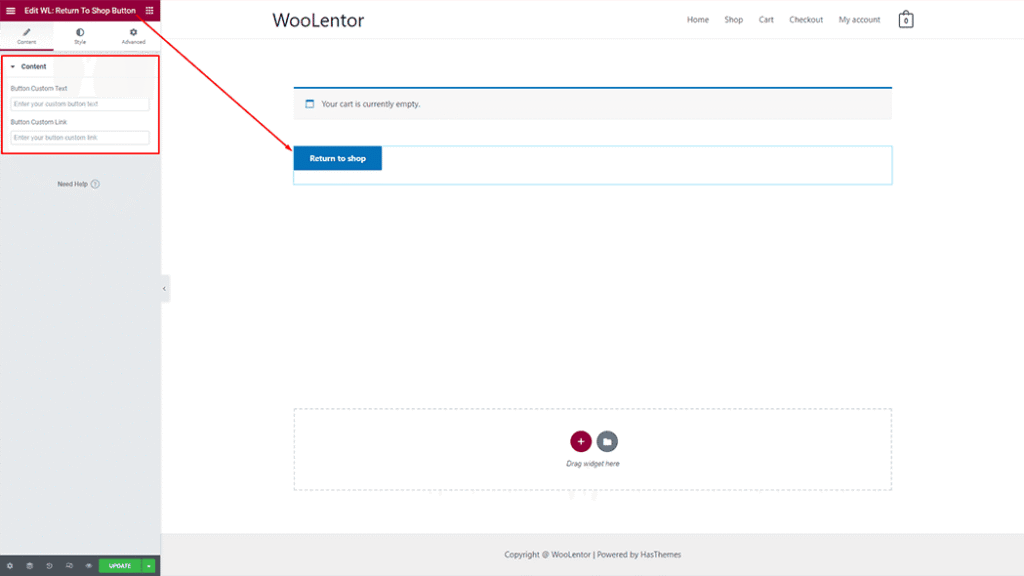
- Search for “Return To Shop Button” and add the widget with the “WL” badge.
- Customize text, colors, fonts, and spacing from the Style tab
For Gutenberg users:
Click “Edit with Gutenberg” to open the block editor.
- First, go to Dashboard > WooLentor > Settings > Gutenberg and turn ON the “Empty Cart Message” block.
- Back in the template, search for “WL: Empty Cart Message” and drag it onto the template.
- Customize the message text, text color, border color, padding, and margin from block settings.
Step 4: Make the Template Actually Convert
The Empty Cart Message and Return to Shop widgets are the minimum. To genuinely turn drop-offs into sales, consider adding these elements to your empty cart template:
- A branded headline and sub-message — e.g., “Oops, your cart is empty. Let’s fix that.”
- Links to top product categories — give visitors a clear path to browse
- A featured product or bestsellers grid — surface items they might want
- A promotional banner — a limited-time offer or free shipping incentive can re-engage visitors quickly
Step 5: Preview and Publish
Click Publish in Elementor/Gutenberg. Then visit your store’s cart page with no items in the cart to preview the new template live.
Make any final style adjustments, save, and you’re done.
Fix the Active Cart Page Too
While you’re improving the cart experience, it’s worth upgrading the active cart page — what customers see when they do have items in their cart.
ShopLentor offers 16 professionally designed cart page templates that reduce abandonment by providing clear product information, transparent pricing, and intuitive navigation. You can build a custom cart page following the same Template Builder process above — just select “Cart” as the template type instead of “Empty Cart”.
Stores using optimized cart templates with ShopLentor have reported up to 42% less cart abandonment, 18% higher cart value, and 31% faster checkout. These results come from reducing the friction and confusion that cause shoppers to leave mid-journey.
Other ShopLentor Features That Reduce Cart Drop-Off
Fixing the empty cart page covers the biggest gaps. These additional ShopLentor features address the moments before abandonment happens:
Side Mini Cart: Lets customers view and update their cart from any page without navigating away. Keeps shoppers in the buying flow and reduces friction. ShopLentor’s Side Mini Cart is designed to boost conversion rates by up to 23%.
Cart Reserved Timer: Adds a countdown timer showing how long items are reserved in the cart. This creates urgency and discourages the “I’ll come back later” behavior.
Smart Cross-Sell Popup: Surfaces relevant product recommendations at the right moment during checkout, increasing average order value without interrupting the purchase flow.
Multi-Step Checkout: Breaks a long checkout form into clean, guided steps, reducing the cognitive load that causes last-minute drop-offs.
What’s Next: Recover Shoppers Who Leave with Items in Their Cart
Fixing the empty cart page solves the design dead-end. But there’s a separate, closely related problem worth tackling next — shoppers who add items to their cart and then leave before completing checkout.
That’s cart abandonment, and it’s a different challenge that requires a different solution: automated recovery emails, reminder sequences, and recovery analytics.
ShopLentor’s Abandoned Cart Recovery module handles all of this natively — no additional plugin required.woolentor
→ Read the full guide: How to Recover Abandoned Carts in WooCommerce with ShopLentor
Frequently Asked Questions
Q1: How do I fix empty cart page in WooCommerce without code?
Use ShopLentor’s Template Builder. Go to WooLentor > Settings > WooCommerce Template, enable the Template Builder, create a new template with Type set to “Empty Cart”, add the Empty Cart Message and Return To Shop Button widgets, and publish. No coding required.
Q2: Why is my WooCommerce cart showing as empty even after adding products?
This is almost always caused by a caching plugin serving a static version of the cart page, or a plugin conflict. Clear your site cache, go to Settings > Permalinks and click Save Changes, and check WooCommerce > Status for configuration errors. If the issue persists, disable plugins one by one to identify the conflict.
Q3: What’s the difference between the cart page and the empty cart page in WooCommerce?
The cart page is what customers see when they have items in their cart. The empty cart page is a separate state — shown when the cart has no items. WooCommerce uses the same page for both by default, but ShopLentor lets you assign a dedicated template to the empty cart state with its own design and messaging.
Q4: Does ShopLentor’s empty cart template work with Gutenberg?
Yes. When creating your template in the Template Builder, choose Gutenberg as your editor. First enable the Empty Cart Message block under WooLentor > Settings > Gutenberg, then add the WL: Empty Cart Message block to your template and customize the message, colors, and spacing from block settings.
Q5: How soon should I send the first abandoned cart email?
Send the first email within 30–60 minutes of abandonment while purchase intent is still high. Follow up at 24 hours with product value messaging, and send a final email at 48–72 hours with a discount or urgency trigger. This three-email sequence is the most widely recommended approach.
Q6: Can ShopLentor recover carts from guest (non-logged-in) shoppers?
Yes. ShopLentor’s Abandoned Cart module includes guest cart capture — it can recover carts from shoppers who entered their email at checkout but didn’t complete the purchase, even without a registered account.
Q7: Do I need a separate plugin for abandoned cart recovery, or does ShopLentor handle everything?
ShopLentor handles it all natively. The Abandoned Cart Recovery module is built directly into ShopLentor — no additional plugin required. Email templates, reminder rules, cart tracking, and analytics are all managed from one dashboard.
Conclusion
The empty cart page is one of the most overlooked conversion points in a WooCommerce store. Fixing it is a two-step process: replace the default dead-end page with a custom ShopLentor template, and set up automated recovery emails to bring back shoppers who leave without buying.
With cart abandonment affecting 70–75% of WooCommerce shoppers and recovery emails capable of reclaiming 10–15% of those lost sales, the revenue impact of these changes can be significant — even for a small store.
Both fixes take less than an hour to implement. ShopLentor is free to get started.
→ Try ShopLentor Free — Fix Your WooCommerce Cart Experience Today