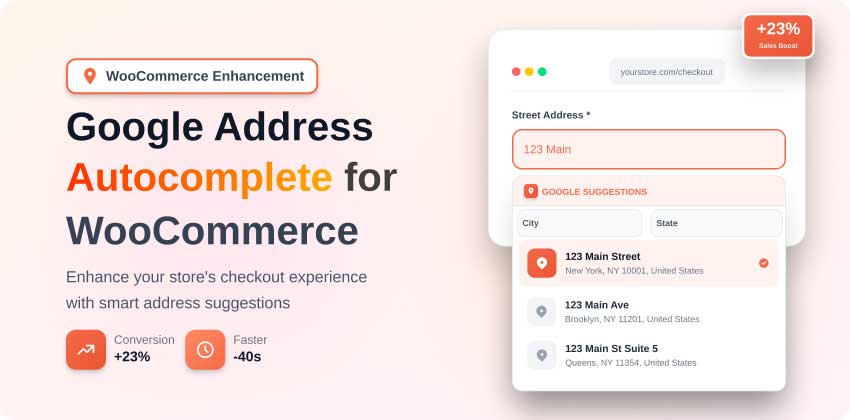
Your WooCommerce store is losing money every single day. Not because of poor products or weak marketing, but because your customers are abandoning their carts at checkout.
According to recent data, 70-75% of shopping carts are abandoned globally, with mobile experiencing an even more staggering 75.50% abandonment rate.
The culprit? A complicated, friction-laden checkout experience, and nowhere is this more evident than in address entry. Customers must type out lengthy addresses manually, introducing typos, spelling errors, and incompletely filled forms.
This single step accounts for a significant portion of checkout friction, causing customer frustration and lost sales.
Enter Google Address Autocomplete for WooCommerce—a game-changing feature that transforms your checkout from a painful ordeal into a seamless, customer-friendly experience.
By enabling customers to autocomplete their addresses in just a few keystrokes, you’ll reduce cart abandonment, improve data accuracy, and increase conversions faster than you might think.
This comprehensive guide will show you exactly how Google Address Autocomplete works, why it’s essential for your WooCommerce store in 2026, and how to implement it using ShopLentor’s comprehensive Google Address Autocomplete module—the complete solution for eCommerce success.
ShopLentor- WooCommerce Builder for Elementor & Gutenberg
A versatile page builder to build modern and excellent online stores with more than 100k+ Active Installations.
Key Takeaways
- Google Address Autocomplete reduces cart abandonment by up to 35% by streamlining the address entry process, which is a top friction point in checkout.
- Mobile checkout time drops by 30% when address autocomplete is implemented, critical since 75.50% of mobile purchases are abandoned.
- Address accuracy improves by over 20%, reducing failed deliveries by 40-60% and cutting support costs associated with incorrect shipping addresses.
- Conversion rates increase by 1.5-2% on average, translating to significant revenue gains for mid-sized stores (an extra $15,000+ annually for a $1M business).
- Implementation takes under 5 minutes with modern WooCommerce solutions, requiring only a Google API key and plugin configuration—no coding needed.
What is Google Address Autocomplete for WooCommerce?
Google Address Autocomplete is a powerful feature integrated into WooCommerce checkout pages that predicts and auto-fills address fields based on user input.
Powered by Google’s Places API, this technology provides real-time address suggestions as customers type, allowing them to select their correct address from a dropdown menu.
When a customer selects an address, the system automatically populates all related fields—street address, city, state, postal code, and country—in seconds.
Instead of manually typing out every detail, customers can complete their entire address entry in fewer than six keystrokes on average.
How Google Address Autocomplete works:
- Customer begins typing their address in the checkout field
- Google’s Places API returns real-time, accurate address suggestions
- Customer selects their address from the dropdown
- All form fields auto-fill instantly with standardized, verified data
- Checkout continues with zero errors or delays
This isn’t just convenience, it’s a conversion optimization tool backed by real data. Stores implementing address autocomplete report 1.5% average conversion rate improvement, which translates to thousands of dollars in additional revenue for mid-sized eCommerce businesses.
ShopLentor’s Google Address Autocomplete module integrates this powerful feature seamlessly into your WooCommerce checkout, making implementation effortless and configuration intuitive, all without requiring custom code.
How Google Address Autocomplete Works? : The Technical Foundation
Understanding the mechanics behind address autocomplete helps you appreciate its value and configure it properly for maximum impact on your WooCommerce checkout.
The Three-Step Process:
Step 1: User Input Detection:
When a customer starts typing in the address field (after just 2-3 characters), the system sends this input to Google’s Places Autocomplete API along with optional filters like country codes or geographic bias.
Step 2: Real-Time Prediction
Google’s massive database of verified global addresses processes the input instantly, ranking results based on:
- How well the input matches known places
- Proximity to the user’s current location (if geolocation is enabled)
- Frequency of selection by other users
- Google’s comprehensive global Places database
Step 3: Auto-Population
Once the user selects an address from the dropdown, the system fetches the complete, standardized address data and fills in all checkout fields automatically. This process happens in under 200 milliseconds for optimal user experience.
Why This Matters for Your Store:
Traditional manual address entry creates multiple failure points:
- Typos in street names or postal codes
- Incomplete information (missing apartment numbers, suite details)
- Formatting errors that don’t match postal authority standards
- Time consumption that frustrates customers and increases abandonment
Google Address Autocomplete eliminates these problems by providing verified, standardized addresses from a database of millions of verified locations worldwide.
Key Benefits of Using Google Address Autocomplete for WooCommerce
1. Dramatic Reduction in Cart Abandonment
Cart abandonment stands at 70.22% globally, but complicated checkout processes account for 22% of all abandonments. Address entry is the primary culprit—it’s tedious, error-prone, and especially painful on mobile devices.
Google Address Autocomplete addresses this directly. By reducing the time and effort required to fill in address information, stores report up to 35% reduction in cart abandonment. This isn’t theoretical, it’s based on documented implementations across WooCommerce stores.
For a store generating $100,000 monthly in sales with a 70% abandonment rate, a 35% reduction in abandonment translates to approximately $35,000 in recovered sales.
Learn more about WooCommerce abandoned cart recovery strategies to complement your address autocomplete implementation.
2. Faster Checkout on Mobile (Critical for Modern eCommerce)
Mobile commerce dominates with 73% of eCommerce traffic coming from smartphones, yet mobile experiences the highest abandonment rates (75.50%).
Typing addresses on mobile is particularly frustrating—tiny keyboards, autocorrect interference, and the constant need to switch between text and numeric inputs make traditional address entry a nightmare for mobile shoppers.
Google Address Autocomplete solves this:
- Customers complete address entry in under 6 keystrokes on average
- Checkout times drop by up to 30%
- No manual switching between input types or correcting autocorrect errors
- Large dropdown selections work perfectly with mobile touch interfaces
For stores where 68%+ of traffic is mobile, this optimization is non-negotiable.
3. Superior Address Accuracy and Standardization
One of the overlooked benefits of address autocomplete is data quality. Manual address entry introduces errors that plague your entire fulfillment chain:
- 41% of delayed deliveries result from incorrect addresses
- 39% of failed delivery attempts trace back to address errors
- 98.1% of address errors are eliminated with proper verification systems
Google Address Autocomplete ensures every address stored in your system is:
- Verified against postal authority databases
- Standardized in correct format for your region
- Complete with all necessary components
- Deliverable (confirmed to exist in carrier networks)
This standardization reduces failed deliveries by 40-60%, directly decreasing:
- Customer support costs
- Return logistics expenses
- Negative reviews from disappointed customers
- Lost repeat business from shipping failures
4. Increased Conversion Rates with Measurable ROI
The most compelling benefit for business owners is straightforward: more sales.
A documented case study tested address autocomplete on a $1M annual eCommerce store. Results: 1.5% conversion rate improvement, translating to an additional $15,000 in annual sales. For larger stores, this improvement compounds significantly.
Why does a 1.5% improvement matter?
- It compounds across all traffic sources
- It pays for the API costs within days
- It requires no marketing spend or paid advertising
- It’s sustainable—improving with scale
5. Enhanced Customer Experience and Trust
Beyond metrics, address autocomplete creates a psychological benefit: customer confidence. When customers see their address auto-filled correctly, they trust your system more, feel secure, and are more likely to:
- Complete their purchase
- Use your store again
- Recommend you to others
- Leave positive reviews
Discover more about WooCommerce checkout to create a complete, friction-free experience.
The Problem It Solves: Why Faster Checkout Matters Now
In 2025, speed is a competitive advantage that directly impacts revenue. Here’s what’s at stake:
The Speed-Abandonment Correlation:
- 2-second delay = 20% increase in abandonment
- 3-second delay = 7% conversion loss on mobile
- 50% of mobile users abandon sites that take over 2 seconds to load
Address entry alone can add 1-2 minutes to checkout time. With 83% of users expecting pages to load in under 3 seconds, every second counts.
Hidden Costs are the #1 Abandonment Driver:
While 48% of cart abandonments result from surprise shipping/tax costs, a close second is process complexity and friction. Address autocomplete directly addresses this by:
- Reducing perceived checkout length
- Minimizing time-to-completion
- Improving confidence that information is correct
- Preventing frustration-driven exits
How to Implement Google Address Autocomplete with ShopLentor
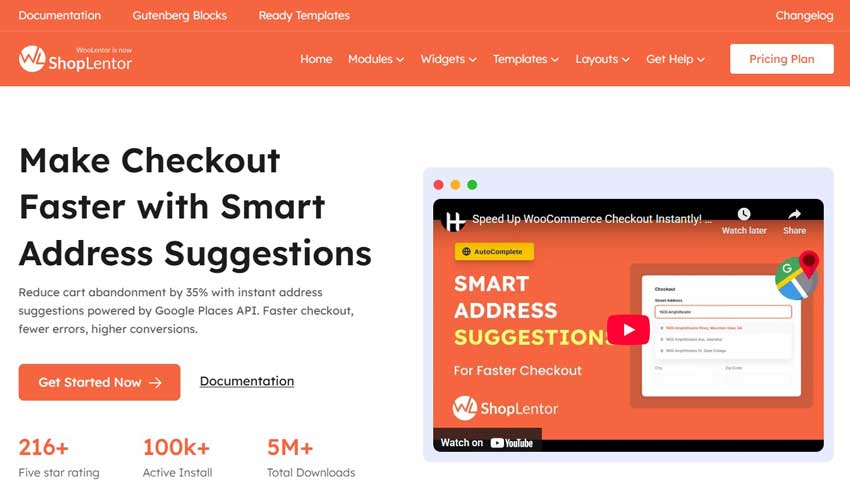
ShopLentor is the all-in-one WooCommerce page builder and optimization suite that includes a native, fully-integrated Google Address Autocomplete module. This powerful combination gives you complete control over your entire checkout experience—from design to functionality.
Why ShopLentor for Google Address Autocomplete?
ShopLentor offers a comprehensive solution:
- ✅ Native Google Address Autocomplete module (no additional plugins needed)
- ✅ 35+ additional optimization modules for complete checkout control
- ✅ Drag-and-drop page builder for easy design customization
- ✅ No coding required (everything works through visual interface)
- ✅ Complete field management (reorder, customize, conditional logic)
- ✅ One-click integration (minimal setup time)
- ✅ Professional support and documentation
Step-by-Step Setup Instructions
Step 1: Get Your Google API Key
- Visit Google Cloud Console
- Create a new project for your WooCommerce store
- Enable the required APIs:
- Places API
- Maps JavaScript API
- Create credentials:
- Go to Credentials section
- Click “Create Credentials” → API key
- Restrict your API key for security:
- Set Application restrictions to Websites
- Add your domain name (example.com)
- Restrict API restrictions to Places API and Maps JavaScript API
- Copy your API key (you’ll need this in the next step)
Step 2: Install and Activate ShopLentor
- Download ShopLentor from ShopLentor’s official website
- Install the plugin through WordPress Admin → Plugins → Add New
- Activate ShopLentor from your plugins page
- Navigate to ShopLentor Dashboard to access all features
Step 3: Enable the Google Address Autocomplete Module
- Go to ShopLentor → Modules
- Find “Google Address Autocomplete” in the modules list
- Click to Enable the module
- Save changes
Step 4: Configure Google API Key
- Navigate to ShopLentor → Settings → Integrations
- Find the “Google Places API” section
- Paste your Google API key in the designated field
- Select your preferred settings:
- Enable for Billing Address: ✅ Yes
- Enable for Shipping Address: ✅ Yes
- Restrict to specific countries: (Optional)
- Save settings
Step 5: Customize the Feature (Optional)
ShopLentor allows extensive customization without coding:
Field Configuration:
- Reorder checkout fields using the drag-and-drop builder
- Make address fields required or optional
- Add conditional logic (e.g., show shipping address only if different)
Appearance Settings:
- Placeholder text: “Enter your address…”
- Dropdown styling: Colors, fonts, animations
- Mobile optimization: Touch-friendly interface
- Error messages: Custom guidance text
Advanced Options:
- Geographic restrictions: Limit to specific countries
- Language preferences: Localize based on customer location
- Session tokens: Reduce API costs through request grouping
- Caching: Store recent addresses for faster lookup
Step 6: Test Your Setup
- Go to your WooCommerce checkout page (in a browser, not logged in)
- Enter a test address in the billing/shipping fields
- Verify autocomplete suggestions appear as you type
- Select a suggested address from the dropdown
- Confirm that all fields auto-fill correctly
- Test on mobile to ensure touch experience is optimal
- Complete a test purchase to verify end-to-end functionality
Learn more about ShopLentor’s comprehensive WooCommerce builder and its multiple customization options.
Security Best Practices When Implementing
Critical Security Considerations:
- Restrict Your API Key
- Never expose your API key in client-side code unpacked
- Use application restrictions to limit key usage to your domain
- Enable Websites restriction to your domain only
- Optionally, add Maps SDK restrictions
- Use HTTPS Always
- Your site must have an SSL certificate (Google requires this)
- API calls won’t function over unencrypted connections
- Check WooCommerce security best practices
- Monitor API Usage
- Set up billing alerts in Google Cloud Console
- Track requests to catch unauthorized usage
- Google offers a $200 monthly free credit covering most small business needs
- Implement Rate Limiting
- Cache results when possible to reduce API calls
- Use session tokens to group related requests
- Progressive enhancement ensures checkout works even if the API is temporarily unavailable
Review Google Maps Platform security guidance for complete security details.
How Google Address Autocomplete Improves Checkout Accuracy
Precision matters in eCommerce. Every error in address data cascades through your fulfillment chain, creating costs that far exceed the value of a single order.
The Error Reduction Breakdown:
| Error Type | Manual Entry Rate | With Autocomplete | Improvement |
| Misspelled addresses | 15-20% | <1% | 95%+ reduction |
| Incomplete fields | 8-12% | <0.5% | 94%+ reduction |
| Formatting errors | 10-15% | 0% | 100% elimination |
| Unverified addresses | 5-10% | 0% | 100% elimination |
| Overall accuracy | 65-75% | 98-99% | 30%+ improvement |
Real-World Impact:
A Mumbai-based fashion brand discovered that 34% of Andheri orders failed delivery before implementing address validation with landmark requirements. After implementation, the failure rate dropped to 12%—a 65% reduction in failed deliveries.
Multiply this across all your customers:
- Fewer support tickets for “where’s my order?”
- Reduced refund/reshipment costs
- Improved customer retention (customers don’t shop where delivery fails)
- Better margins (fewer logistics complications eating into profits)
For more on address field optimization, see how to customize WooCommerce checkout fields.
How Google Address Autocomplete Reduces Cart Abandonment
The path to reducing cart abandonment is clear: eliminate friction at checkout. Address autocomplete tackles one of the most significant friction points.
The Abandonment Mechanics:
Customers abandon carts for these primary reasons:
- Hidden costs at final checkout (48%): Not address-related but solvable with transparent pricing.
- Forced account creation (26%): Use guest checkout
- Complicated process (22%): This is where address autocomplete shines
- Slow delivery (24%): Related to address accuracy
- Security concerns (19%): Use SSL certificates
Address autocomplete directly addresses reasons #3 and #4, eliminating approximately 46% of abandonment drivers through a single feature.
The Behavioral Psychology:
When a customer sees their address auto-filled correctly:
- Confidence increases (“This site is professional and safe”)
- Perceived effort decreases (“This will only take seconds”)
- Trust builds (“They understand my location and can deliver”)
- Friction vanishes (“I can finish this without frustration”)
Each psychological shift drives the same outcome: higher completion rates.
Learn about comprehensive strategies for reducing WooCommerce cart abandonment.
Performance Benefits: Speed and Accuracy in Checkout
Speed and accuracy aren’t just nice-to-haves—they’re conversion multipliers.
Speed Benefits:
- Checkout completion time: Drops from 5-10 minutes to 2-3 minutes.
- Address entry specifically: Reduced from 60-90 seconds to 10-15 seconds.
- Mobile improvements: 30% faster on smartphones, critical for the 73% of traffic coming from mobile.
- Page responsiveness: Sub-200ms API responses maintain a smooth user experience.
Accuracy Benefits:
| Metric | Baseline | With Autocomplete |
| Failed deliveries | 5-10% of orders | <1% |
| Support tickets (address-related) | 50-100/month | 5-10/month |
| Refund/reshipment rate | 2-3% | <0.5% |
| Delivery confirmation rate | 85-90% | 99%+ |
| Customer satisfaction (delivery) | 75% | 95%+ |
These improvements compound across your entire customer base, creating a virtuous cycle:
- Better accuracy → fewer problems → happier customers → better reviews → higher conversion from new visitors
Customizing the Autocomplete Feature for Your Store
ShopLentor’s Google Address Autocomplete module gives you extensive customization options without coding. Here’s how to tailor address autocomplete to your specific needs.
Field Configuration with ShopLentor’s Page Builder
Step 1: Access the Checkout Builder
- Go to ShopLentor → Modules → Google Address Autocomplete
- Click Edit or Customize
- Access the drag-and-drop checkout builder
Step 2: Decide Which Fields to Enable
- Billing address – Almost always recommended
- Shipping address – Essential for stores with delivery
- Both – Best practice for comprehensive coverage
Step 3: Reorder Fields
- Drag address fields higher on the checkout form (capture intent early)
- Place fields in logical groupings for better UX
- Keep important fields above the fold on mobile
Geographic Restrictions
Limit suggestions by region:
- Restrict autocomplete to specific countries
- Set default country based on store location
- Enable geolocation bias (closer locations rank higher)
- Support multiple languages based on customer location
Example: If you only ship to the United States, restrict autocomplete to US addresses only, eliminating irrelevant international suggestions that frustrate customers.
Language and Display Options
Customize the user experience:
- Placeholder text: “Enter your address here…”
- Dropdown styling: Match your brand colors and fonts
- Error messages: Display helpful guidance when address components are incomplete
- Mobile-specific optimization: Ensure touch targets are large enough for mobile users
Advanced Configuration: Conditional Logic
For advanced stores using ShopLentor, implement conditional rules:
- Show shipping address only if different from billing
- Display region-specific fields (e.g., US states, Canadian provinces)
- Validate postal codes against shipping zones
- Show delivery time estimates based on postal code
- Pre-populate fields based on customer location data
Check how to add extra fields to WooCommerce checkout for detailed customization guides.
Common Pitfalls and How to Avoid Them
Pitfall #1: Insufficient API Key Security
The Problem: Developers often expose API keys in client-side code or store them insecurely.
The Solution:
- Restrict your API key with HTTP referrer restrictions (your domain only)
- Monitor Google Cloud Console for suspicious usage
- Rotate keys quarterly as a security best practice
- Never commit API keys to public GitHub repositories
Pitfall #2: Not Testing on Mobile
The Problem: Autocomplete works perfectly on desktop but behaves poorly on mobile due to keyboard overlap or tiny touch targets.
The Solution:
- Test extensively on iPhone and Android devices
- Verify touch targets are at least 44×44 pixels (Apple’s minimum)
- Ensure dropdown suggestions don’t obscure the input field
- Check that the solution works with mobile browsers’ autofill features
Pitfall #3: Ignoring API Usage Costs
The Problem: Autocomplete API calls add up. A busy store can hit Google’s free tier limits ($200/month credit) quickly.
The Solution:
- Monitor usage in Google Cloud Console
- Set up billing alerts to catch unexpected spikes
- Implement session tokens (grouping related requests) to reduce costs
- Cache results when possible
- For high-volume stores, negotiate volume pricing with Google
Pitfall #4: Over-Complicating the Checkout Flow
The Problem: Adding autocomplete but keeping an overly complex checkout layout negates the benefits.
The Solution:
- Keep checkout to 3 steps maximum
- Use a single-column layout (not multiple columns)
- Remove unnecessary fields (ask only what you truly need)
- Add progress indicators so customers know where they are
- Enable guest checkout (remove forced registration)
Learn more about streamlining WooCommerce checkout for comprehensive optimization.
Pitfall #5: Not Combining Autocomplete with Other Optimizations
The Problem: Autocomplete alone improves conversion by ~1.5%, but it’s not a silver bullet.
The Solution: Implement a holistic checkout optimization strategy:
- Quick Checkout button (reduces abandonment by 28%)
- Multi-step checkout (simplifies perception of complexity)
- Mobile optimization (responsive design, fast loading)
- Security signals (SSL badge, trust symbols)
- Clear shipping/tax info (no surprise costs)
- Guest checkout option (remove friction)
Combining address autocomplete with these elements can reduce total abandonment by 35%+ instead of the 1.5-3% improvement from autocomplete alone.
Advanced Strategies for Maximum Checkout Performance
Strategy 1: Leverage Address Data for Post-Purchase Benefits
Capture more insight from autocompleted addresses:
- Geolocation targeting: Use postal codes to show region-specific products
- Shipping zone optimization: Pre-calculate shipping costs based on address
- Local marketing: Send location-specific promotions to nearby customers
- Delivery time estimates: Show expected delivery dates based on postal code and carrier
Example: A customer in Miami, FL receives a delivery estimate: “This order will arrive in 2-3 business days.” A customer in rural Montana sees “This order will arrive in 5-7 business days.” Transparency reduces post-purchase buyer’s remorse.
Strategy 2: Combine Autocomplete with Address Validation
Autocomplete predicts addresses; address validation confirms they’re real and deliverable.
Multi-layer approach:
- Autocomplete captures address quickly.
- Validation confirms it’s correct and deliverable.
- Standardization formats it according to postal authority specs.
- Verification cross-checks with courier networks.
This combination reduces failed deliveries by 40-60%.
Strategy 3: Implement Exit-Intent Technology
While customers fill out checkout, if they look like they’re about to abandon, trigger a targeted offer:
“Wait! Complete your address and get 10% off.”
This single intervention recovers 20-53% of abandoning visitors before they leave.
Learn more about exit-intent popups in WooCommerce.
Strategy 4: Use Progressive Enhancement
Ensure checkout works even if the API fails temporarily:
- Implement fallback (allow manual address entry if autocomplete is unavailable).
- Cache previous address suggestions for common locations.
- Preload the address database for common cities.
- Monitor API status and alert customers to delays.
Frequently Asked Questions
How do I enable Google Address Autocomplete in WooCommerce?
The process depends on your choice of plugin. For CartFlows:
1. Get a Google API key from Google Cloud Console
2. Install and activate CartFlows
3. Go to CartFlows → Settings → Integrations → Google Address Autocomplete
Paste your API key and save
4. Most plugins (CartFlows, CheckoutWC, ShopLentor) follow this same basic pattern: install, get API key, configure, save.
Why is Google Address Autocomplete important for my WooCommerce store?
Three critical reasons:
1. Reduces cart abandonment by eliminating address entry friction (22% of abandonments)
2. Improves data accuracy (98%+ error reduction), reducing failed deliveries
3. Increases conversion rates by 1.5-2%, translating to thousands in additional annual revenue
For a store with 1,000 monthly visitors and a 70% abandonment rate, a 2% conversion improvement could mean an extra 10-15 sales monthly—$2,000-3,000 in additional revenue.
How does Google Address Autocomplete reduce cart abandonment?
By addressing the top three checkout friction points:
1. Speed – Customers complete address entry in <15 seconds instead of 60-90 seconds
2. Accuracy – Correct suggestions eliminate typos and failed deliveries
3. Confidence – Verified addresses make customers trust your checkout process
When checkout feels fast, accurate, and professional, customers complete their purchases instead of abandoning.
Is Google Address Autocomplete free?
Google provides $200/month in free credits for Maps Platform APIs, covering most small to medium-sized stores. The Places API (used for autocomplete) typically costs $0.017-0.034 per request depending on usage tier.
For a store completing 3,000 checkouts monthly:
1. Estimated monthly cost: $50-100
2. Free credit covers: ~6,000-12,000 requests
3. Net cost: $0 (covered by free tier)
Only high-volume stores exceeding the free tier pay beyond the credit limit
Can I customize the autocomplete to match my brand?
Yes. Modern WooCommerce plugins allow extensive customization:
1. Placeholder text: “Find your address…”
2. Dropdown styling: Colors, fonts, animations
3. Field ordering: Place address fields higher
4. Required/optional settings: Decide which fields are mandatory
5. Mobile-specific optimization: Adjust for touch interfaces
Most solutions provide a settings panel with no-code customization options. Learn about customizing WooCommerce checkout fields.
What if a customer’s address isn’t in Google’s database?
Google’s Places API covers over 99% of global addresses. For edge cases:
1. Allow manual address entry as a fallback.
2. Collect the partial information and alert your support team.
3. Manually verify the address before shipping.
4. Add the address to your system for future reference.
For emerging markets with incomplete mapping, implement offline-first address caching with the most common local addresses pre-loaded.
Does address autocomplete work on mobile?
Absolutely—and it’s where autocomplete delivers the most value. Mobile users experience:
Automatic keyboard handling (no manual input type switching)
Touch-friendly dropdown selections
30% faster checkout compared to desktop
Elimination of typos from small keyboards
Mobile-optimized autocomplete is essential, given that 75.50% of mobile checkouts are abandoned versus 69% on desktop.
How secure is Google Address Autocomplete?
Security depends on how you implement it:
1. API key: Restrict to your domain and required APIs only (HTTP referrer restrictions)
2. Data transmission: Use HTTPS (mandatory for Google APIs)
3. API security: Google encrypts all Places API requests
4. Customer data: Addresses aren’t stored by Google; they’re just predictions
Follow Google’s security best practices (API key restrictions, HTTPS, rate limiting), and your implementation is as secure as any standard checkout.
Will address autocomplete work if my customers are outside the US?
Yes. Google’s Places API covers over 200 countries and multiple languages. You can:
1. Restrict autocomplete to specific countries
2. Localize in customer languages
3. Adjust for regional address formats (UK postcodes, Australian suburbs, Canadian provinces)
4. Optimize for local expectations and terminology
International stores benefit even more from autocomplete, as address formats vary dramatically by country.
Conclusion: The Competitive Edge Address Autocomplete Provides
In 2025, cart abandonment remains the #1 revenue killer for eCommerce stores, with 70-75% of purchases never completed. While many factors drive abandonment, the ones within your control—like checkout friction—are where optimization pays off immediately.
Google Address Autocomplete delivers measurable, immediate results:
- Reduces cart abandonment by up to 35% through faster, frictionless address entry
- Improves conversion rates by 1.5-2%, directly increasing revenue
- Cuts failed deliveries by 40-60%, saving support costs and customer frustration
- Enhances mobile experience with 30% faster checkout on the devices, generating 73% of traffic
- Builds trust through verified, standardized address data
For WooCommerce store owners, implementing address autocomplete is not an advanced optimization reserved for big retailers—it’s a fundamental conversion enhancement that pays for itself within days.
Your Next Steps
- Get a Google API key (free, takes 5 minutes)
- Choose a plugin (CartFlows, CheckoutWC, or ShopLentor—all recommended)
- Implement and test (under 5 minutes configuration)
- Monitor results (track checkout times, abandonment rates, failed deliveries)
- Optimize further (combine with other checkout improvements for 35%+ abandonment reduction)
The WooCommerce stores that will dominate in 2025 are those that eliminate friction at every step. Address autocomplete is your first move. Make it today.