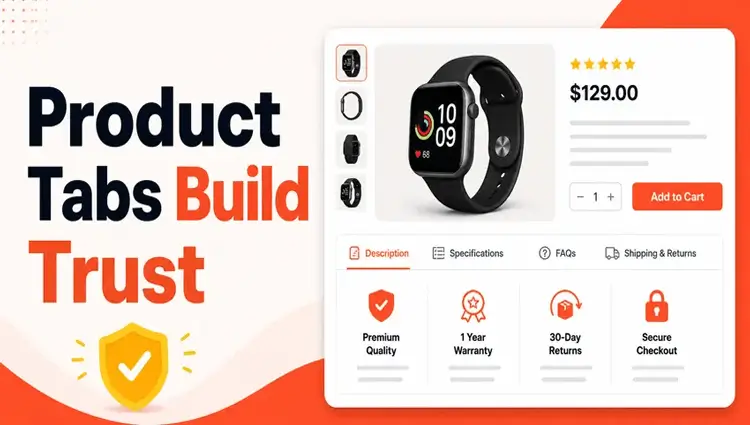
Quick Takeaway: Most customer questions before purchase are the same five or six questions — repeated, across every order. Product tabs let you answer them once, on the page, where it matters most.
Every unanswered question on a product page is a reason not to buy.
When a shopper can’t quickly find shipping info, size details, or return policies, they have three options: email you, search elsewhere, or leave. Most leave. Both cost you — one costs time, the other costs the sale.
The good news is that most pre-purchase support tickets in WooCommerce stores are predictable. That means they’re preventable. You don’t need a bigger support team. You need better product page information architecture — specifically, product tabs in WooCommerce that actually do their job.
This article explains how WooCommerce store owners can strategically use product tabs to preemptively answer buyer questions. It covers what product tabs are, which tabs matter most, what content to put inside each, and how to customize them — including using ShopLentor’s Product Badges and Reviews widgets to strengthen trust signals directly on the product page.
Quick Answer: WooCommerce product tabs organize key product information — descriptions, specs, shipping details, and reviews — into clearly labeled sections on the product page. When set up well, they answer the most common customer questions before those questions become support tickets. The result: fewer emails, more trust, and higher conversions.
What Are WooCommerce Product Tabs?
Product tabs are the tabbed sections that appear below the product image and price on a WooCommerce product page.
By default, WooCommerce includes three tabs:
- Description — the main product description
- Additional Information — attributes like size, color, weight (pulled from product data)
- Reviews — customer ratings and written reviews
These defaults are functional. They’re rarely enough.
Most stores need more than three tabs, and most default tabs are underpopulated — which defeats the purpose.
Why Product Tabs Directly Reduce Support Volume
Before a customer hits “Add to Cart,” they’re resolving uncertainty. They want to know:
- Will this fit/work for me?
- How long does shipping take?
- What if it doesn’t work out?
- Is this product actually good?
- Are there any hidden costs?
If your product page doesn’t answer those questions clearly, you get support tickets. You get cart abandonment. You get refund requests from buyers who felt misled.
Recent data backs this up. According to Salesforce (2025), 61% of customers prefer resolving simple issues through self-service rather than contacting a live agent. And 81% of customers want more self-service options that let them find answers independently.
The caveat: 77% of consumers say a poor self-service experience is worse than having no self-service at all, because it wastes their time (Higher Logic, 2024).
That’s the real risk of underpopulated product tabs. It’s not just a missed opportunity — it actively damages trust. A well-structured product tab system is that self-service layer, when it’s done right.
The tab structure matters as much as the content. If information is buried, it is the same as missing.
Which Tabs Actually Matter (and What to Put in Them)
Not every tab needs to exist. Every tab that does exist needs to earn its place.
Here are the tabs that consistently reduce pre-purchase questions:
1. Description Tab
What to put here: A clear, honest explanation of what the product is, what it does, and who it’s for.
Most product descriptions fail because they’re written for search engines, not buyers. Bullet points listing features aren’t the same as explaining why those features matter to the person reading.
A good description tab answers:
- What exactly is this product?
- What problem does it solve?
- Who is it best suited for?
- What’s included in the box/download/order?
Keep it skimmable. Use short paragraphs or bullets. Avoid vague marketing language.
2. Additional Information Tab
What to put here: Structured product attributes — dimensions, weight, materials, compatibility, system requirements, or whatever applies to your product type.
WooCommerce populates this tab automatically from product attributes you set in the product editor. The key is to actually fill in those attributes.
Stores that leave this tab empty (or with only one line of data) are leaving the most common factual questions unanswered. For physical products: dimensions and weight. For clothing: size guides. For tech products: compatibility and specs.
3. Shipping & Delivery Tab
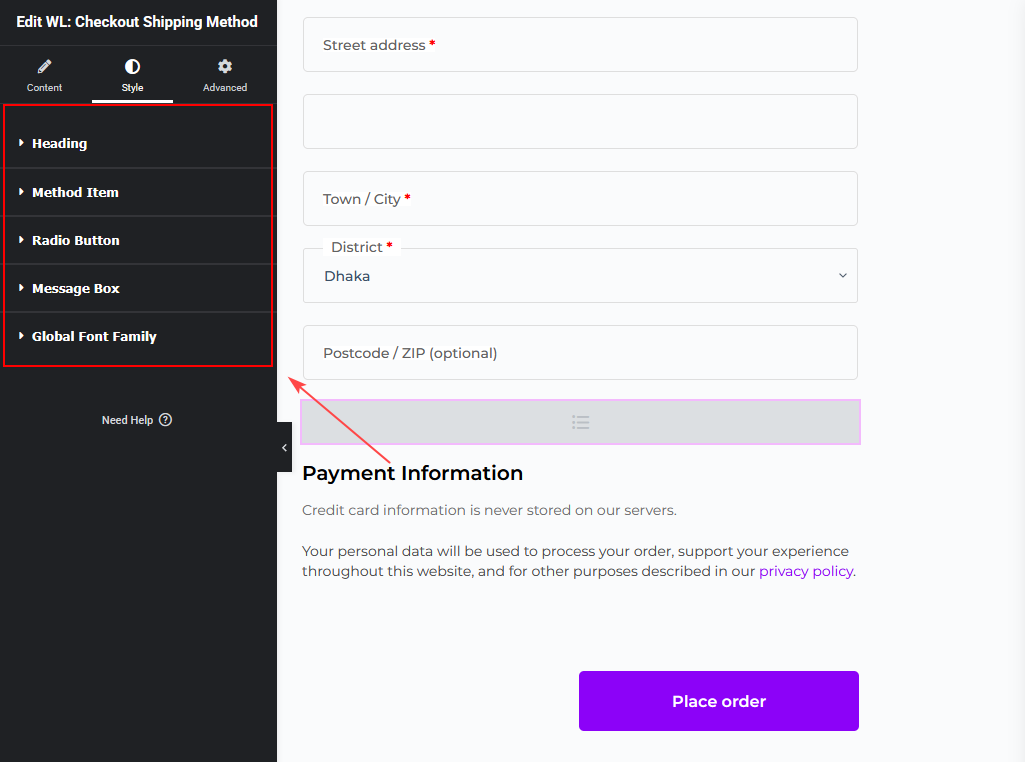
What to put here: Processing time, estimated delivery windows by region, carrier options, and any free shipping thresholds.
This is one of the highest-ROI tabs you can add, because shipping questions are among the most common support emails stores receive.
Be specific. “Ships in 1–3 business days via USPS or UPS. Free shipping on orders over $50. International orders may take 7–14 days.”
That one paragraph eliminates a category of support tickets entirely.
4. Returns & Refund Policy Tab
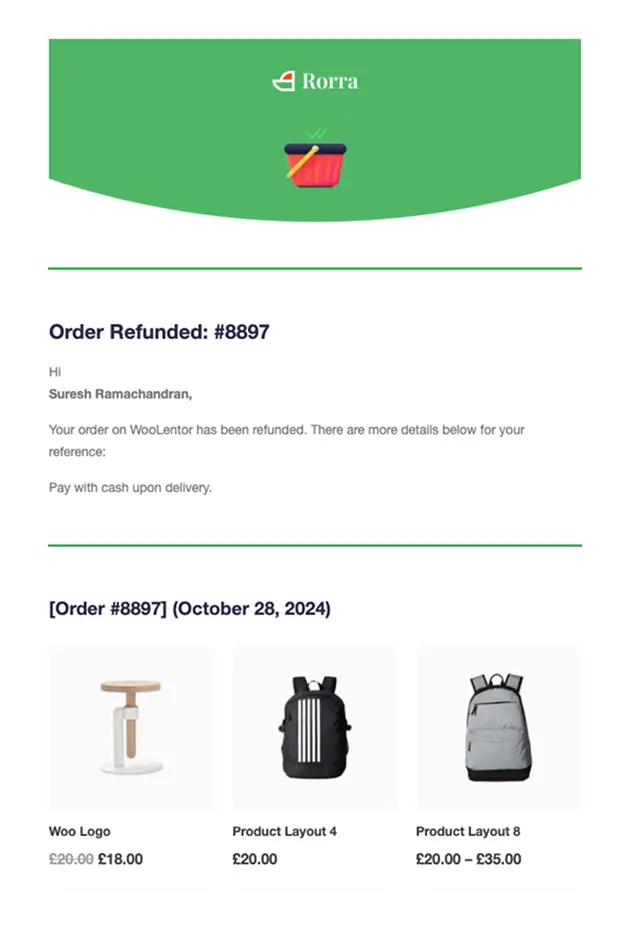
What to put here: Your return window, conditions, how to initiate a return, and any exceptions.
Buyers who can’t find your return policy assume you don’t have a good one. That assumption kills trust.
A clearly stated, fair return policy — visible on the product page — reduces purchase anxiety, which directly increases conversion rate and reduces post-purchase disputes.
5. Reviews Tab
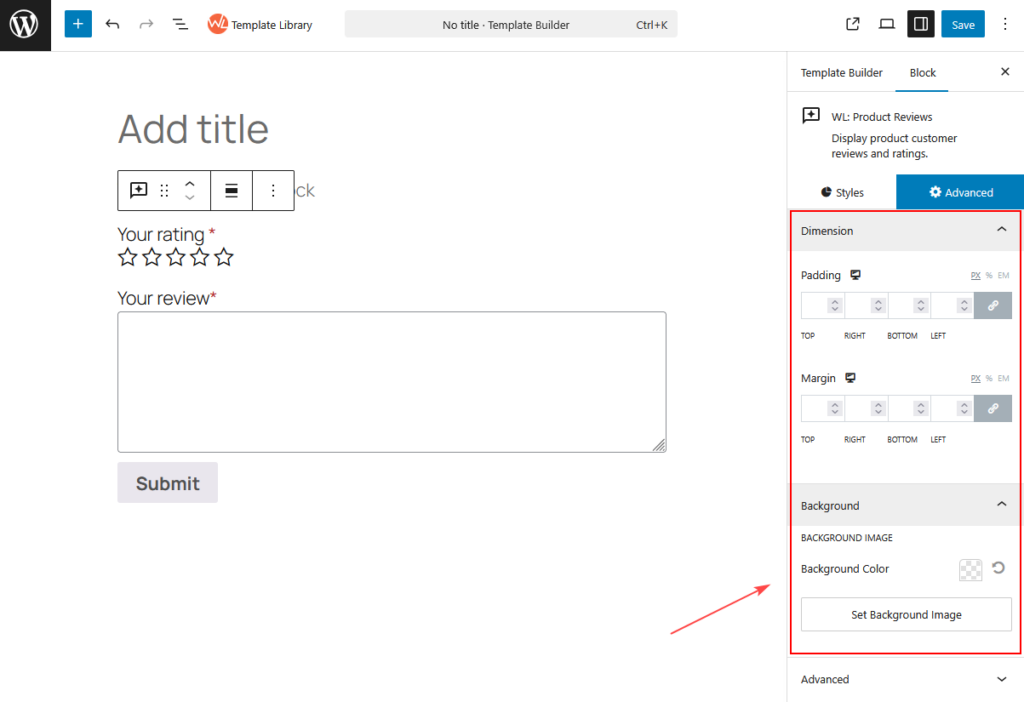
What to put here: Verified customer reviews, star ratings, and, where possible, review attributes (fit, quality, value).
This is not a “nice to have.” Reviews are trust infrastructure. As of 2026, 96% of consumers regularly check reviews before purchasing a product they haven’t bought before, according to a Clutch survey conducted in January 2026.
And products with at least five reviews are 270% more likely to sell than those with none (Capital One Shopping Research, 2026). Star ratings alone aren’t enough — 88% of consumers say reviews with written text are more trustworthy than a star rating by itself (Capital One Shopping Research, 2026).
If your reviews tab is empty, it’s working against you. Prioritize collecting reviews early.
ShopLentor integration: ShopLentor’s Product Reviews Block for Gutenberg lets you display structured reviews with rating breakdowns directly on the product page — giving buyers the detail they need to make a confident decision without leaving the page.
6. FAQ Tab (Underused, High-Value)
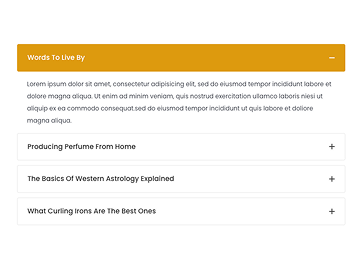
What to put here: The actual questions your support team receives most often, with direct answers.
This is the most underused tab in eCommerce, and one of the most effective.
Go through your last 50 support emails. Identify the questions that repeat. Put the answers in an FAQ tab. That’s it. You’ve just automated the answers to a significant portion of your support queue.
Good FAQ tab entries:
- “Does this work with [common compatible product]?”
- “Can I use this for [edge use case]?”
- “Is [ingredient/material] included?”
- “What’s the warranty?”
7. Size Guide Tab (For Apparel and Physical Products)
What to put here: A clear size chart with measurements in both metric and imperial where relevant, plus guidance on how to measure.
Sizing uncertainty is one of the top reasons apparel purchases don’t happen or get returned. A dedicated size guide tab eliminates the guesswork.
How to Use Product Tabs in WooCommerce
Default Tab Management
WooCommerce lets you rename, reorder, or remove default tabs through code or a plugin.
Via code (add to functions.php):
php

// Remove a default tab

add_filter( 'woocommerce_product_tabs', 'remove_additional_info_tab' );

function remove_additional_info_tab( $tabs ) {

    unset( $tabs['additional_information'] );

    return $tabs;

}

// Rename a default tab

add_filter( 'woocommerce_product_tabs', 'rename_description_tab', 98 );

function rename_description_tab( $tabs ) {

    $tabs['description']['title'] = 'Product Details';

    return $tabs;

}
Via plugin: Several WooCommerce-compatible plugins handle tab management with a UI instead of code. This is the better option for most store owners who don’t want to manage code in functions.php.
Adding Custom Tabs
Custom tabs — like Shipping, Returns, FAQ, or Size Guide — require either code or a plugin.
Via code (add to functions.php):
php

add_filter( 'woocommerce_product_tabs', 'add_shipping_tab' );

function add_shipping_tab( $tabs ) {

    $tabs['shipping_info'] = array(

        'title'    => 'Shipping & Delivery',

        'priority' => 50,

        'callback' => 'shipping_tab_content',

    );

    return $tabs;

}

function shipping_tab_content() {

    echo '<h2>Shipping & Delivery</h2>';

    echo '<p>All orders ship within 1–3 business days. Free shipping on orders over $50.</p>';

}
For tab content that varies by product, you’d pull from custom fields or product meta, which adds complexity. A tab management plugin handles this more cleanly.
Per-Product vs. Global Tabs
One important decision: do all your products need the same tabs?
A clothing store and a software store have different information needs. WooCommerce doesn’t handle per-product tabs natively — you need a plugin or custom code for that.
If your catalog is varied, per-product tab control becomes important quickly.
Adding Trust Signals Inside Product Tabs
Product tabs don’t just organize information — they can actively build trust if you use the right elements inside them.
Two elements that make a real difference:
Product Badges
Badges like “Free Returns,” “Secure Checkout,” “Verified Purchase,” or “In Stock” catch the eye and answer implicit buyer questions without requiring them to read anything.
ShopLentor integration: ShopLentor’s Product Badges Module lets you add custom badges to product pages — including placement inside or near product content blocks — to highlight trust signals, promotions, and key product attributes visually.
Ratings and Review Summaries
Displaying an aggregate rating near the top of the page, or inside a visible tab, gives buyers immediate social proof before they scroll.
ShopLentor integration: ShopLentor’s Product Rating widget lets you surface star ratings prominently on the product page — not just buried in a tab — so trust signals appear where they’re first seen.
Common Mistakes That Make Product Tabs Useless
Avoid these:
- Tabs with no content. An empty “Additional Information” tab signals that you haven’t thought about what your buyer needs.
- Duplicate content across tabs. If your description and FAQ tab say the same things, merge them.
- Walls of text inside tabs. Tabs are for structured, scannable content. If your Shipping tab is four paragraphs with no headers or bullets, most buyers won’t read it.
- Hidden return policies. Don’t make buyers hunt for this. If it’s hard to find, it’s not working.
- Too many tabs. More than five or six tabs creates its own navigation problem. Consolidate where possible.
A Practical Example: A Mid-Size Apparel Store
Consider a WooCommerce store selling mid-range clothing. Their original setup: Description, Additional Information, Reviews.
Support tickets were dominated by three recurring questions:
- “How long does shipping take?”
- “What’s your return policy?”
- “How does sizing run?”
They added three tabs: Shipping & Delivery, Returns, and a Size Guide with a measurement chart.
Support email volume for pre-purchase questions dropped. The size-related returns also dropped because buyers had clearer expectations before purchasing.
No additional tools. No paid advertising changes. Just product page information architecture.
This is the core value proposition of product tabs done well.
Frequently Asked Questions
Q1: What are WooCommerce product tabs?
Product tabs are labeled sections on a WooCommerce product page that organize key information — like descriptions, specs, shipping details, and customer reviews — into separate, clickable panels. They help buyers find answers quickly without scrolling through a single long page.
Q2: How do I add a custom tab in WooCommerce?
You can add custom tabs using the woocommerce_product_tabs filter in your theme’s functions.php file. For a UI-based approach without code, use a tab management plugin. Custom tabs let you add sections like Shipping Info, Returns Policy, FAQ, or Size Guides.
Q3: Can I show different tabs on different products?
Not by default in WooCommerce. Per-product tab control requires either custom code (using conditional logic based on product ID or category) or a plugin that supports product-level tab configuration.
Q4: Do product tabs help with SEO?
Yes, indirectly. Content inside product tabs is crawlable by search engines. More importantly, structured, complete product pages reduce bounce rates and increase time on page — both signals that influence search performance. FAQ-style content inside tabs can also be picked up for People Also Ask features.
Q5: How many product tabs should a WooCommerce product page have?
There’s no fixed number, but five to six tabs is a practical ceiling. More than that creates navigation overhead. Each tab should serve a distinct purpose. If two tabs cover similar ground, consolidate them.
Q6: What’s the best content to put in a product tab to reduce support tickets?
Shipping timelines, return policy, sizing information, and a product-specific FAQ. These are the categories that generate the most pre-purchase support emails for most eCommerce stores. Answering them clearly on the product page removes them from your support queue.
Q7: Do product tabs affect page load speed?
Tabs themselves don’t meaningfully impact load speed — they’re standard HTML/CSS toggle elements. If tab content includes large images or embeds, those assets will affect page performance, so optimize media as you would anywhere else on the page.
Conclusion
Product tabs are one of the highest-leverage, lowest-cost improvements you can make to a WooCommerce product page.
The logic is simple: every question your buyer has to ask is a friction point. Every question your product page answers removes friction.
Start with the tabs that address your most common support questions. Populate them with specific, useful content — not marketing copy. Add trust signals like badges and visible ratings where they’ll be seen.
Then check your support inbox. The silence is the signal.