Cart abandonment is one of the biggest challenges for online store owners. Studies show that nearly 70% of customers leave items in their cart without completing checkout. This means lost revenue for your store. If you’re wondering how to recover abandoned carts in WooCommerce, you’re in the right place
With ShopLentor’s Abandoned Cart Recovery feature, you can automatically remind customers about their pending purchases and encourage them to return and complete their orders.
This documentation will guide you step by step on how to enable, configure, and use the Abandoned Cart feature in WooCommerce using ShopLentor.
Why Use Abandoned Cart Recovery?
By enabling this feature, your store can:
- Recover lost revenue by bringing customers back to checkout.
- Increase customer loyalty with friendly reminders.
- Boost conversion rates without extra marketing costs.
- Automate follow-ups so you save time and effort.
- Encourage repeat purchases by including coupon codes in your emails.
Accessing Abandoned Cart
To access the feature:
- Log in to your WordPress dashboard.
- Go to ShopLentor > settings > Modules > Abandoned Cart.

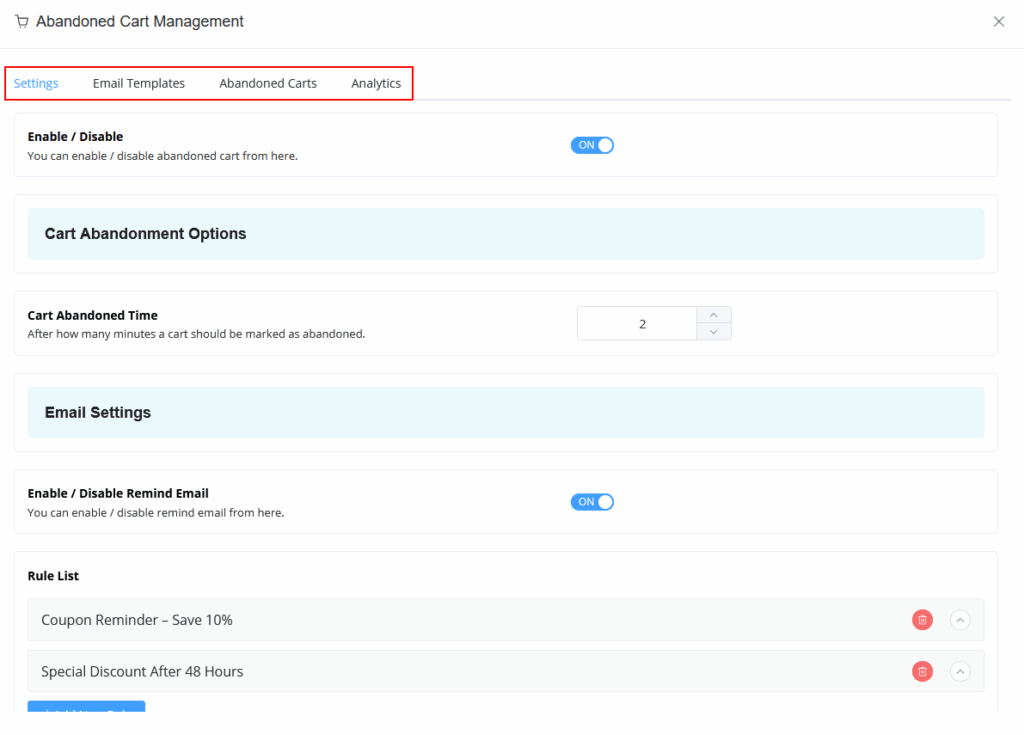
You will see four tabs:
- Settings
- Email Templates
- Abandoned Carts
- Analytics
Step 1: Configure General Settings
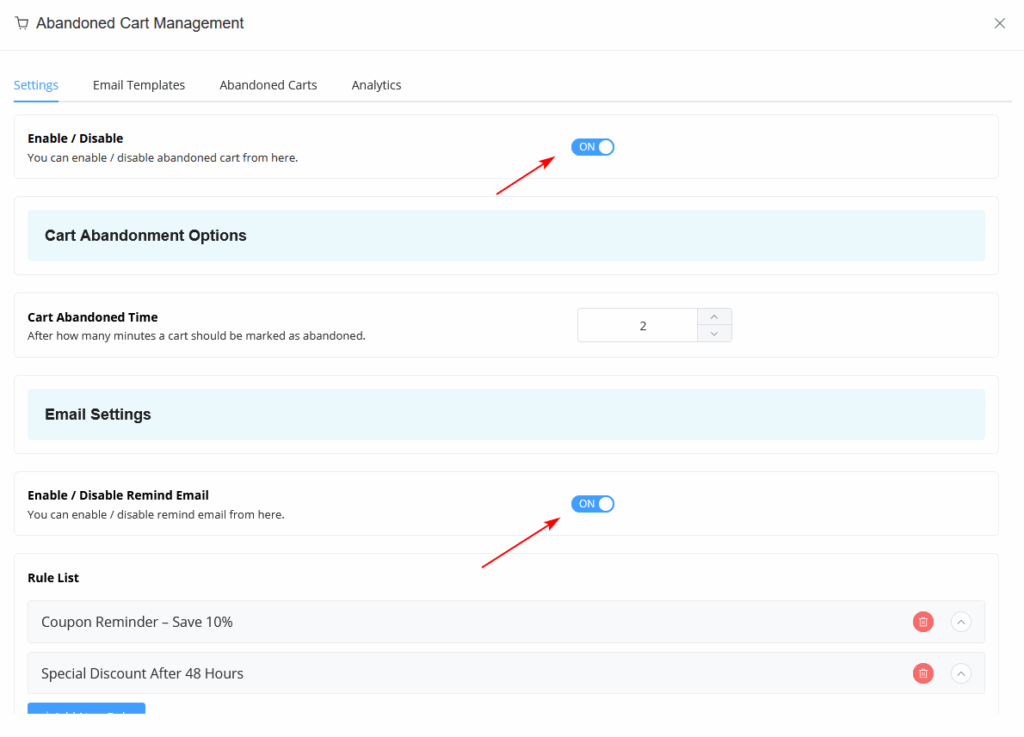
- From the Settings tab, enable the Abandoned Cart Recovery option.
- In the Settings tab, enable Remind Email to activate abandoned cart.
- Set the From Name and Sender Email Address (this is what customers will see in their inbox).
Step 2: Create Reminder Rules
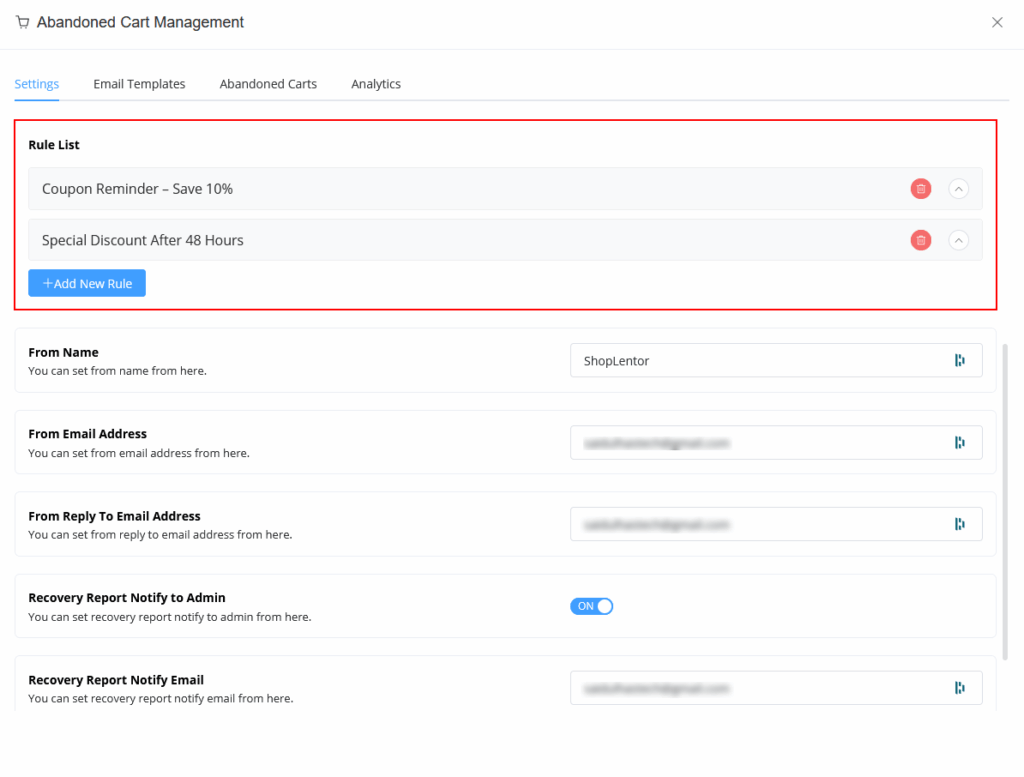
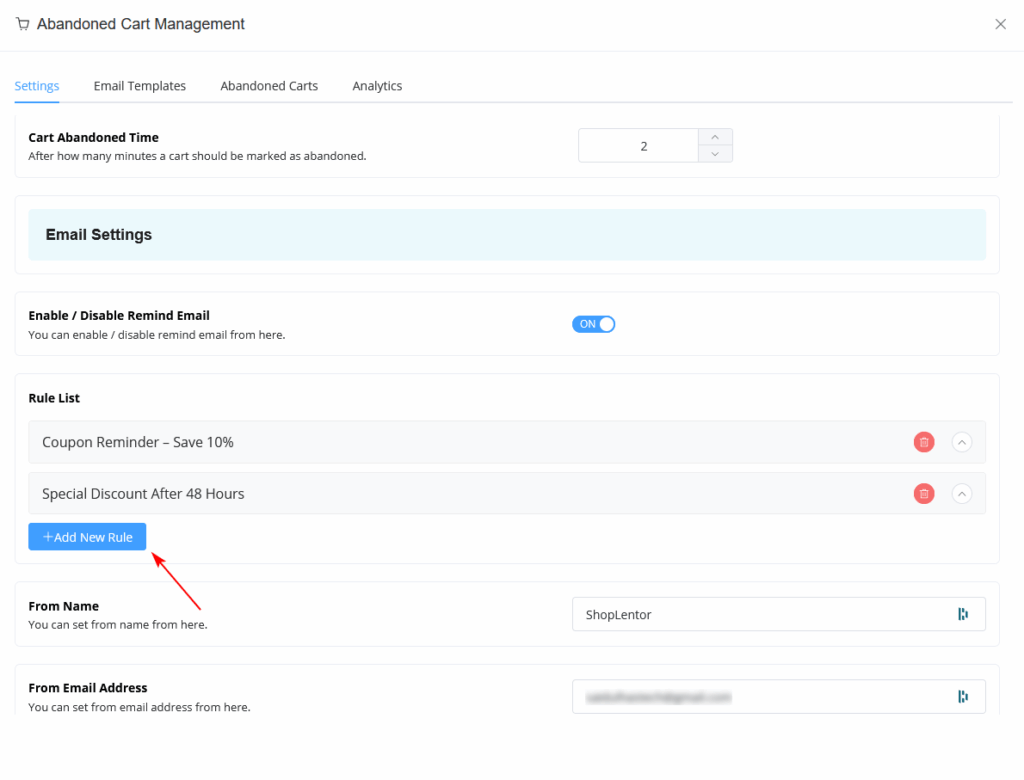
Reminder rules determine when recovery emails are sent after a cart is abandoned.
Examples of reminder rules you can create:
- Rule 1: Coupon Reminder – Save 10% (sent after 1 hour)
- Rule 2: Special Discount – Sent 48 Hours Later
To add a new rule:
- Go to the Rules section under the Settings tab.
- Click Add New Rule.
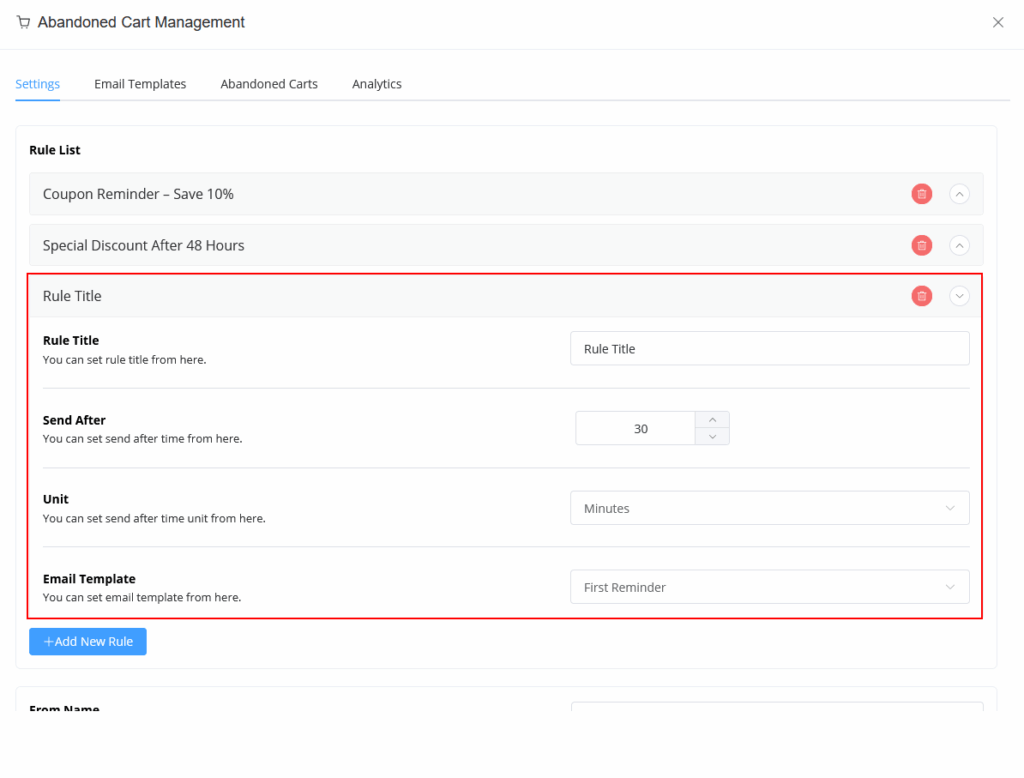
- Enter a Rule Title (e.g., Reminder After 1 Hour).
- Set the time interval (minutes, hours, or days).
- Choose the Email Template you want to send.
- Save the rule.
- To unlock unlimited rules and additional advanced features, upgrade to ShopLentor.
Step 3: Customize Abandoned Cart Email Templates.
1. Go to the Email Templates tab.
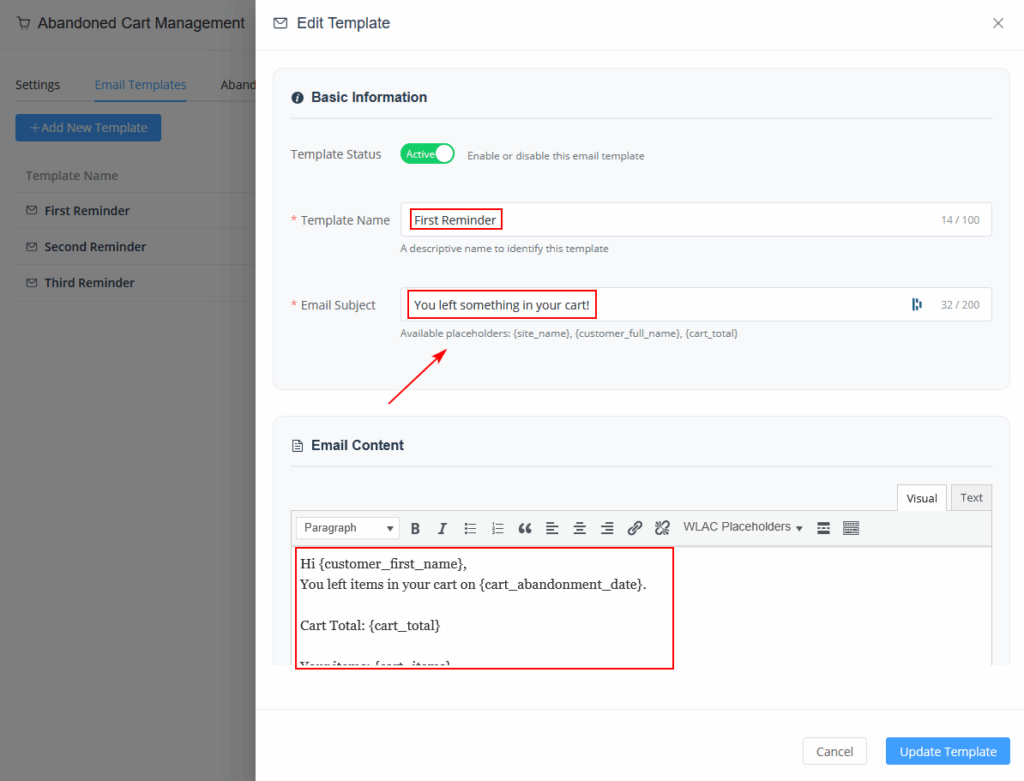
2. Click Add New Template to add a new template or edit existing template.
3. What you can customize:
- Template name
- Subject line (e.g., “You left something in your cart!”)
- Email body (add personalized content with shortcodes like {customer_name}, {cart_items}, {cart_link}).
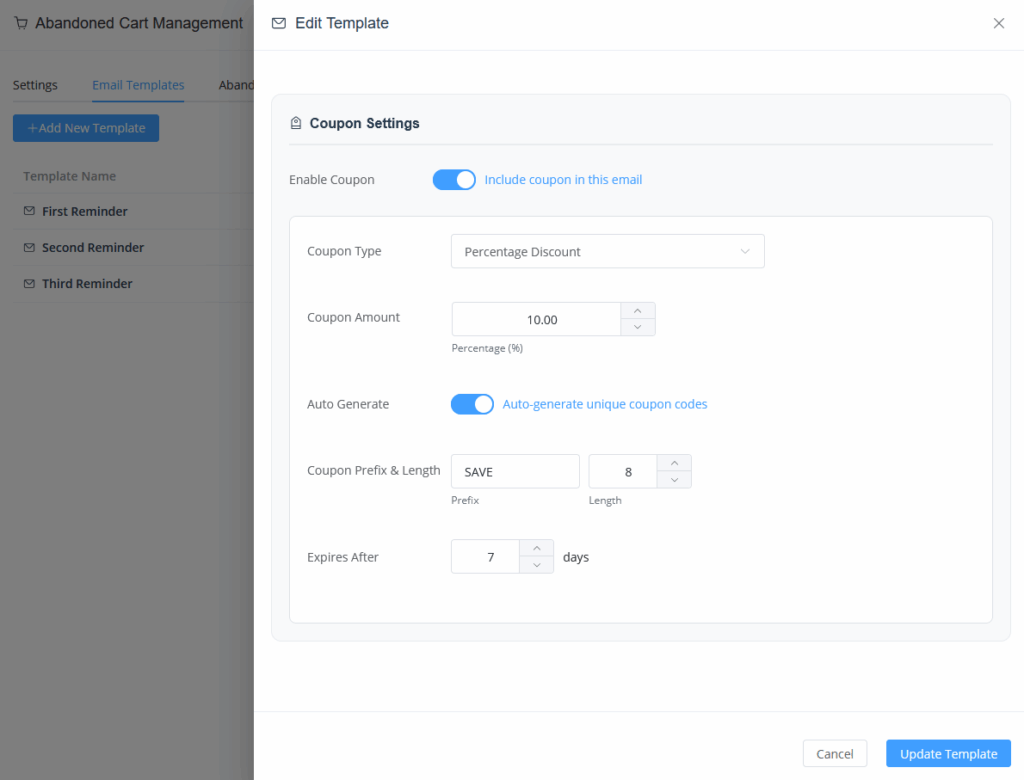
- Coupon code or discount (optional).
Save and assign the template to your reminder rules.
Keep scrolling while editing the template and you’ll find the Coupon Settings option
Step 4: Managing Abandoned Carts
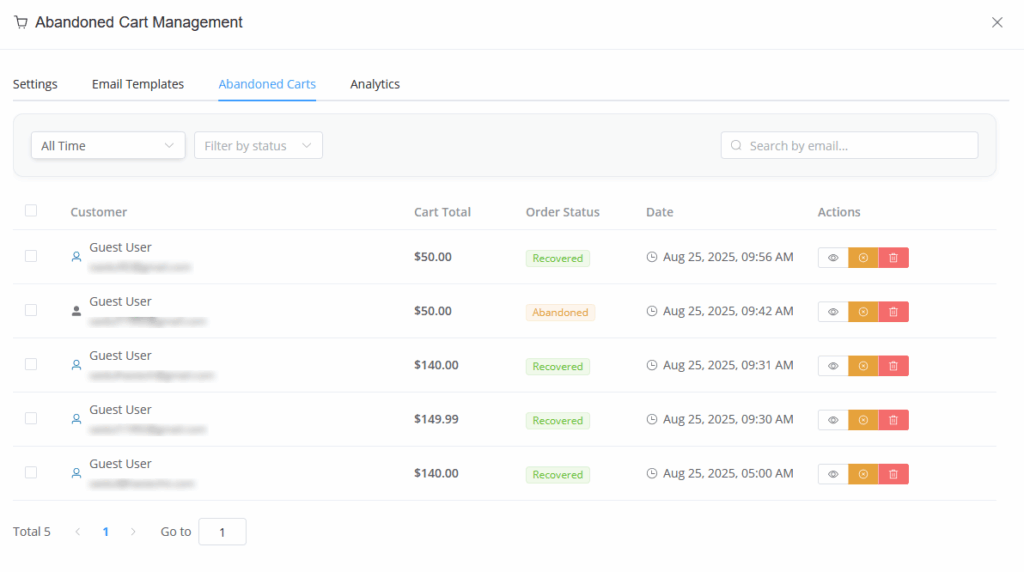
1. Navigate to the Abandoned Carts tab.
2. Here you can view all abandoned carts, including:
- Customer name
- Email address
- Cart items
- Date abandoned
Actions you can perform:
- View cart details
- Delete cart
- Unsubscribe
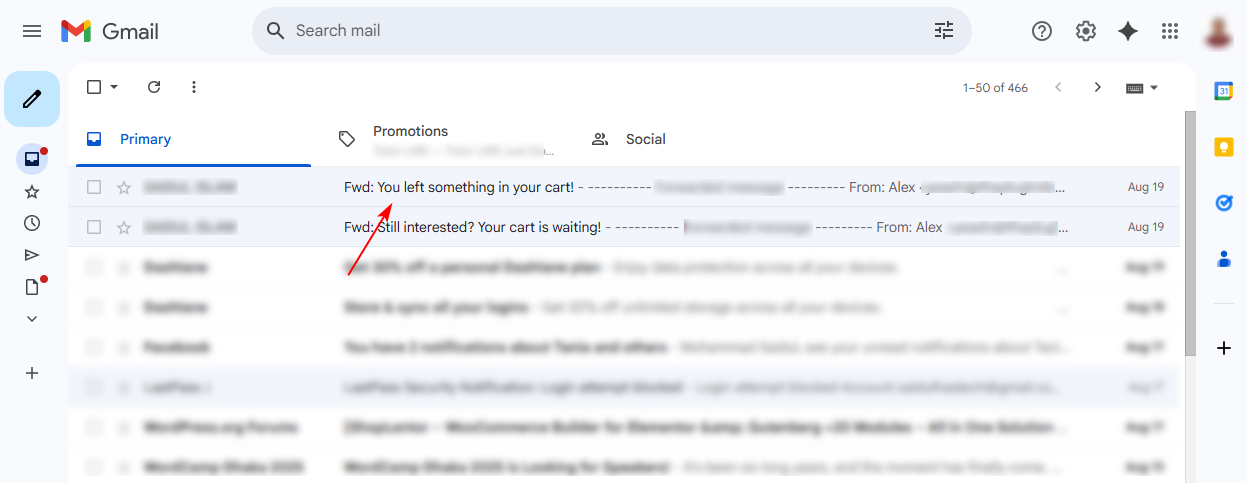
When a product is abandoned, the customer will receive a reminder email in their inbox.
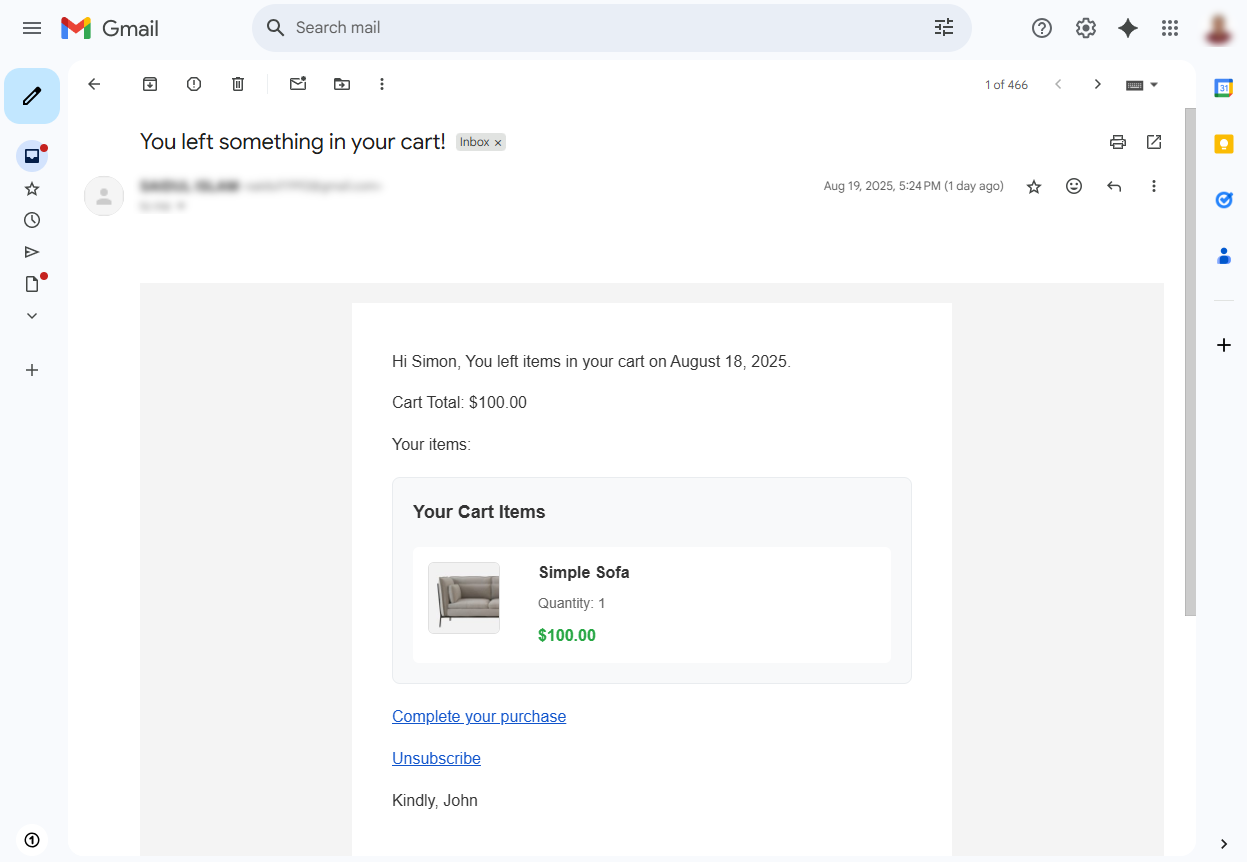
After clicking on the email, they can view all the details about their abandoned cart.
Step 5: Tracking Analytics
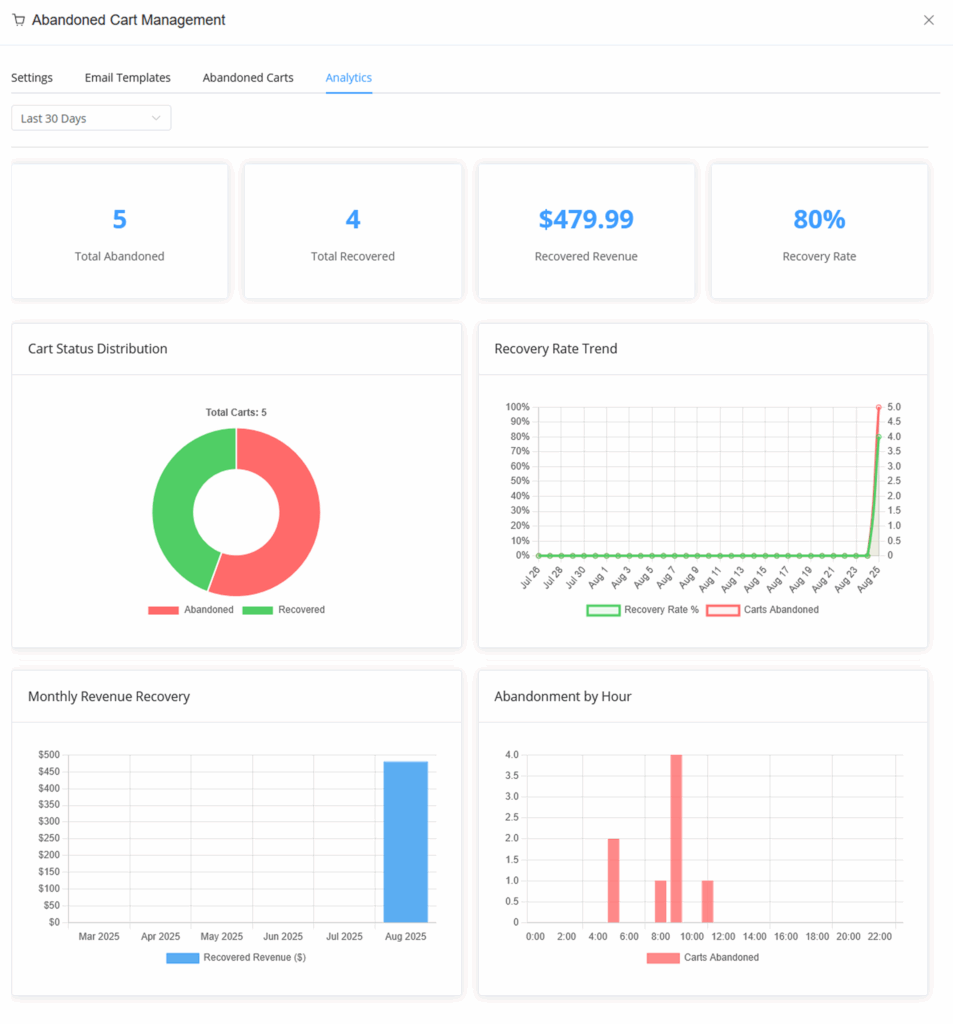
The Analytics tab helps you measure the performance of your recovery campaigns.
You can view:
- Total abandoned carts
- Total recovered carts
- Revenue recovered