
The “My Account Login Form” Block is designed to display the My Account Page Template on WooCommerce. It’s a great way to showcase your products and services, and can be easily customized with different layouts and colors.
Table of Contents
Steps for adding My Account Login Form
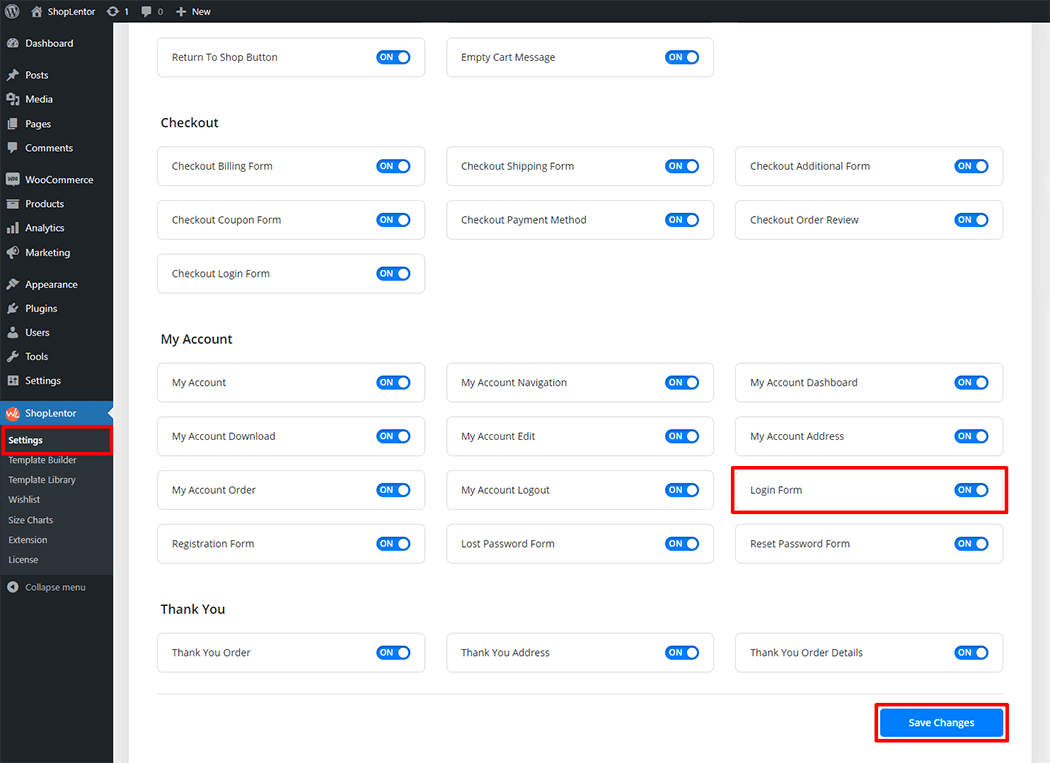
Go to WordPress Dashboard > WooLentor > Settings > Gutenberg. From the list of Gutenberg, turn ON the “Login Form” Block.
Step 1: How to Enable Login Form?
Go to Dashboard > WooLentor > Settings > Gutenberg. From the list of Gutenberg, turn ON the Login Form Block.
Step 2: How to use the My Account Login Form Block?
If you want to leverage the My Account Login/Register Form feature on your WooCommerce store, you will need to use a Block named “WL: Login Form“. To do so, simply search for the Block in the Gutenberg Block panel, and use it on the corresponding template that you have created for the Page.
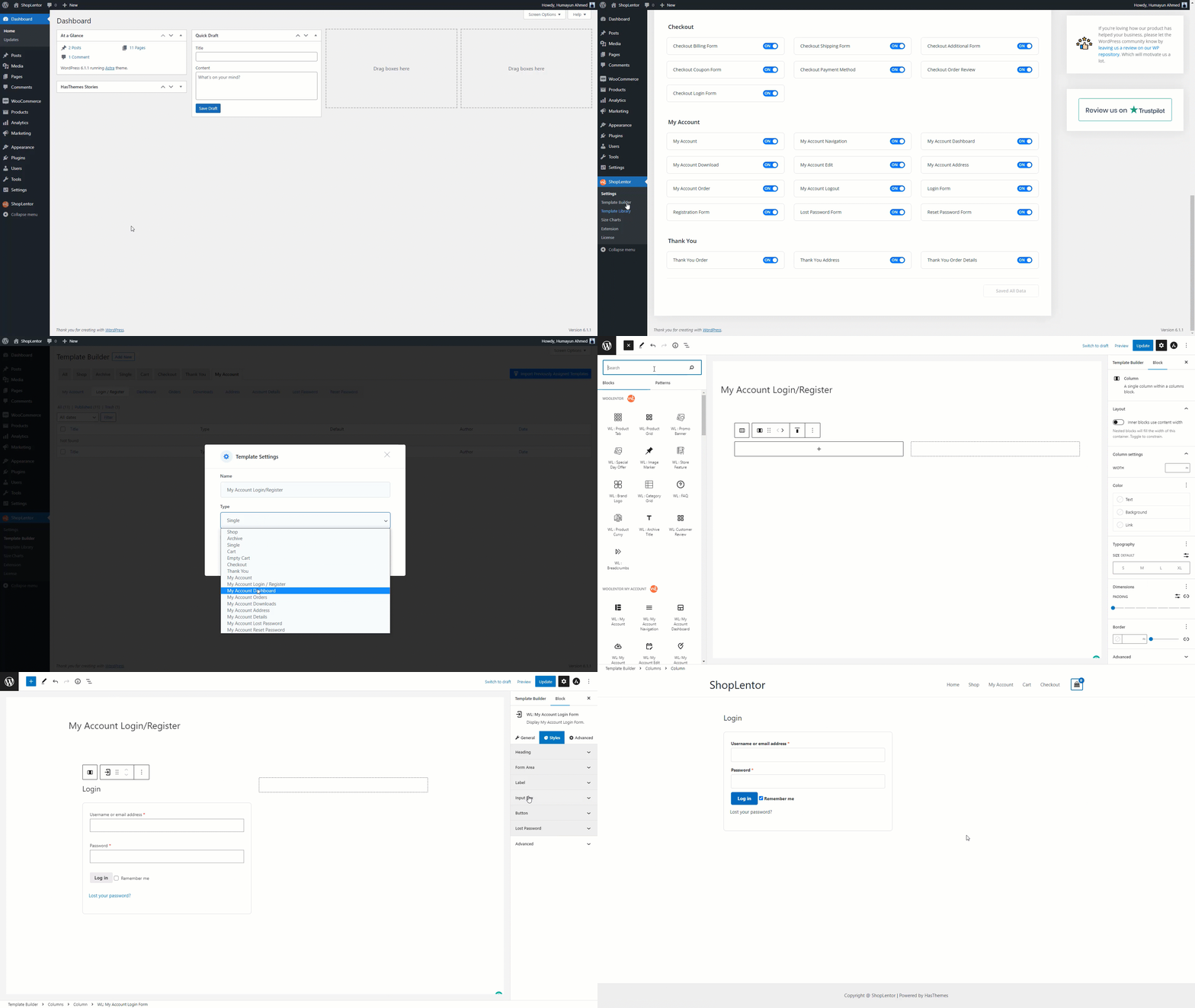
Go to Dashboard > WooLentor > Template Builder. Click the “Add New” button on the top right beside the text “Template Builder” to create a My Account Login/Register page Template
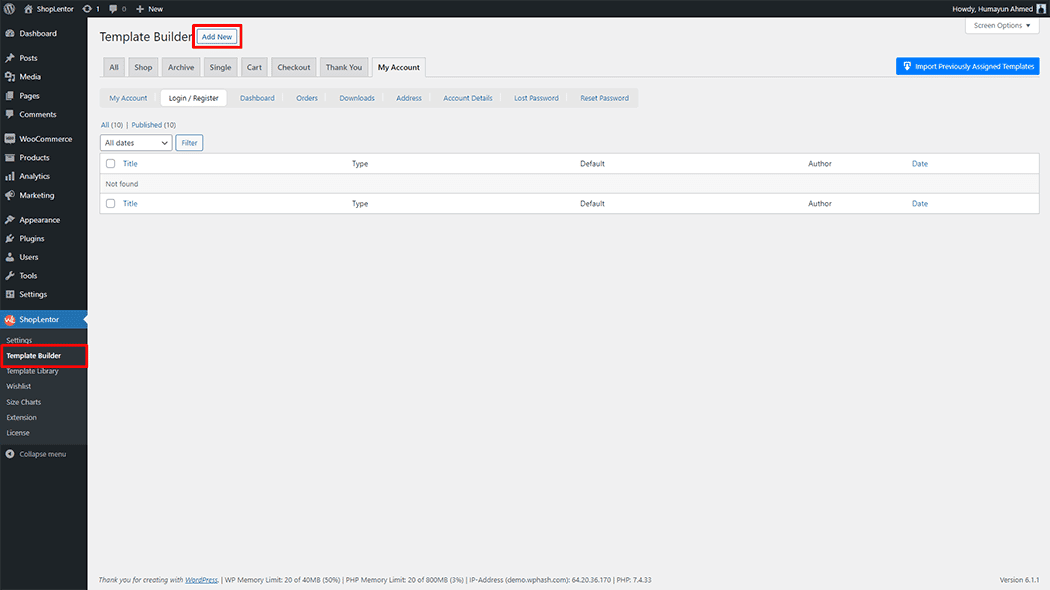
First, set the name of your Template and select it in the popup box for template settings. Select “My Account Login/Register” from the dropdown type list. check the Set Default and save the settings by clicking the Save Settings button.
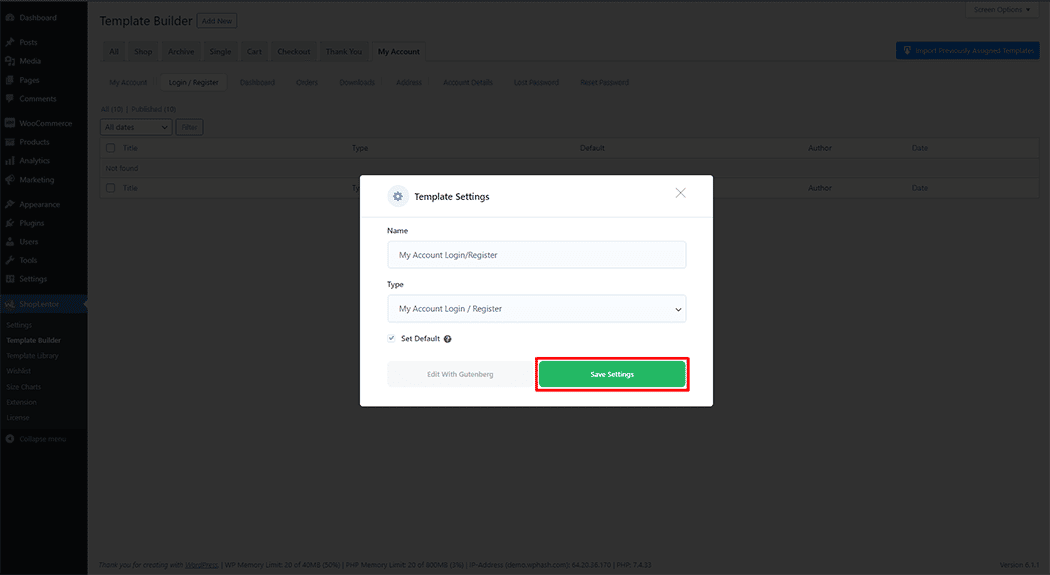
To add the My Account Login Form Block, click the “Edit with Gutenberg“ button to edit the My Account Template
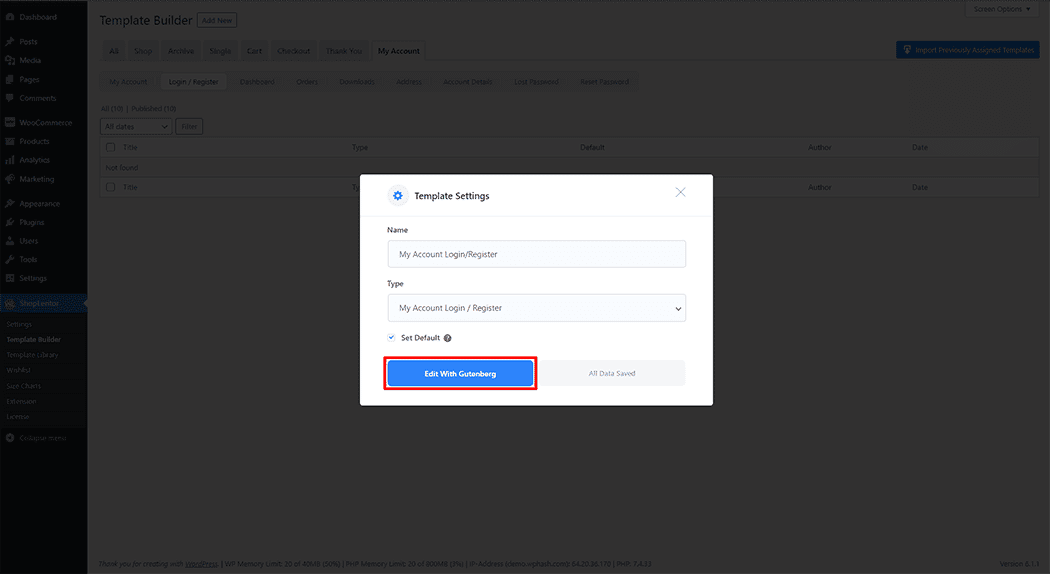
To add a My Account Login Form Block, search by “My Account Login Form” and use the Block that has the “WL Badge”.
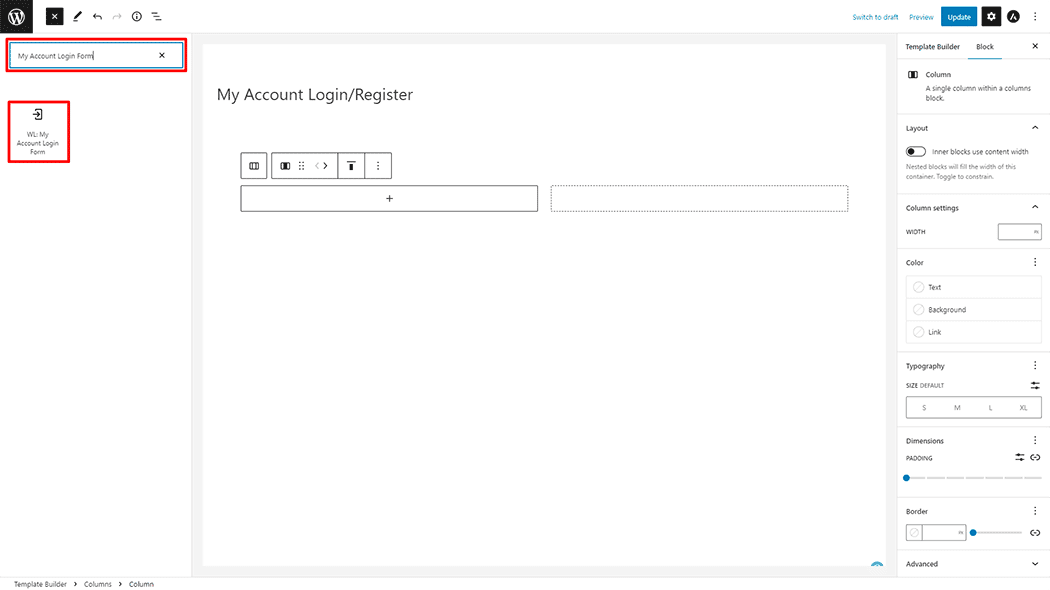
Drag and drop the WooLentor “My Account Login Form” Block onto the My Account Template.
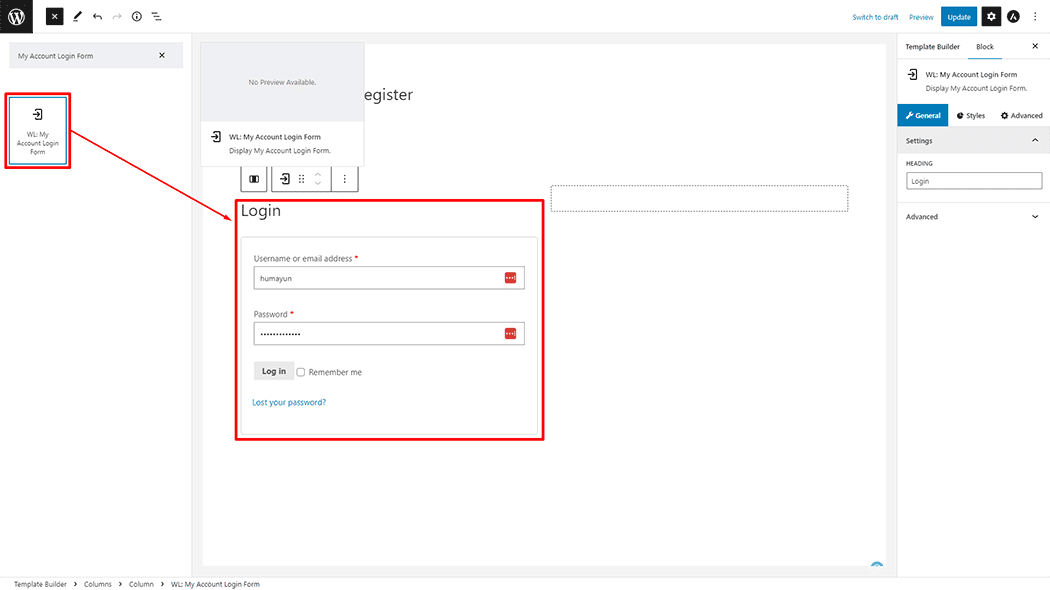
Step 3: How to customize the My Account Login Form Block?
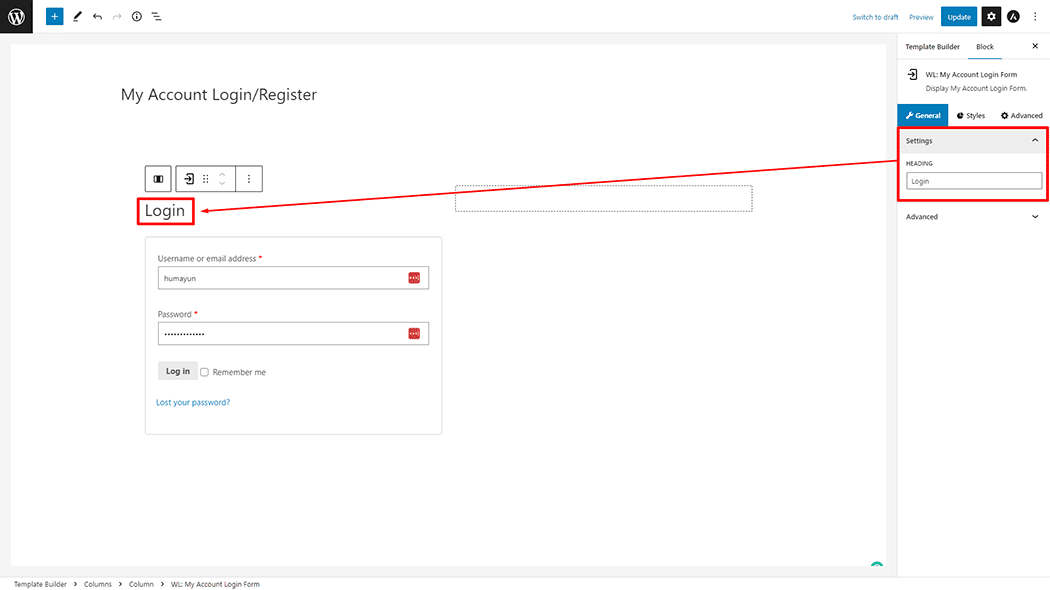
Setting: You can change the Heading Title My Account Login Form as you need.
How to customize the My Account Login Form Style
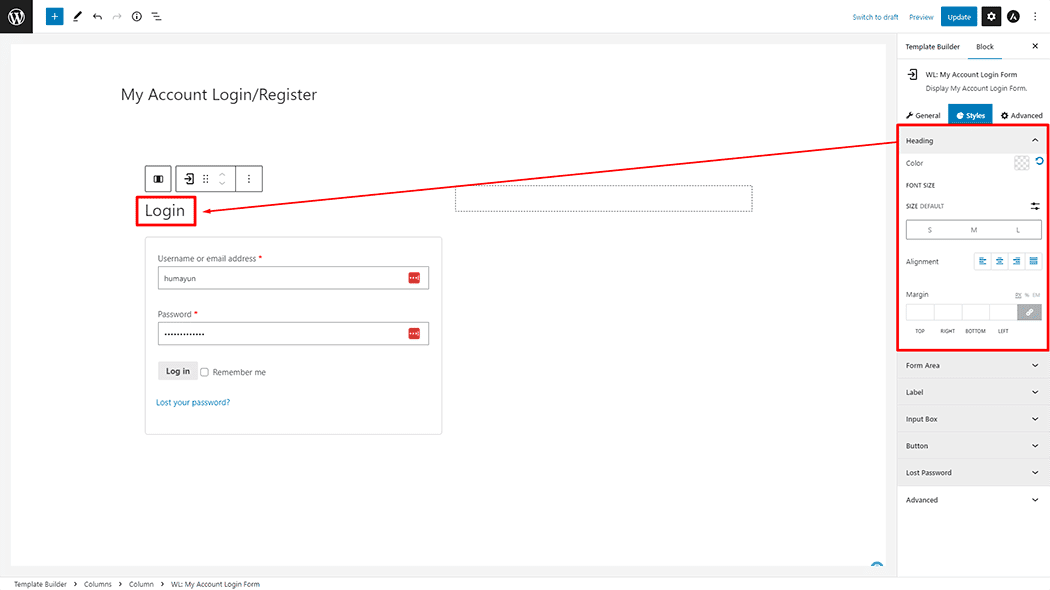
Heading: You can change the Color, Font Size, Alignment, and Margin style My Account Login Form as needed.
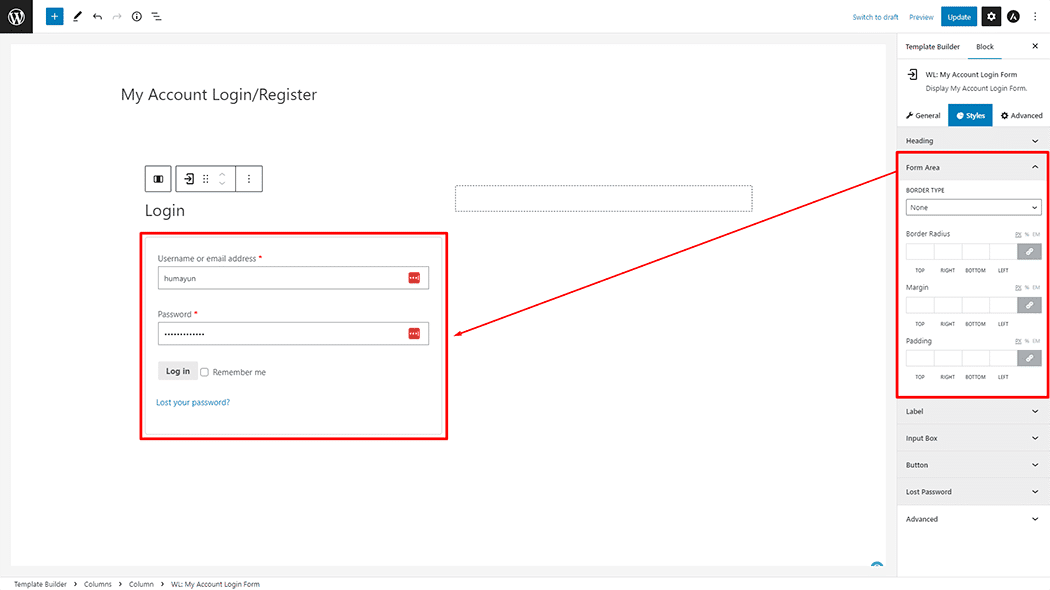
Form Area: You can change the Border Type, Border Radius, Margin, and Padding Style My Account Login Form as needed.
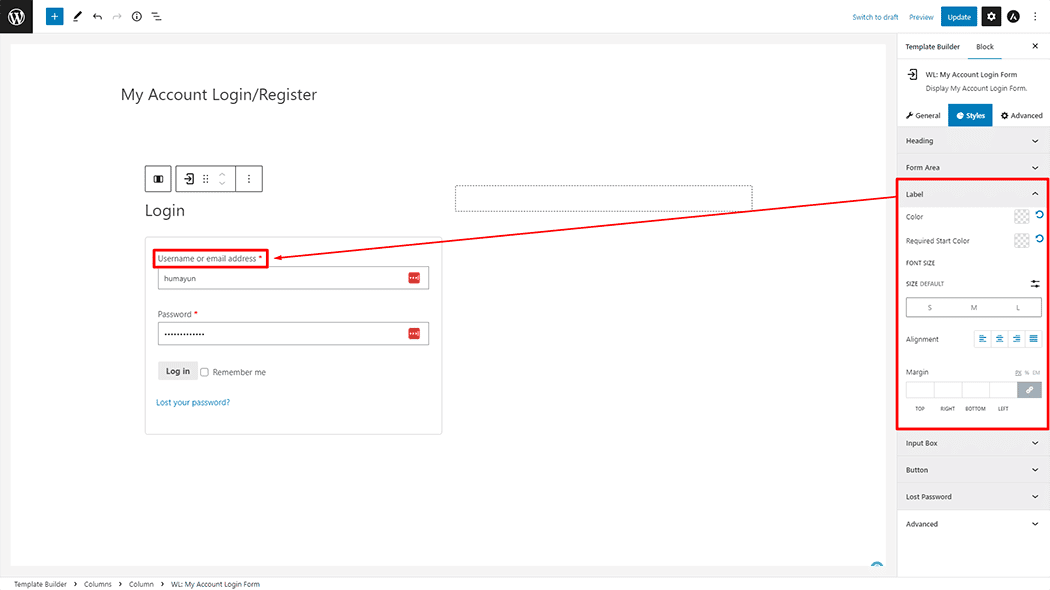
Label: You can change the Color, Required Start Color, Font Size, Alignment, and Margin style My Account Login Form as needed.
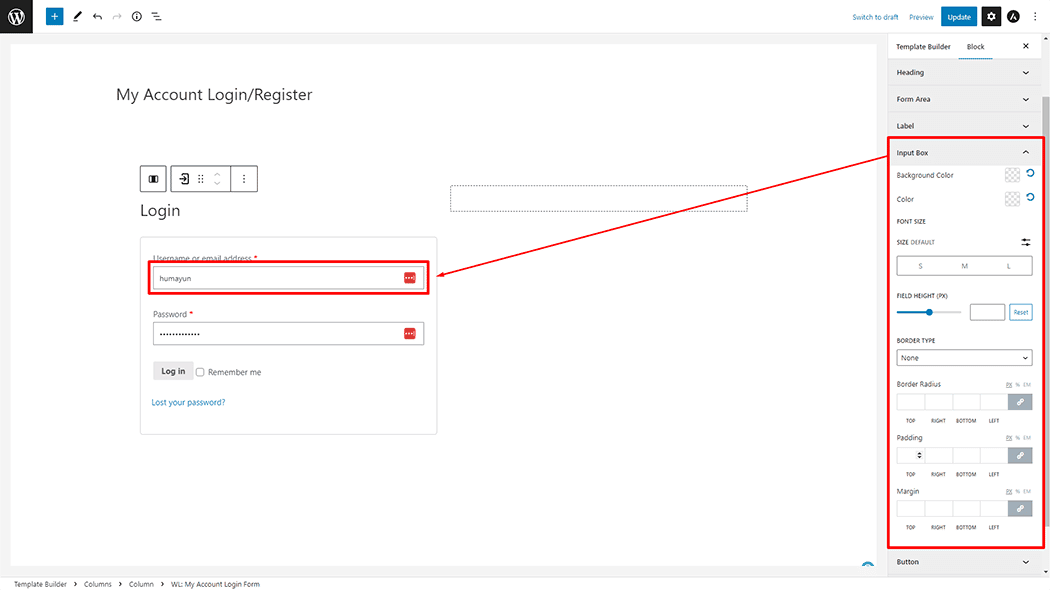
Input Box: You can change the Background Color, Font Size, Field height, Border Type, Border Radius, Padding, and Margin style My Account Login Form as needed.
Button: You can change the Color, Background Color, Font Size, Border Type, Border Radius, and Padding style My Account Login Form as needed.
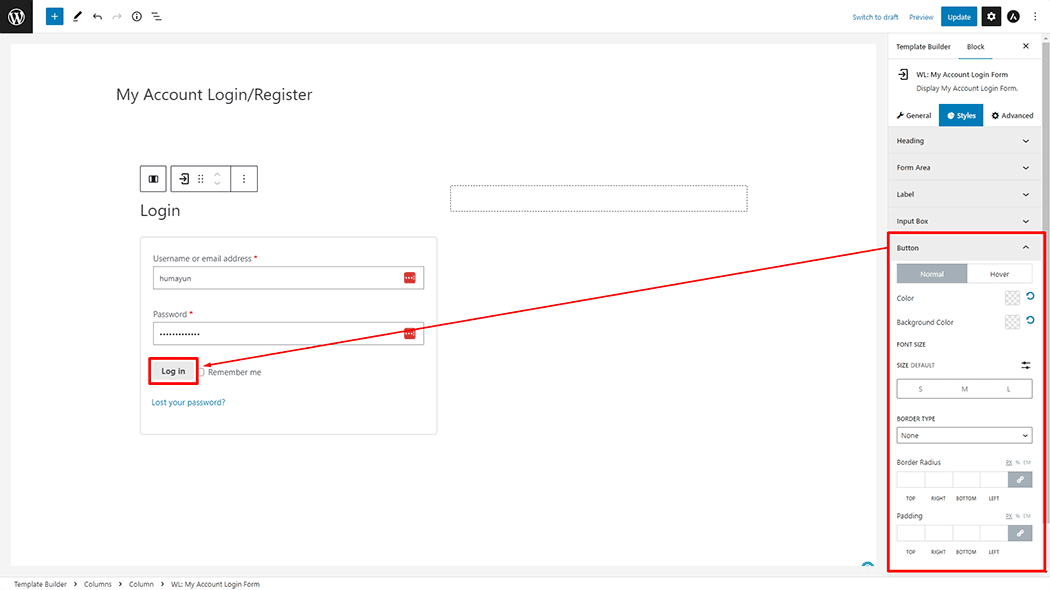
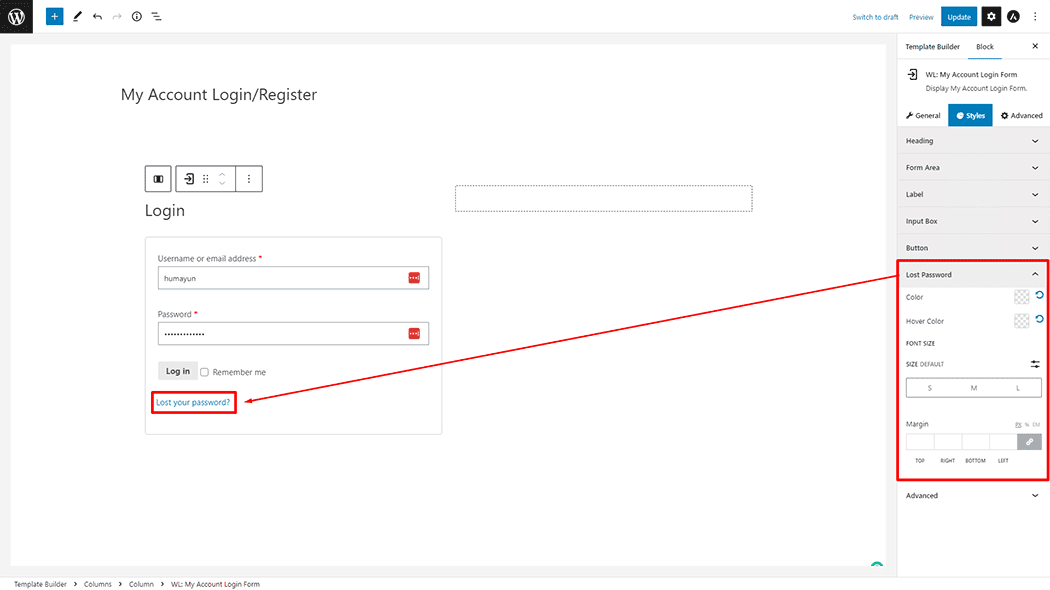
Lost Password: You can change the Color, Hover Color, Font Size, Alignment, and Margin style My Account Login Form as needed.
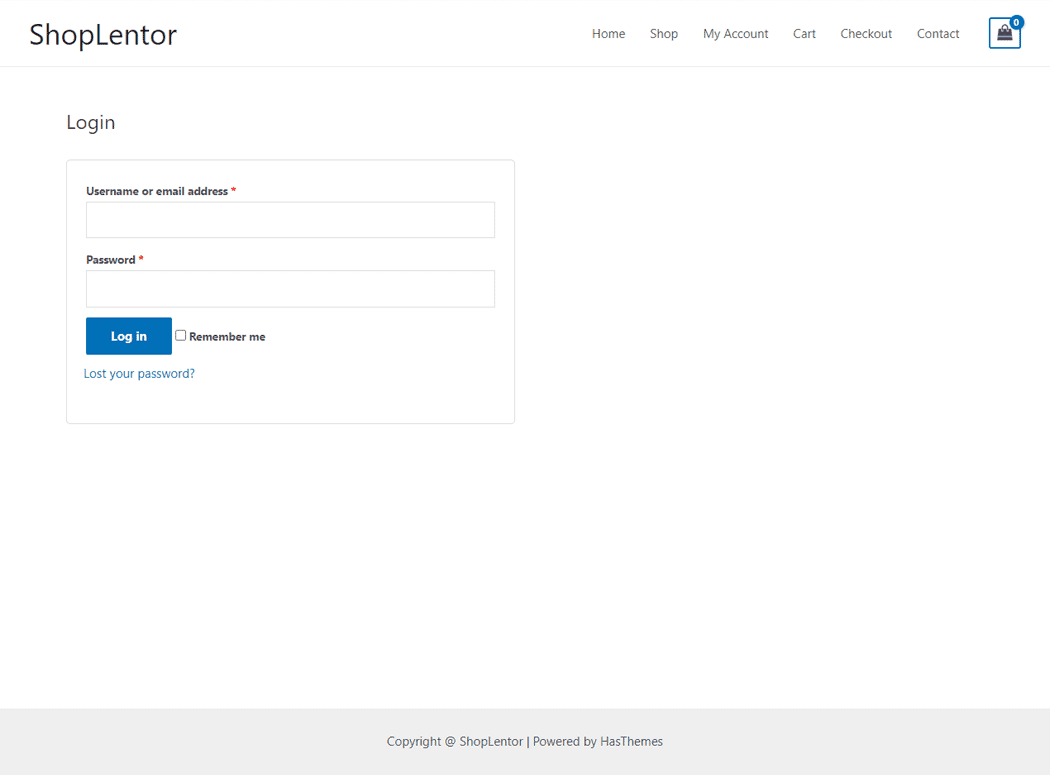
Step 4: Now view the preview
Visit the My Account Login/Register Template to Preview.
Do you want to use the My Account Login Form Widget for Elementor? Click Here