
The Checkout Shipping Method Widget for Elementor allows you to display WooCommerce shipping methods in a clear and organized way on your custom checkout page. Using this widget, you can present shipping options such as Free Shipping, Flat Rate, and Local Pickup along with helpful delivery descriptions.
This widget is useful when creating a custom WooCommerce checkout page using Elementor. It improves the checkout experience by clearly showing shipping options and estimated delivery times for customers.
With flexible layout styles and customizable descriptions, you can present shipping methods in a professional and user-friendly way.
How to Enable the Checkout Shipping Method Widget
Before using the widget, make sure it is enabled inside ShopLentor.
Step 1: Enable the Widget
- Go to WordPress Dashboard
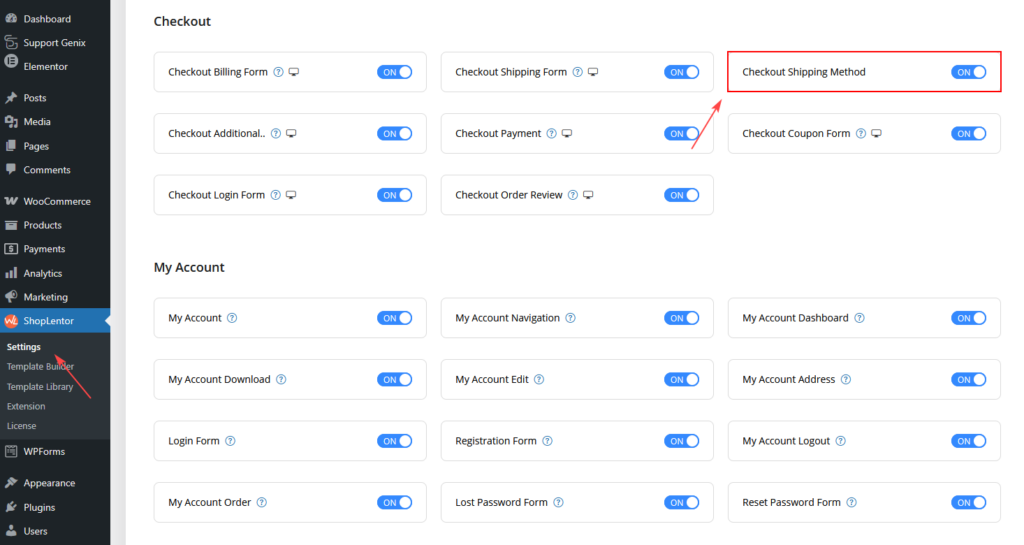
- Navigate to ShopLentor → Settings → Elementor Widgets
- Find Checkout Shipping Method
- Turn ON the widget
- Click Save Settings
How to Use the Checkout Shipping Method Widget in Elementor
Follow these steps to add the widget to your checkout template.
Step 1: Add a new Checkout Template Or edit existing
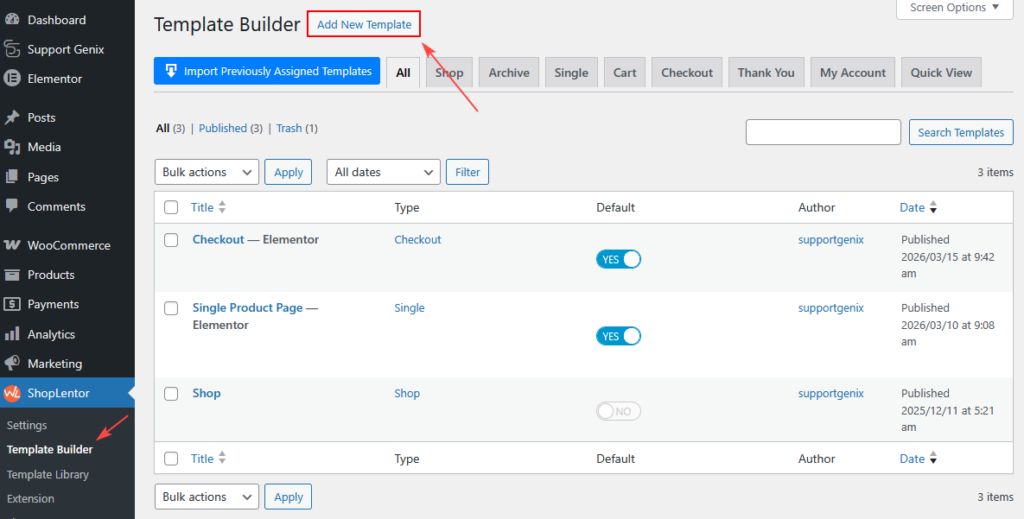
- Go to Dashboard → ShopLentor → Template Builder
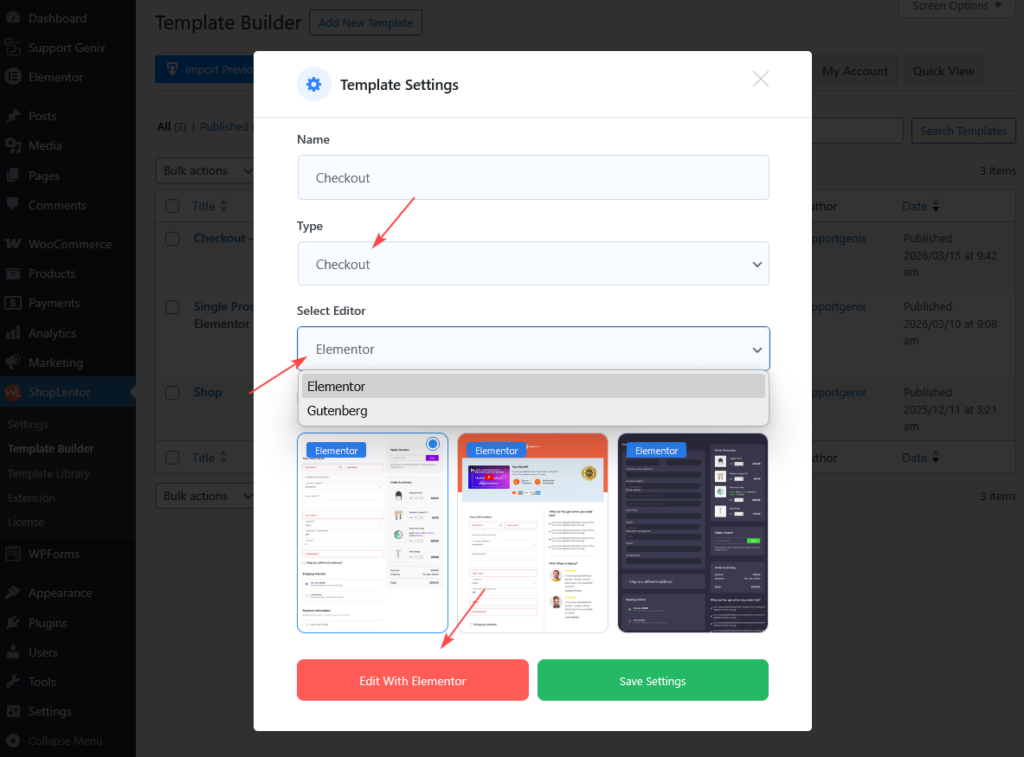
- Add a new Template or edit a Checkout Page Template
Step 2: Add the Widget
- Click the Edit with Elementor button
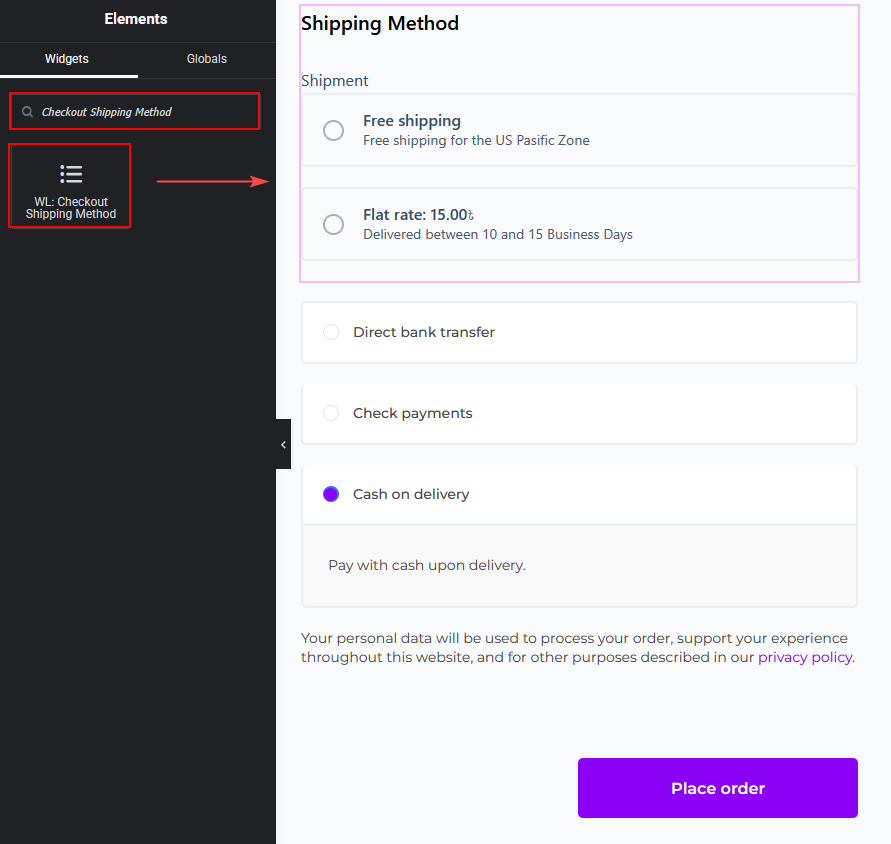
- In the Elementor panel search for Checkout Shipping Method
- Drag and drop the WL: Checkout Shipping Method widget into the checkout section
Step 3: Update the Template
- Click Update / Publish
- Reload your checkout page to see the changes
⚠️ After editing the settings, update the template and reload the checkout page to see the real checkout layout.
Checkout Shipping Method Widget Settings
The widget includes multiple content options to customize shipping methods and delivery descriptions.
Shipping Methods
This section allows you to configure how the shipping methods appear on the checkout page.
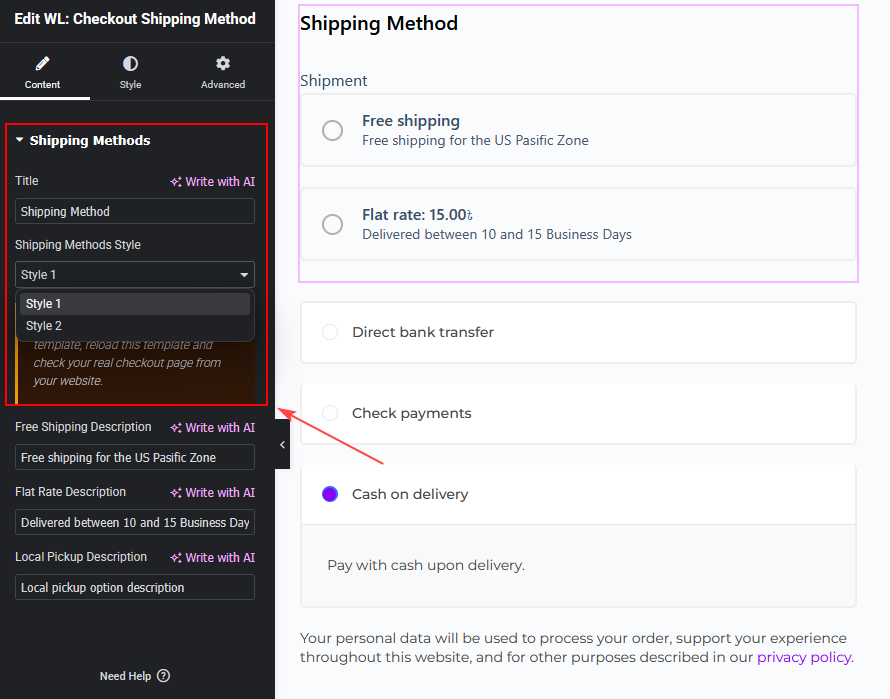
- Title
- This option lets you set the heading for the shipping method section.
- Example: Shipping Method
- This title appears above the list of shipping options during checkout.
- Shipping Methods Style
- You can choose the layout style for displaying the shipping methods.
- Available styles:
- Style 1
- Style 2
Each style changes the visual layout and arrangement of shipping options on the checkout page.
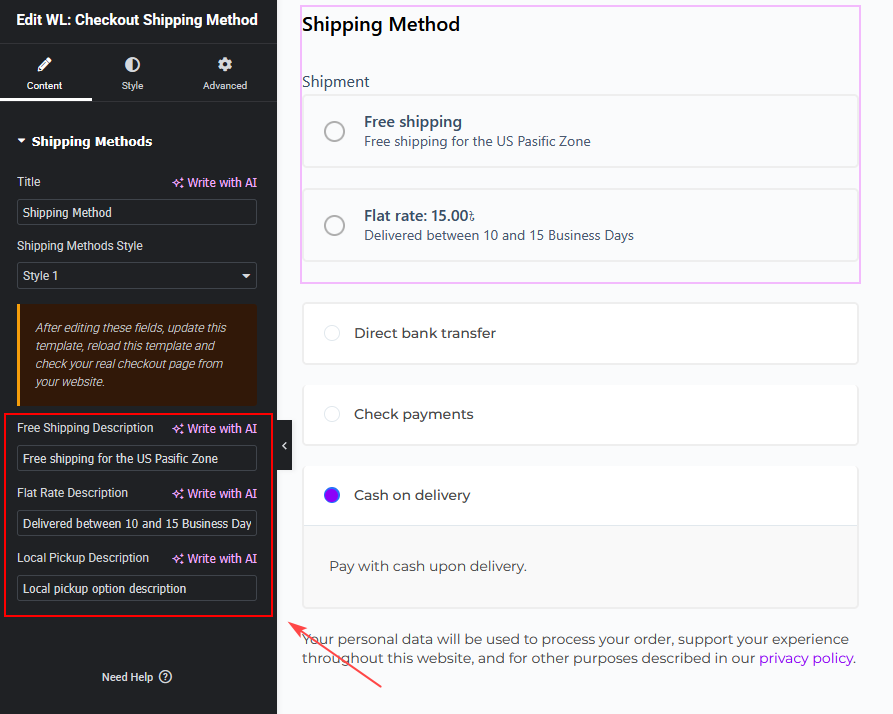
- Free Shipping Description
- This field allows you to add a description for the Free Shipping method.
- Example: Delivered between 10 and 15 Business Days
- This helps customers understand the expected delivery timeframe.
- Flat Rate Description
- This option lets you add a custom description for the Flat Rate Shipping method.
- Example: Delivered between 3 and 5 Business Days
- This is useful for communicating delivery speed and shipping expectations.
- Local Pickup Description
- Use this option to describe the Local Pickup shipping method.
- Example: Delivered between 7 and 10 Business Days
- This informs customers about pickup or processing times.
Style Settings
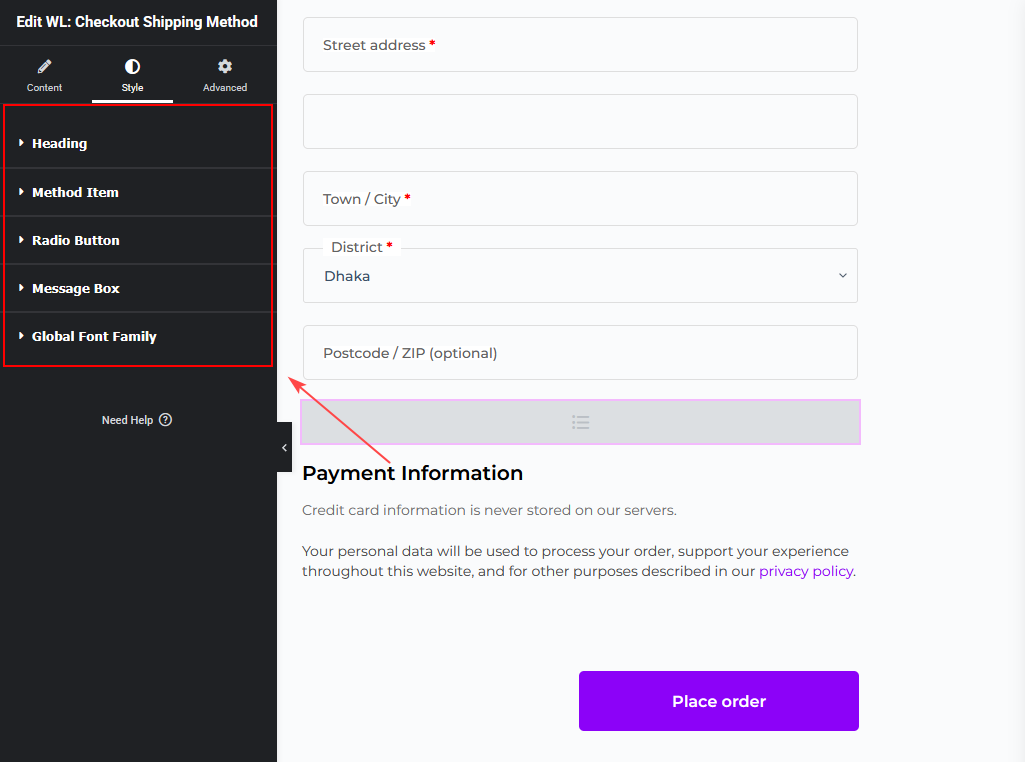
The Style Settings allow you to customize the appearance of the shipping methods on the checkout page. You can adjust colors, typography, spacing, and layout elements to match your store design.
Available sections:
- Heading
- Method Item
- Radio Button
- Message Box
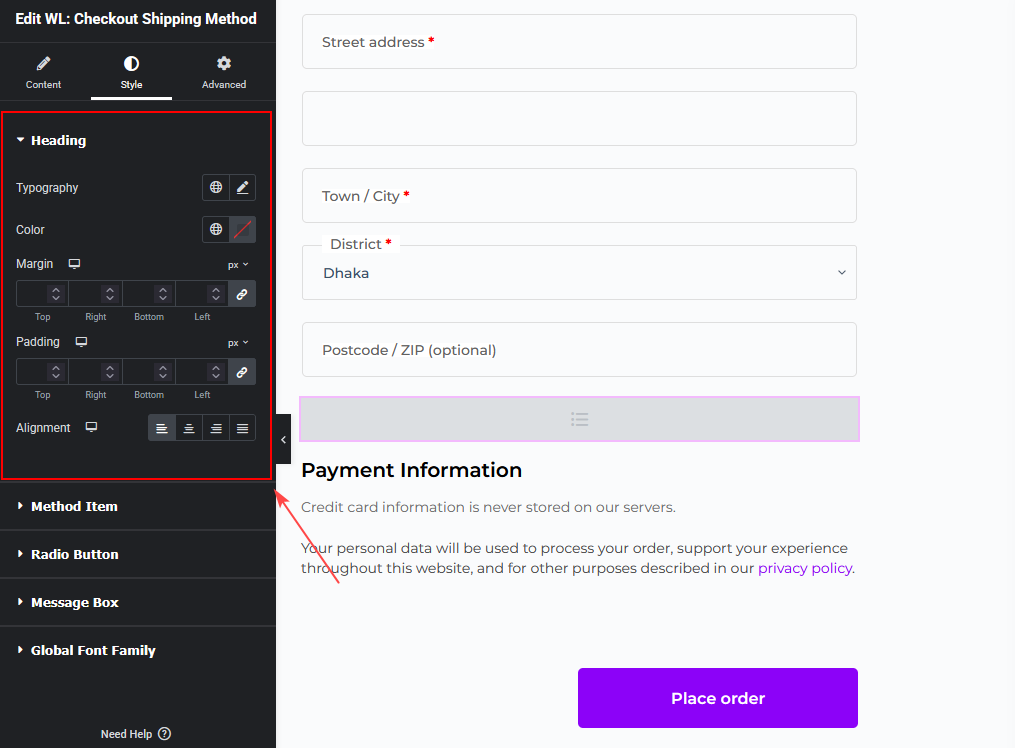
Heading
Customize the appearance of the shipping method title.
Options available:
- Color – Set the heading text color
- Font Size – Adjust the heading size
- Margin – Control outer spacing (Top, Right, Bottom, Left)
- Padding – Control inner spacing (Top, Right, Bottom, Left)
- Alignment – Set text alignment (Left, Center, Right)
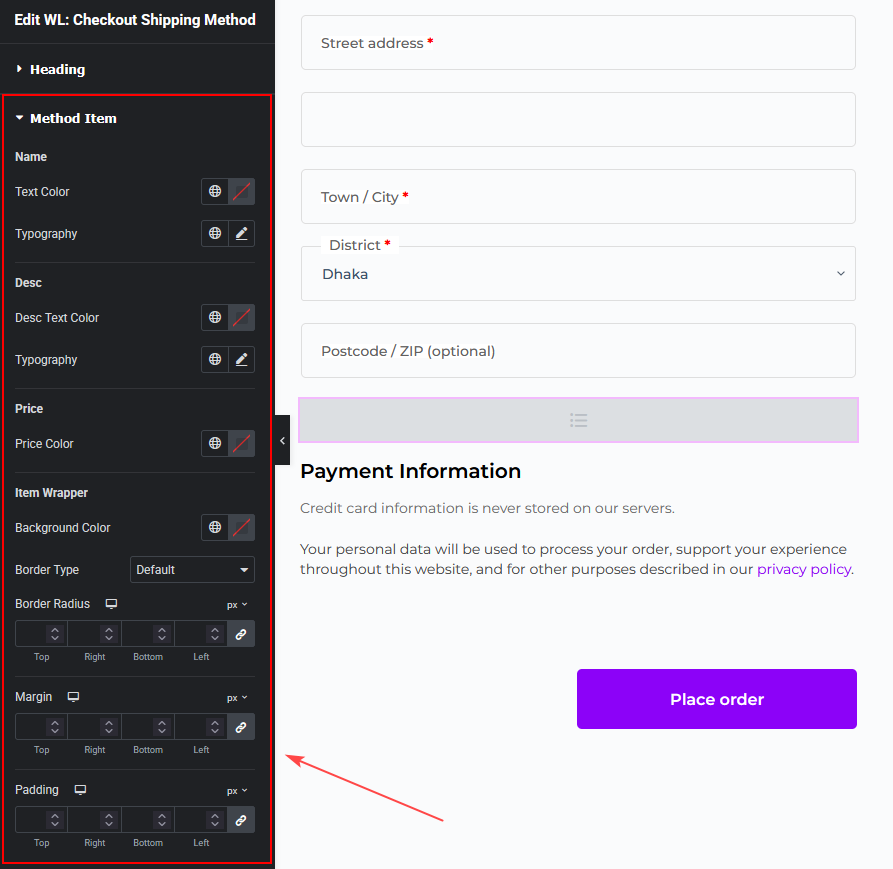
Method Item
Customize the design of each shipping method.
Name
Controls the appearance of the shipping method name.
Options:
- Color
- Font Size
Description
Controls the appearance of the shipping method description.
Options:
- Color
- Font Size
Price
Controls the appearance of the shipping cost.
Options:
- Text Color
Item Wrapper
Controls the container of each shipping method.
Options:
- Background Color
- Border (type, width, color)
- Border Radius
- Padding (Top, Right, Bottom, Left)
- Margin (Top, Right, Bottom, Left)
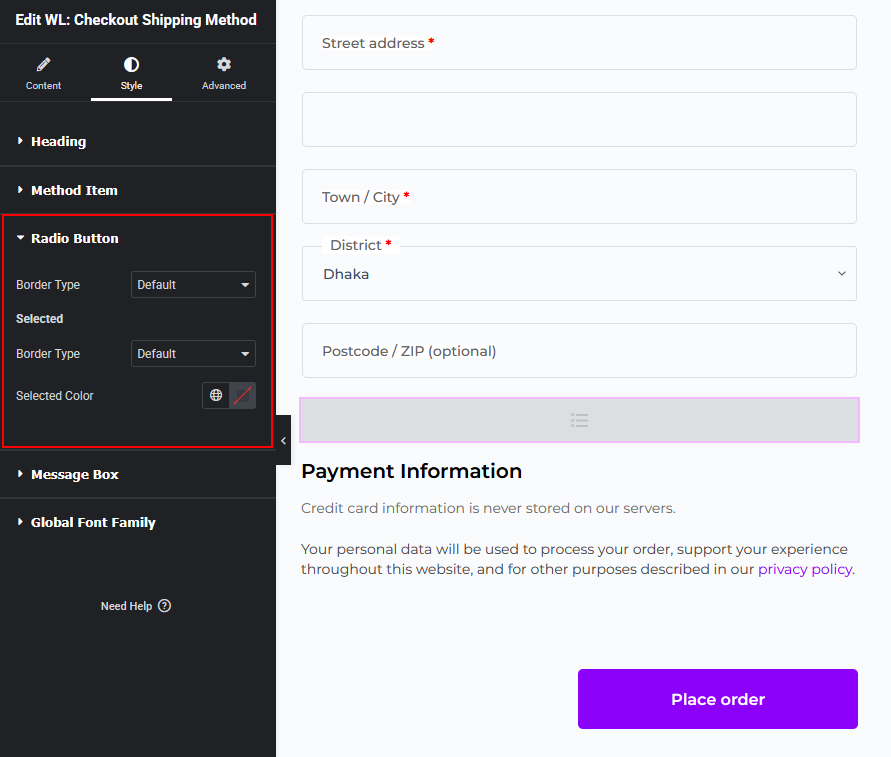
Radio Button
Customize the radio button used to select a shipping method.
Options:
- Border – Default radio button border
- Selected Border – Border when selected
- Selected Color – Color of the selected option
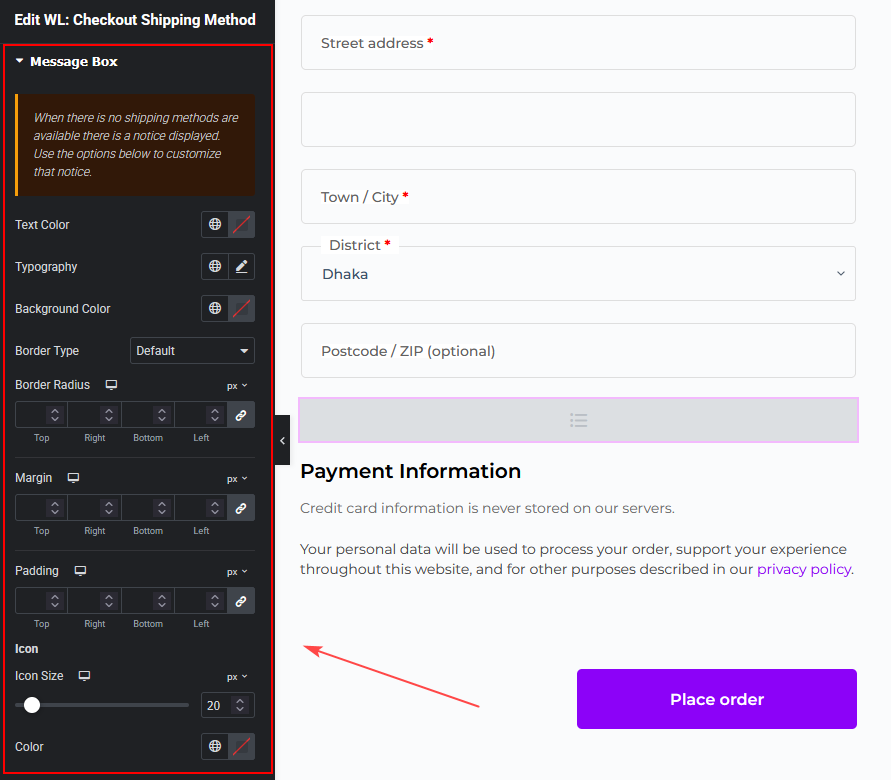
Message Box
The Message Box appears when no shipping methods are available.
Options:
- Color – Message text color
- Font Size – Message text size
- Background Color
- Border
- Border Radius
- Padding (Top, Right, Bottom, Left)
- Margin (Top, Right, Bottom, Left)
Best Practices for Using the Checkout Shipping Method Widget
To provide a better checkout experience:
- Clearly describe each shipping option
- Provide accurate delivery estimates
- Use a layout style that matches your checkout design
- Test the checkout page after updating the template
These improvements help customers choose the right shipping method and reduce confusion during checkout.
Where to Use the Checkout Shipping Method Widget
This widget works best in:
- Custom WooCommerce checkout pages
- Elementor checkout templates
- Optimized conversion checkout layouts
- Multi-shipping option stores