
Upsells are products that you recommend instead of the currently viewed product. The Product Upsell widget is a strategy to sell a superior, more expensive version of a product that the customer already owns (or is buying)
Why Product Upsell is used?
On the Single Product Template, the “Product Upsell” widget is used to view the Single Product Template on WooCommerce. The “Product Upsell” widget is mainly designed for the Single Product Template.
Steps of adding Product Upsell
Go to WordPress Dashboard > WooLentor > Settings > Elements. From the list of Elements, turn ON the “Product Upsell” widget.
- You need to use the “Product Upsell” widget to view your Single Product Template.
- To add a Product Upsell widget, Drag and drop the “WL: Product Upsell” widget onto the Single Product Template.
Step 1: How to Enable Product Upsell Widget?
Go to Dashboard > WooLentor > Settings > Elements. From the list of Elements, turn ON the Product Upsell widget.

Step 2: How to use the Product Upsell Widget?
If you want to leverage the Product Upsell feature on your WooCommerce store, you will need to use a widget named “WL: Product Upsell“. To do so, simply search the widget in the Elementor widget panel, and use it on the corresponding template that you have created for the Single Product Template.

How to create the Single Product Template
Go to Dashboard > WooLentor > Template Builder. Click the “Add New” button on the top right beside the text “Template Builder” to create a Single Product Template

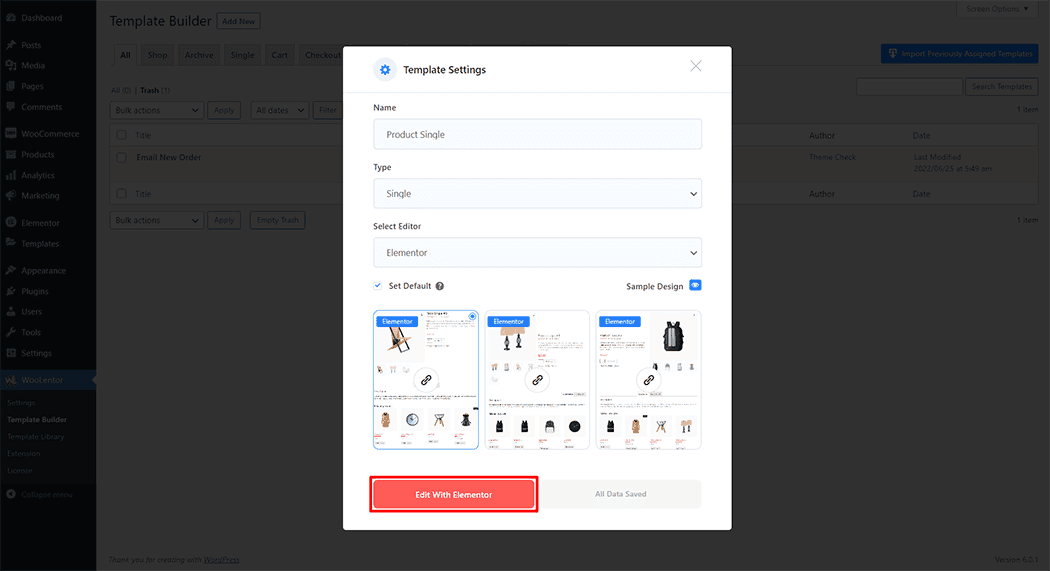
Set the name of your Template in the popup box for template settings. Then click the “Set Default” checkbox after selecting Single from the dropdown type list. You can choose a default sample design from the “Sample Design” button. Now click the “Save Settings” button to save your settings.

To add the Product Upsell widget, click the “Edit with Elementor” button to edit the Single Product Template
To add the Product Upsell widget, open the product to edit. Go to Dashboard > Products > All Products

To add the Product Upsell widget, go to the Linked Products option and add your products.

To add the Product Upsell widget, search by “Product Upsell” and use the widget that has the “WL Badge” on the Single Product Template.

Drag and drop the WooLentor Product Upsell widget onto the Single Product Template.

Step 3: How to customize the Product Upsell Widget?
Upsells: You can set order by, order, heading, and columns.

How to customize the Product Upsell style
You can change the typography, text color, and margin style of the Heading as needed.

Step 4: Now visit the site
Visit the Single Product Template to Preview.

Do you want to use Product Upsell Block for Gutenberg? Click Here