Overview
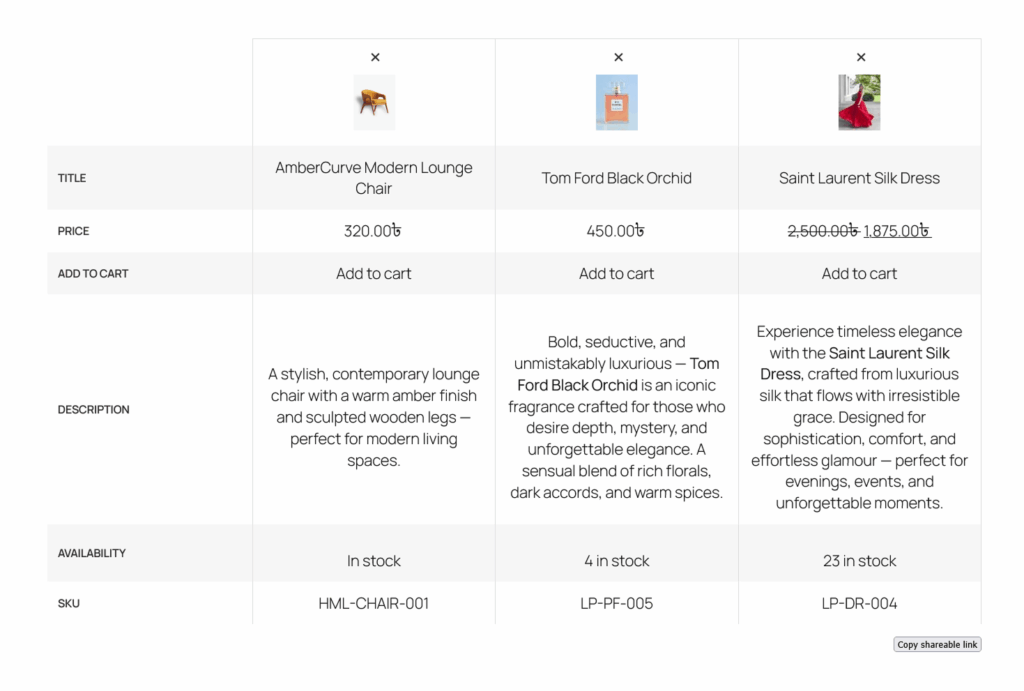
The Ever Compare widget/block allows you to display a product comparison table in your WooCommerce store.
It helps customers compare multiple products side by side, making it easier to choose the right product.
The comparison table includes:
- Product image
- Title
- Price
- Add to cart button
- Product description
- Product Availability
- Product Sku
You can use this feature in both:
- Elementor (Widget) → Ever Compare
- Gutenberg (Block) → Ever Compare
This ensures flexibility regardless of your page builder.
Key Features
- Display product comparison table
- Compare multiple WooCommerce products side by side
- Show essential product details
- Add to cart directly from compare table
- Remove products from comparison
- Fully customizable table styling
- Works with Elementor and Gutenberg
- Lightweight and responsive
Requirements
Before using this feature, make sure:
- WooCommerce is installed and activated
- ShopLentor plugin is installed
- Compare module is enabled
Enable Ever Compare Module
To use this feature, you must enable it first.
Steps:
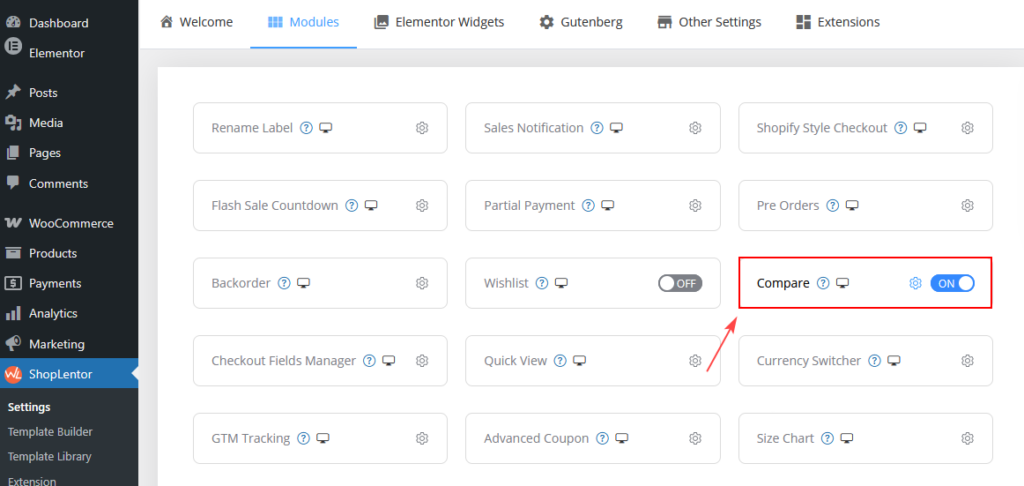
- Go to Dashboard → ShopLentor → Modules
- Find Compare
- Toggle it ON
- Click Save Settings
How Products Are Added to Compare
Customers can add products to the compare list using:
- Compare button on product listing pages
- Compare option on single product pages
Once added:
- Products automatically appear in the compare table
- Users can remove products using the remove (×) icon
Enable Ever Compare Widget/Block
To use this feature, you must enable it first.
Steps:
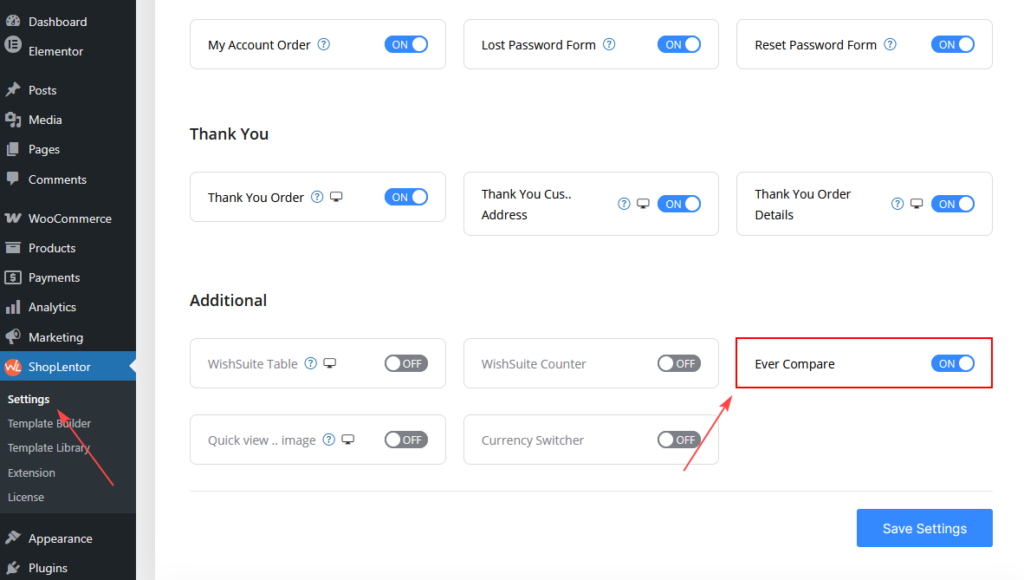
- Go to Dashboard → ShopLentor → Elementor Widgets/Gutenberg
- Find Ever Compare
- Toggle it ON
- Click Save Settings
How to Use the Ever Compare
Option A: Elementor (Widget)
Steps:
- Go to your page or template
- Click Edit with Elementor
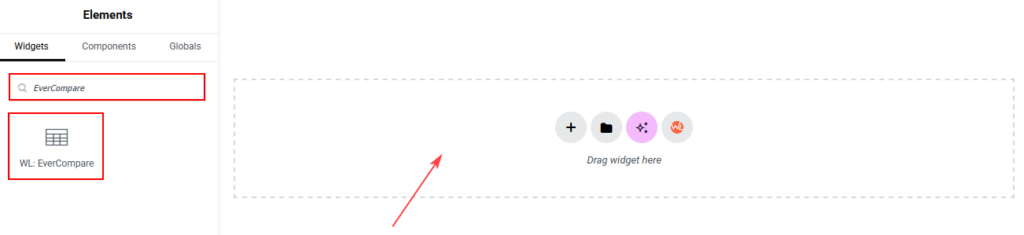
- Search for Ever Compare
- Drag and drop the widget into your layout
- Customize settings from:
- Content tab
- Style tab
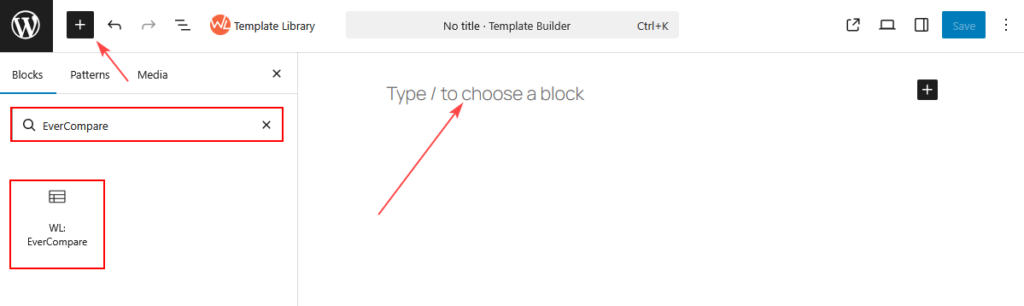
Option B: Gutenberg (Block)
Steps:
- Go to Dashboard → Pages → Edit Page
- Click the + (Add Block) button
- Search for Ever Compare
- Select the block
- Configure settings from the right sidebar
Widget / Block Settings
1. General Settings (Content / Block Tab)
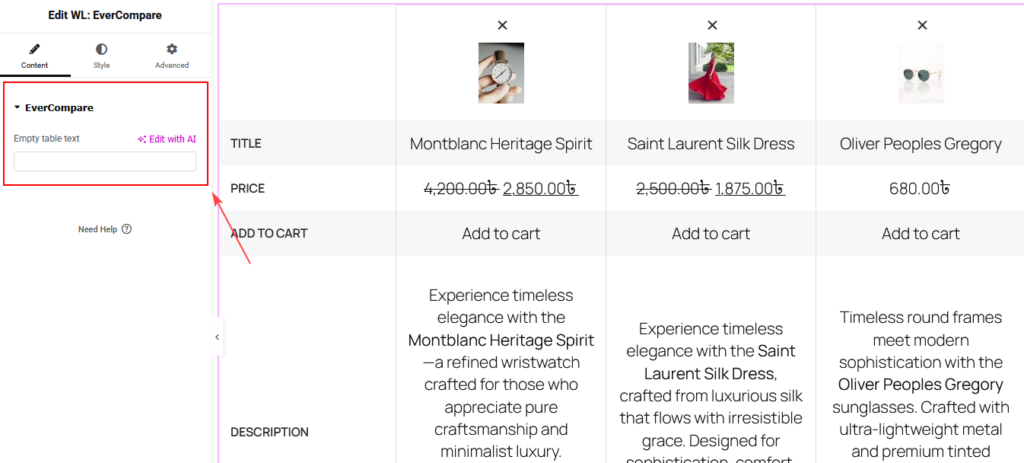
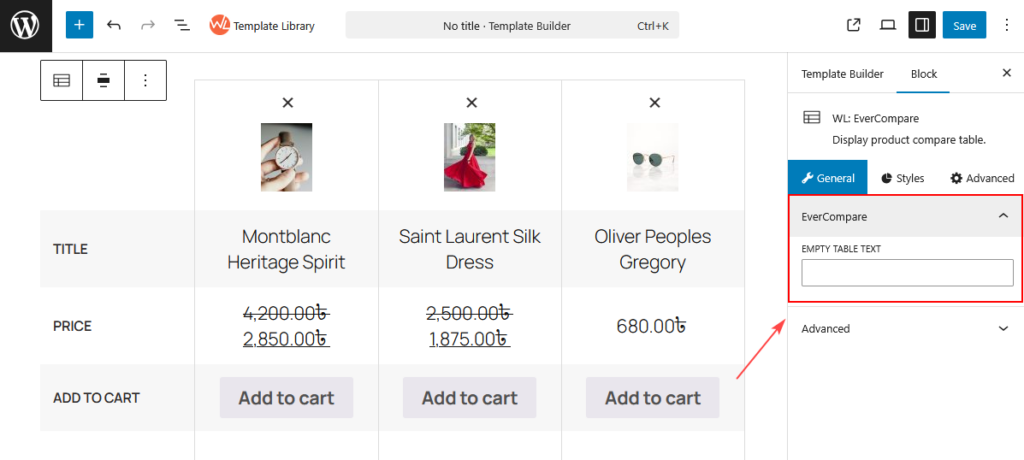
Empty Table Text
- Displays when no products are added to compare
- Helps guide users when the table is empty
Examples:
- “No product added to compare”
- “Start comparing products now”
👉 This text appears inside the table when no products exist.
Elementor Widget
Below is how the setting appears in the Elementor widget:
Gutenberg Block
Below is how the setting appears in the Gutenberg block:
2. Style Settings
The Style Settings allow you to customize the appearance of the compare table.
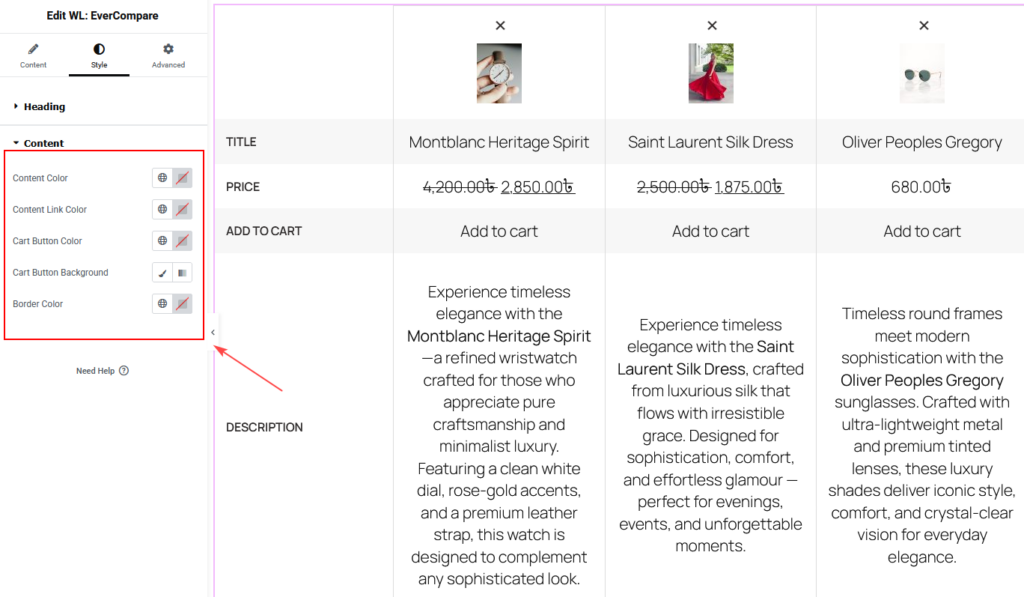
Elementor Widget (Style Settings)
Below is the full Style panel for the Elementor widget:
Table Heading
Controls row labels such as:
- TITLE
- PRICE
- ADD TO CART
- Description
- Availability
- Sku
Options:
- Heading Color
- Typography
- Even Row Background
- Odd Row Background
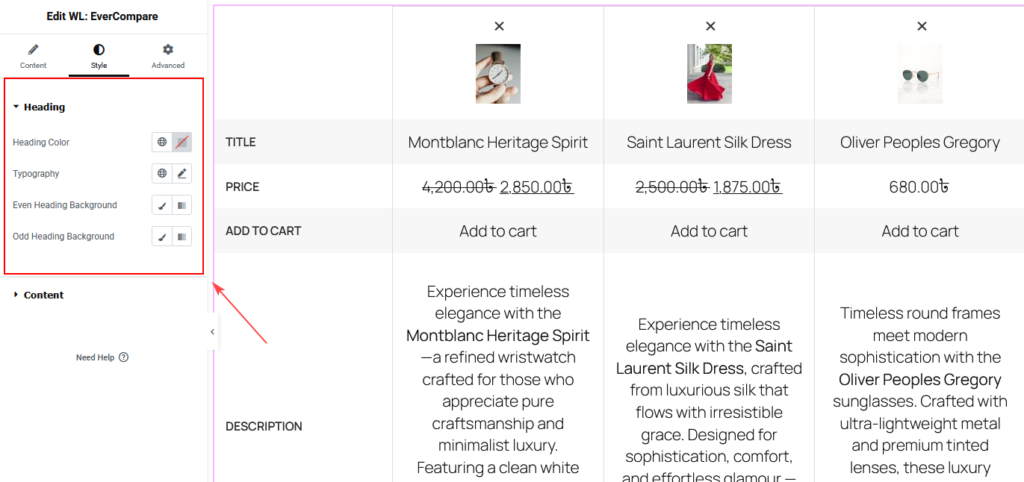
Table Content
Controls the product data styling.
Options:
- Content Color
- Link Color (for product title)
- Border (table border styling)
Button (Add to Cart Button)
Controls the Add to Cart button appearance.
Options:
- Text Color
- Background Color
👉 This applies specifically to the Add to Cart button inside the table
Share Button
Controls compare/share button styling.
Options:
- Font Size → Button text size
- Padding → Inner spacing
- Color → Text color
- Background Color → Background styling
- Border → Button border
Gutenberg Block (Style Settings)
Below is the full Style panel for the Gutenberg block:
Table Heading
- Heading Color
- Typography
- Even/Odd Background
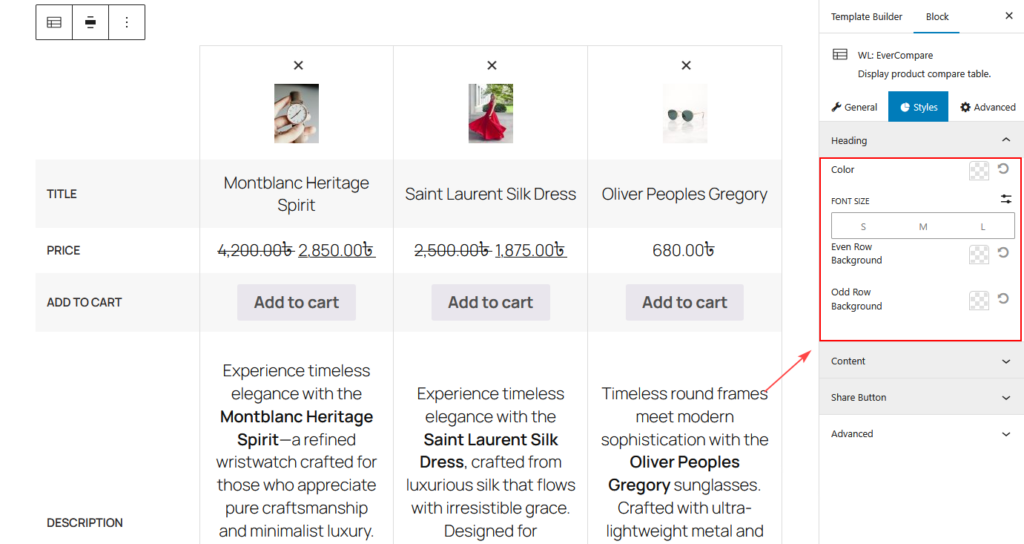
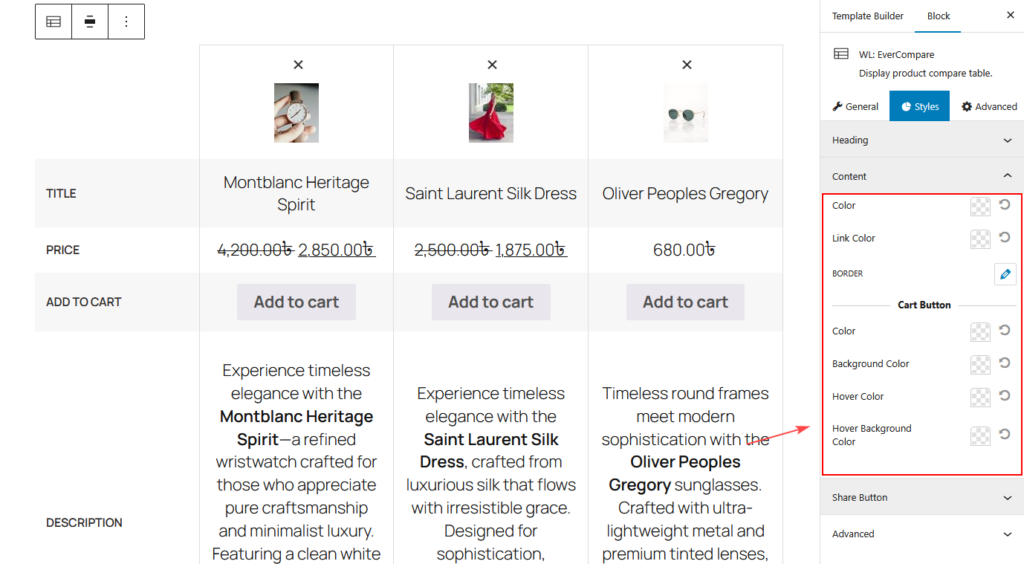
Table Content
- Content Color
- Link Color
- Button Color
- Button Background Color
- Border Color
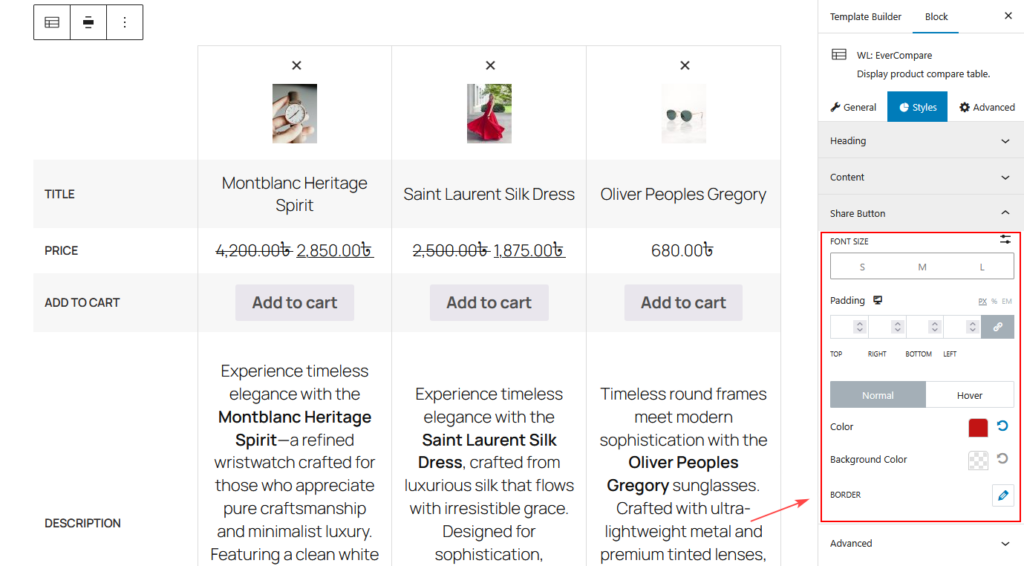
Share Button
Controls compare/share button styling.
Options:
- Font Size → Button text size
- Padding → Inner spacing
- Color → Text color
- Background Color → Background styling
- Border → Button border
How the Compare Table Works
When products are added:
- Products appear in columns
- Each row represents a product attribute
Example rows include:
- Title
- Price
- Add to Cart
- Description
Users can:
- Remove products (× icon)
- Add products to cart
- Compare multiple products visually
Empty Table Behavior
If no products are added:
- The table will display the Empty Table Text
- No product comparison rows will be shown
Example Use Cases
1. Dedicated Compare Page
Create a page where users compare multiple products
Helps users make faster decisions
2. Feature-Based Products
Useful for electronics or technical products
Allows easy comparison of features
3. High-Value Product Selection
Helps users evaluate expensive products
Improves confidence and conversions
Best Practices
- Compare 2–4 products for better clarity
- Use similar product types for meaningful comparison
- Keep table clean and readable
- Use clear button colors for better visibility
- Add helpful empty table text
Troubleshooting
Compare Table Not Showing?
- Ensure WooCommerce is active
- Make sure products are added to compare
Products Not Appearing?
- Check if compare button is working on product pages
- Check for theme or plugin conflicts
Styling Not Applying?
- Clear cache
- Check theme overrides
- Reapply settings
Final Notes
The Ever Compare widget/block is a powerful feature that helps customers compare products easily and make better decisions.
It works seamlessly with:
- Elementor
- Gutenberg
Providing flexibility and a consistent experience across builders.
Preview