
The Product Grid – Magazine Layout is a premium, editorial-style WooCommerce product display widget designed to give your shop a stylish and modern magazine-inspired look. With its asymmetric grid, large product numbering, alternating aspect ratios, and a refined editorial list layout, this widget is perfect for fashion, luxury, lifestyle, and boutique eCommerce stores.
This guide will walk you through how to use the Product Grid – Magazine Layout widget in Elementor and showcase all available options.
What Is Product Grid Magazine Layout for Elementor?
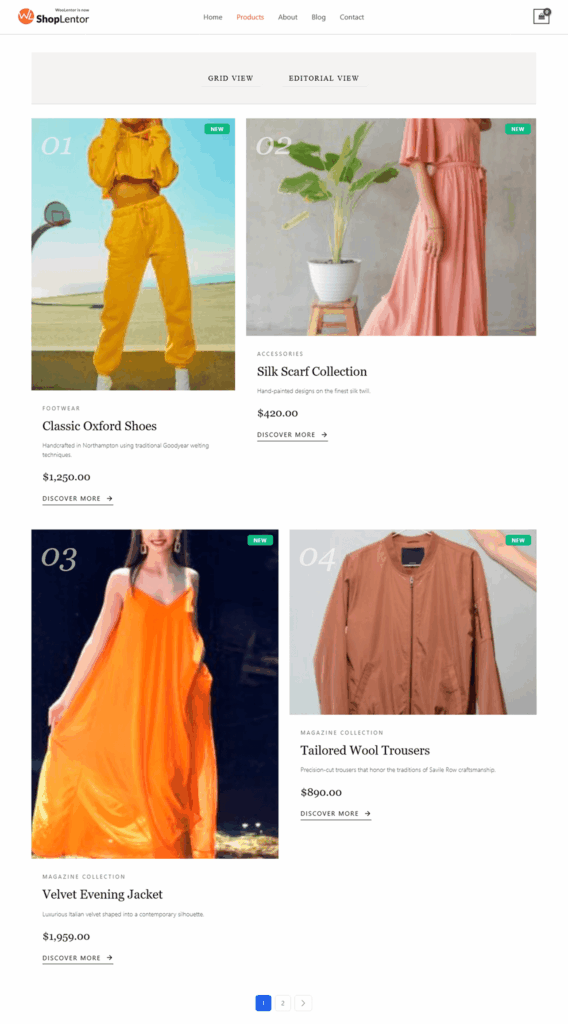
The Product Grid – Magazine Layout allows you to create unique editorial-style product grids inspired by high-end fashion magazines. It includes:
- Asymmetric 12-column magazine grid
- Editorial-style list layout
- Large product numbering (01, 02, 03…)
- Alternating image aspect ratios
- Featured editorial badge
- Grid/List switcher (Pro)
- Product description controls
- Quick action buttons
- Paginations including Load More / Infinite Scroll
- Full styling control
How to Use the Product Grid – Magazine Layout Widget
You can use the widget in two ways:
Method 1: Using the ShopLentor Template Builder.
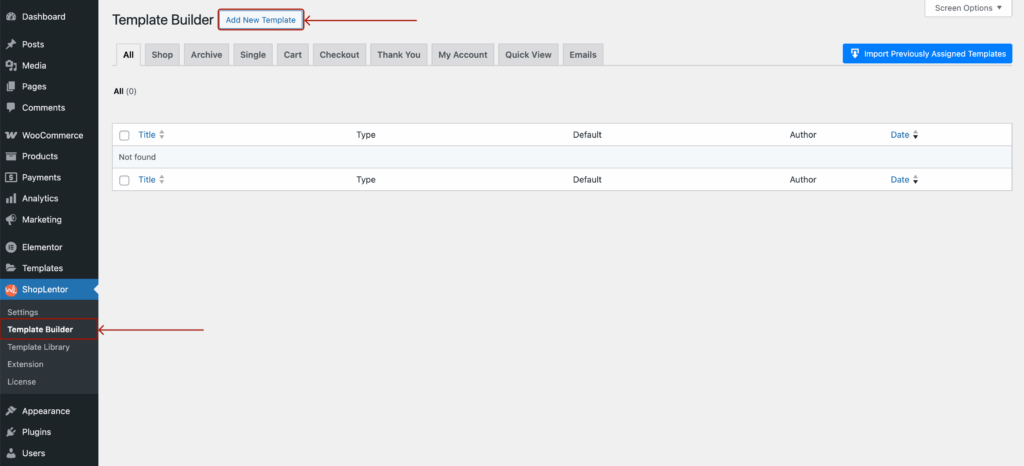
- Go to Dashboard → ShopLentor → Template Builder
- Click Add New
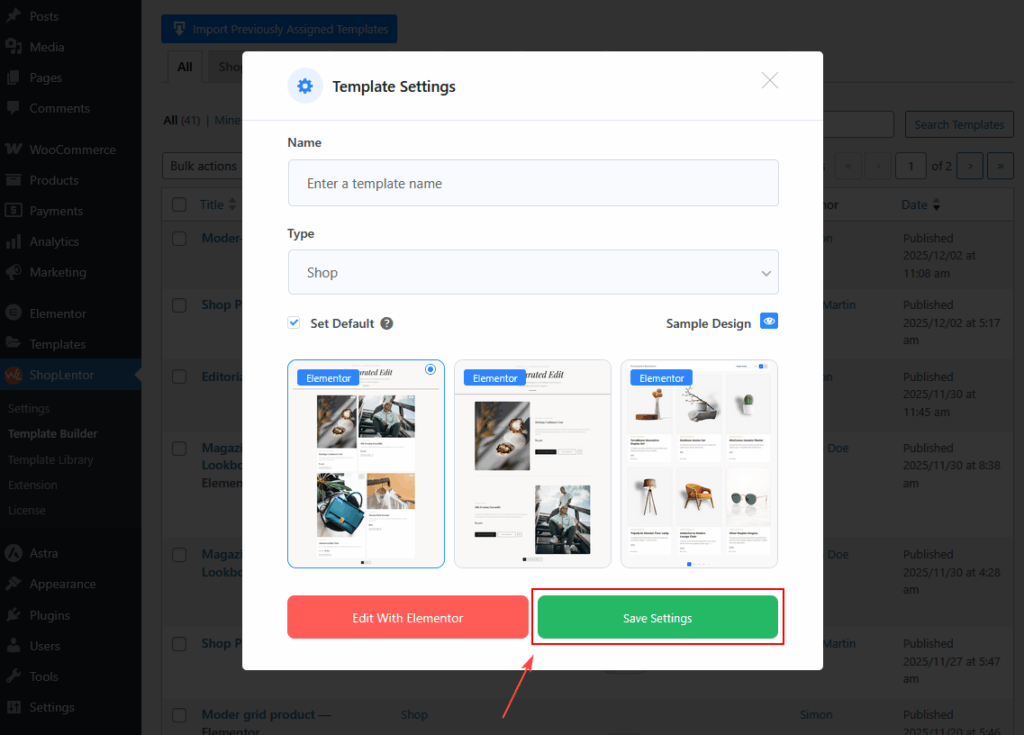
- In the popup:
- Enter a Template Name
- Select Type: Shop or Archive
- Enable Set Default
- (Optional) Select a sample design
- Click Save Settings
- Click Edit with Elementor
- Search for Product Grid – Magazine Layout
- Drag & drop the widget into your Shop page template
Method 2: Add Directly Inside Elementor
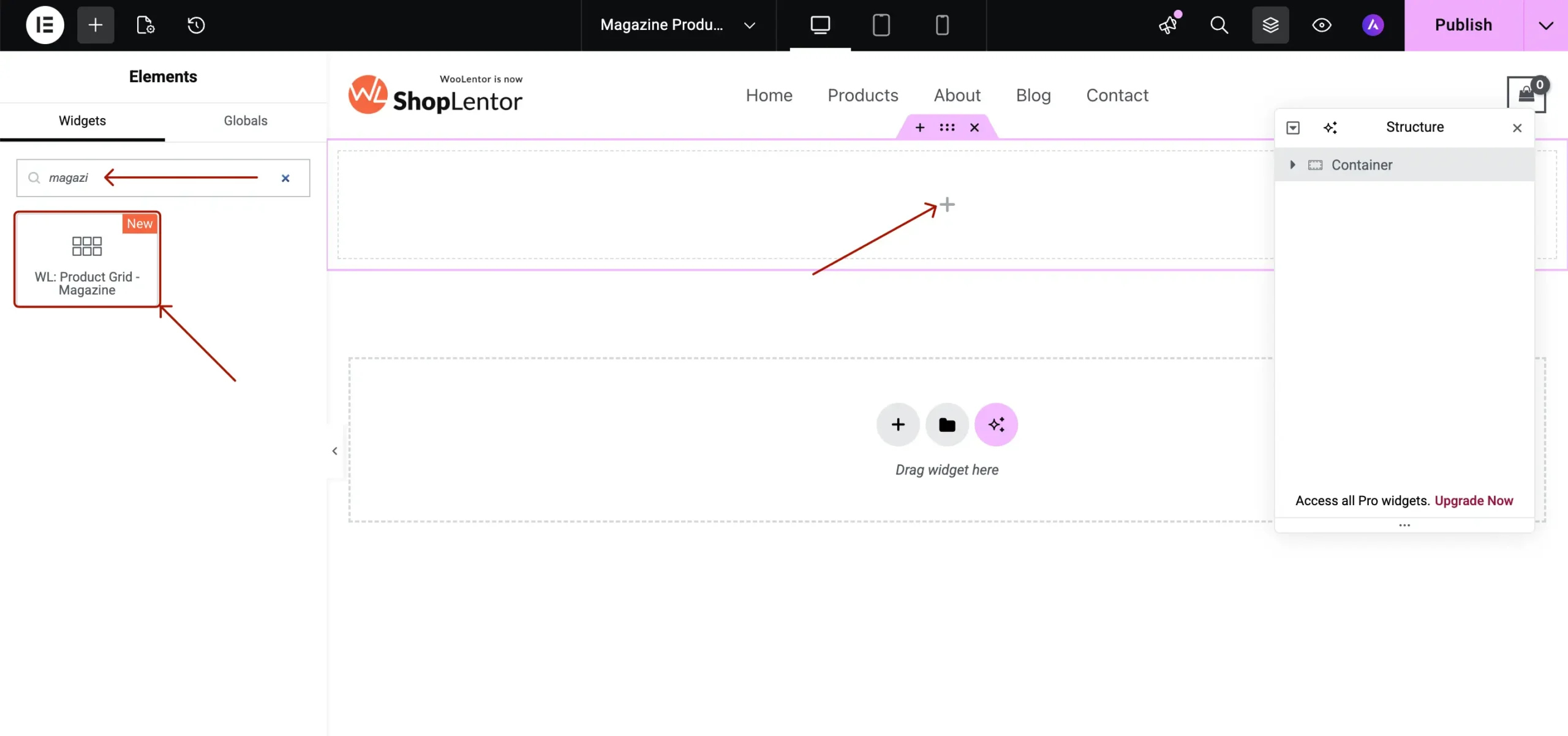
- Edit any page with Elementor
- Search for Product Grid – Magazine Layout
- Drag the widget into your layout
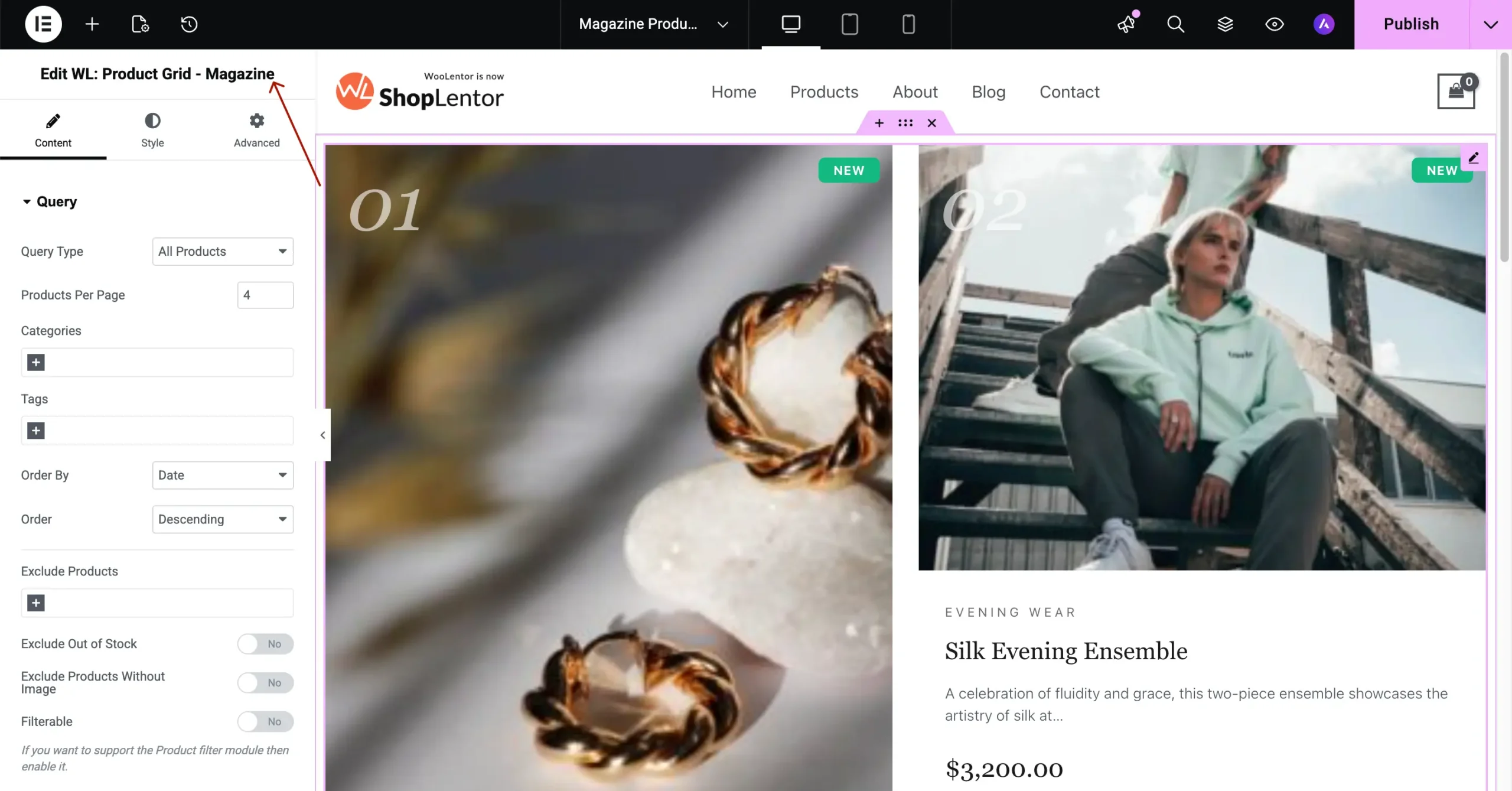
- Customize the grid settings and publish
Product Grid – Magazine Layout Options
Below is a full breakdown of every setting available in the widget.
A. Content Tab
A.1. Query Settings
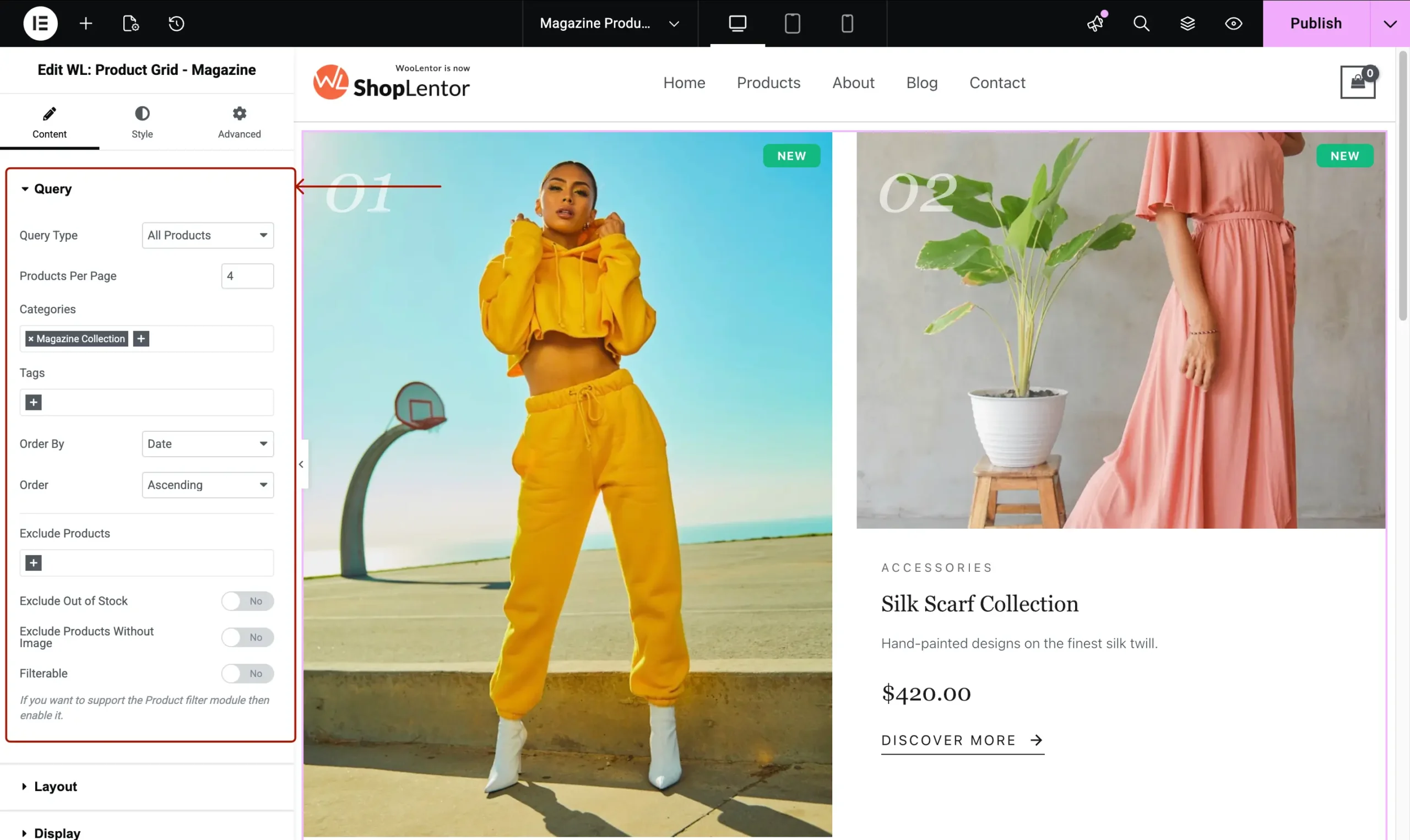
Control which products are displayed.
Options Include:
- Query Type: All Products, Recent Products, Manual Selection, Featured, On Sale, Best Selling, Top Rated, Recently Viewed.
- Products Per Page
- Category Filter
- Tag Filter
- Exclude Product(s)
- Exclude Out of Stock
- Exclude Products Without Images
- Order By & Order
- Enable Filters (Compatibility Mode)
A.2. Layout Settings
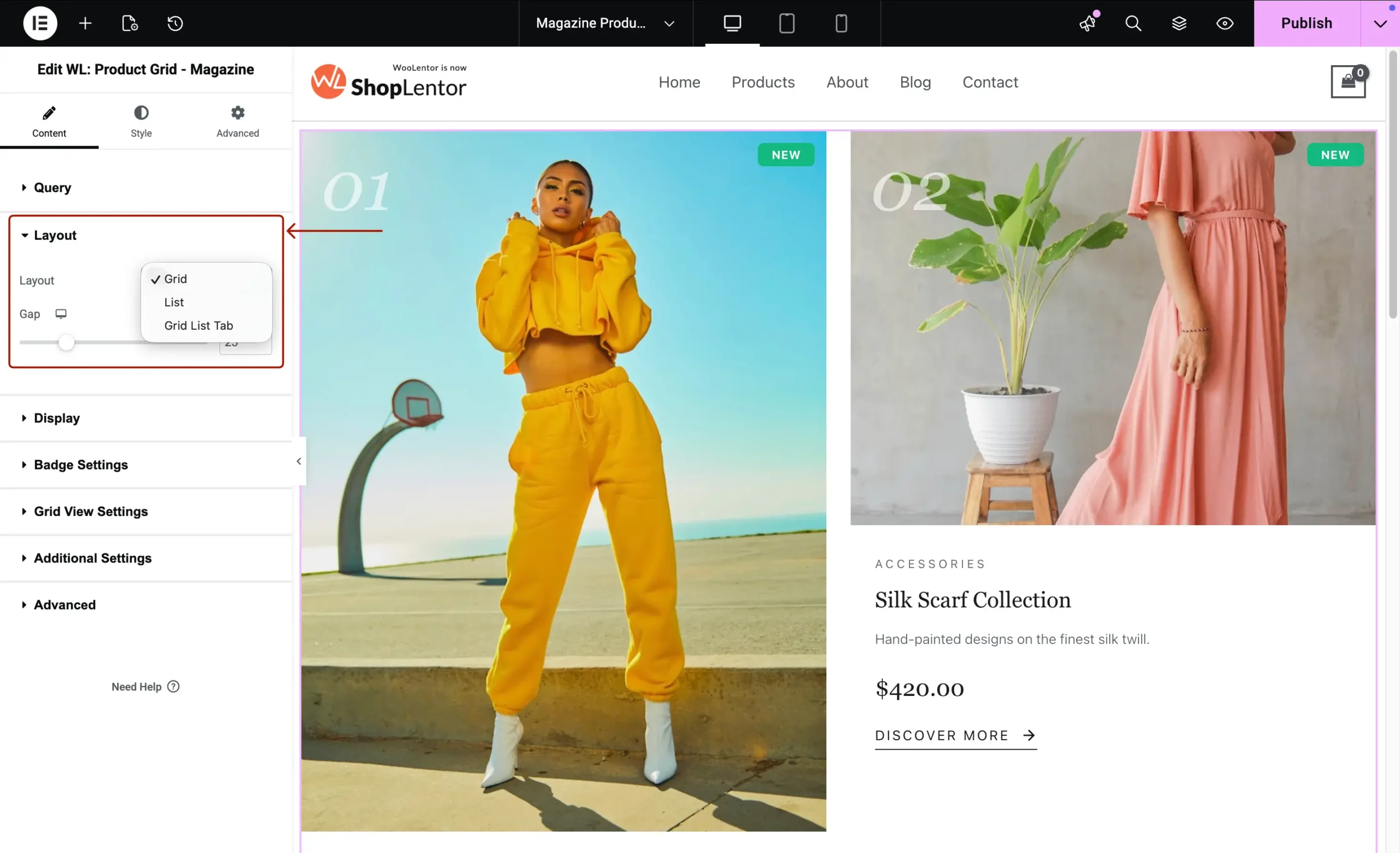
Layout Type:
- Grid (asymmetric magazine grid)
- List (editorial-style left/right alternating layout)
- Grid List Switcher
Additional Layout Controls:
- Default View (Grid/List)
- Switcher Button Text
- Gap control
Magazine Asymmetric Grid Pattern:
The grid layout uses a repeating 8-product pattern with variable column widths for an editorial appearance.
A.3. Display Settings
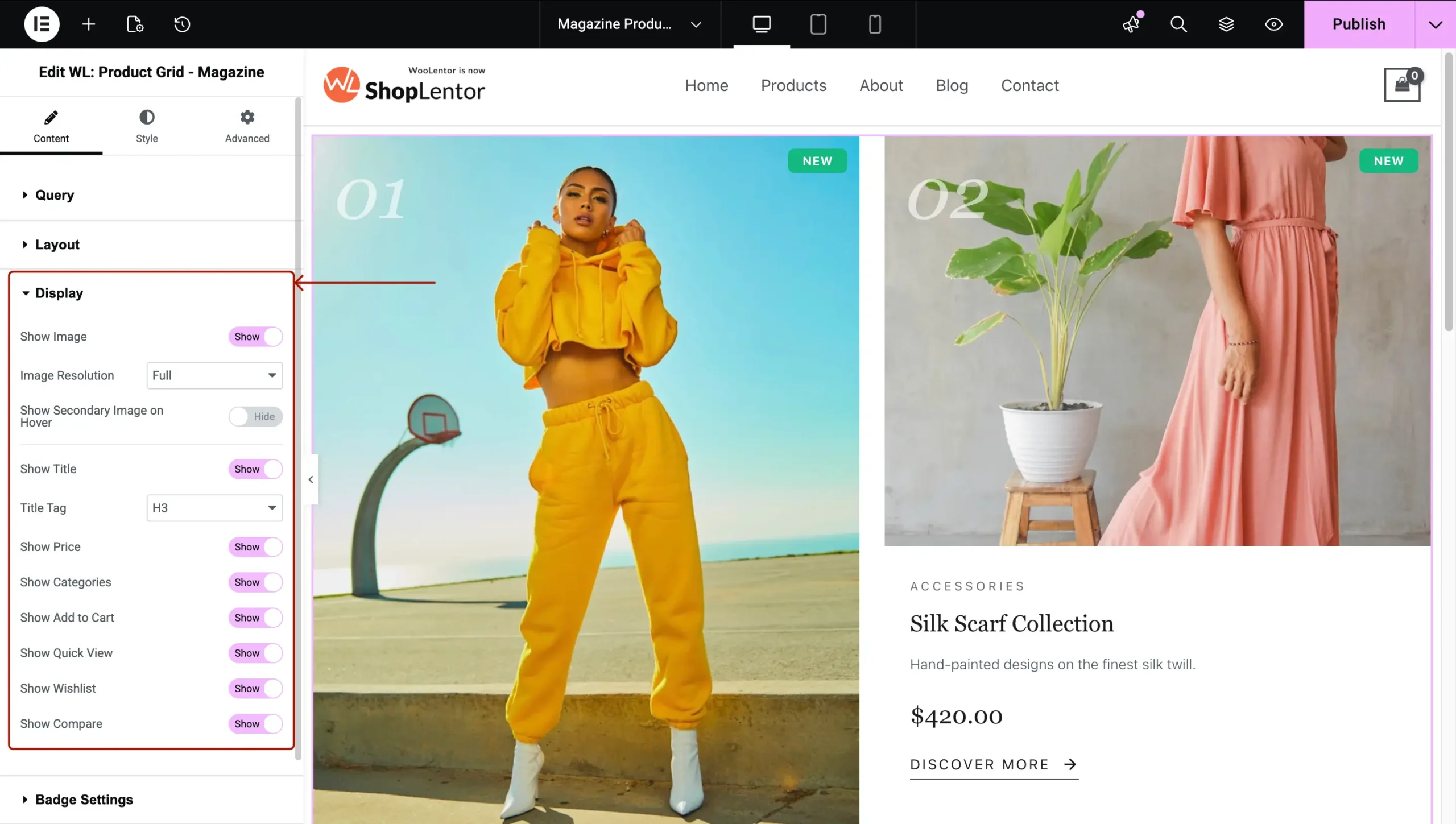
Toggle product elements:
- Category
- Product Title
- Short Description (Grid/List)
- Price
- Add to Cart / Discover More
- Quick View
- Wishlist
- Compare
- Secondary Image on Hover
A.4. Grid View Settings
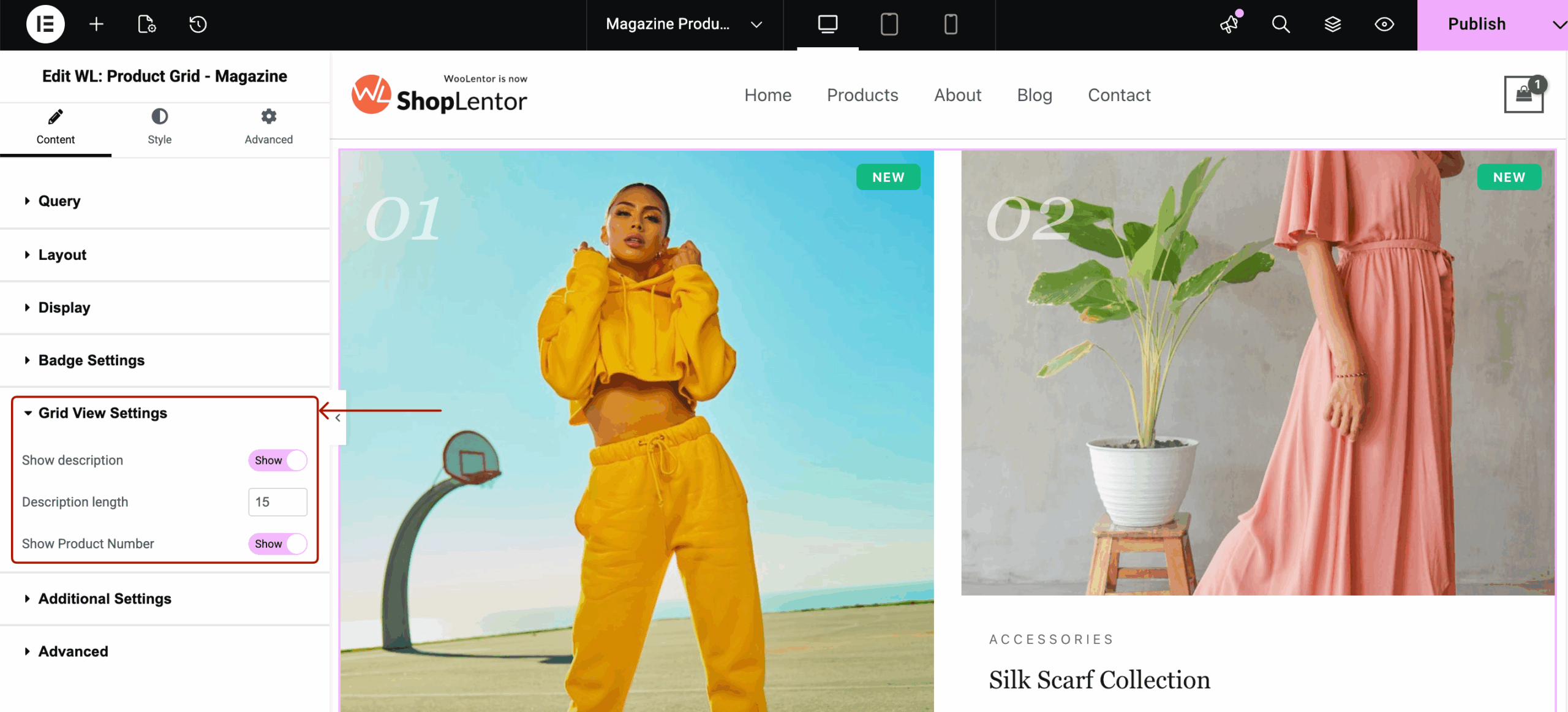
The Grid View Settings panel allows you to control additional content elements that appear only in the Grid layout of the Magazine widget.
Options:
1. Show Description
- Enable/Disable the short product description under the title.
- Useful for adding a minimal editorial-style text preview on the grid.
2. Description Length
- Set the number of words shown in the grid description.
- Default: 15 words
- Helps keep your grid layout clean and consistent.
3. Show Product Number
- Enable/Disable the large magazine-style product numbering (01, 02, 03…).
- When enabled, numbers appear at the top-left area of each product card.
- Fully supports pagination; numbering continues correctly on next pages.
A.5. Additional Settings
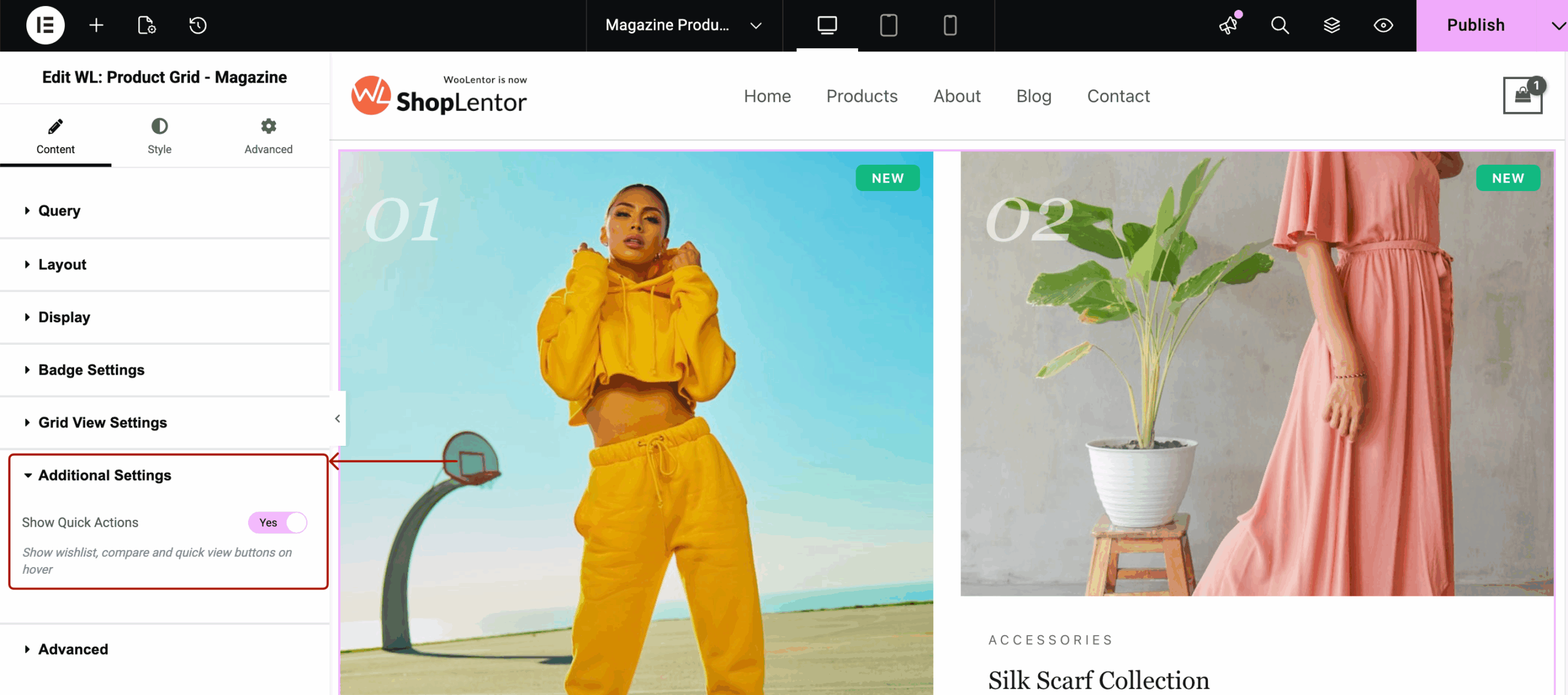
The Additional Settings panel includes extra interactive features that enhance the user experience.
1. Show Quick Actions
- Enable or disable the product quick action buttons.
- Quick actions include:
- Wishlist
- Compare
- Quick View
- When enabled, these icons appear on hover for each product card.
- Ideal for stores that want a modern, app-like shopping experience.
A.6. Badge Settings
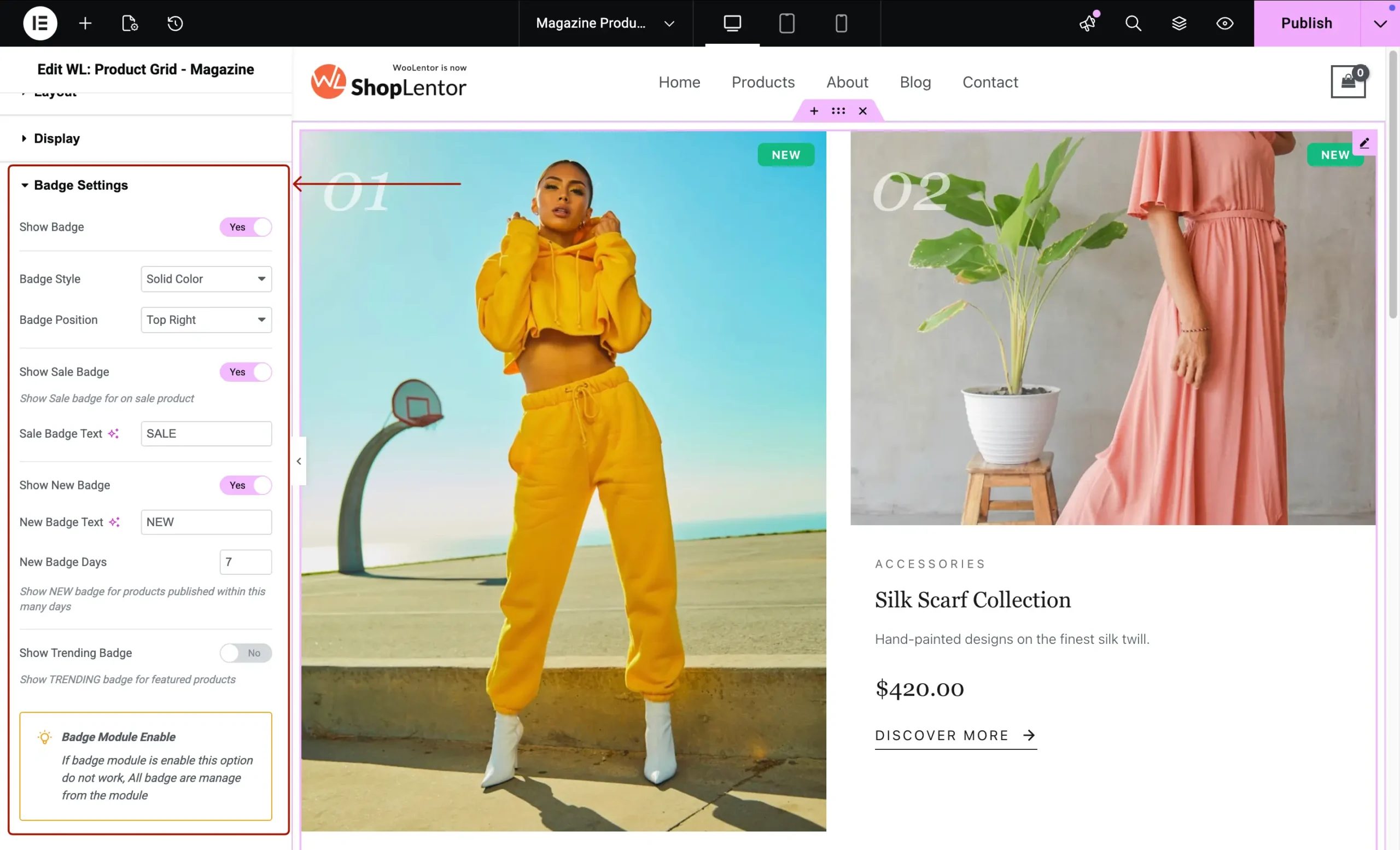
Toggle smart badges:
- Sale Badge
- New Badge (includes number of days control)
- Trending Badge
- Featured Badge
Additional badge styling available inside the Style tab.
A.7. Pagination Settings
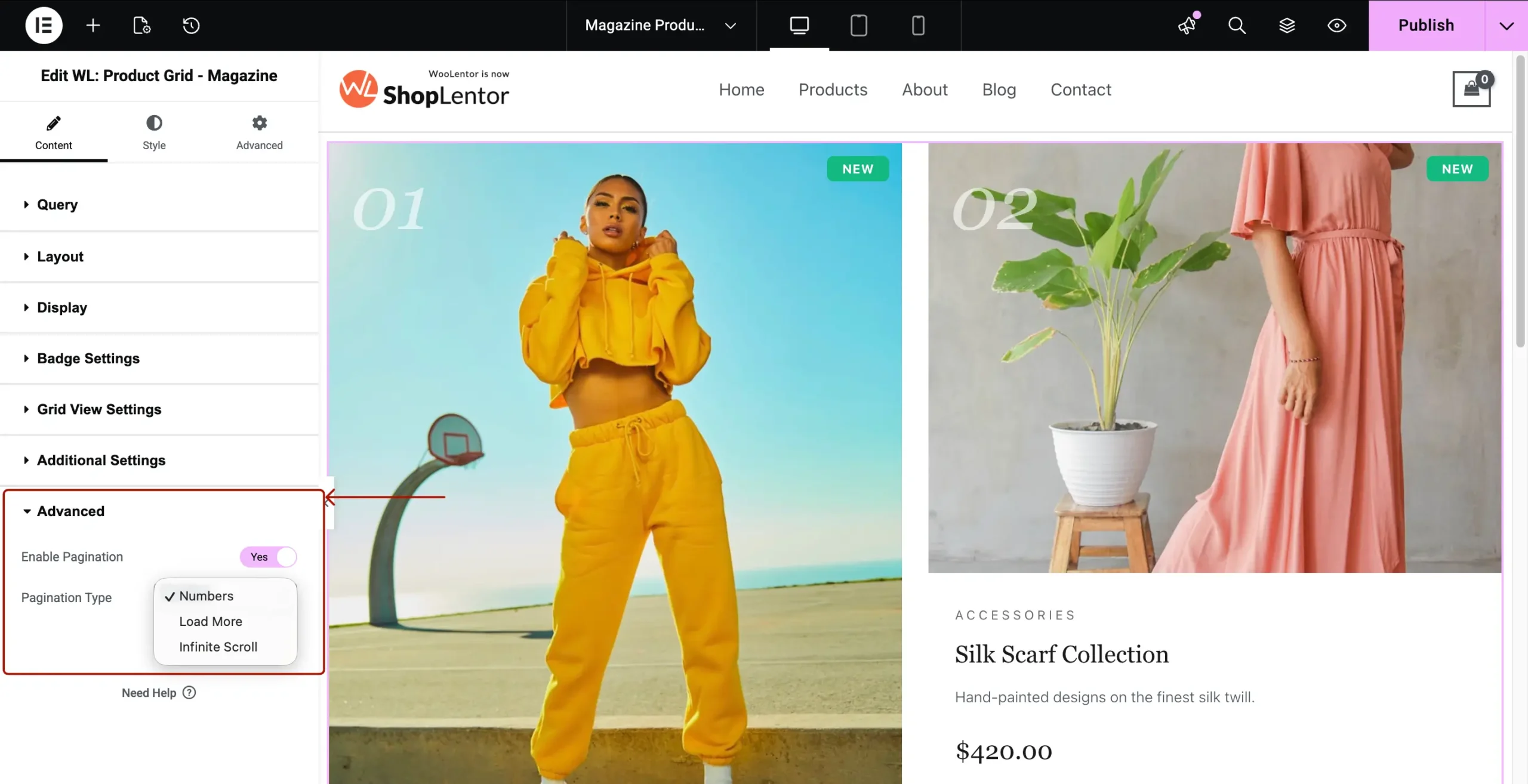
Choose how customers navigate through products:
- Numbers
- Load More
- Infinite Scroll
Customizable texts and alignment.
B. Style Tab
B.1. Container Styling
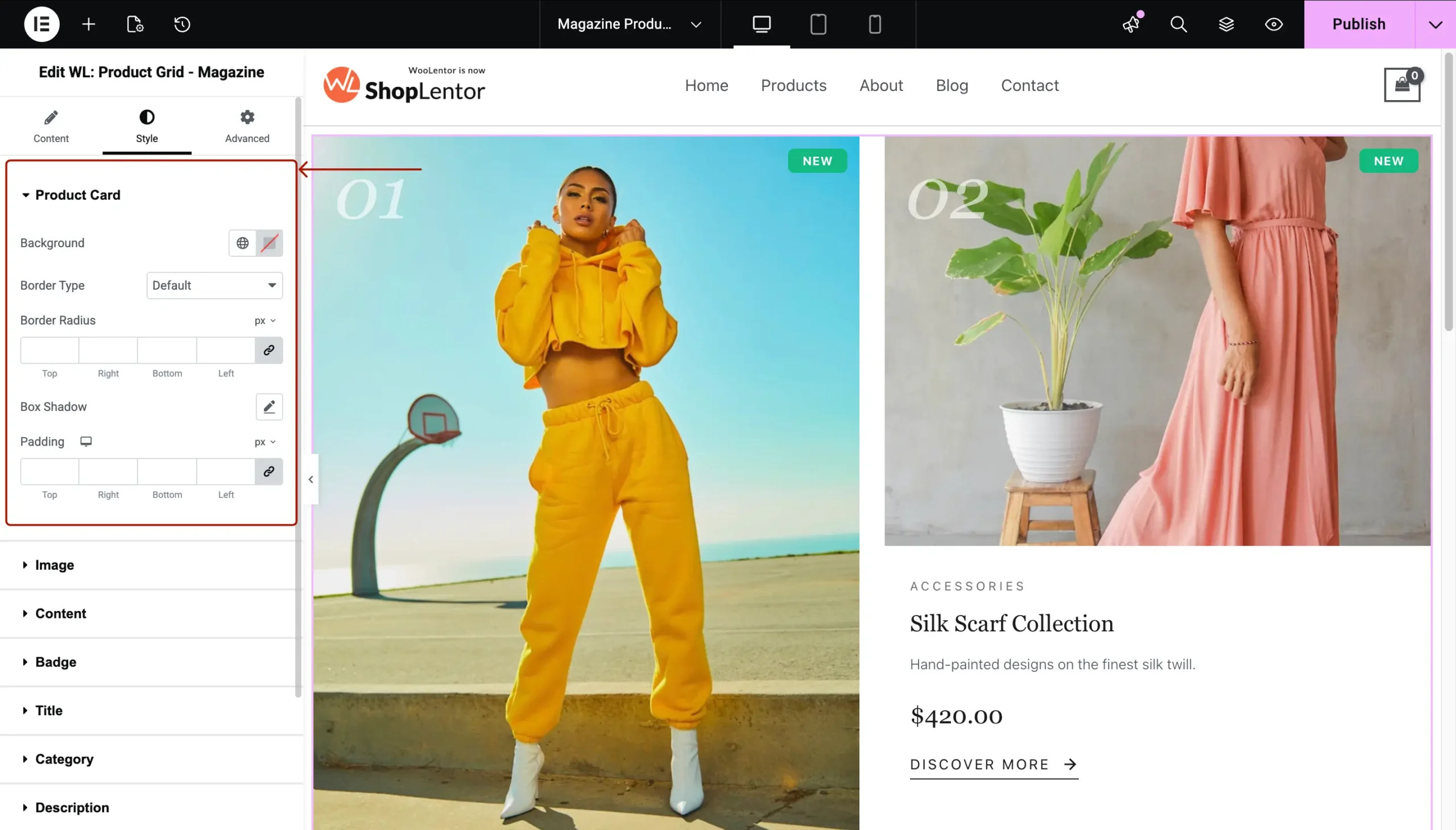
- Background
- Border
- Border Radius
- Padding
- Box Shadow
B.2. Image Styling
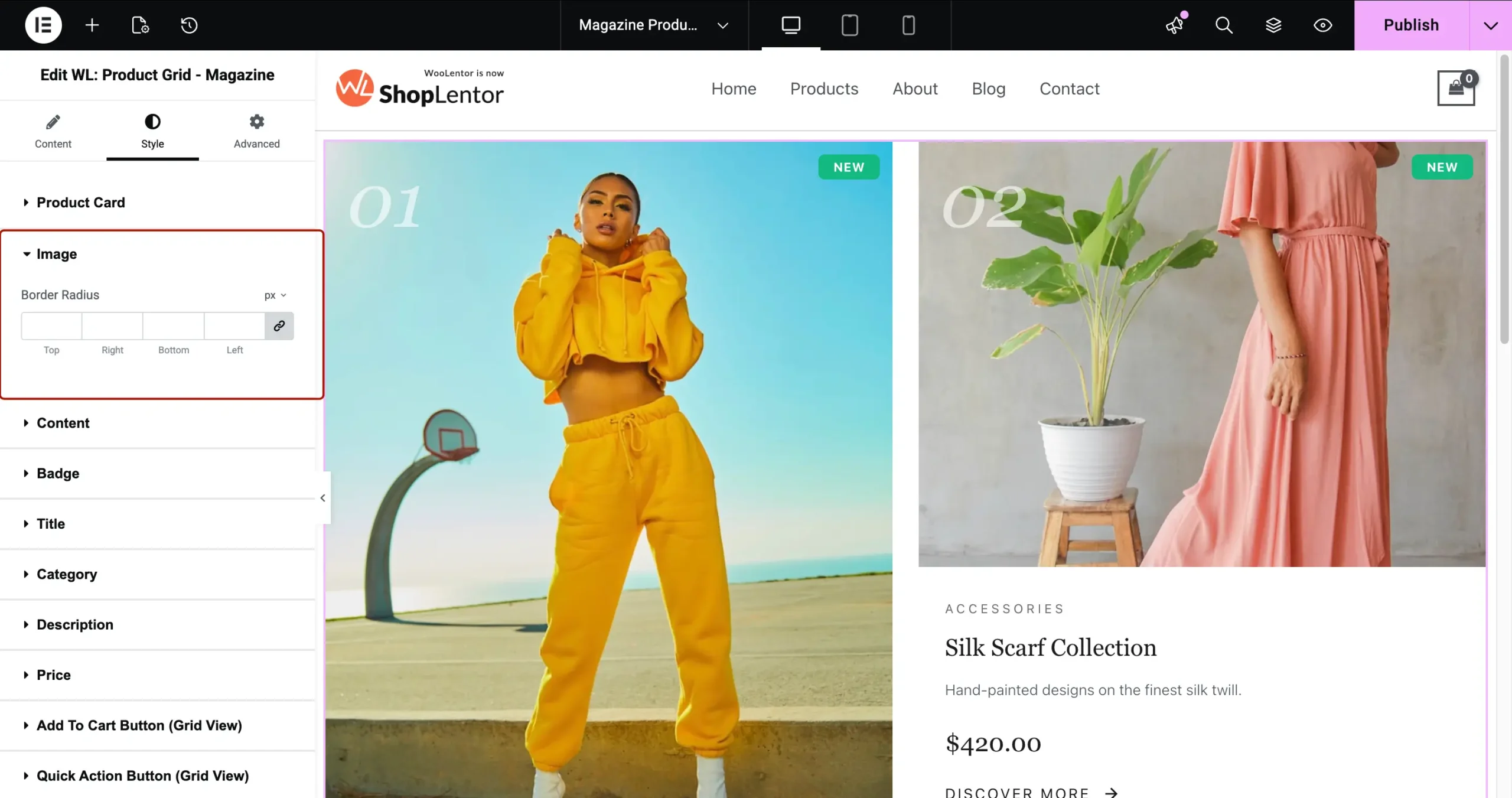
- Border Radius
- Hover Effects
- Image Size
B.3. Content Styling
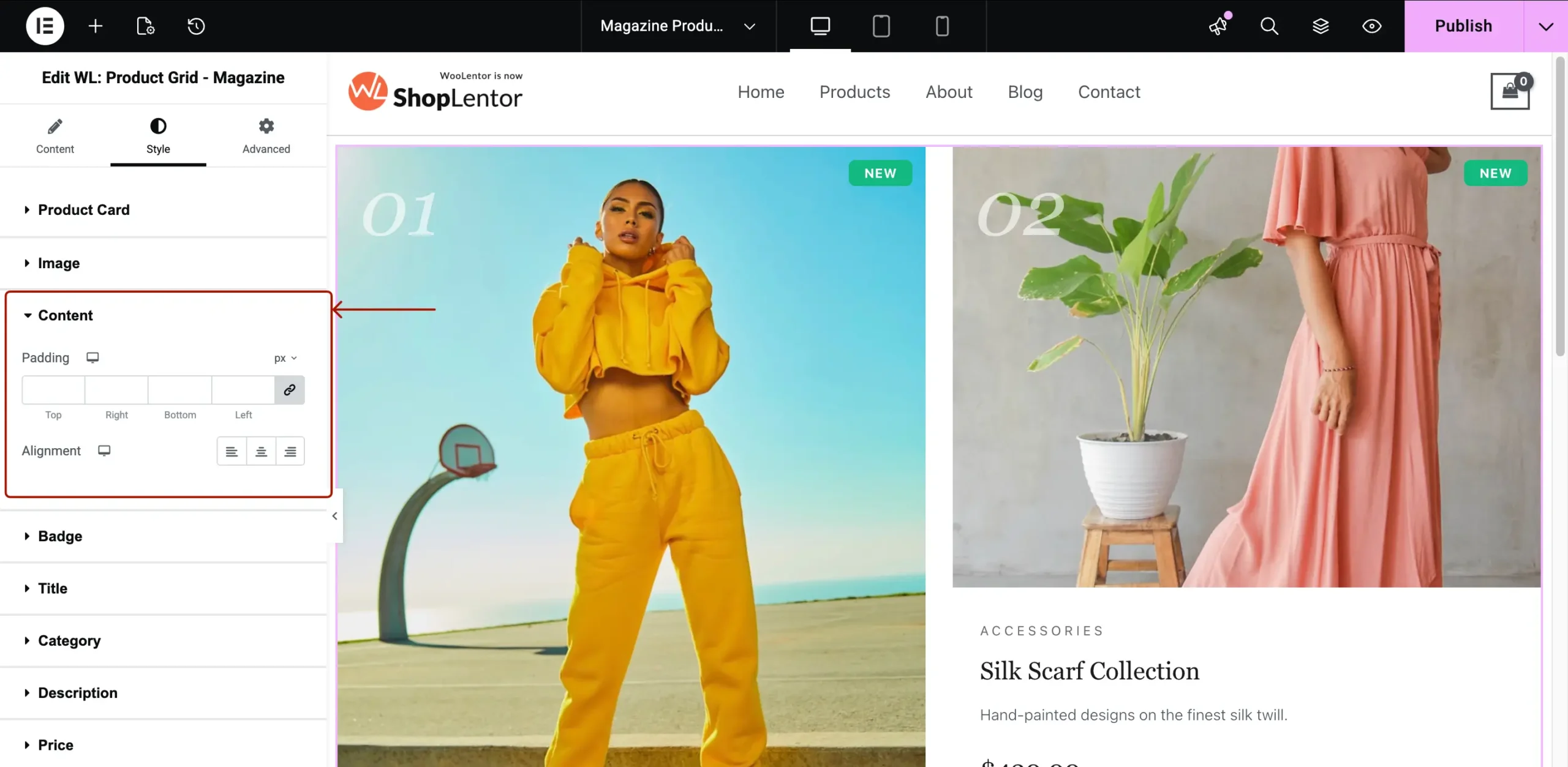
- Padding
- Alignment
B.4. Title Styling
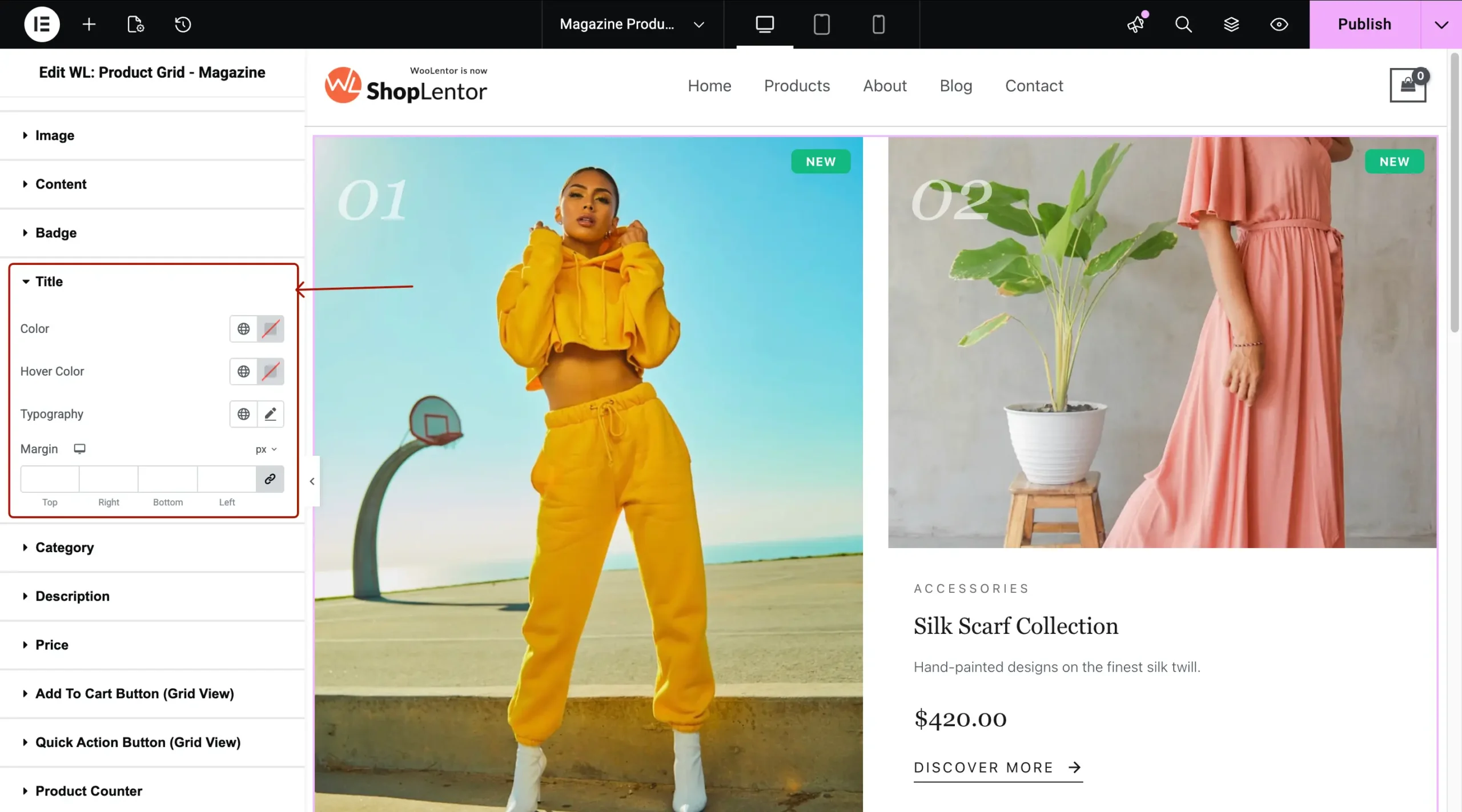
- Typography
- Normal & Hover Colors
- Margin
B.5. Category Styling
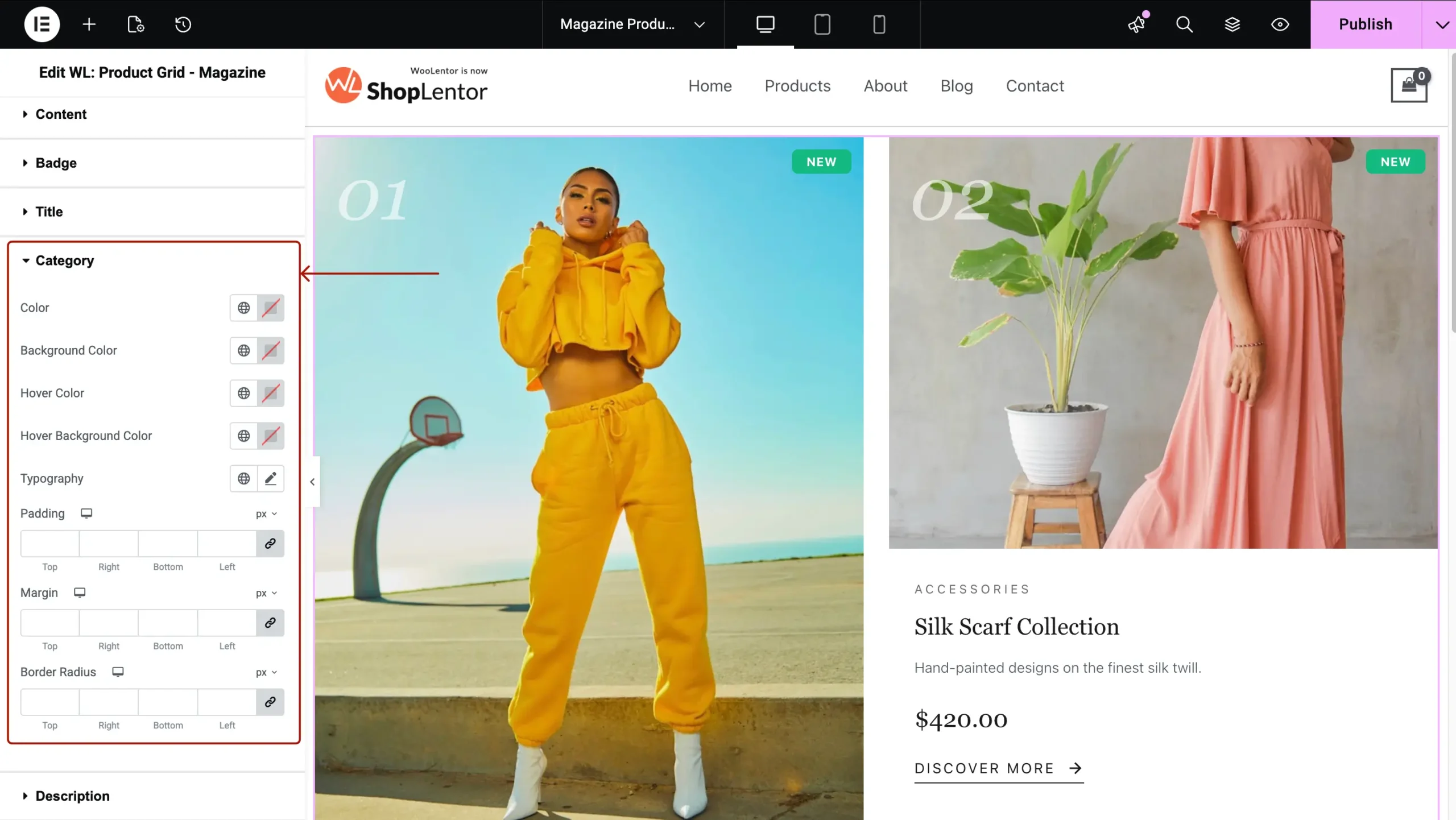
- Typography
- Colors
- Background
- Padding
B.6. Description Styling
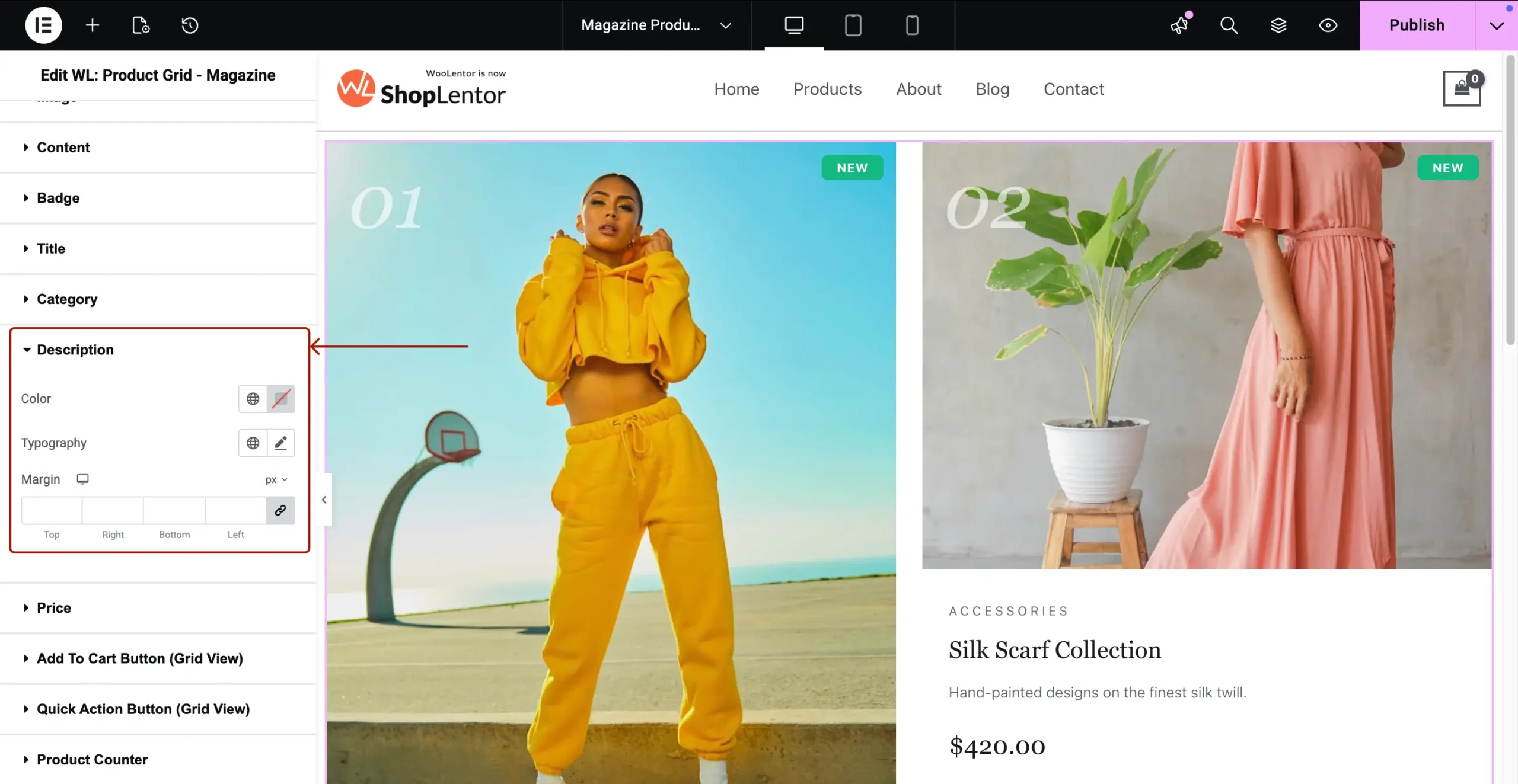
- Color
- Typography
- Margin
B.7. Price Styling
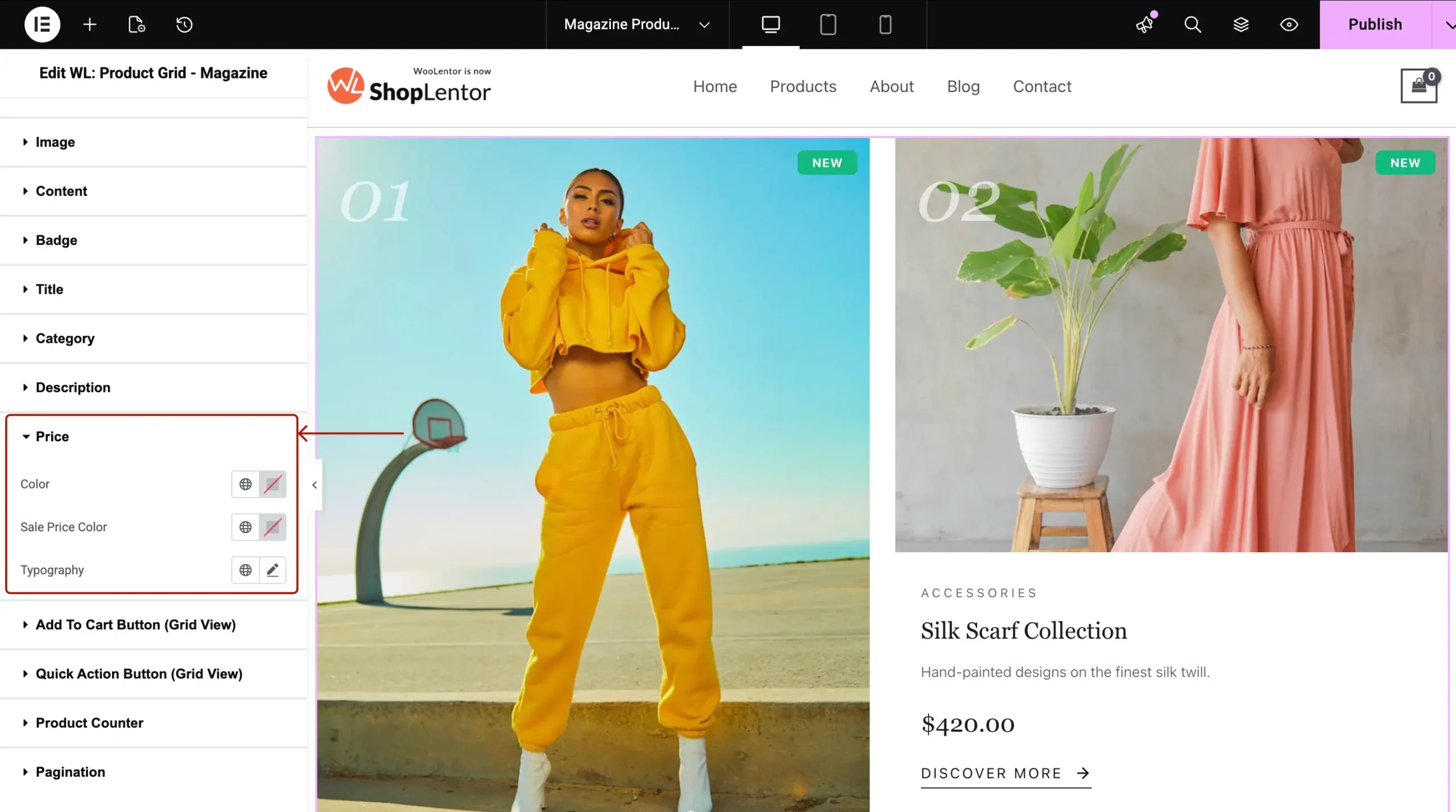
- Price Color
- Sale Price Color
- Typography
B.8. Add To Cart Button (Grid View)
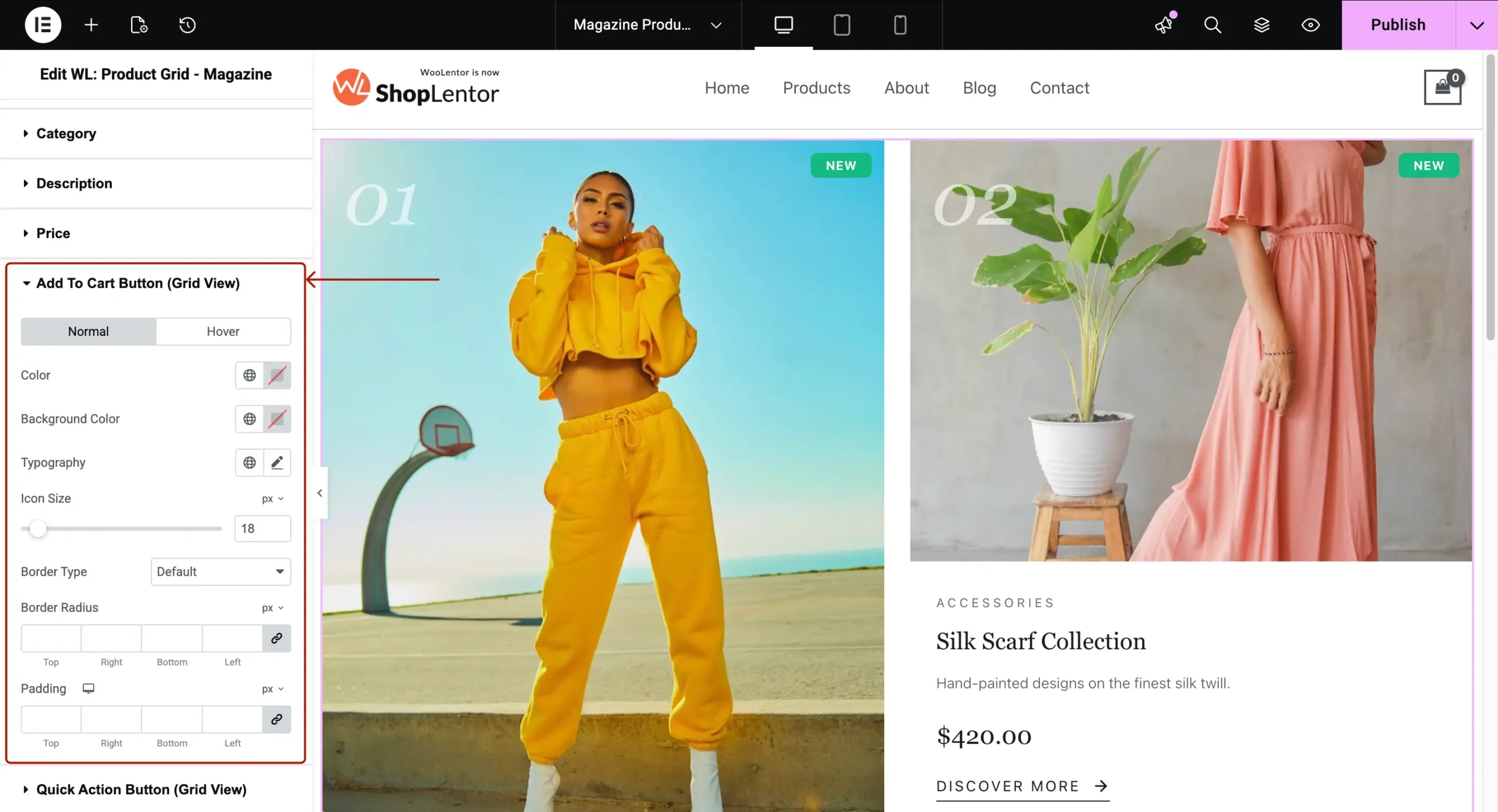
- Text Color
- Background Color
- Typography
- Icon Size
- Border Type
- Border Radius
- Padding
- Hover Styling
B.9. Quick Action Buttons
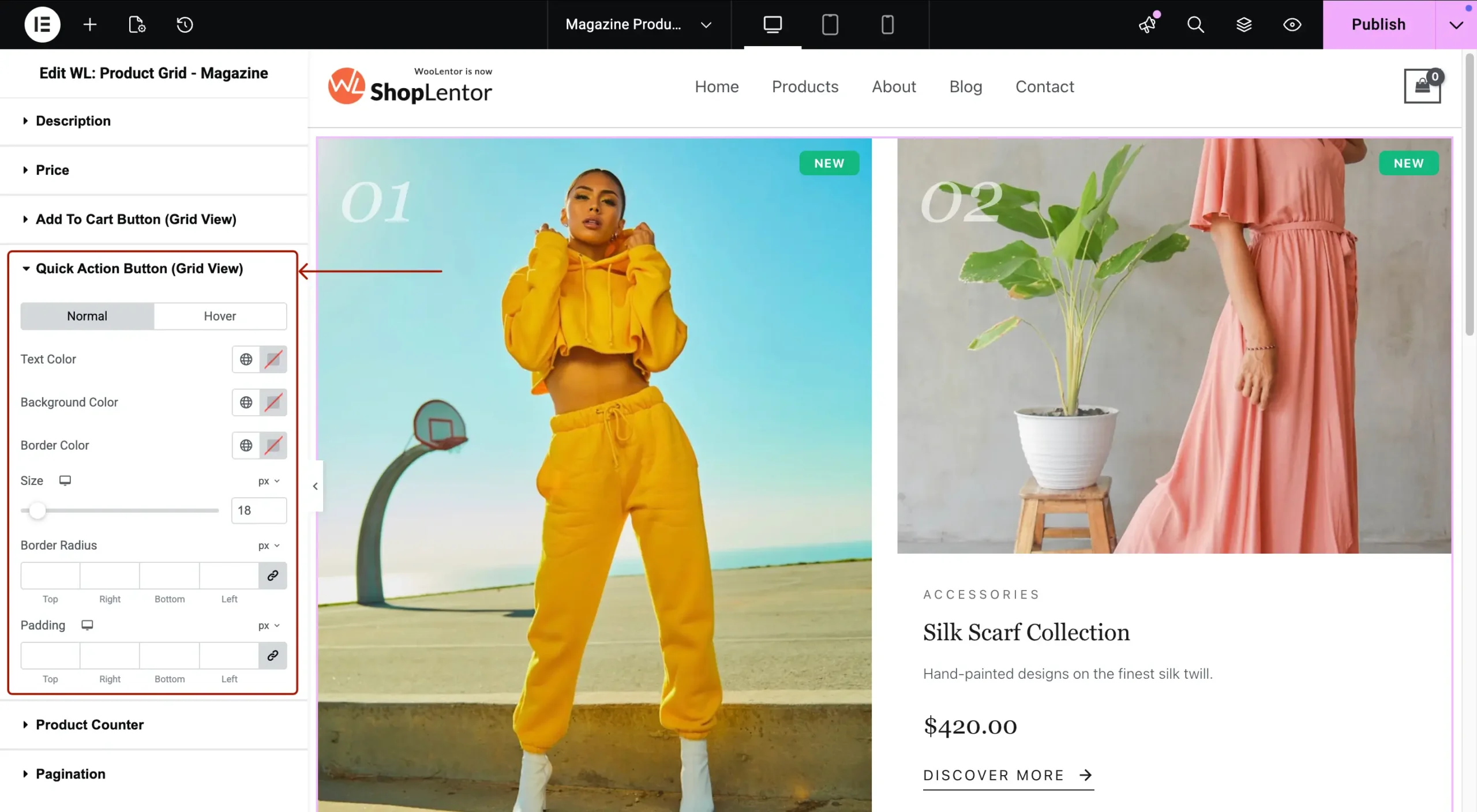
- Icon Color
- Background Color
- Hover Color
- Size
- Border Radius
B.10. Product Counter
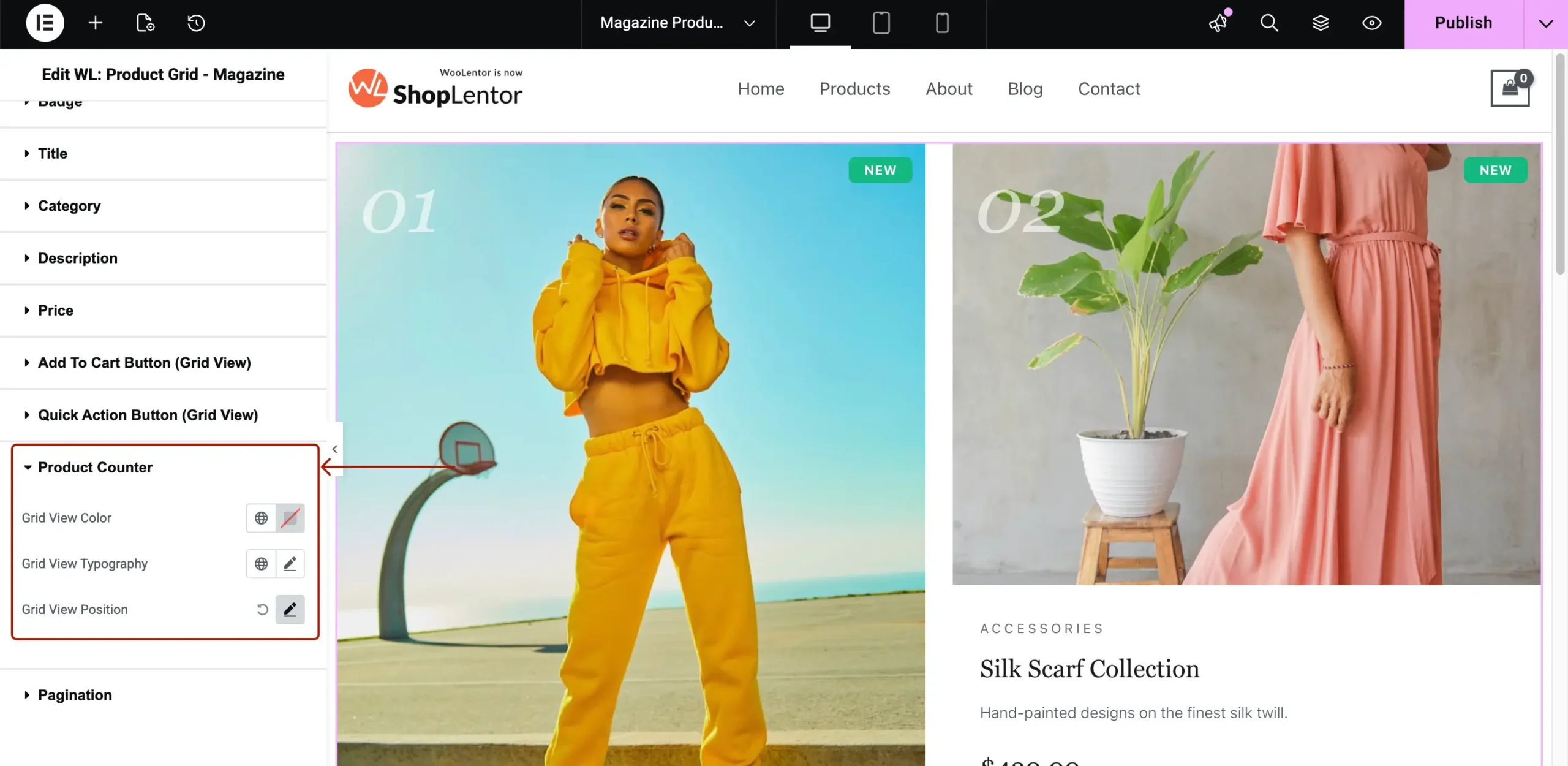
- Number Color
- Typography
- Position Controls
B.11. Pagination Styling
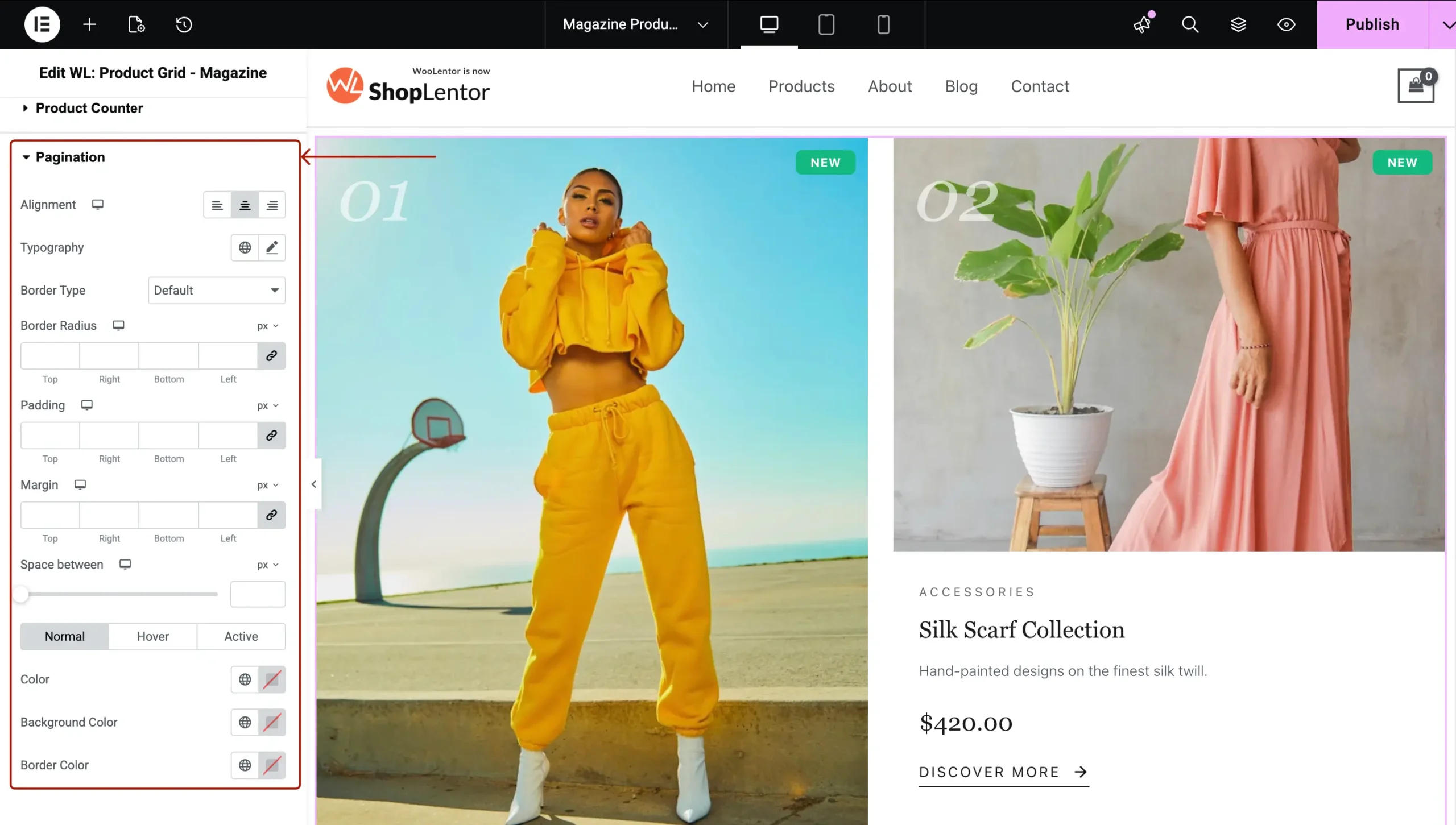
- Typography
- Colors
- Active/Hover styles
- Border & Radius
Step 5: Visit & Preview Your Page
After styling is complete:
- Click Publish or Update
- Open the Shop page
- Test both Grid and List views
- Check Mobile, Tablet, and Desktop
- Adjust spacing & typography for perfect balance
Your Product Grid – Magazine Layout is now ready!
Summary
The Product Grid – Magazine Layout widget lets you build high-end, editorial-style product grids that elevate your WooCommerce store’s presentation. With powerful query controls, asymmetric grid design, editorial styling features, and complete customization options, this widget is ideal for fashion, luxury, lifestyle, and creative brands.