
The Single Product Navigation Widget for Elementor allows you to add next and previous product navigation on WooCommerce single product pages. It helps customers quickly browse between products without returning to the shop page, improving product discovery and user experience.
Using the Single Product Navigation Widget for Elementor, you can control the icon position, restrict navigation within the same category, and customize navigation icons. This gives you full control over how product navigation appears on your WooCommerce product pages.
The widget also includes styling options such as icon color, background color, size, typography, and border radius, allowing you to match the navigation design with your store layout.
Steps to Enable the Single Product Navigation Widget
Before using the widget, you need to enable it from the ShopLentor settings.
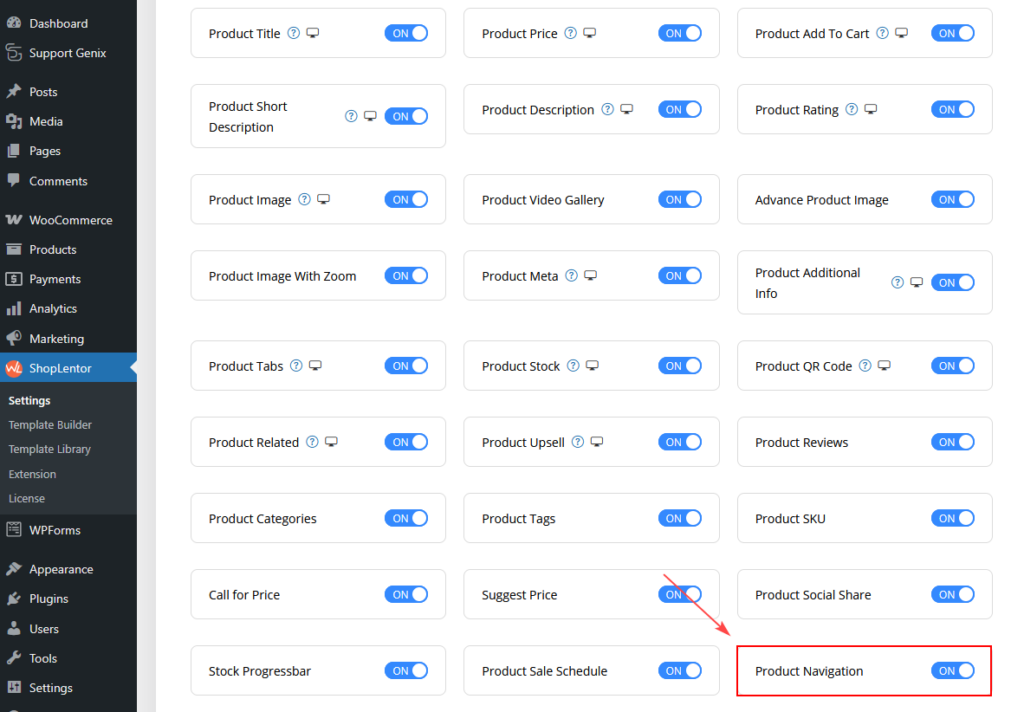
Step 1: Enable the Widget
- Go to WordPress Dashboard → ShopLentor → Settings.
- Open the Elementor Widgets tab.
- Find Single Product Navigation in the widget list.
- Turn the toggle ON.
- Click Save Settings.
Steps to Add the Single Product Navigation Widget
Once enabled, you can add the widget inside your Elementor Single Product template.
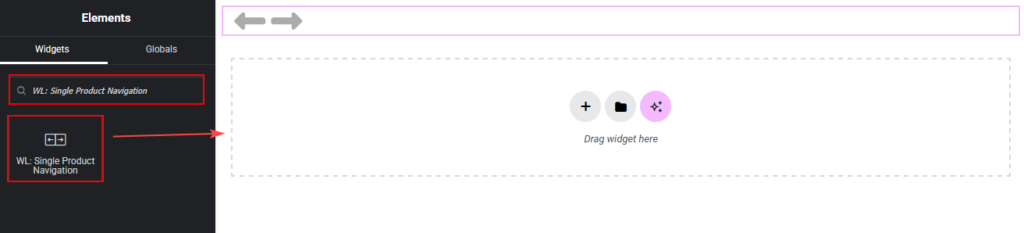
Step 2: Add the Widget
- Go to WordPress Dashboard → Templates → Theme Builder.
- Open or create a Single Product Template.
- Click Edit with Elementor.
- Search for Single Product Navigation in the Elementor panel.
- Drag and drop the widget into your desired location.
- Click Update to save the template.
Single Product Navigation Widget Settings
After adding the widget, you can configure it using the Elementor settings panel.
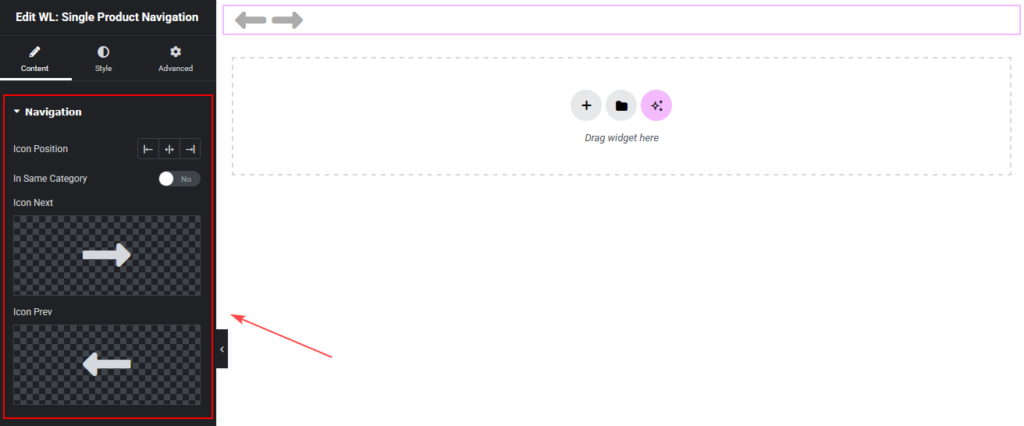
Content Settings
The Content tab controls the behavior and structure of the product navigation.
Navigation
- Icon Position Controls the position of the navigation icons. Available options include:
- Left
- Center
- Right
- In Same Category Controls whether navigation remains within the same product category.
- Enabled
- Customers will navigate only between products within the same category.
- Disabled
- Navigation will move between all products in the store, regardless of category.
- Enabled
- Icon Next Allows you to choose the icon used for the Next Product navigation button.
- Select an icon from the Elementor icon library.
- The icon appears when users navigate to the next product.
- Icon Prev Allows you to choose the icon used for the Previous Product navigation button.
- Select an icon from the Elementor icon library.
- The icon appears when users navigate to the previous product.
Style Settings
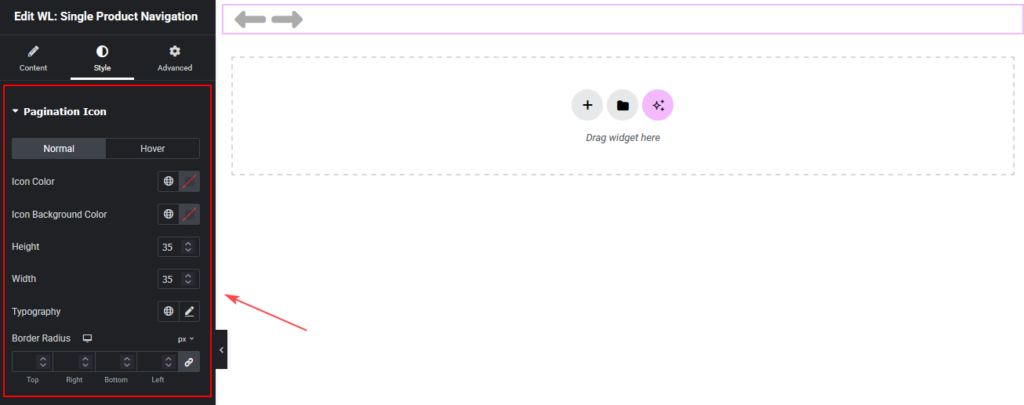
The Style tab allows you to customize the appearance of the navigation icons.
Pagination Icon
You can customize the icon style for two states:
- Normal
- Hover
Normal State
Controls the default appearance of the navigation icons.
- Icon Color
- Sets the color of the navigation icon.
- Icon Background Color
- Sets the background color behind the icon.
- Height
- Controls the height of the icon container.
- Width
- Controls the width of the icon container.
- Typography
- Adjusts typography settings if text-based icons are used.
- Border Radius
- Controls the roundness of the icon container corners.
- You can adjust:
- Top
- Right
- Bottom
- Left
Hover State
Controls how the navigation icons appear when a user hovers over them.
- Icon Color
- Changes the icon color on hover.
- Icon Background Color
- Changes the background color when hovered.
- Border Radius
- Adjusts corner roundness during hover state.
When to Use the Single Product Navigation Widget
The Single Product Navigation Widget for Elementor is useful for:
- WooCommerce single product pages
- Product-focused landing pages
- Stores with large product catalogs
- Improving product discovery and browsing
It allows customers to move between products quickly, improving engagement and potentially increasing sales.