
To use Google Address Autocomplete in your WooCommerce store with ShopLentor, you need to generate a Google Places API key. This key will allow your store to access Google’s address autocomplete service, which suggests addresses as customers type their details during checkout.
Step 1: Sign into Google Cloud Console
- Go to the Google Cloud Console.
- Sign in with your Google account or create one if you don’t have one.
Step 2: Create a Billing Account
- Once logged in, you’ll be prompted to create a Billing Account.
- Fill out the required form and add your credit card details.
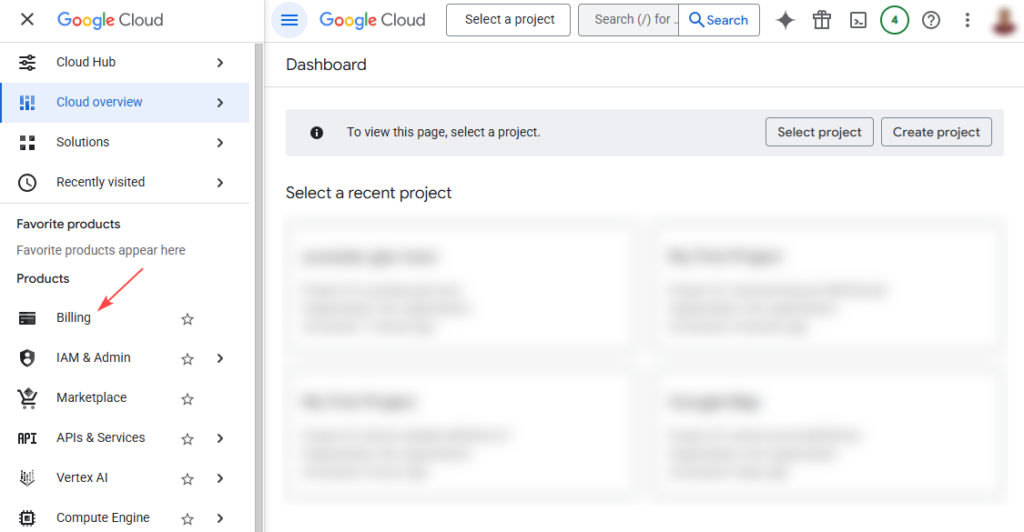
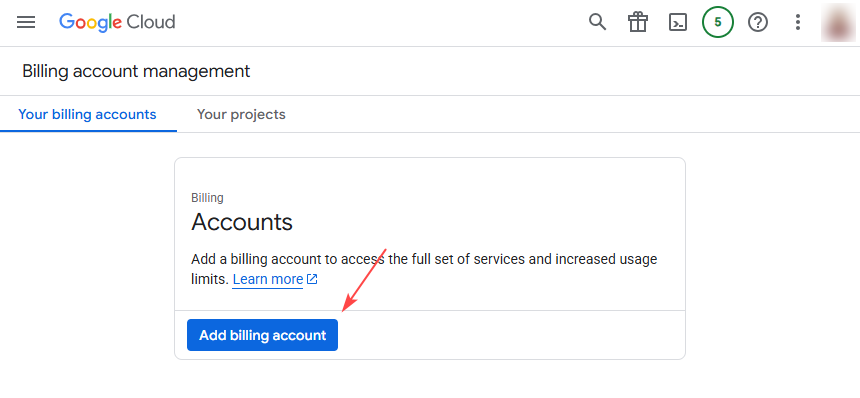
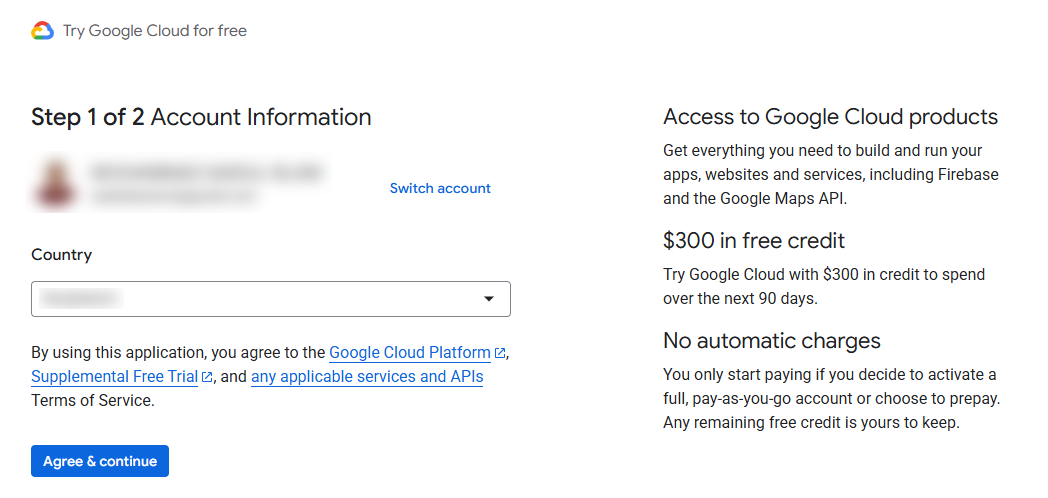
Google provides a $300 free monthly credit for using the Places API, which is usually sufficient for most WooCommerce stores.
If your API usage exceeds this free credit, you will be charged only for the additional usage beyond the $300 limit based on Google’s pricing. See Pricing
To avoid unexpected charges, make sure you understand how the Places API consumes credits and regularly monitor your usage from the Billing → Credits section in the Google Cloud Console.
Be sure to know how the Places API uses the free credit and how to keep track of that credit usage.
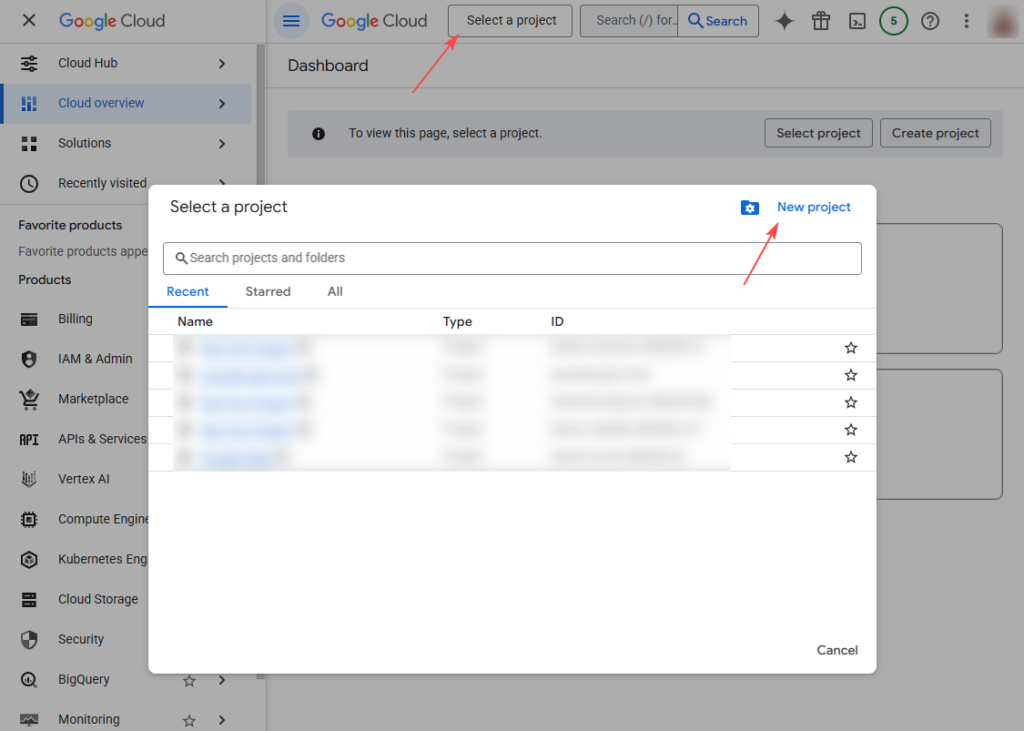
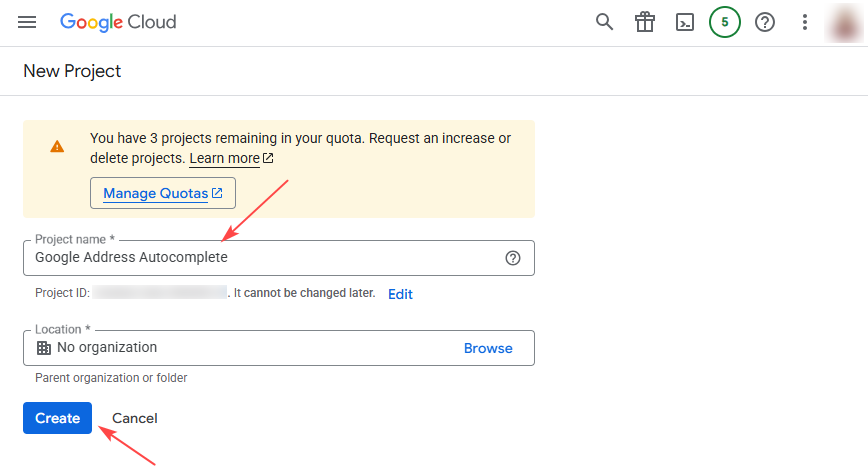
Step 3: Create a New Project
- In the Google Cloud Console, select “Select a Project” from the top bar.
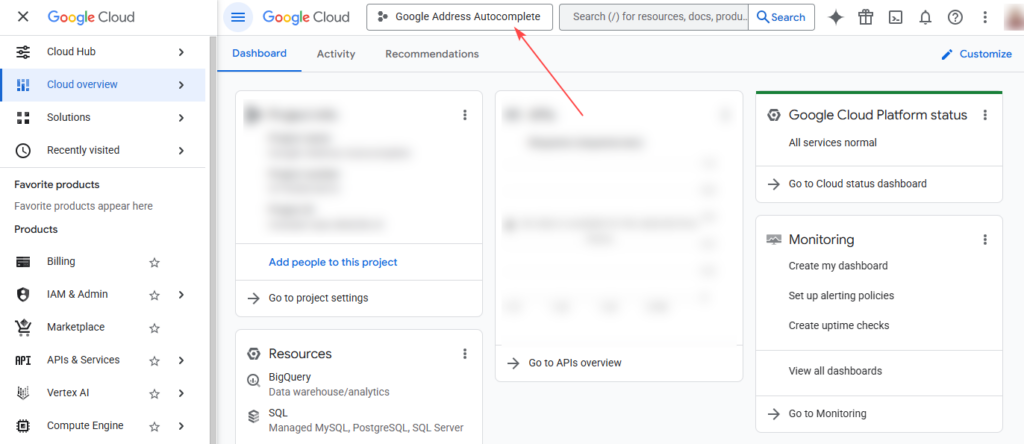
- Click “New Project”, name it something like “Google Address Autocomplete”, and click Create.
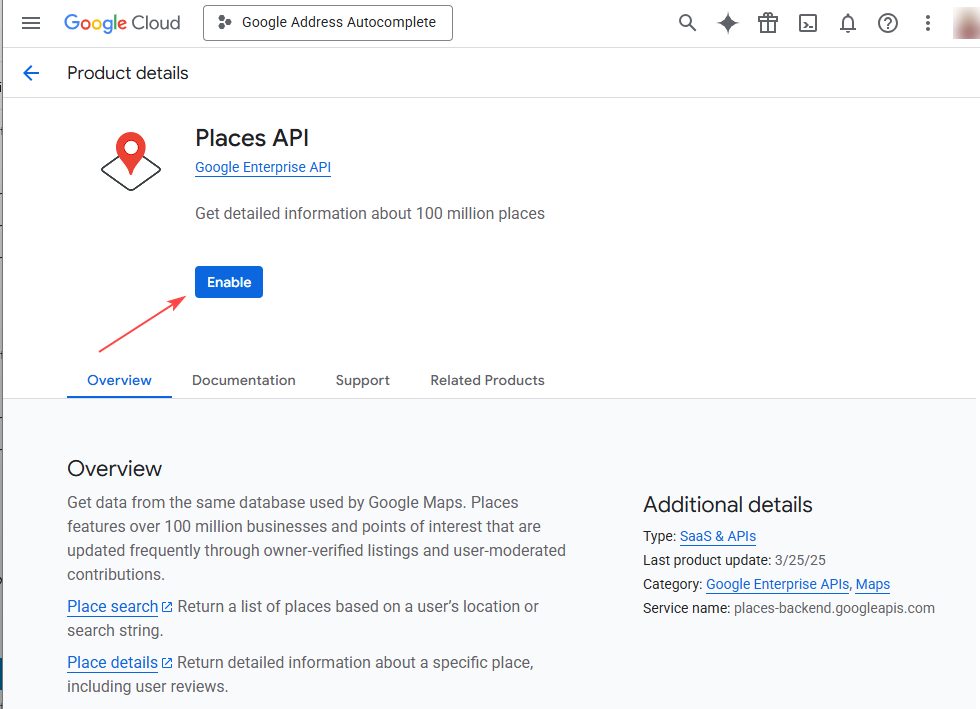
Step 4: Enable Google Places API
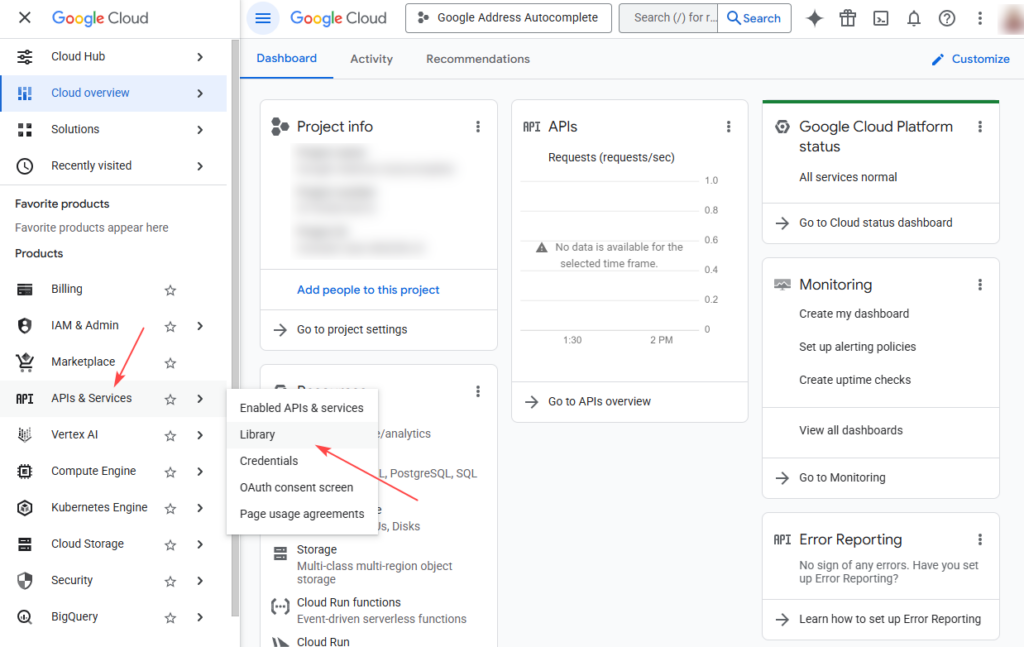
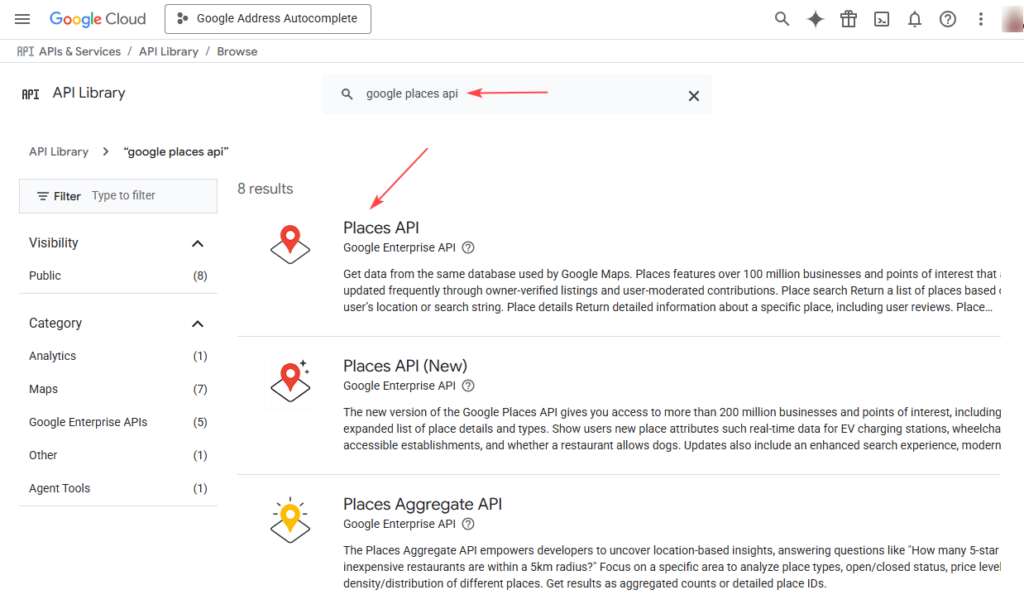
- In the API & Services → Library, search for Google Places API.
- Click Enable to activate the API for your project.
Step 5: Create an API Key
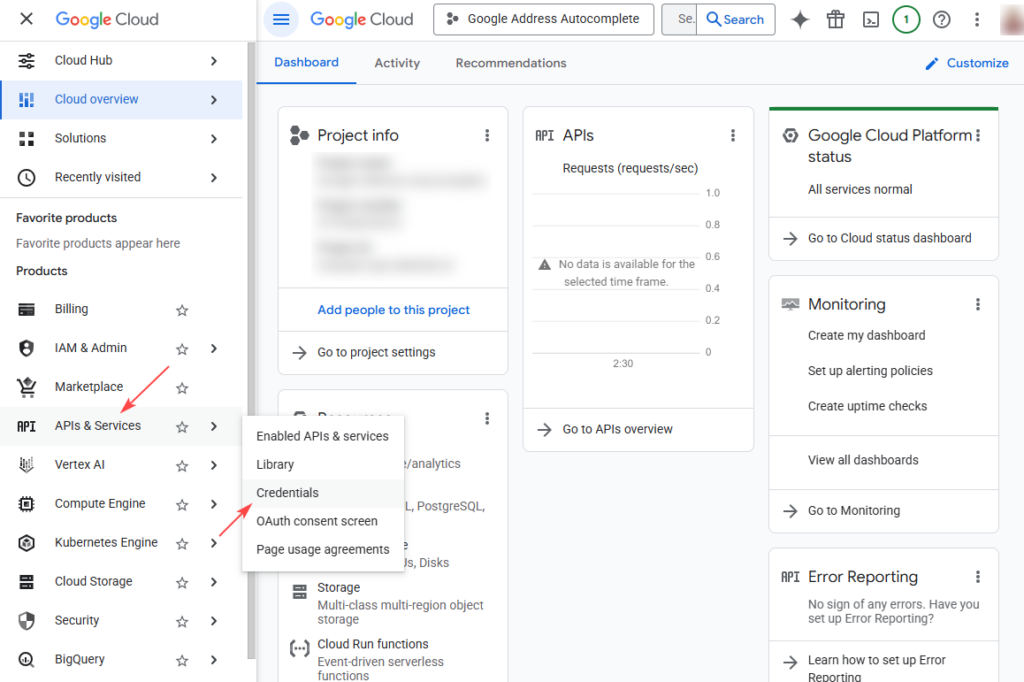
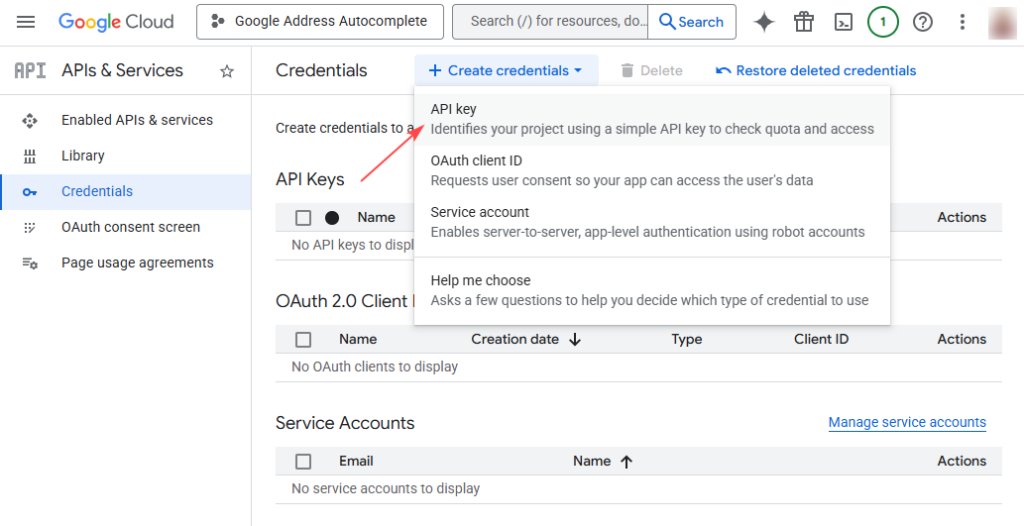
- Go to API & Services → Credentials.
- Click Create Credentials and select API Key.
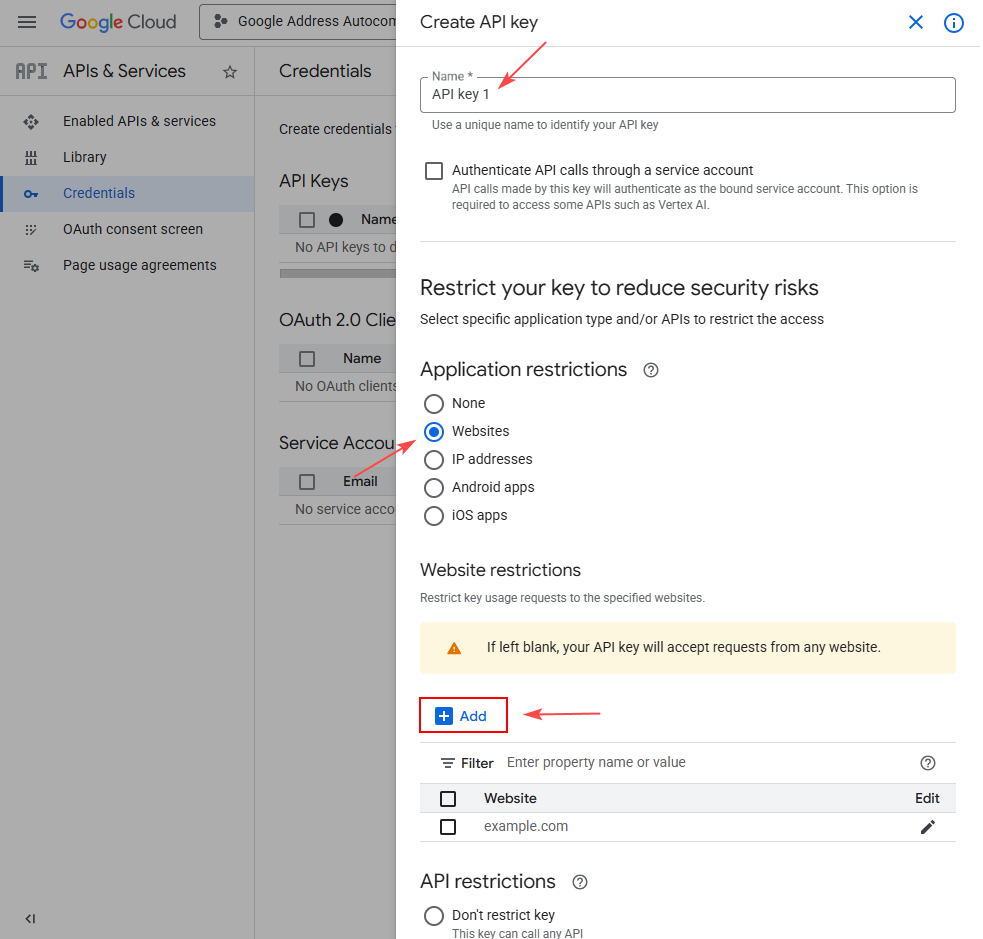
- A new key will be generated. Make sure to restrict the key by adding your store’s domain to prevent unauthorized access.
Step 6: Restrict API Key Access
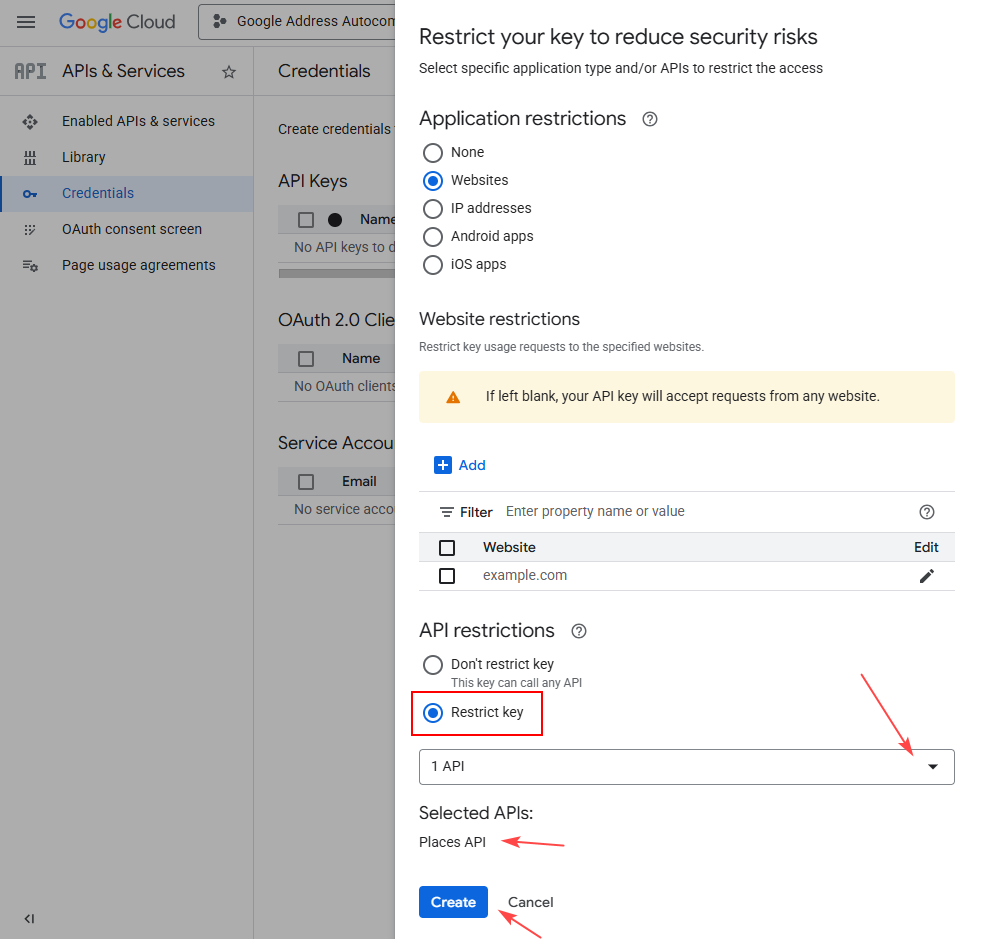
- In the popup, click “Restrict Key”.
- Under “Application Restrictions”, select HTTP Referrers and add your website domain.
- Under API Restrictions, choose Google Places API.
Step 7: Save Your Key
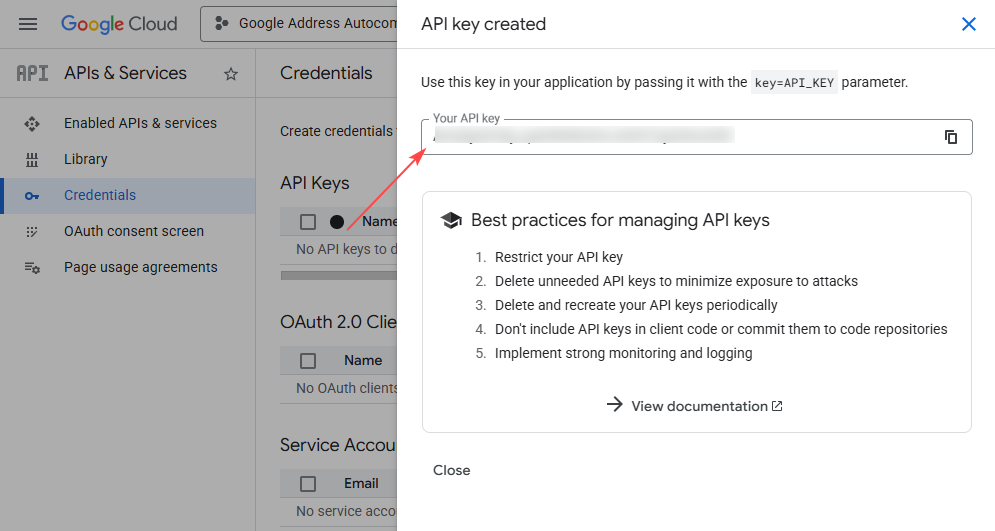
- Copy your API key. You will use this in the Google Address Autocomplete module in ShopLentor.
Conclusion
You now have a valid Google Places API key ready to integrate with ShopLentor for Google Address Autocomplete functionality. Keep this key secure and follow the next steps to enable it in your WooCommerce store.