
The Product Navigation Block for Gutenberg allows you to display navigation links on the WooCommerce single product page. It helps customers quickly move to the next or previous product without returning to the shop page, improving the browsing experience.
With the Product Navigation Block for Gutenberg, you can control navigation behavior, limit navigation within the same category, and customize the appearance of the navigation icons. This makes it easier to maintain consistent design and improve usability for your WooCommerce store.
The block also provides flexible styling controls including icon color, size, background, spacing, and borders so you can easily match the navigation design with your website layout.
Steps to Enable the Product Navigation Block
Before using the block, you must enable it from the ShopLentor settings.
Step 1: Enable the Block
- Go to WordPress Dashboard → ShopLentor → Settings.
- Open the Gutenberg tab.
- Find the Product Navigation Block from the list.
- Turn the toggle ON.
- Click Save Settings.
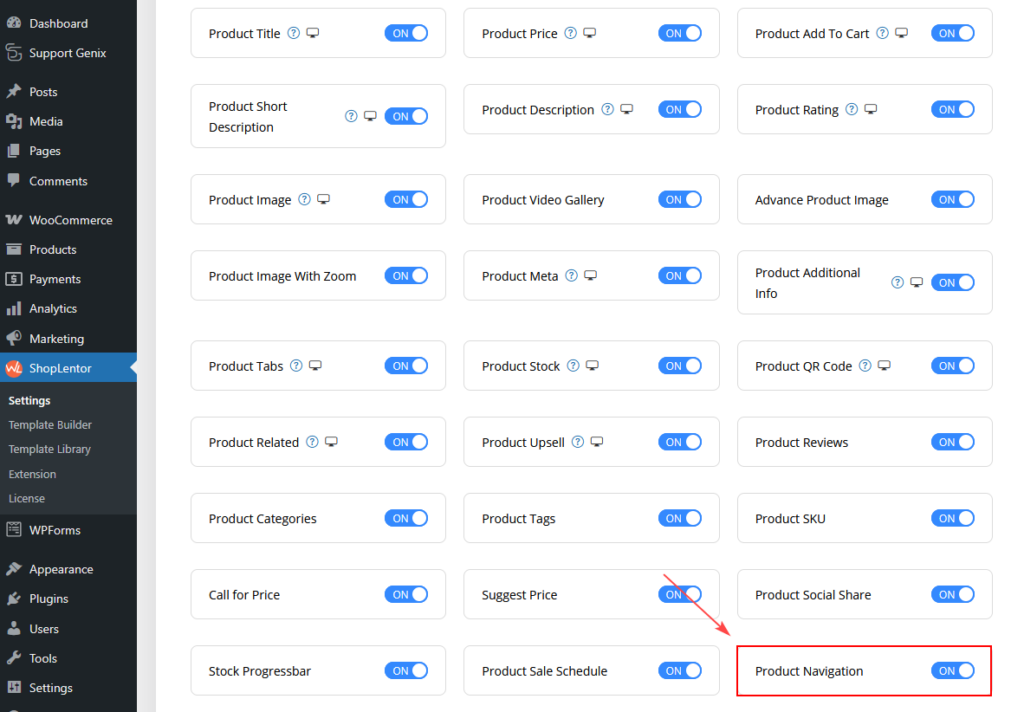
Steps to Add the Product Navigation Block
Once enabled, you can add the block to your single product template.
Step 2: Add the Block
- Go to Dashboard → ShopLentor → Templates → Single Product Template.
- Click the Add Block (+) button.
- Search for Product Navigation.
- Select Product Navigation Block.
- Insert the block in the desired location on the product page.
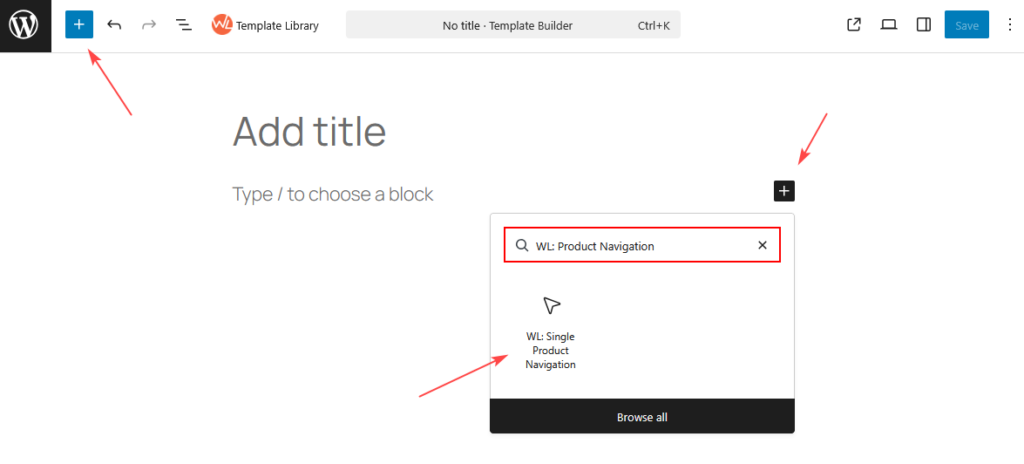
Using the Product Navigation Block in the Default Single Product Template
If you want to add the Product Navigation Block to the default WooCommerce single product template, follow these steps:
- Go to WordPress Dashboard → Appearance → Editor.
- Click on Templates.
- Find and open the Single Product template.
- Click the Add Block (+) button where you want to place the navigation.
- Search for Product Navigation in the block search field.
- Select the Product Navigation Block.
- Insert the block in your preferred location on the product page.
- Click Save to apply the changes.
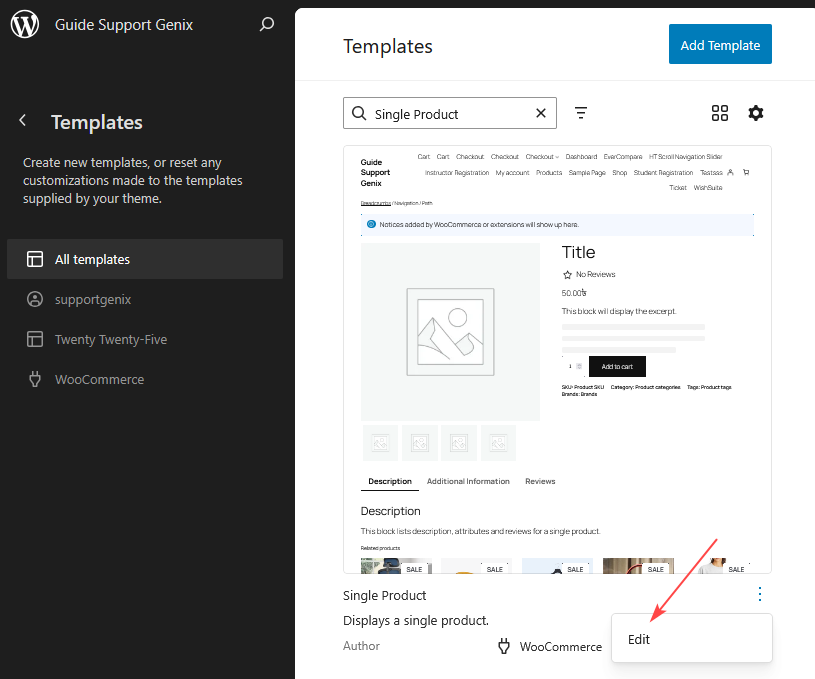
Product Navigation Block Settings
After adding the block, you can configure its settings from the Block Settings Panel.
General Settings
The General Settings control how the product navigation behaves on the single product page.
Navigation Options
- In Same Category Controls whether navigation stays within the same product category.
- Enabled
- Customers will navigate only between products within the same category.
- Disabled
- Navigation will move through all products in the store, regardless of category.
- Enabled
- Next Icon Allows you to select the icon used for the Next Product navigation button.
- Choose an icon from the available icon library.
- The selected icon will appear when navigating to the next product.
- Previous Icon Allows you to select the icon used for the Previous Product navigation button.
- Choose an icon from the available icon library.
- The selected icon will appear when navigating to the previous product.
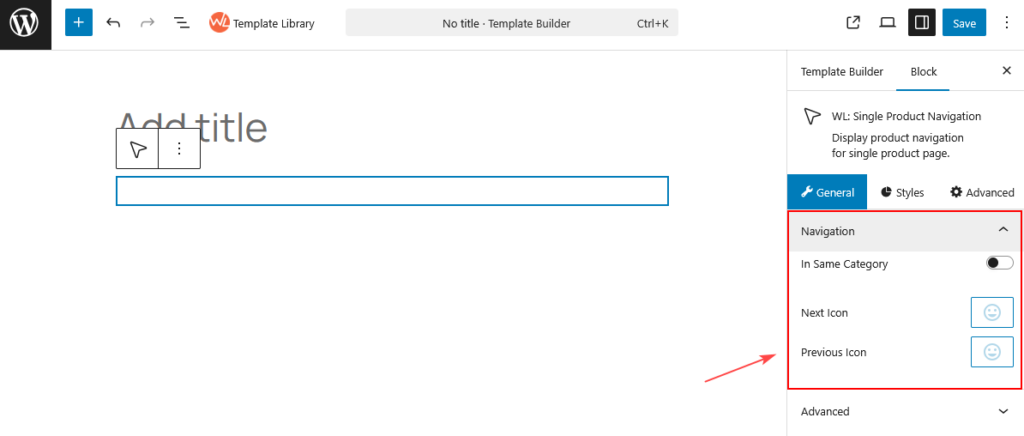
Style Settings
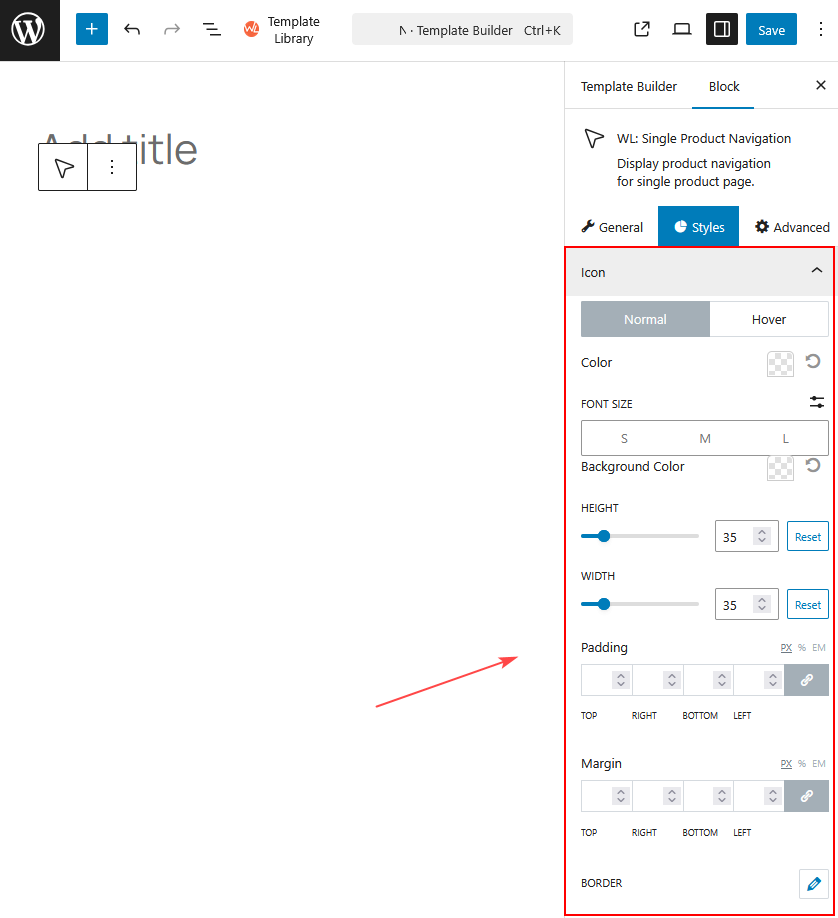
The Style Settings allow you to customize the appearance of the navigation icons and containers.
Icon State Styling
You can customize styles for two icon states:
- Normal
- Default icon appearance.
- Hover
- Appearance when a user moves the cursor over the icon.
Icon Appearance
- Color Controls the color of the navigation icons.
- Font Size Adjusts the size of the navigation icons. Available size options include:
- Small
- Medium
- Large
- Background Color Sets the background color of the icon container.
Icon Container Size
- Height Controls the height of the icon container.
- Width Controls the width of the icon container.
Spacing Controls
- Padding Controls the spacing inside the icon container. You can adjust padding for:
- Top
- Right
- Bottom
- Left
- Margin Controls the spacing outside the navigation element. You can adjust margin for:
- Top
- Right
- Bottom
- Left
Border Settings
- Border Allows you to add and customize borders around the icon container. Border options include:
- Border Type
- Solid
- Dashed
- Dotted
- None
- Border Width
- Border Color
- Border Radius
- Border Type
When to Use the Product Navigation Block
The Product Navigation Block for Gutenberg is useful for:
- WooCommerce single product pages
- Product-focused landing pages
- Stores with large product catalogs
- Improving product discovery and user navigation
This block helps customers browse products more efficiently, which can improve engagement and increase the chances of additional purchases.