
Google Address Autocomplete is a powerful feature that enhances the user experience by suggesting addresses as users type their details during checkout. This guide shows you how to enable this feature on your WooCommerce store using the ShopLentor Pro plugin.
Additionally, this feature supports both Classic WooCommerce Checkout and Block-based Checkout pages, ensuring a seamless experience across all checkout types.
If you haven’t generated your Google API key yet, please follow our guide on how to generate a Google Places API Key before proceeding with the steps below.
Step 1: Install and Activate ShopLentor Pro
Before you can enable the Google Address Autocomplete feature, you need to have ShopLentor Pro installed and activated on your WooCommerce store.
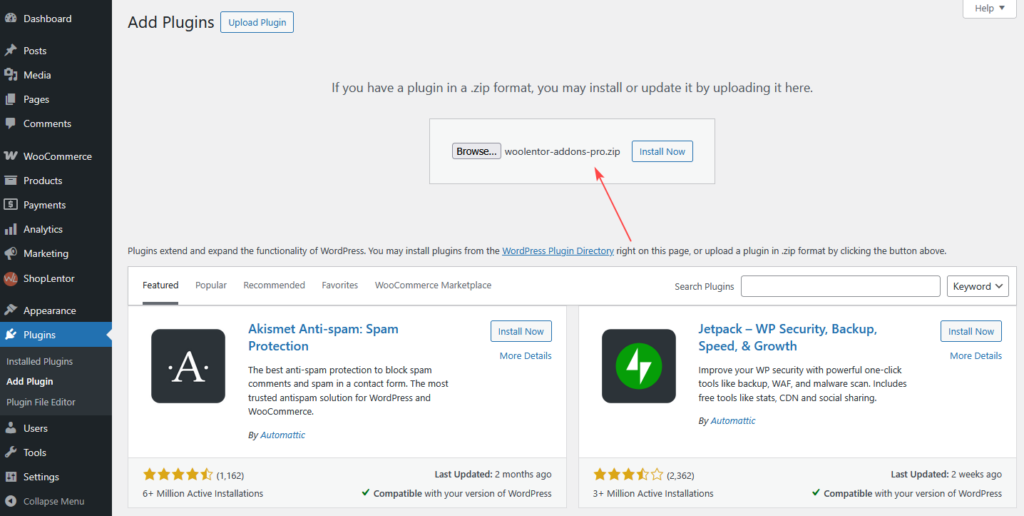
- Go to the Plugins section in your WordPress dashboard.
- Click on the Add Plugin button at the top of the page.
- Click Upload Plugin and Install Now and then Activate.
- Once activated, you will have access to the full range of ShopLentor modules, including Google Address Autocomplete.
Step 2: Access ShopLentor Modules
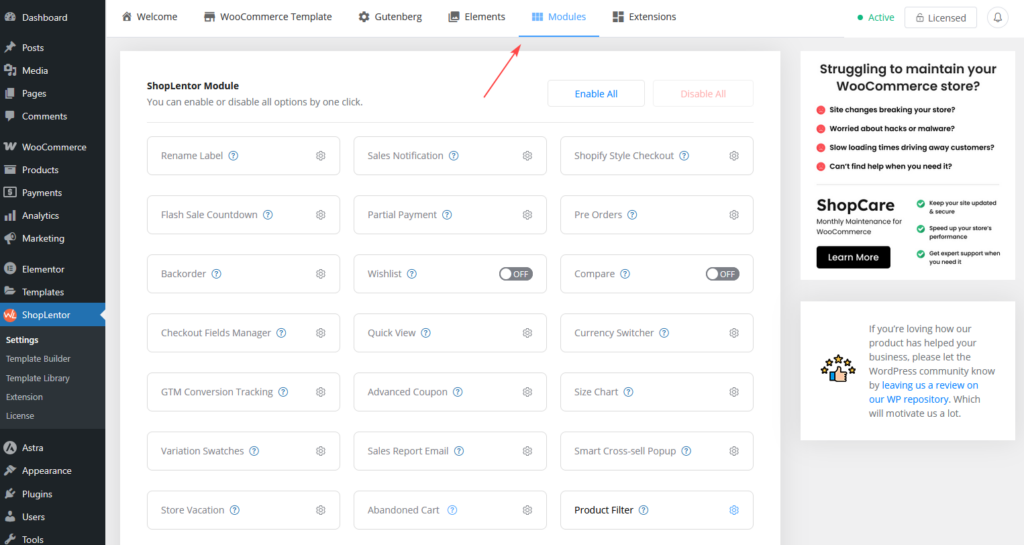
- Go to ShopLentor > Settings > Modules.
- Click on the Modules tab to access all available modules.
Step 3: Find Google Address Autocomplete Module
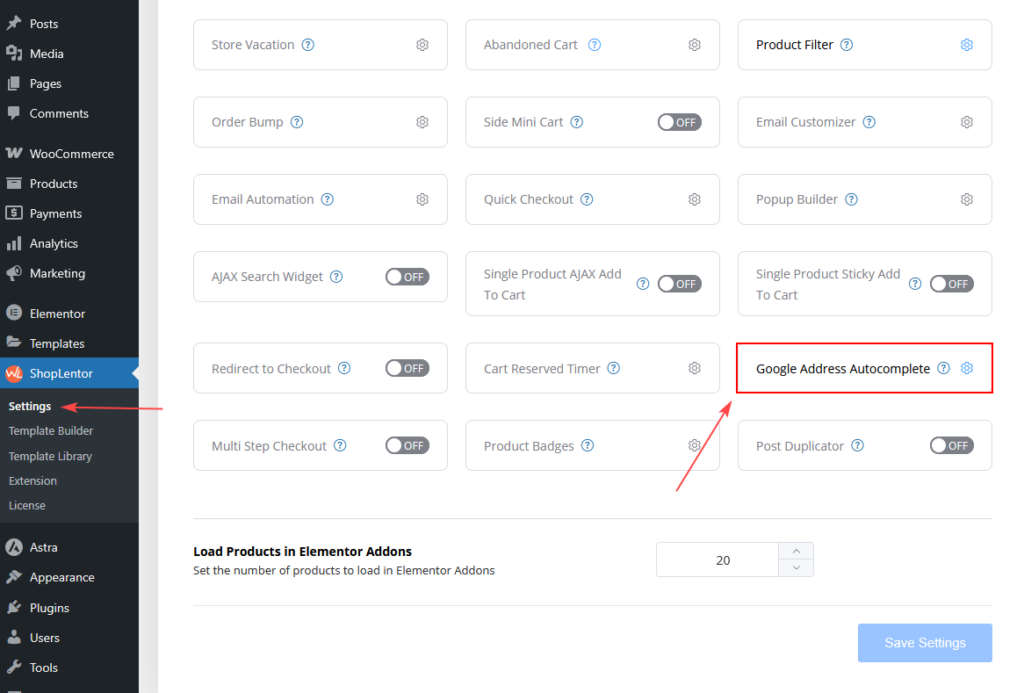
- In the Modules section, locate Google Address Autocomplete.
- Click the settings icon next to it to open the configuration panel.
Step 4: Enable the Module & Enter Your Google API Key
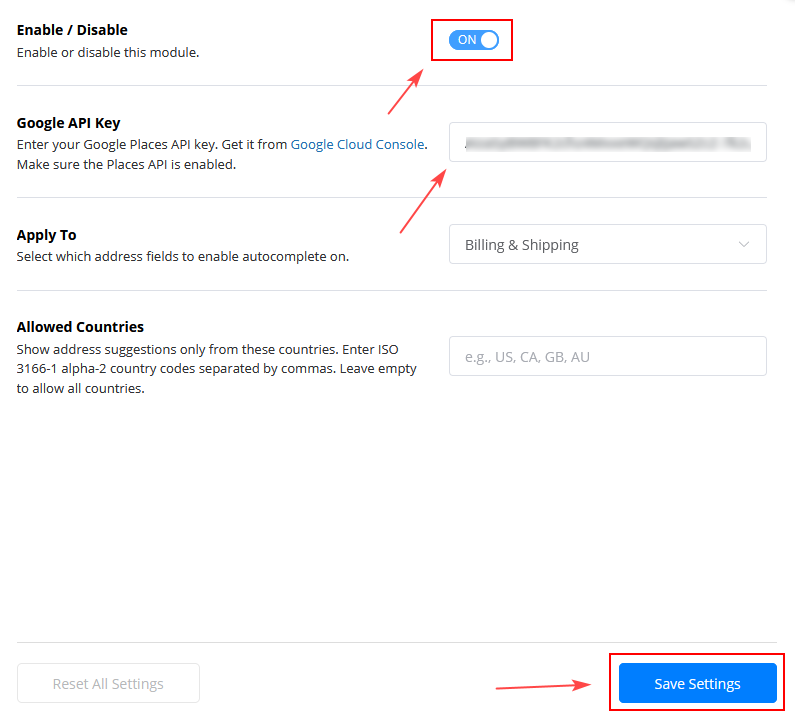
- In the Enable/Disable section, switch the module to ON.
- In the settings, paste the Google Places API Key that you generated earlier.
- Click Save Settings.
If you haven’t generated your Google API key yet, please follow our guide on how to generate a Google Places API Key before proceeding with the steps below.
Step 5: Configure the Module Settings
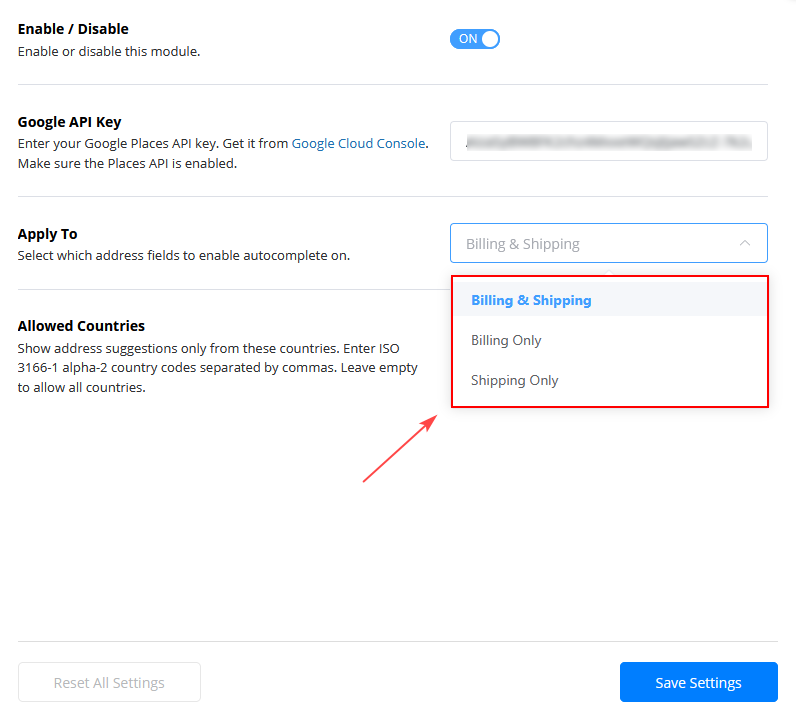
- Under Apply To, choose whether to enable autocomplete for Billing Only, Shipping Only, or Billing & Shipping.
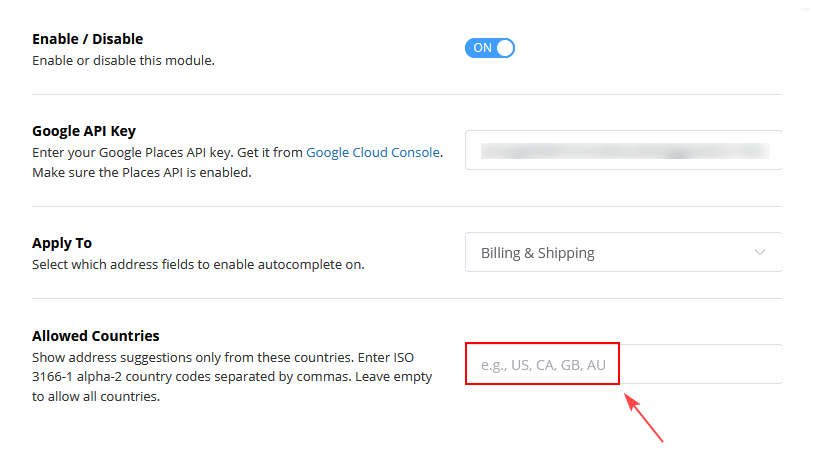
- Optionally, you can add Allowed Countries to restrict address suggestions to certain countries (e.g., US, CA, GB).
Step 6: Test the Functionality
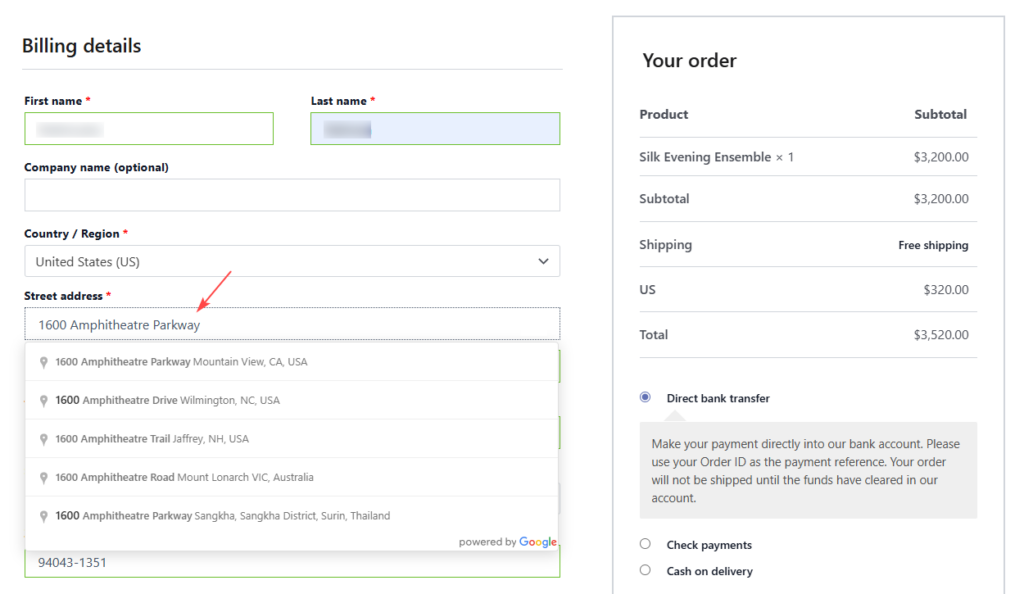
- Go to your WooCommerce checkout page.
- Start typing in the Street Address field to see the address suggestions powered by Google.
Conclusion
You’ve successfully enabled Google Address Autocomplete for your WooCommerce store using ShopLentor. This feature will now suggest addresses as customers type in the checkout fields, improving the checkout process and reducing errors.
Frequently Asked Questions (FAQs)
1. What is Google Address Autocomplete?
Google Address Autocomplete is a Pro module that provides real-time address suggestions as customers type in your WooCommerce checkout fields. It uses Google Places API to validate and auto-fill all address components, reducing typing errors and speeding up the checkout process.
2. How do I generate the Google Places API Key?
If you haven’t generated the Google API key yet, please refer to our guide on how to generate a Google Places API Key for step-by-step instructions.
3. Can I use this feature on the WooCommerce Block Checkout?
Yes! The Google Address Autocomplete feature works on both Classic WooCommerce Checkout and WooCommerce Block Checkout.
4. How do I limit autocomplete to certain countries?
You can restrict address suggestions to specific countries by entering ISO country codes in the Allowed Countries field, e.g., US, CA, GB, AU. Leave it empty to allow all countries.