
The Checkout Shipping Method Block for Gutenberg allows you to display WooCommerce shipping options directly on your custom checkout page. Using this block, you can present shipping methods such as Free Shipping, Flat Rate, and Local Pickup, along with delivery descriptions.
This block helps store owners create a custom checkout layout using the WordPress Block Editor while keeping shipping options clear and easy for customers to understand.
With multiple style options and customizable descriptions, the block ensures a better checkout experience for your WooCommerce customers.
How to Enable the Checkout Shipping Method Block
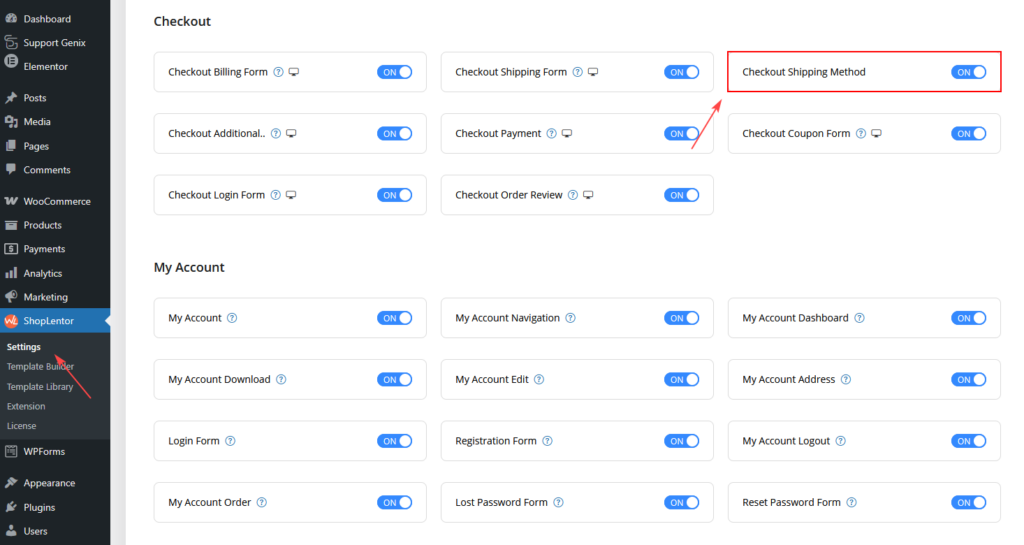
Before using the block, you must enable it from the ShopLentor settings.
Step 1: Enable the Block
- Go to WordPress Dashboard
- Navigate to ShopLentor → Settings → Gutenberg
- Find Checkout Shipping Method Block
- Turn ON the block
- Click Save Settings
How to Use the Checkout Shipping Method Block
You can use this block in two ways:
Option A: Edit Default Checkout Page
Steps:
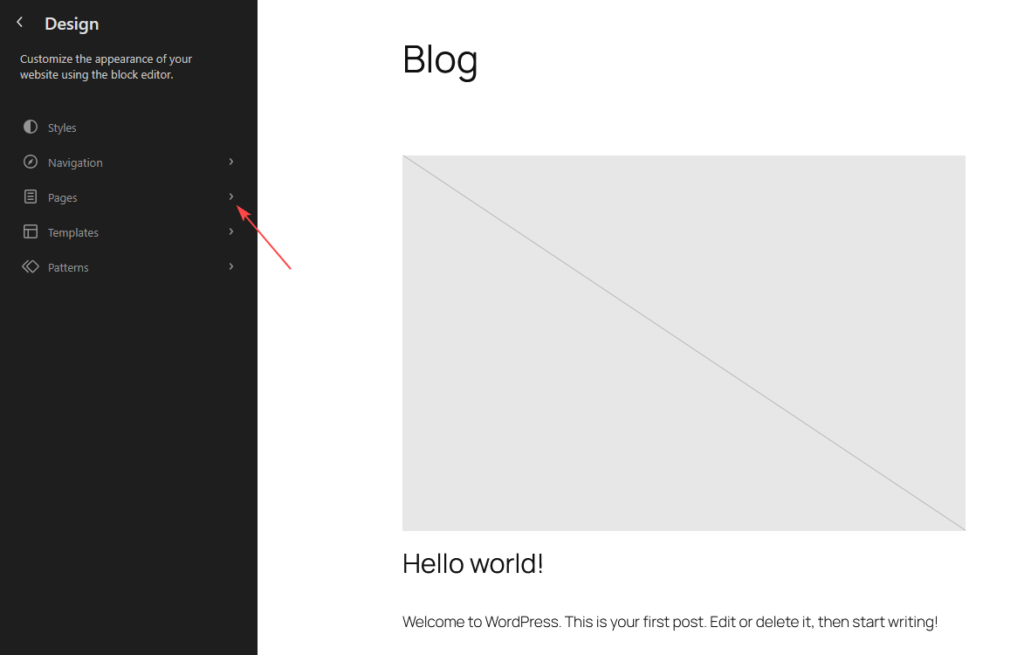
- Go to Dashboard → Appearance → Editor
- Open your Checkout Page Template
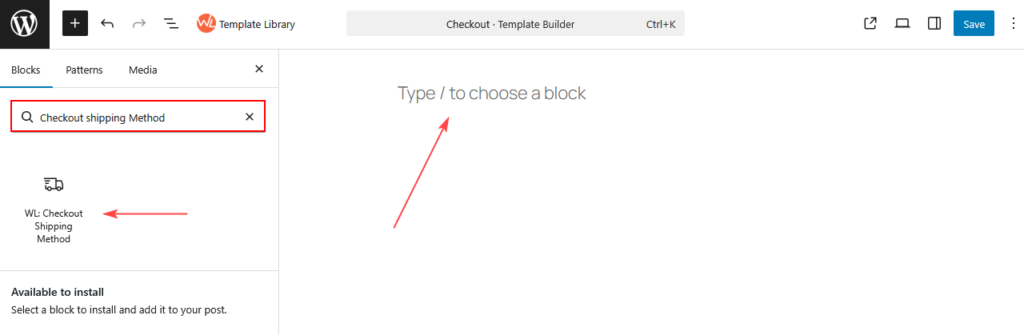
- Click the Add Block (+) button
- Search for Checkout Shipping Method
- Select WL: Checkout Shipping Method
- Insert it into your checkout layout
- Customize settings from the Block panel (General & Style tabs)
- Click Save
Option B: Use ShopLentor Template Builder
Steps:
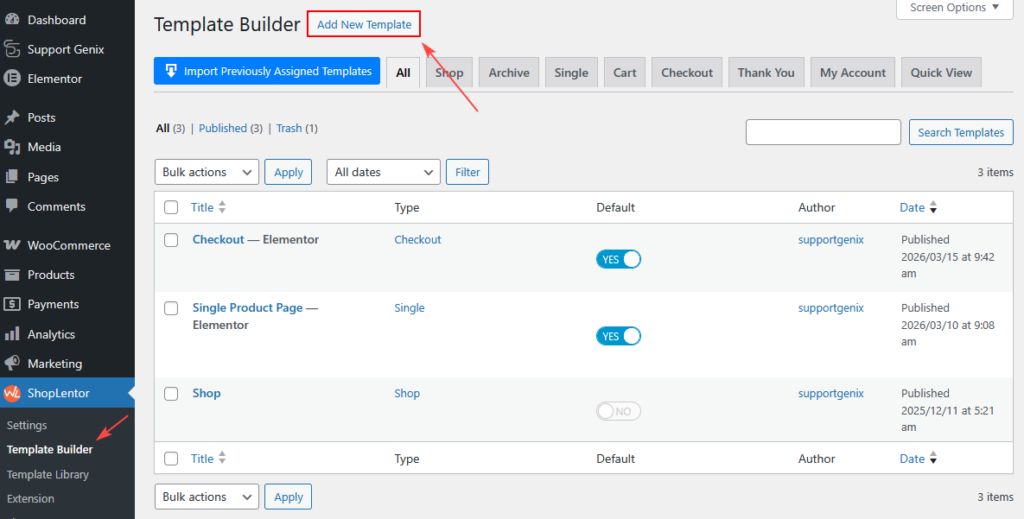
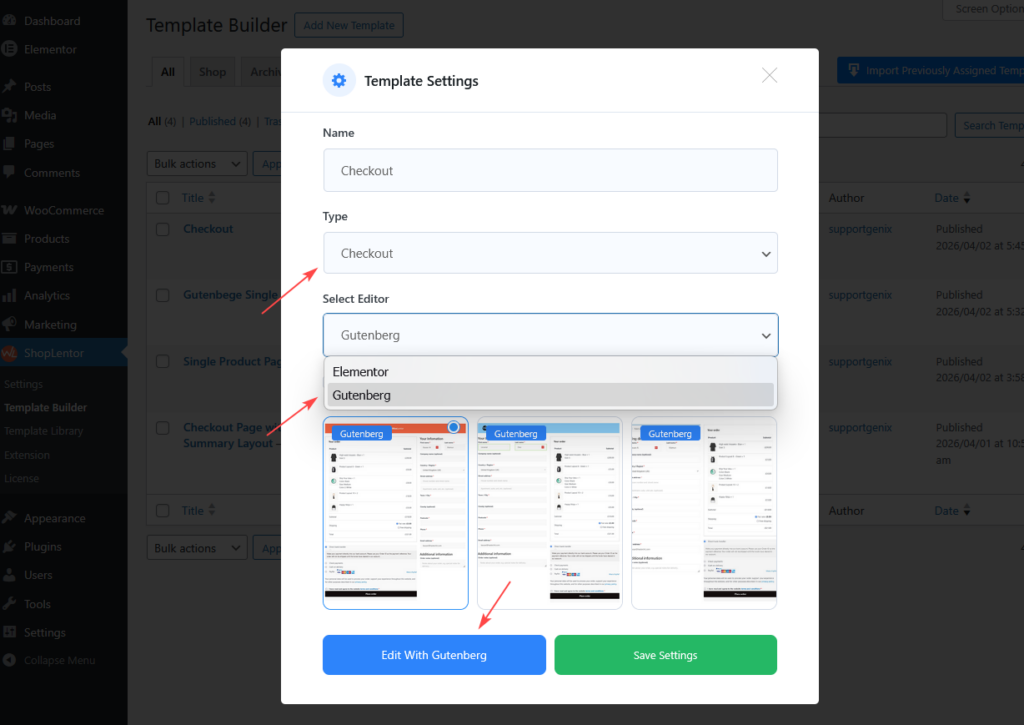
- Go to ShopLentor → Template Builder
- Click Add New Template
- Enter a Template Name
- Select:
- Type: Checkout
- Editor: Gutenberg
- Choose a ready template (optional)
- Click Edit with Gutenberg
- Add the Checkout Shipping Method block
- Click Save / Update
Block Settings
The block includes several configuration options to control shipping descriptions and layout.
Shipping Method Settings
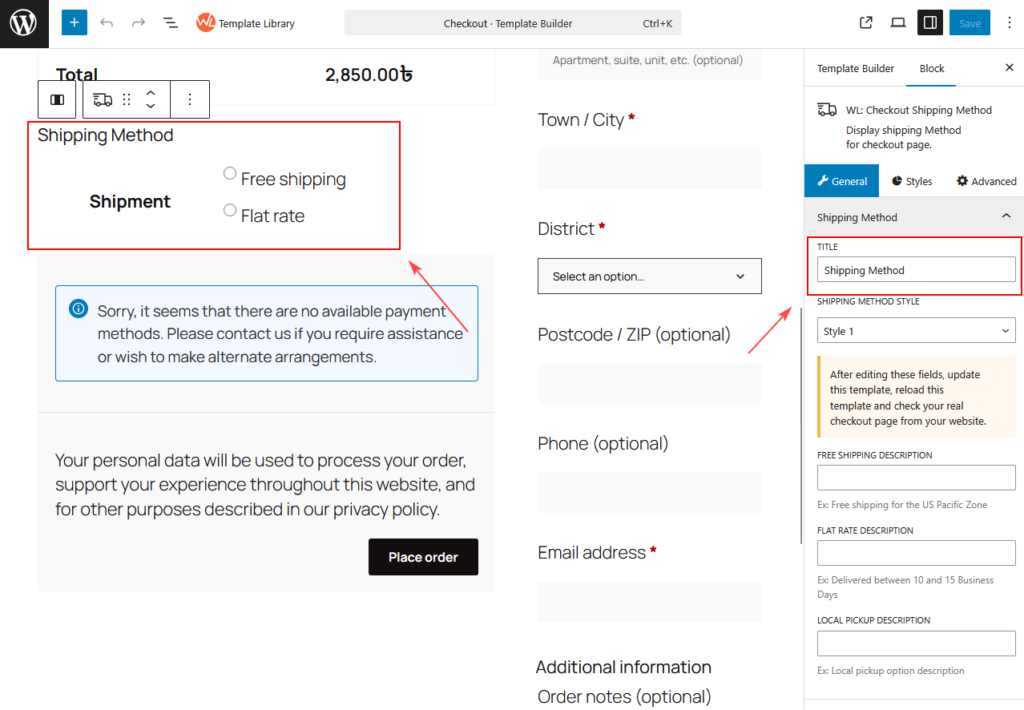
Title
Set the heading text for the shipping methods section.
Example: Shipping Method
This title appears above the shipping options on the checkout page.
Shipping Method Variation
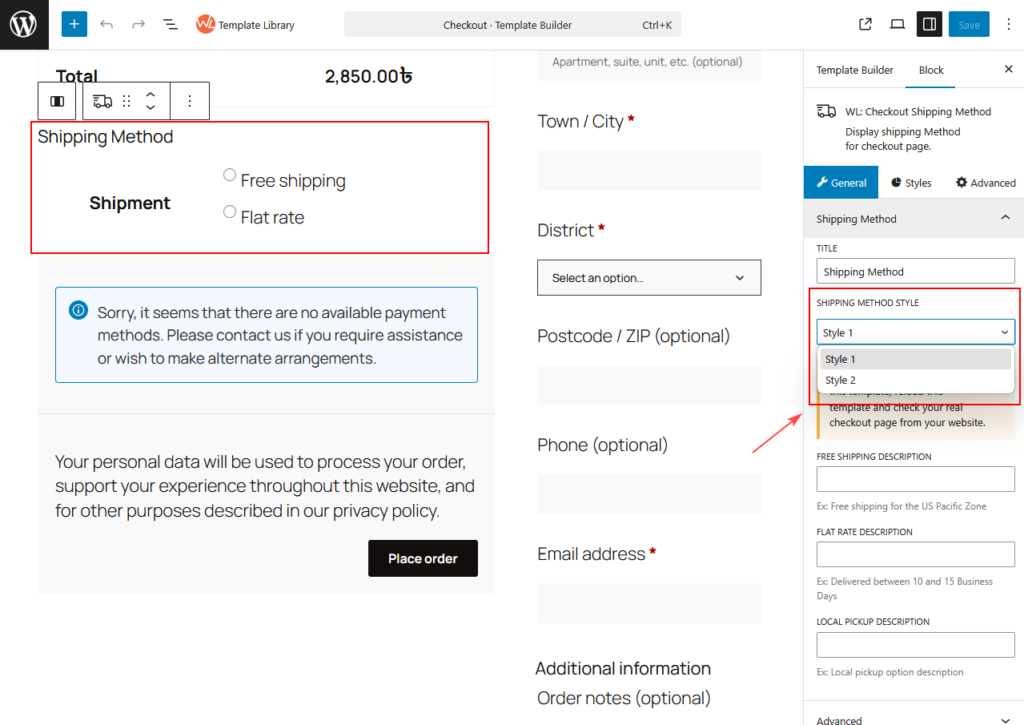
Choose the visual layout for the shipping method display.
Available options include:
- Style 1
- Style 2
Each style changes the appearance and layout of shipping options.
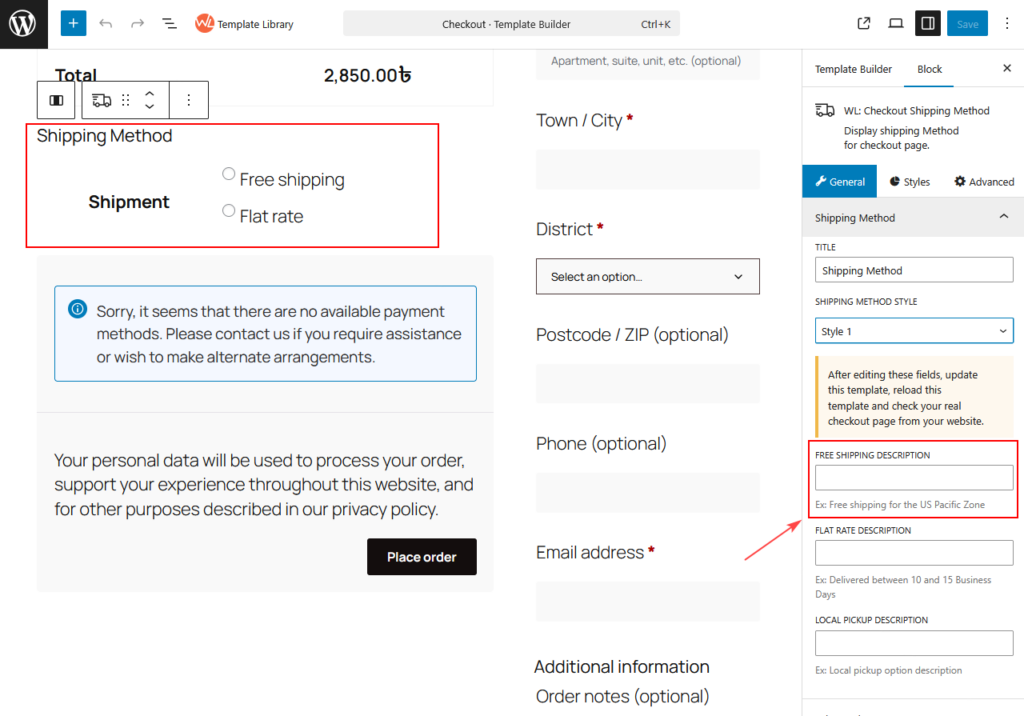
Free Shipping Description
Add a description for the Free Shipping method.
Example: Free shipping for the US Pacific Zone
This helps customers understand shipping conditions or delivery estimates.
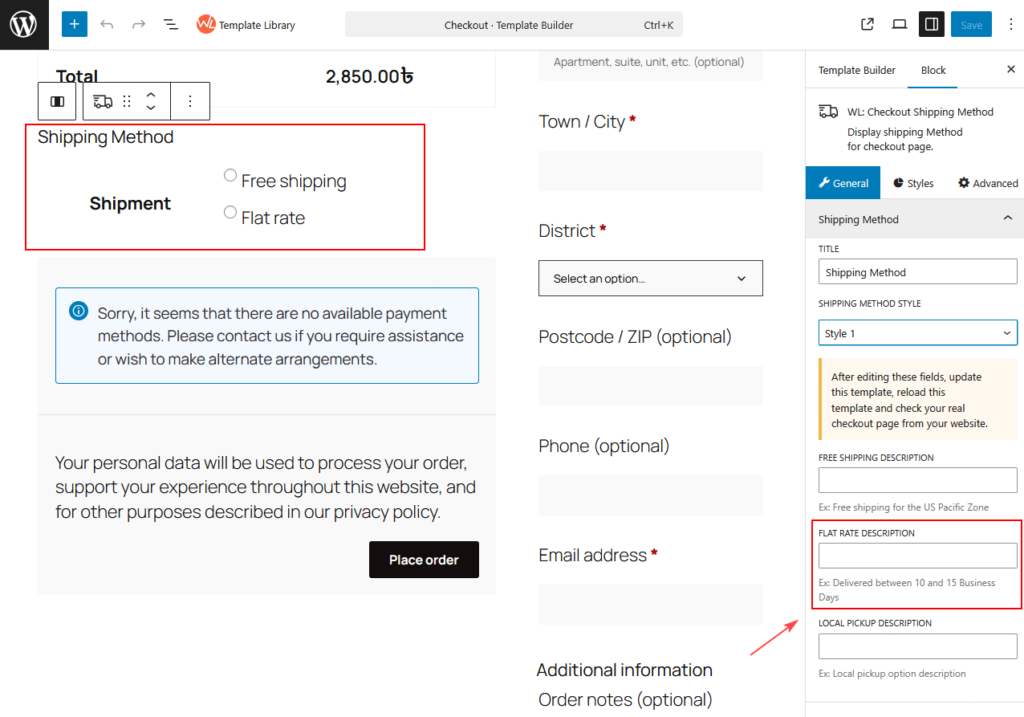
Flat Rate Description
Add a description for the Flat Rate Shipping option.
Example: Delivered between 10 and 15 Business Days
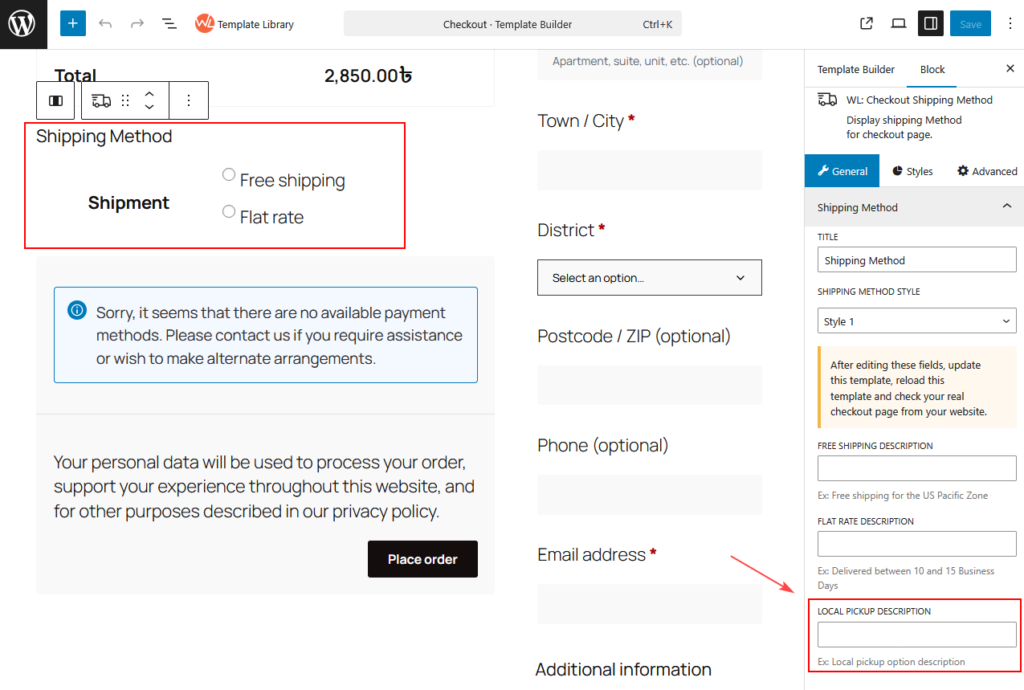
Local Pickup Description
Provide a description for the Local Pickup option.
Example: Local pickup option description
Style Settings
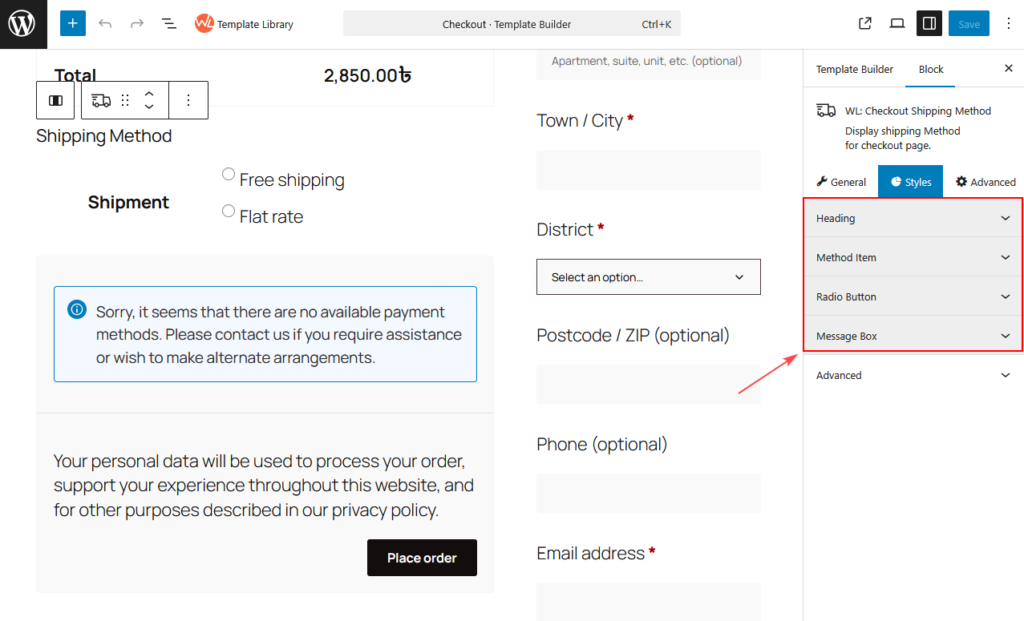
The Style Settings allow you to customize the visual appearance of the Checkout Shipping Method block. You can adjust colors, font sizes, spacing, borders, and alignment to match your checkout page design.
Available style sections:
- Heading
- Method Item
- Radio Button
- Message Box
Heading
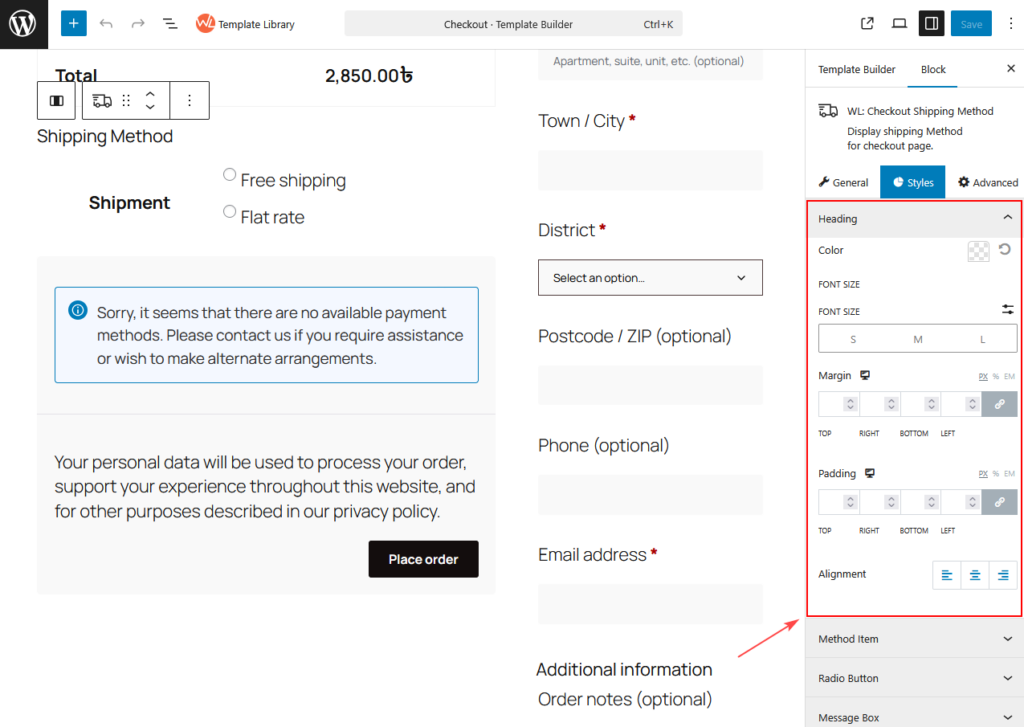
Controls the appearance of the shipping method heading.
Available options:
- Color – Set the heading text color
- Font Size – Choose size: S, M, L
- Margin – Control outer spacing (Top, Right, Bottom, Left)
- Padding – Control inner spacing (Top, Right, Bottom, Left)
- Alignment – Set text alignment: Left, Center, Right
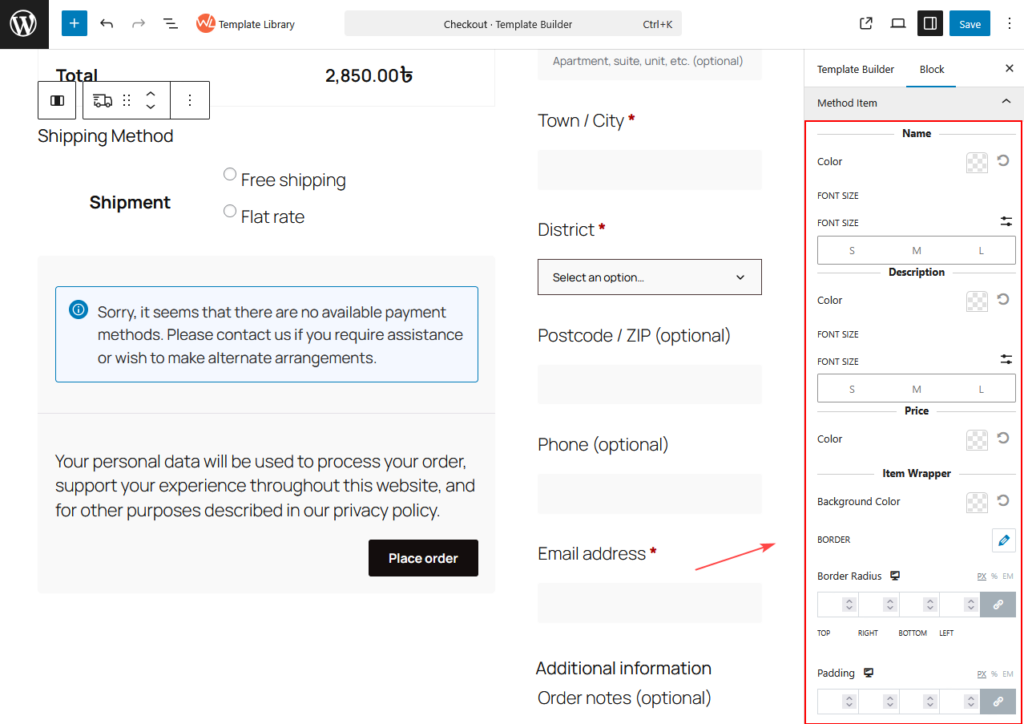
Method Item
Customize the design of each shipping method item.
Name
Controls the appearance of the shipping method name.
Options:
- Color
- Font Size (S, M, L)
Description
Controls the appearance of the shipping method description.
Options:
- Color
- Font Size (S, M, L)
Price
Controls the appearance of the shipping cost.
Options:
- Color
Item Wrapper
Controls the container that holds each shipping method.
Options:
- Background Color
- Border (type, width, color)
- Border Radius
- Padding (Top, Right, Bottom, Left)
- Margin (Top, Right, Bottom, Left)
Radio Button
Customize the appearance of the shipping selection radio button.
Options:
- Border – Set the default radio button border
- Selected Border – Border style when selected
- Selected Color – Color when the option is selected

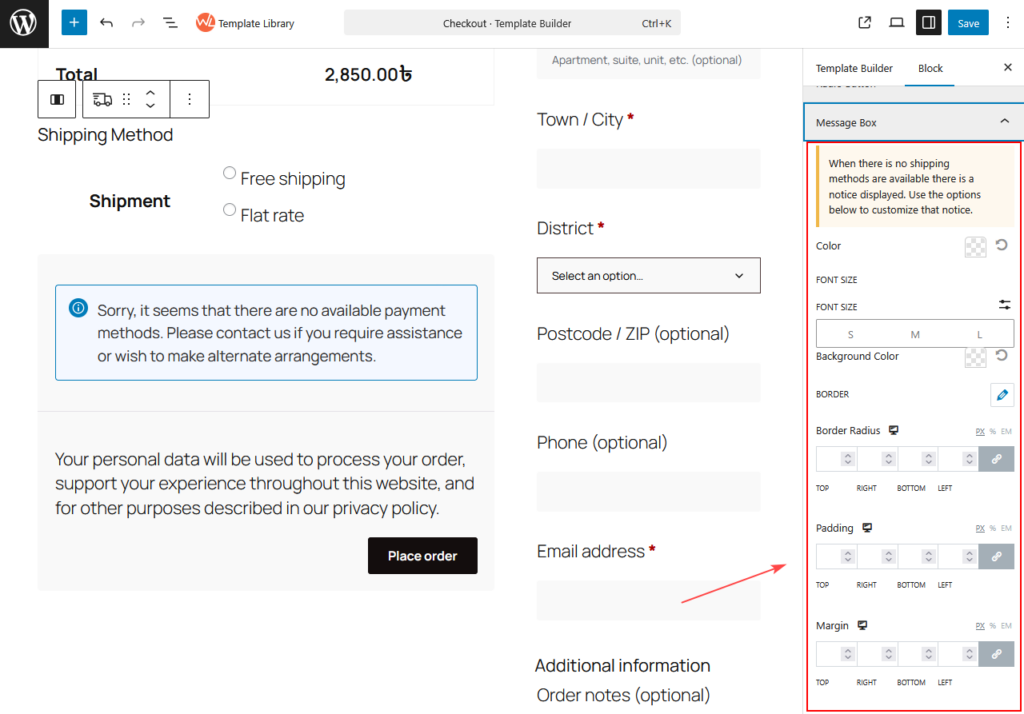
Message Box
The Message Box appears when no shipping methods are available.
Options:
Margin (Top, Right, Bottom, Left)
Color – Message text color
Font Size – Size: S, M, L
Background Color
Border (type, width, color)
Border Radius
Padding (Top, Right, Bottom, Left)
Best Practices
For the best checkout experience:
- Provide clear delivery estimates
- Use consistent shipping descriptions
- Choose a layout style that matches your checkout design
- Always test the checkout page after updating the template
These practices help customers quickly understand their shipping options and complete purchases smoothly.