
The Product Reviews widget adds the standard WooCommerce reviews area to a custom single product page built with Elementor. It shows the product’s approved customer reviews and the Add a review form, exactly as WooCommerce outputs them. In the Elementor panel, the widget appears as WL: Product Reviews.
Good to know: This widget has no layout, filter, or style options of its own. It always shows the reviews of the product being viewed, and WooCommerce settings decide what appears. To showcase selected reviews in a styled grid or slider on a homepage or landing page, use the Social Proof – 2026 widget instead.
When to use the Product Reviews widget
- You are building a Single Product template with the ShopLentor Template Builder and want the reviews and review form in a specific place on the page.
- You are not using the Product Data Tabs widget, or you want reviews outside the tabs. Product Data Tabs already includes a Reviews tab, so using both shows the reviews twice.
Before you begin
- Make sure WordPress, WooCommerce, Elementor, and ShopLentor are installed and active. The widget is included in the free version of ShopLentor.
- Turn on reviews in WooCommerce → Settings → Products, in the Reviews section, by enabling Enable product reviews.
- Check that reviews are allowed for each product: edit the product, open Product data → Advanced, and keep Enable reviews checked.
1. Enable the Product Reviews widget
- Open your WordPress Dashboard.
- Go to ShopLentor → Settings → Elementor Widgets.
- Find Product Reviews and turn it ON.
- Click Save Settings.
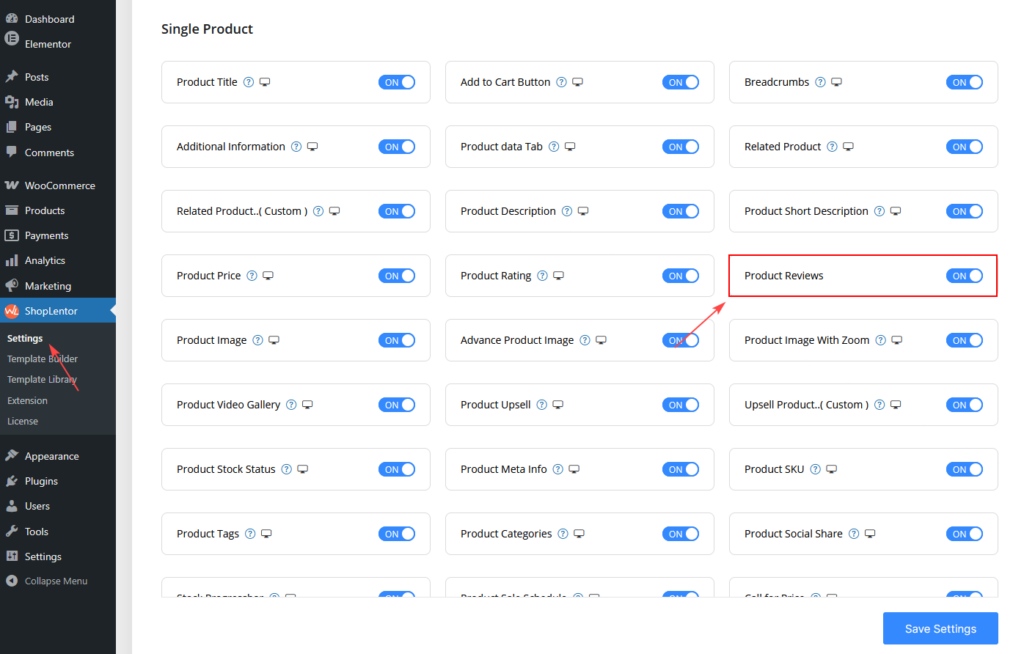
2. Add the widget to a single product template
- Go to ShopLentor → Template Builder.
- Open your Single Product template, or create a new template with Single Product as its type and Elementor as its editor.
- Click Edit with Elementor.
- Search for Product Reviews in the widget panel and drag WL: Product Reviews into your layout, usually below the product summary or description.
- Click Update to save the template.
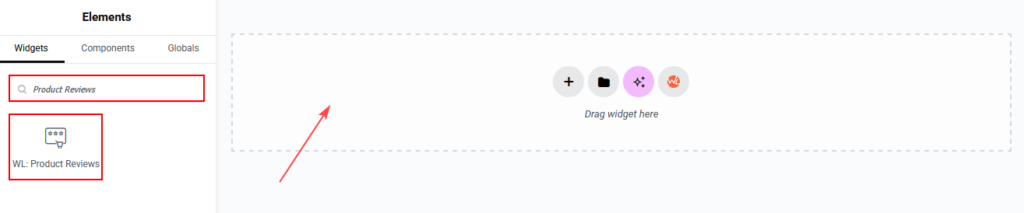
In the Elementor editor, the widget shows a sample review form as a preview. The real reviews of each product appear on the live product pages that use the template.
3. Control what the reviews area shows
The widget’s Content tab only contains an information notice. Everything shown in the reviews area comes from WooCommerce and WordPress settings:
| What you want to change | Where to change it |
|---|---|
| Turn reviews on or off for the whole store | WooCommerce → Settings → Products → Reviews → Enable product reviews |
| Show star ratings, or make a rating required | Enable star rating on reviews and Star ratings should be required, not optional in the same section |
| Allow reviews only from customers who bought the product | Reviews can only be left by “verified owners” |
| Show a “verified owner” label | Show “verified owner” label on customer reviews |
| Turn reviews off for one product | Edit the product → Product data → Advanced → Enable reviews |
| Approve, reply to, or remove reviews | Products → Reviews |
| Split long review lists into pages | Settings → Discussion → Break comments into pages |
4. Style the reviews area
The widget has no dedicated Style controls. Reviews and the review form use your theme’s WooCommerce styles. You can still use the widget’s Advanced tab in Elementor to set margin, padding, background, and border for the whole reviews area. For detailed changes, such as star colors or form button styles, add custom CSS that targets the standard WooCommerce review elements (for example #reviews, .commentlist, and #review_form).
5. Preview and test
- Make sure your Single Product template is set to display on your products in the Template Builder.
- Open a product that already has approved reviews and check that they appear where you placed the widget.
- Submit a test review from a product page, then approve it under Products → Reviews if moderation is required.
- Check the page on desktop, tablet, and mobile.
Troubleshooting
The widget does not appear in Elementor
Enable Product Reviews in ShopLentor → Settings → Elementor Widgets, save, and reload the Elementor editor.
Nothing appears on the live product page
Check that Enable product reviews is on in WooCommerce and that Enable reviews is checked for the product. The widget works only where a product is being displayed, so it shows nothing on regular pages.
Reviews appear twice
Your template probably also contains a Product Data Tabs widget, which has its own Reviews tab. Remove one of the two widgets, or hide the Reviews tab.
A new review is not visible
Reviews waiting for approval are not shown. Approve the review under Products → Reviews, then clear any page cache.
Frequently asked questions
Can I choose which reviews to show, or show them in a grid or slider?
No. This widget always shows the full WooCommerce reviews area for the current product. Use the Social Proof – 2026 widget to select, filter, and design reviews.
Can I use the Product Reviews widget on a normal page?
No. It needs a product to read reviews from, so use it in a Single Product template.
Is the Product Reviews widget free?
Yes. It is part of the free version of ShopLentor.
Conclusion
The Product Reviews widget places the standard WooCommerce reviews list and review form anywhere in your Elementor single product template. Enable it, add it to your template, manage the review options in WooCommerce, and test it on a live product page.