
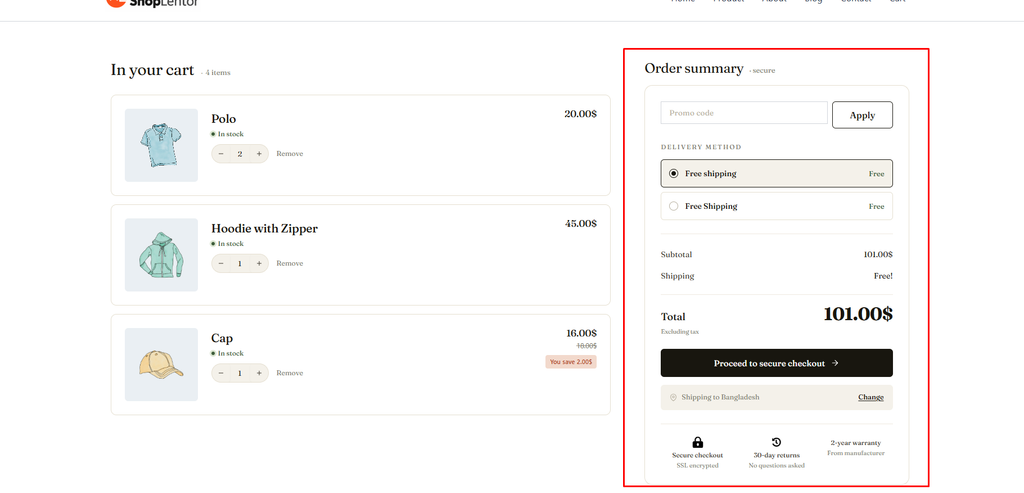
The Cart Total – Aura widget lets you create a modern order summary for your WooCommerce cart page using Elementor. It displays the cart subtotal, available discounts, shipping options, and final total in one organized card. Customers can also enter a coupon code and continue to checkout.
Use this widget alongside Cart Table – Aura or another cart-items widget to give customers a clear view of their cart before they place an order.
What You Can Customize
With the Cart Total Aura widget, you can:
- Show a custom order summary title and a small badge.
- Add a coupon code form with your own placeholder and button text.
- Display available shipping methods.
- Choose whether to display subtotal, discounts, and tax rows.
- Customize the checkout button label.
- Show the customer’s shipping destination.
- Add custom trust messages with icons.
- Adjust colors, typography, borders, spacing, and button styles.
Before You Start
Make sure that:
- WooCommerce, Elementor, ShopLentor, and ShopLentor Pro are installed and active.
- Your WooCommerce store has a cart page.
- You have a Cart template in ShopLentor → Template Builder, or you are ready to create one.
Note: Cart Total – Aura is a ShopLentor Pro widget, and the Cart template builder is also part of ShopLentor Pro. Shipping choices require applicable WooCommerce shipping methods, and coupons are shown only when WooCommerce coupon use is enabled.
1. How to Add the Cart Total Aura Widget
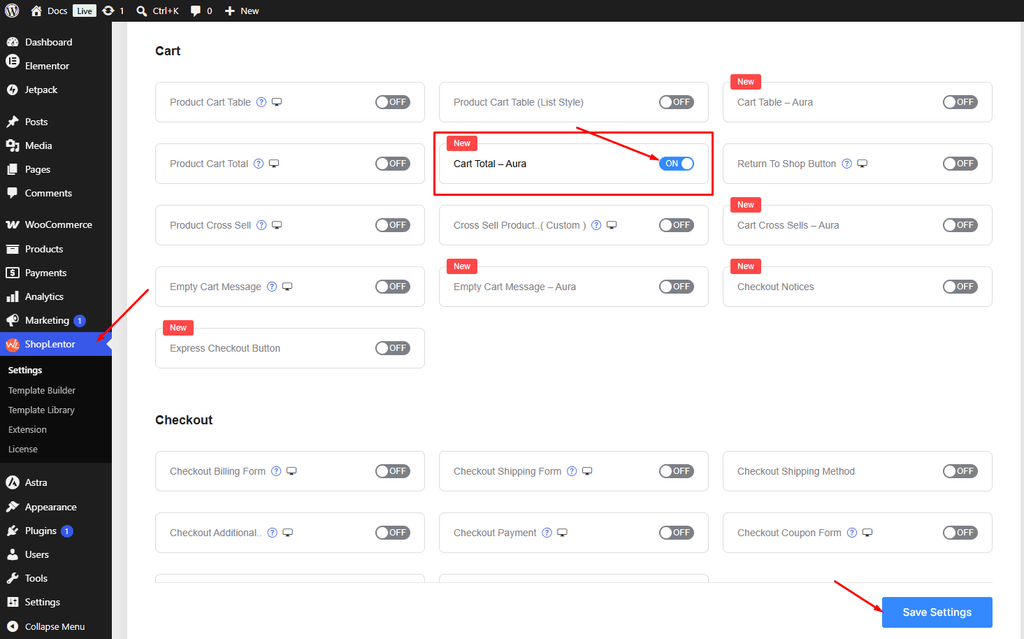
Step 1: Enable the Widget
- Open your WordPress dashboard.
- Go to ShopLentor → Settings → Elementor Widgets.
- Find Cart Total – Aura.
- Turn it ON and save the settings if prompted.
Step 2: Add the Widget to Your Cart Template
- Go to ShopLentor → Template Builder.
- Open your existing Cart template, or create a new template and select Cart as its type and Elementor as its editor.
- Click Edit with Elementor.
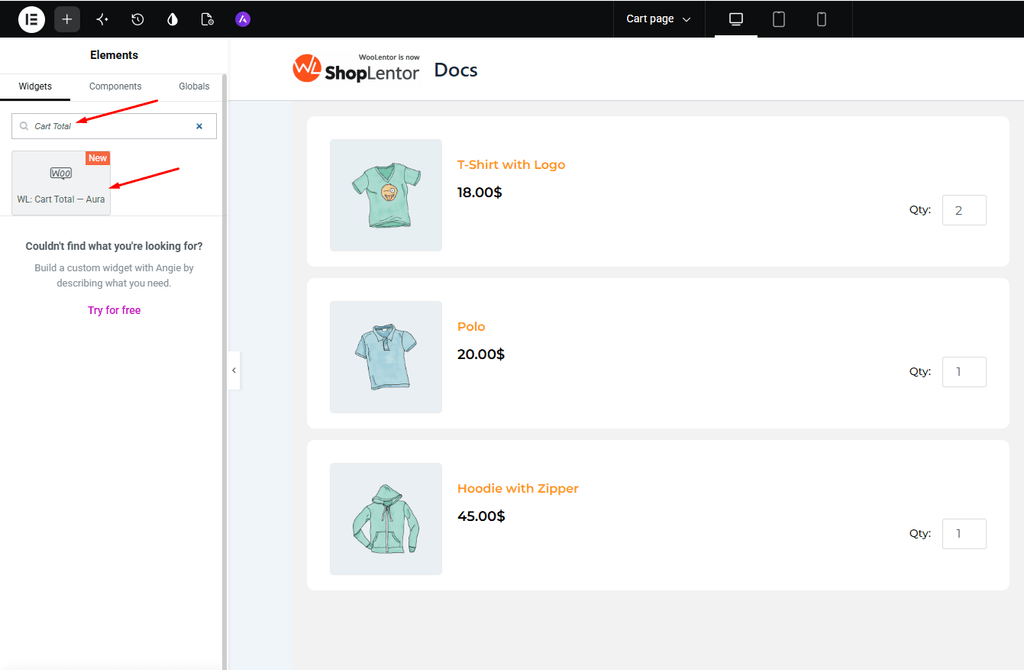
- Search for Cart Total — Aura in the Elementor widget panel. The widget appears as WL: Cart Total — Aura.
- Drag the widget into your cart-page layout, preferably beside or below the cart-items section.
Tip: A cart total widget summarizes the cart; it does not replace the list of cart products. Add a cart-items widget if your template does not already include one.
2. Content Settings
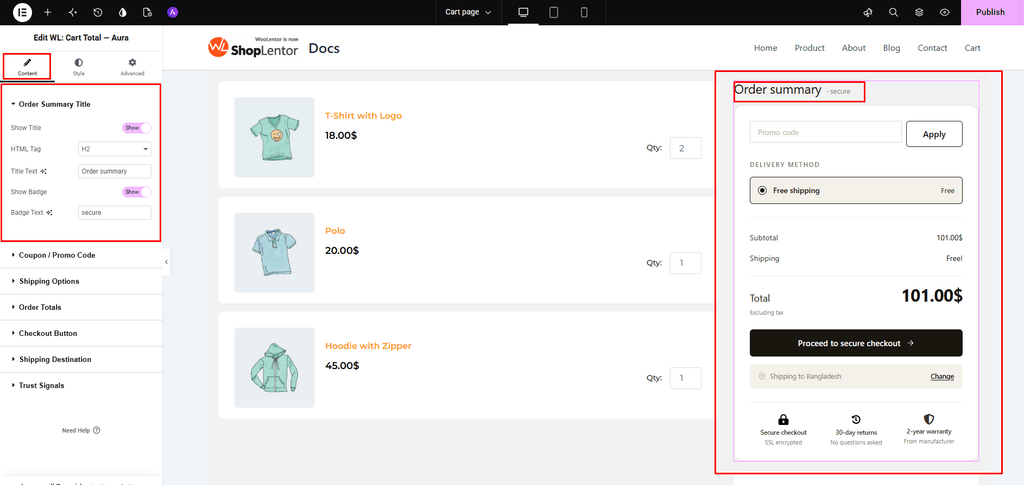
Select Cart Total — Aura in Elementor and open its Content tab.
Order Summary Title
Use this section to control the heading above the summary card.
- Show Title: Display or hide the heading. Enabled by default.
- HTML Tag: Choose the heading tag, such as H2 (default). Available when the title is shown.
- Title Text: Enter your heading, such as Order summary (default).
- Show Badge: Show or hide a small label beside the title. Enabled by default.
- Badge Text: Enter the badge text, such as secure (default). Available when the title and badge are enabled.
Coupon / Promo Code
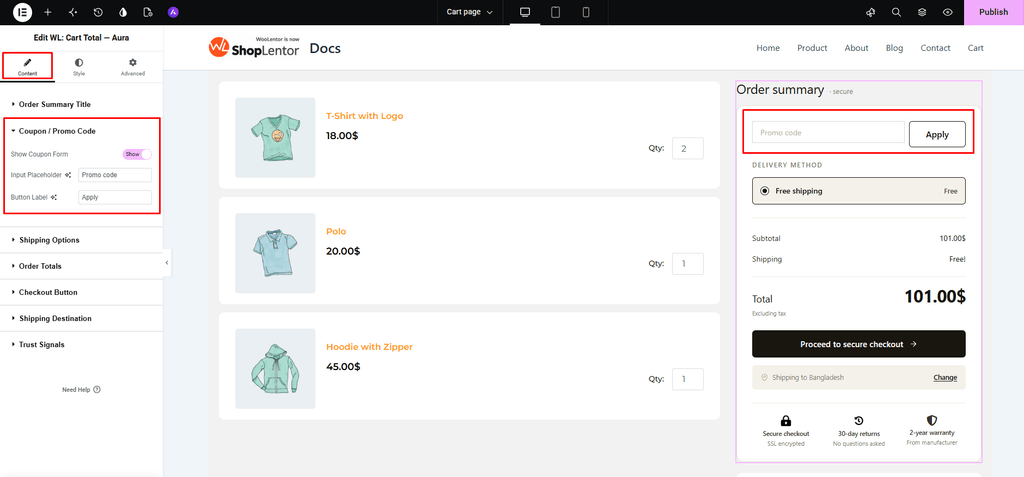
The coupon form allows customers to enter an existing WooCommerce coupon code.
- Show Coupon Form: Show or hide the coupon input and button. Enabled by default.
- Input Placeholder: Change the text inside the empty field. Default: Promo code.
- Button Label: Change the apply button text. Default: Apply.
The placeholder and button label settings appear when Show Coupon Form is enabled. The form is displayed only if coupons are enabled in WooCommerce.
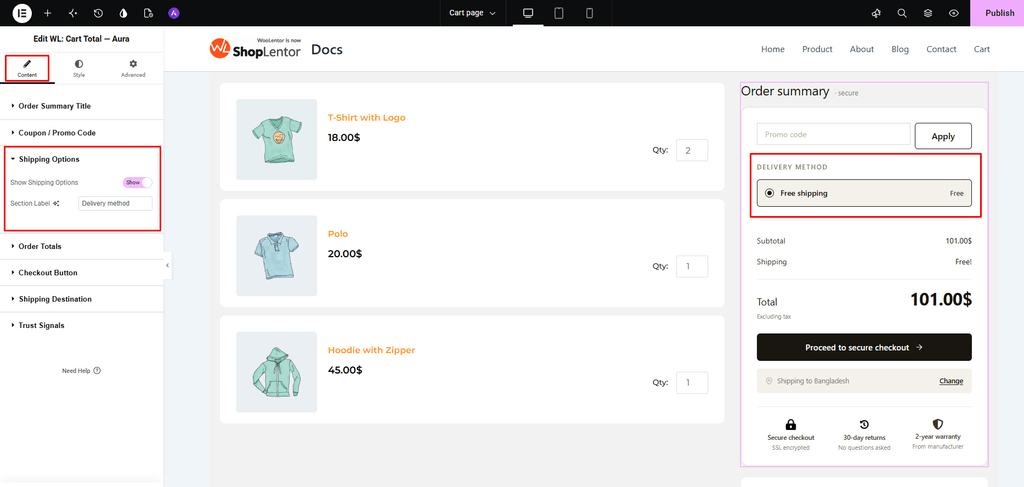
Shipping Options
- Show Shipping Options: Show or hide the available WooCommerce shipping methods. Enabled by default.
- Section Label: Change the heading above those methods. Default: Delivery method.
Customers see shipping choices only when the cart needs shipping and WooCommerce has shipping information to display. The section label setting appears when shipping options are enabled.
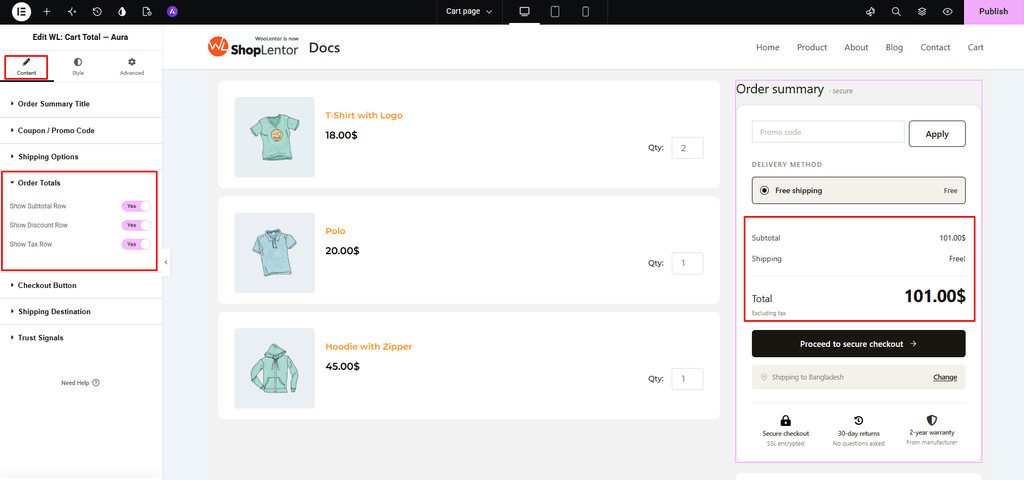
Order Totals
Choose which details appear in the summary:
- Show Subtotal Row: Display the product subtotal. Enabled by default.
- Show Discount Row: Display rows for applied coupons. Enabled by default; rows appear only when discounts are applied.
- Show Tax Row: Display tax breakdown rows when WooCommerce taxes are enabled and taxes apply. Enabled by default.
The final Total is displayed separately. Shipping amounts and applicable fees may also be included in the summary based on the cart and WooCommerce settings.
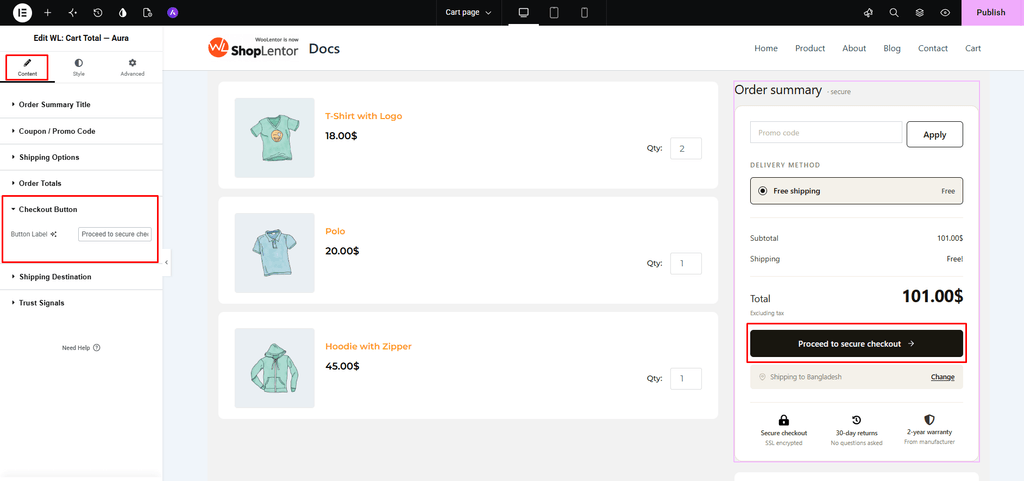
Checkout Button
- Button Label: Set the checkout button text. Default: Proceed to secure checkout.
The button takes customers to the WooCommerce checkout URL.
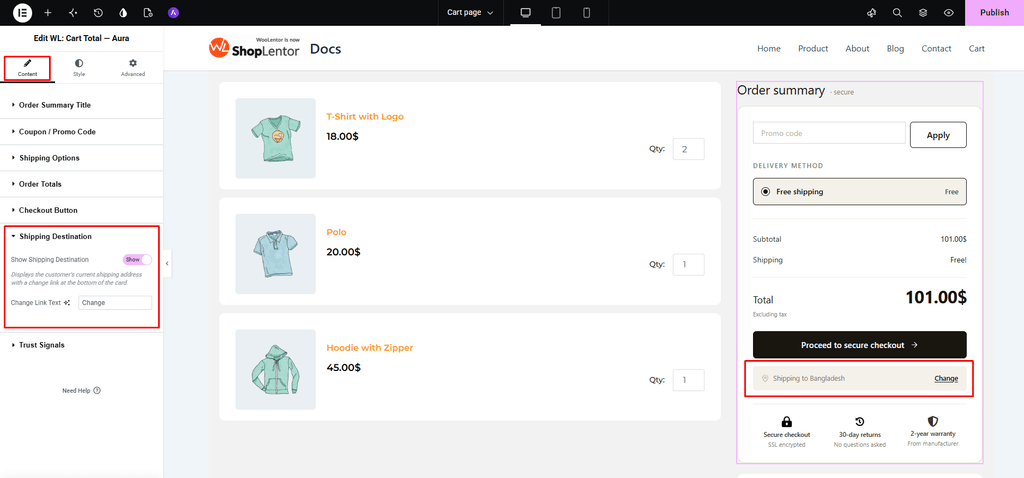
Shipping Destination
- Show Shipping Destination: Show or hide the customer’s shipping location near the bottom of the card. Enabled by default.
- Change Link Text: Change the link label. Default: Change. Available when the destination is enabled.
The destination area appears when WooCommerce has a shipping city or country for the customer. The link is rendered with the WooCommerce checkout URL.
Trust Signals
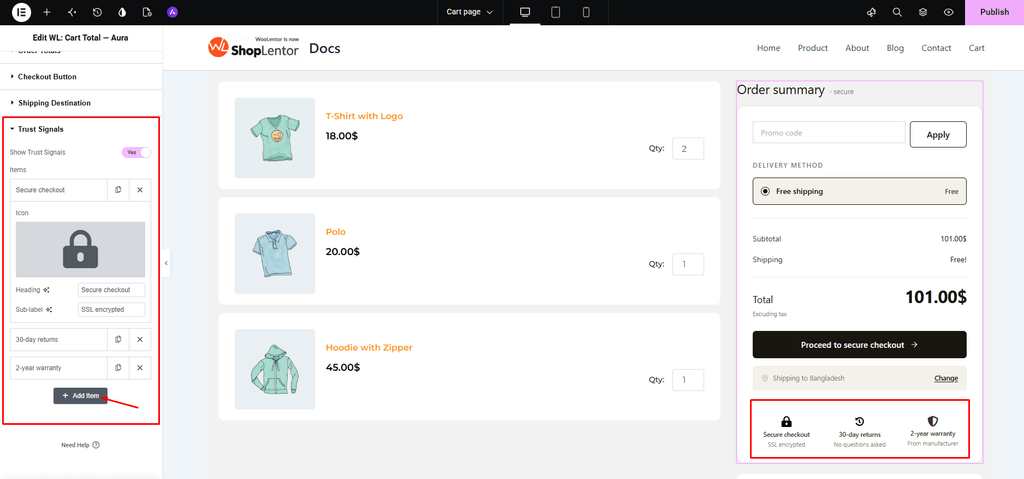
Use Trust Signals to show short messages below the checkout button and shipping destination, such as information about security, returns, or warranties.
- Enable Show Trust Signals (enabled by default).
- Open an item under Items, or add a new item.
- Choose an Icon, enter a Heading, and enter a Sub-label.
- Repeat for any additional messages.
The widget starts with example messages about secure checkout, returns, and warranty. Edit these messages to match your store’s real policies before publishing.
3. Style Settings
Open the widget’s Style tab to customize its appearance. The sections below correspond to the available Elementor style groups.
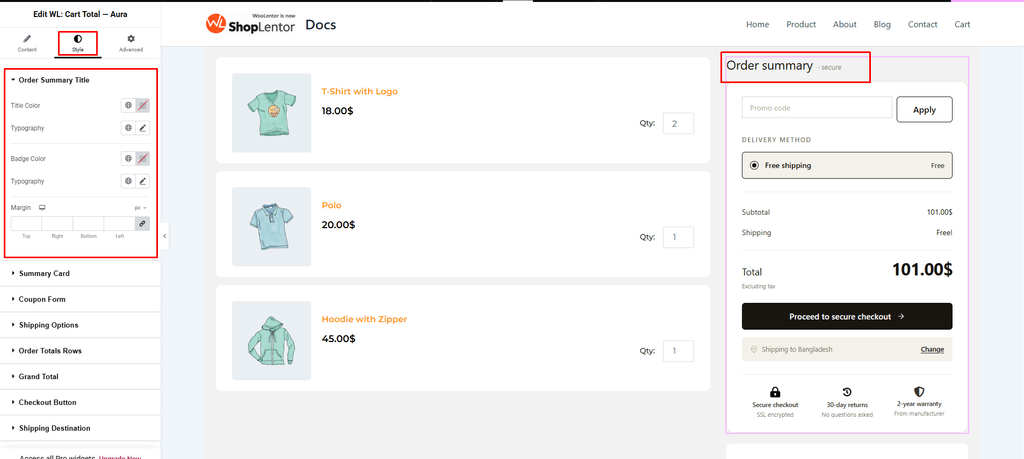
Order Summary Title
Set the Title Color and typography, the Badge Color and typography, and the heading Margin.
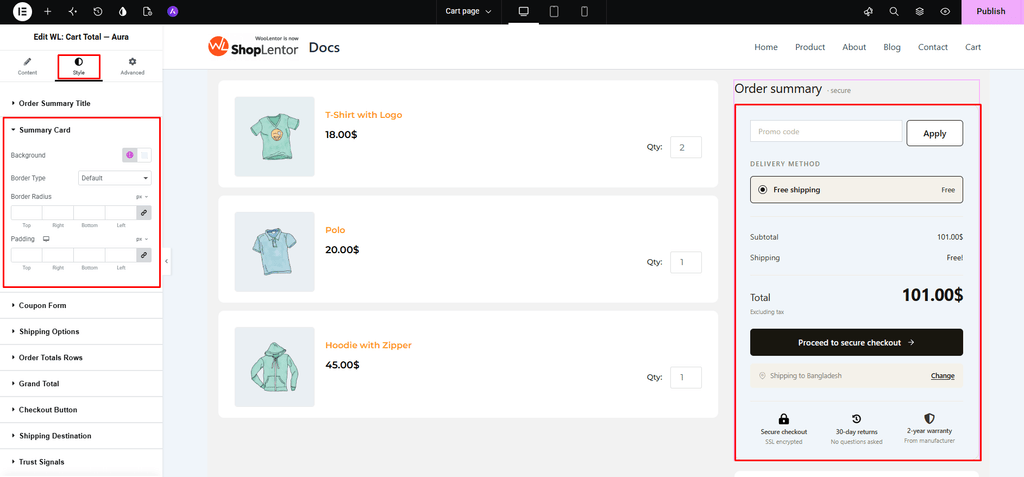
Summary Card
Customize the card Background, Border, Border Radius, and Padding.
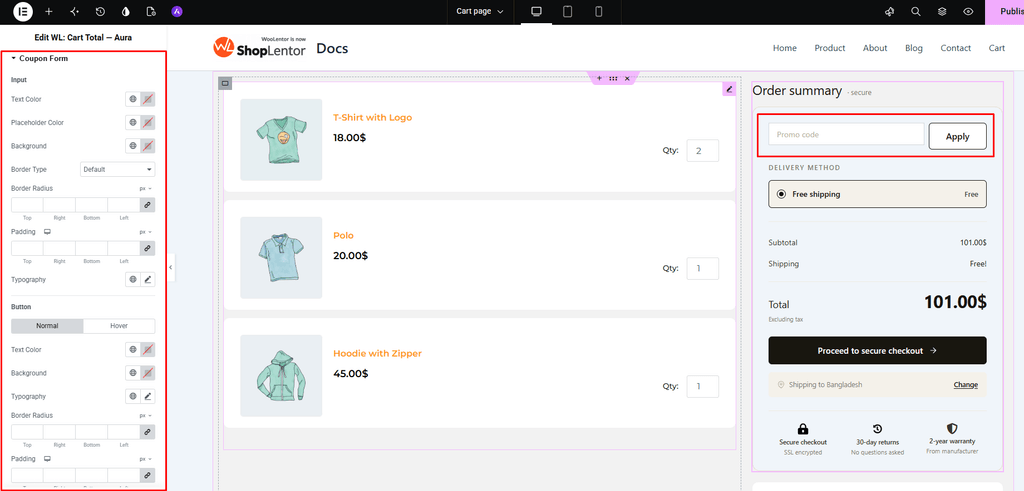
Coupon Form
Style the coupon Input text, placeholder, background, border, border radius, padding, and typography. Under Button, set normal and hover text/background colors, typography, border radius, and padding.
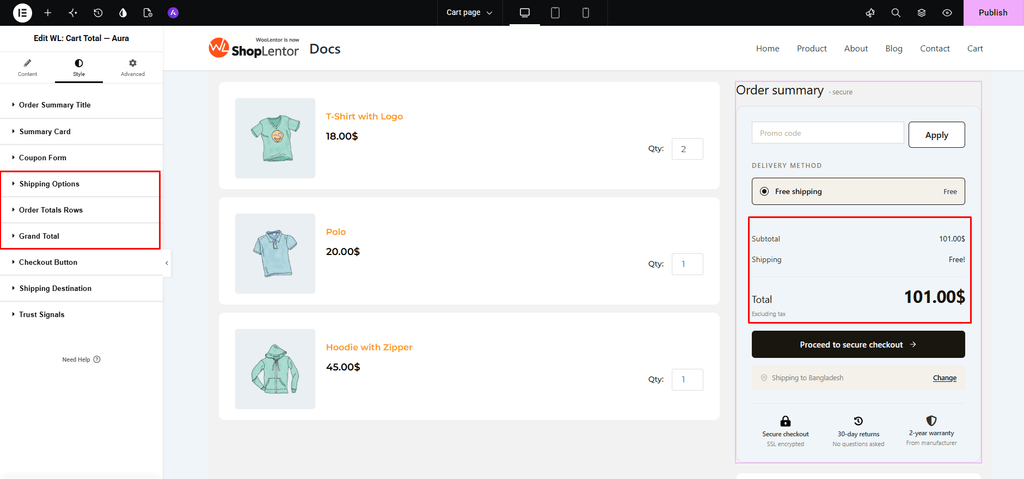
Shipping Options
Customize the Section Label typography/color; shipping-option card backgrounds, borders, padding, and selected state; radio indicator colors; and method-name and price typography/colors. You can also style the color used for Free shipping.
Order Totals Rows
Adjust Label Color, Value Color, and their typography. Set discount-row label/value colors and the divider color.
Grand Total
Set the grand-total Label Color, Tax Note Color, Value Color, and typography for the main label and value.
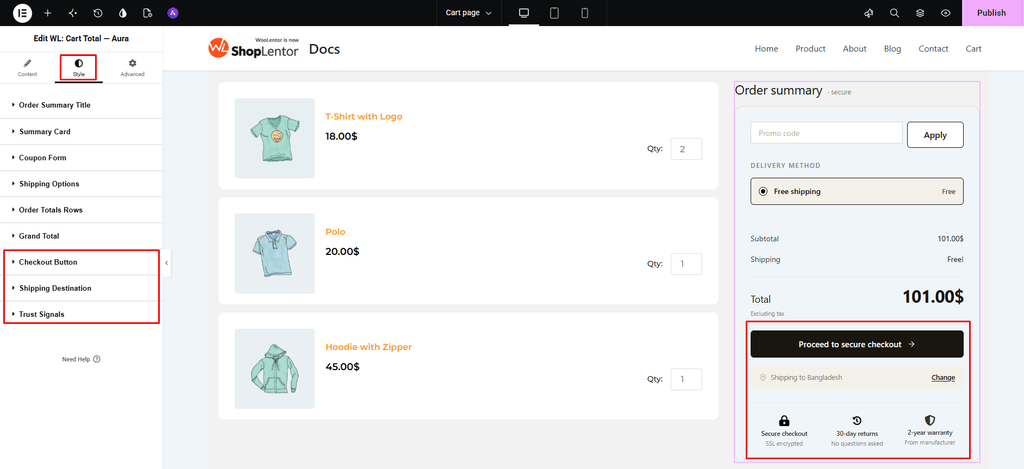
Checkout Button
Customize the normal and hover Text Color and Background, plus typography, Border Radius, and padding.
Shipping Destination
Set the destination background, border radius, padding, icon color, text color/typography, and the Change Link Color, hover color, and typography.
Trust Signals
Customize the divider color, icon size/color, heading color/typography, and sub-label color/typography.
Responsive tip: Controls such as Margin, Padding, and Icon Size include device-specific adjustments where Elementor shows the responsive device icon. Check tablet and mobile previews before publishing.
4. Best Practices
- Keep the order summary close to the cart-items list.
- Use short, clear headings and button labels.
- Check the coupon form with a valid WooCommerce coupon.
- Test shipping methods using an address covered by your shipping zones.
- Remove or edit the default trust-signal examples if they do not match your business policies.
- Preview the cart with products added; an empty cart may not show a useful totals preview.
5. Frequently Asked Questions
Can I change the order summary heading?
Yes. Edit Title Text under Order Summary Title.
Why isn’t the coupon form visible?
Enable Show Coupon Form and make sure coupons are enabled in WooCommerce.
Why aren’t shipping options displayed?
The cart must require shipping, and WooCommerce must have shipping rates available for the customer’s shipping details. Also check Show Shipping Options.
Can I hide the subtotal, discount, or tax row?
Yes. Use the switches under Order Totals. The final total remains visible.
Can I change where the checkout button goes?
The widget’s Content tab changes the Button Label, not its destination. The button uses the WooCommerce checkout URL.
Does the widget require ShopLentor Pro?
Yes. Cart Total – Aura is available with ShopLentor Pro.