
The Cart Cross Sells – Aura widget for Elementor lets you display recommended products directly on your WooCommerce cart page. It helps customers discover complementary products before checkout, creating additional opportunities to increase average order value.
You can customize the section title, number of products, grid columns, product images, prices, and Add to Cart buttons. The widget also provides styling options to match your store’s design without writing custom code.
Why use the Cart Cross Sells – Aura widget?
Cross-selling encourages customers to explore products that complement the items already in their cart. Use this widget to:
- Display relevant product recommendations on the cart page.
- Encourage customers to purchase complementary products.
- Show product images, names, prices, and Add to Cart buttons.
- Customize the number of recommendations and grid columns.
- Match product cards and buttons to your store’s design.
- Improve product discovery before customers proceed to checkout.
Before you begin
Make sure WordPress, WooCommerce, Elementor, and ShopLentor are installed and active.
You should also have a WooCommerce cart template ready to edit with Elementor.
For recommendations to appear, configure cross-sell products in WooCommerce.
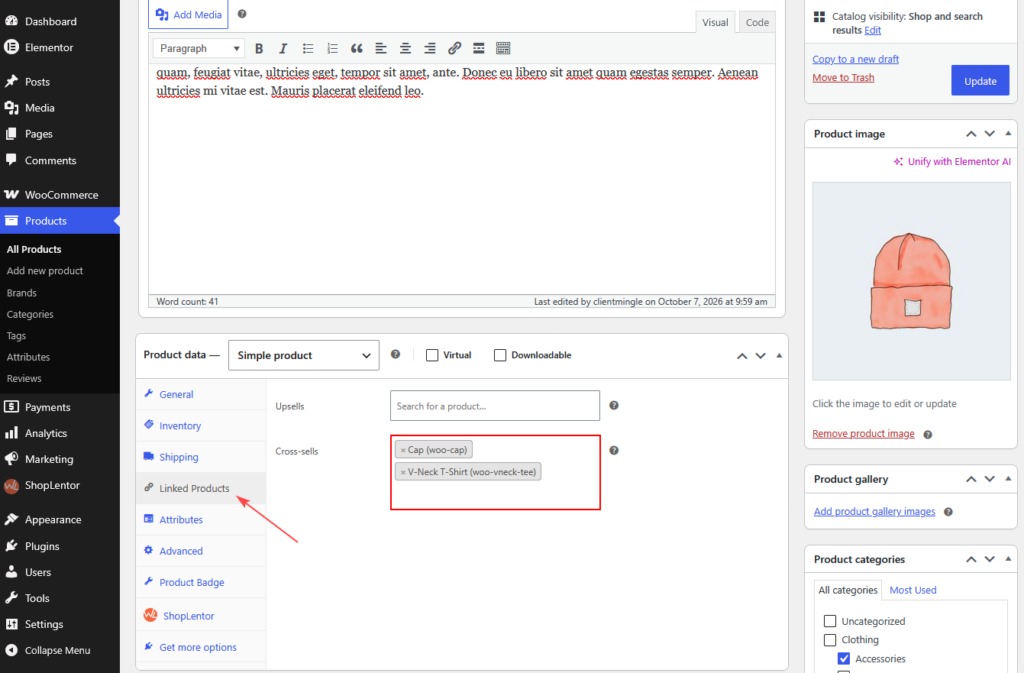
Set up WooCommerce cross-sell products
- Navigate to Products → All Products in your WordPress dashboard.
- Edit the product for which you want to display recommendations.
- Scroll to Product Data → Linked Products.
- Find the Cross-sells field.
- Search for and select the products you want to recommend.
- Click Update to save the changes.
Repeat these steps for other products as needed.
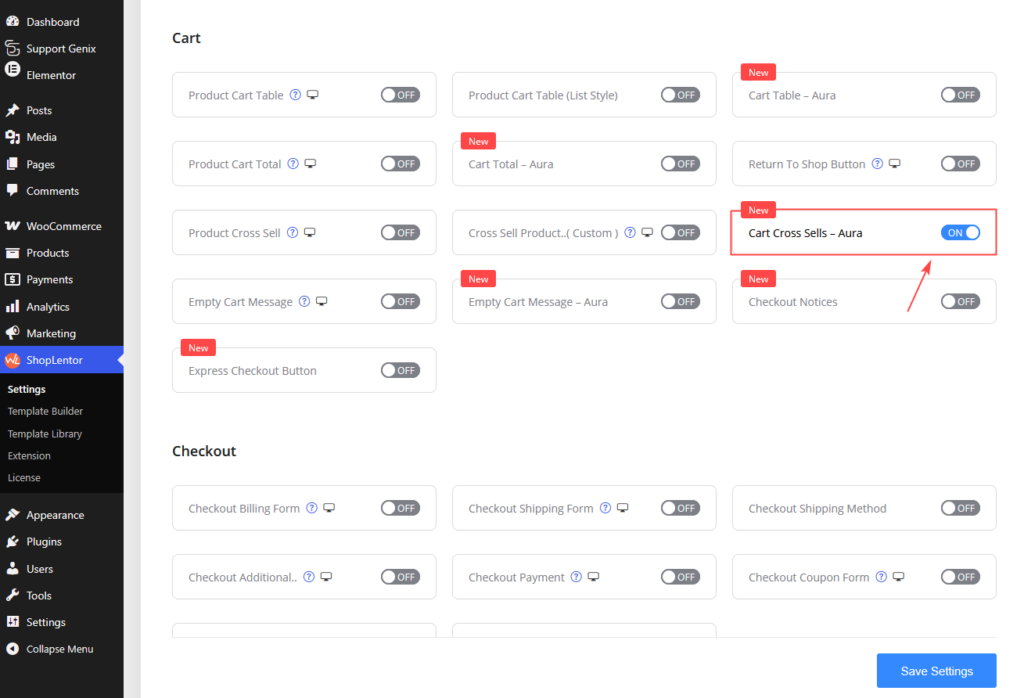
1. Enable Cart Cross Sells – Aura
- Go to ShopLentor → Settings → Elementor Widgets.
- Find Cart Cross Sells – Aura under the Cart widgets.
- Turn the widget on.
- Save the changes.
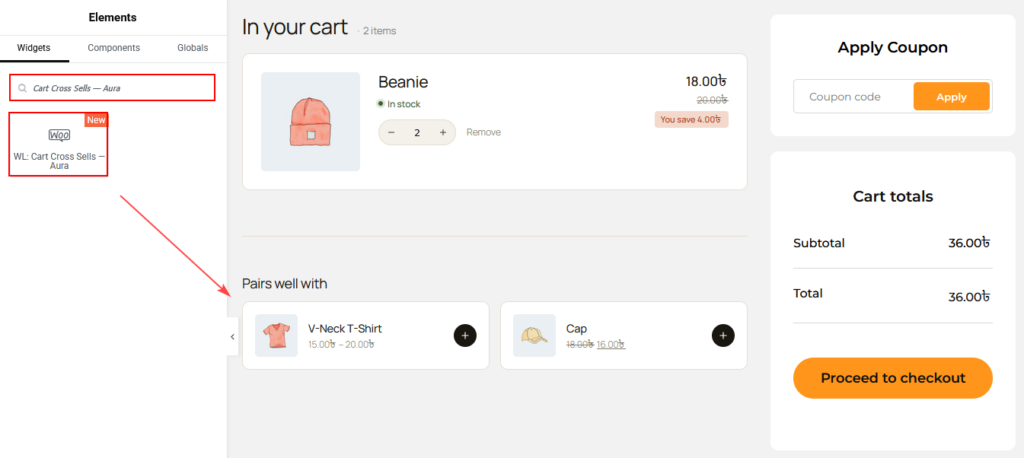
2. Add the widget to your cart page
- Navigate to ShopLentor → Template Builder.
- Create or edit your WooCommerce cart template or page.
- Select Edit with Elementor.
- Search for Cart Cross Sells – Aura in the Elements panel.
- Drag the widget into your preferred section or container.
- Open the Content tab to configure the recommendations.
Place the widget below the cart products or near the order summary so customers can discover additional products before checkout.
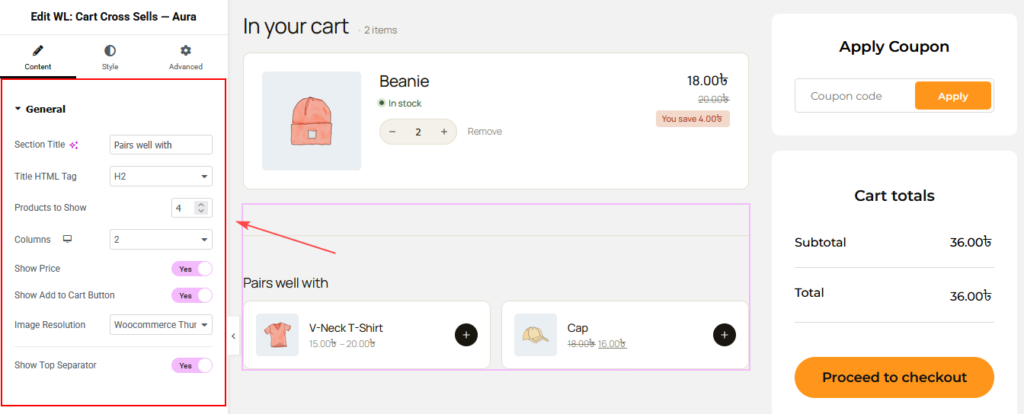
3. Configure the general settings
Open Content → General to control the cross-sell section’s content and layout.
| Setting | What it does |
|---|---|
| Section Title | Adds a heading above the recommended products, such as “Pairs well with”. |
| Title HTML Tag | Selects the HTML heading tag, such as H2. |
| Products to Show | Sets the maximum number of recommended products to display. |
| Columns | Sets the number of product columns. Includes responsive controls. |
| Show Price | Shows or hides product prices. |
| Show Add to Cart Button | Shows or hides the Add to Cart button. |
| Image Resolution | Selects the product image size using WordPress or WooCommerce presets, Full, or Custom. |
| Show Top Separator | Shows or hides a separator above the cross-sell section. |
Recommended starting settings:
| Setting | Suggested value |
|---|---|
| Section Title | Pairs well with |
| Title HTML Tag | H2 |
| Products to Show | 4 |
| Columns | 2 |
| Show Price | Yes |
| Show Add to Cart Button | Yes |
| Image Resolution | WooCommerce Thumbnail |
| Show Top Separator | Yes |
These values match the configuration shown in your screenshots.
Tip: Use a short, conversational section title, such as “You may also like” or “Complete your order”, to introduce recommended products naturally.
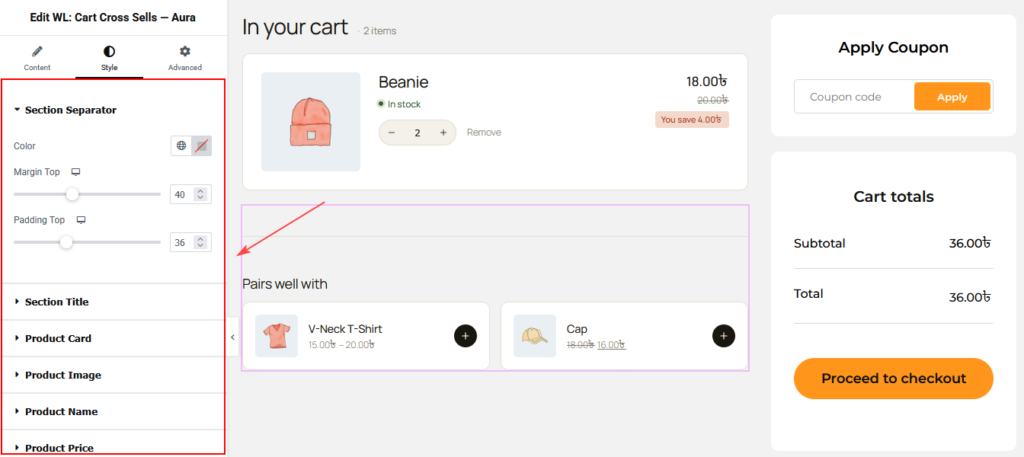
4. Customize the section separator and title
Open the Style tab to customize the appearance of the cross-sell section.
| Style section | Available controls | How to use it |
|---|---|---|
| Section Separator | Color, Margin Top, Padding Top | Customize the separator color and spacing above the recommendations. |
| Section Title | Color, Typography, Margin Bottom | Style the heading and adjust the space between the title and product cards. |
The separator is useful for visually distinguishing product recommendations from the main cart contents.
Note: Enable Content → General → Show Top Separator to display the separator.
5. Customize the product cards and images
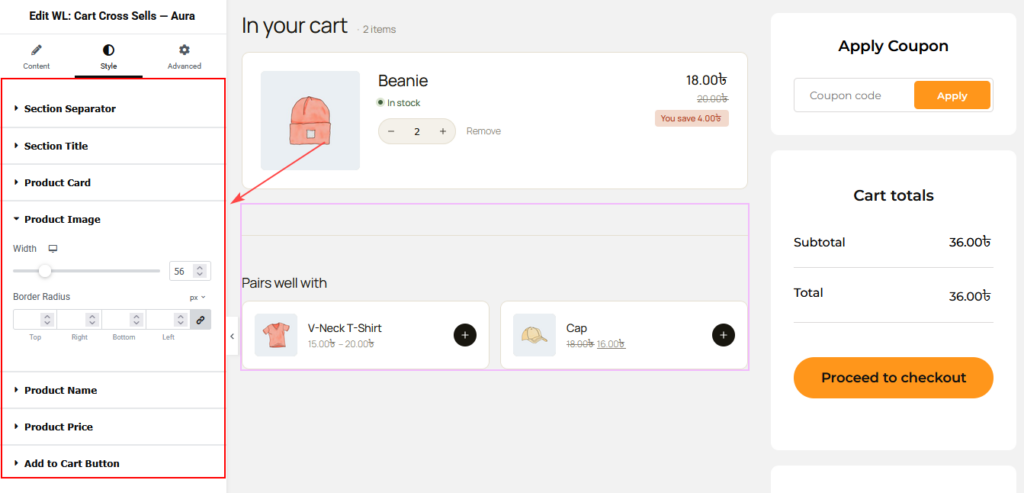
Use Style → Product Card and Style → Product Image to control the appearance of recommended products.
| Style section | Available controls | How to use it |
|---|---|---|
| Product Card | Background, Border Type, Border Radius, Padding, Grid Gap, Hover Border Color | Customize product card backgrounds, borders, spacing, and hover appearance. |
| Product Image | Width, Border Radius | Adjust product image dimensions and corner roundness. |
Use consistent card spacing and image sizes to keep recommendations visually organized.
For a clean layout, avoid excessive borders or overly large product images.
6. Style product names and prices
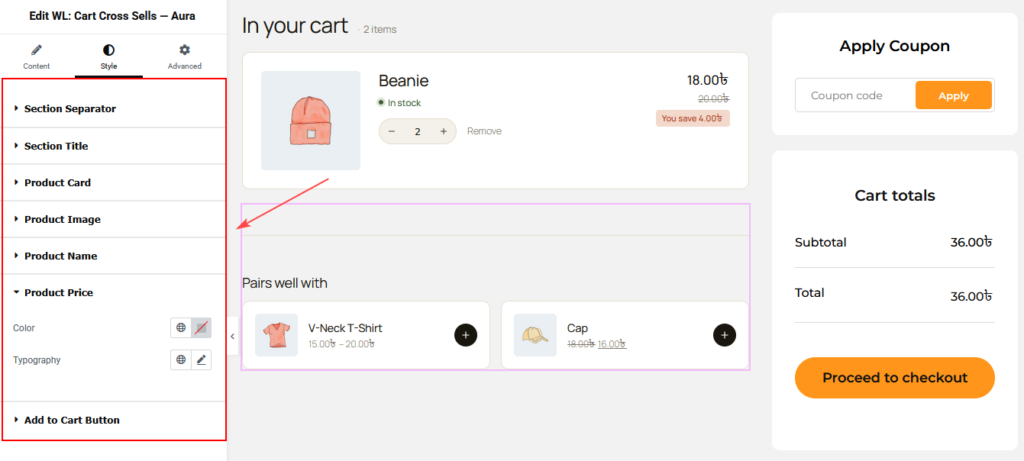
Open Style → Product Name and Style → Product Price to customize product information.
| Style section | Available controls | How to use it |
|---|---|---|
| Product Name | Color, Hover Color, Typography | Customize product title colors, typography, and hover appearance. |
| Product Price | Color, Typography | Adjust product price color and typography. |
Keep product names readable and make prices easy to identify without overpowering the main cart content.
7. Customize the Add to Cart button
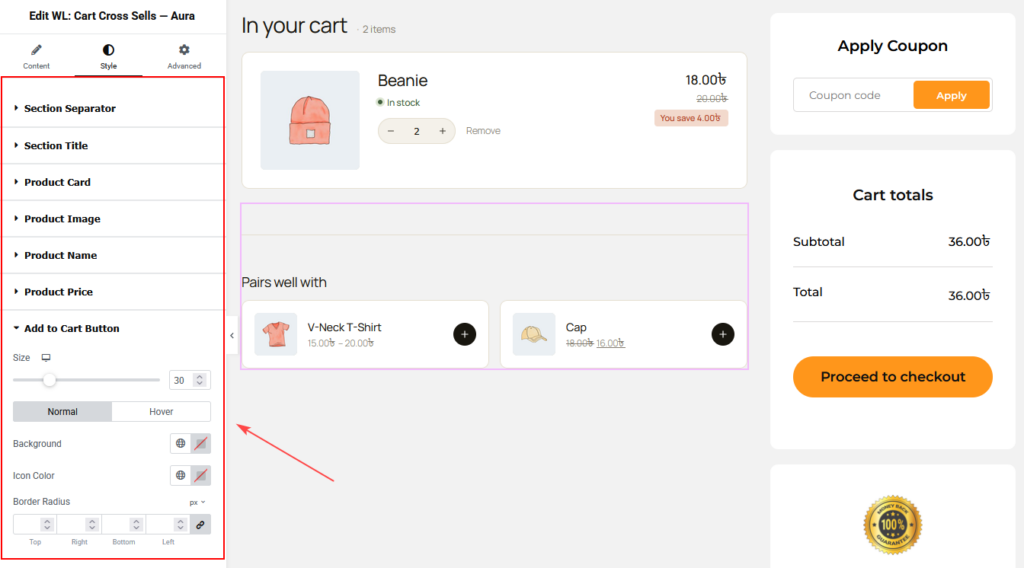
Open Style → Add to Cart Button to customize the button’s appearance.
| Setting | What it does |
|---|---|
| Size | Adjusts the button size. |
| Normal / Hover | Switches between the default and hover styling states. |
| Background | Sets the button background color for the selected state. |
| Icon Color | Customizes the button icon color for the selected state. |
| Border Radius | Adjusts the roundness of the button corners. |
Use contrasting colors to make the Add to Cart button easy to recognize.
Note: Enable Content → General → Show Add to Cart Button to display the button.
8. Configure advanced settings
Open the Advanced tab to access Elementor’s standard customization options.
Depending on your Elementor version, these may include:
- Margins and padding.
- Responsive visibility.
- Positioning and layout settings.
- Motion effects.
- CSS classes and other advanced options.
Use these controls when you need additional adjustments to the widget’s placement or responsive behavior.
9. Responsive and usability tips
Review the widget using Elementor’s desktop, tablet, and mobile preview modes before publishing.
- Display a manageable number of recommended products.
- Use two columns for a compact desktop layout.
- Adjust the column count for smaller screens.
- Keep product images consistent in size.
- Use short, readable section headings.
- Make prices and Add to Cart buttons easy to identify.
- Maintain sufficient spacing between product cards.
- Recommend products that complement the customer’s cart items.
For mobile layouts, consider displaying one product per row if the available space is limited.
10. Recommended placement
The Cart Cross Sells – Aura widget works best on WooCommerce cart pages.
Consider placing it:
- Below the main cart product list.
- Between the cart table and order summary.
- Below the cart totals section.
- Near the bottom of the cart page, before customers proceed to checkout.
For a balanced cart layout, you can combine Cart Table – Aura, Cart Total – Aura, and Cart Cross Sells – Aura.
Keep recommendations visually separate from the main cart products so customers can easily distinguish between items already in their cart and suggested additions.
11. Troubleshooting
The widget does not appear in Elementor
Confirm that Cart Cross Sells – Aura is enabled in ShopLentor → Settings → Elementor Widgets. Save the settings and reload Elementor.
Recommended products are not displaying
Check that cross-sell products are assigned under Products → Edit Product → Product Data → Linked Products → Cross-sells.
Also, make sure the relevant product is in the customer’s cart.
Fewer products appear than expected
The Products to Show setting controls the maximum number of recommendations. The actual number depends on the available cross-sell products.
Product prices are missing
Open Content → General and enable Show Price.
Add to Cart buttons are not visible
Open Content → General and enable Show Add to Cart Button.
The section separator is not showing
Enable Show Top Separator under Content → General, then review its appearance under Style → Section Separator.
The layout looks crowded on mobile
Use the responsive Columns control to reduce the number of products per row. You can also adjust image width, card padding, and grid spacing.
Changes do not appear on the live page
- Update the template in Elementor.
- Clear your browser cache.
- Clear WordPress, server, or CDN caches if applicable.
- Regenerate Elementor CSS and data if needed.
- Test the page in a private browser window.
Frequently asked questions
What is the Cart Cross Sells – Aura widget?
The Cart Cross Sells – Aura widget displays WooCommerce cross-sell product recommendations on the cart page using a customizable Elementor layout.
How do I add cross-sell products in WooCommerce?
Edit a product and navigate to Product Data → Linked Products → Cross-sells. Select the products you want to recommend and update the product.
Can I control how many cross-sell products appear?
Yes. Use Content → General → Products to Show to set the maximum number of recommended products.
Can I change the number of product columns?
Yes. The Columns setting lets you configure the layout, including responsive adjustments.
Can I hide product prices or Add to Cart buttons?
Yes. Use Show Price and Show Add to Cart Button under Content → General.
Can I customize the product card design?
Yes. The Style tab provides controls for product card backgrounds, borders, padding, grid spacing, images, typography, and button appearance.
Does the widget automatically recommend products?
The widget displays WooCommerce cross-sell products associated with items in the cart. Configure those relationships in the product’s Linked Products settings.
Can I use this widget with Cart Table – Aura?
Yes. You can use Cart Cross Sells – Aura alongside Cart Table – Aura and Cart Total – Aura to build a customized WooCommerce cart page.