
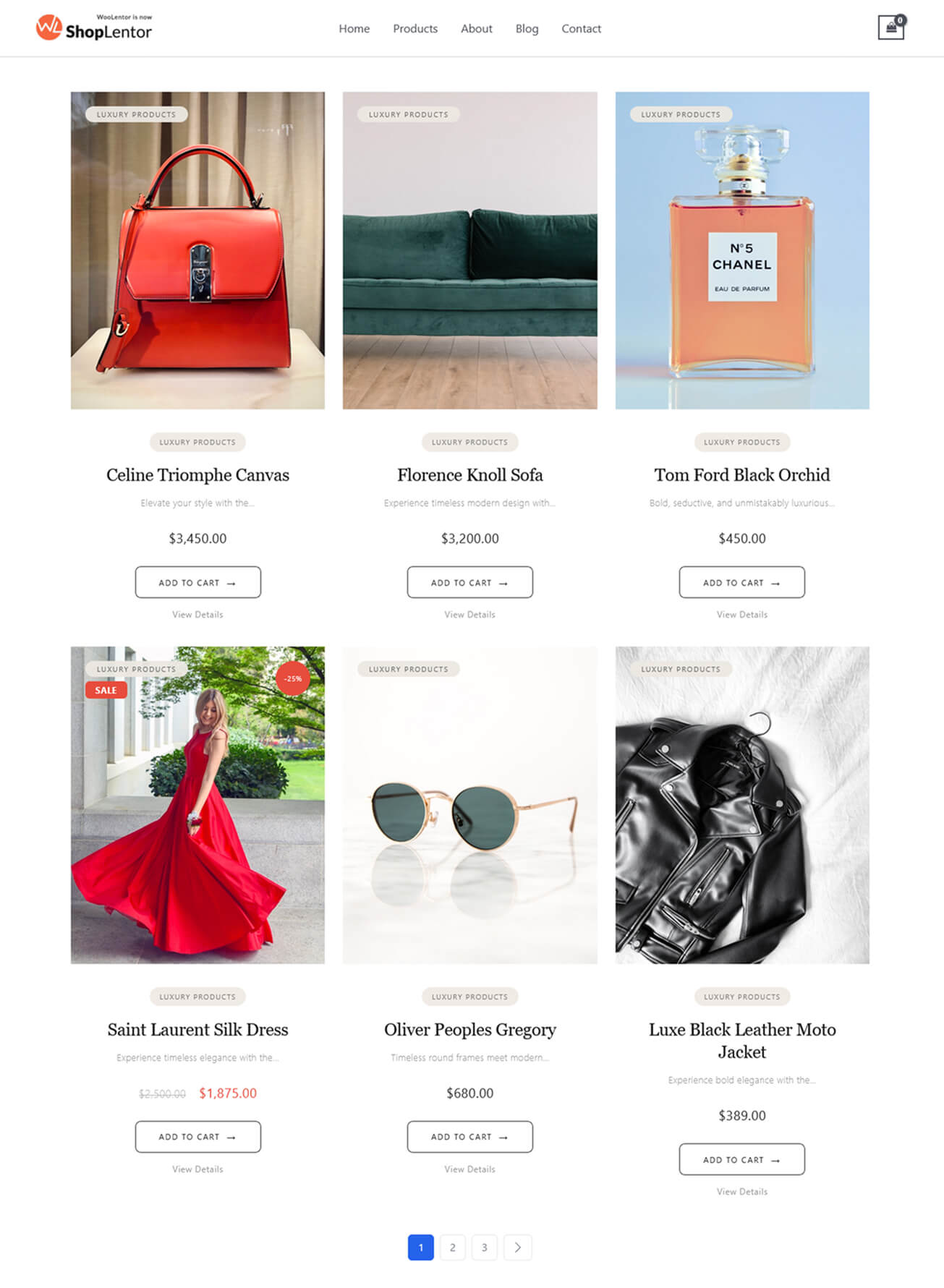
The Product Grid – Luxury Layout Gutenberg block lets you create a premium, Luxury-style WooCommerce product grid inside the native WordPress Block Editor. Designed for high-end brands, fashion boutiques, jewelry shops, lifestyle products, and modern eCommerce stores, this layout features refined typography, balanced spacing, elegant product cards, and luxury-inspired image ratios.
With features such as View Details links, dynamic badges, discount percentage circles, quick action buttons, description subtitles, and multiple aspect ratio options, the Luxury Layout brings a modern, high-end visual identity to any WooCommerce shop—without requiring Elementor.
This documentation explains how to enable the block, add it to your page, configure all layout controls, and apply custom styling to build a luxury-themed WooCommerce product grid.
Why Use the Luxury Layout in Gutenberg?
The Gutenberg version of the Luxury Layout brings premium presentation directly to users who prefer the native WordPress Block Editor. It’s ideal for:
- Shop Page Templates (via ShopLentor Builder) – Create a luxury, editorial-style shop experience.
- Product Category & Archive Templates – Maintain elegant product presentation across all categories.
- Custom Pages Built in Gutenberg – Insert the block anywhere WordPress blocks are supported.
What Makes This Block Stand Out?
The Luxury Layout block offers a premium presentation style that elevates your WooCommerce products with a modern, editorial aesthetic. It stands out because:
- Editorial-Inspired Design
Clean spacing, balanced typography, and a minimalist layout create a high-end look suitable for luxury brands. - Flexible Image Aspect Ratios
Choose from 1:1, 3:4, 4:5, or 9:16 to match your product photography and maintain visual consistency. - Product Subtitle Support
Display a short product description directly inside the grid for a more informative, boutique-style presentation. - Luxury Badge System
Optional category badge, new badge, sale badge, and an automatic discount-percentage badge add visual clarity without clutter. - Modern, Lightweight Interaction
Smooth hover effects and clean button styling give the grid a premium feel without heavy design elements. - Perfect for Premium Stores
Ideal for fashion, jewelry, cosmetics, home décor, and any brand that wants a polished, upscale shop grid.
Step 1: How to Enable Product Grid – Luxury Block
Before using the block inside Gutenberg, make sure it is enabled.
- Go to Dashboard → ShopLentor → Settings → Gutenberg
- Scroll to the Gutenberg Blocks section
- Locate Product Grid – Luxury Block
- Switch the toggle ON to activate the block
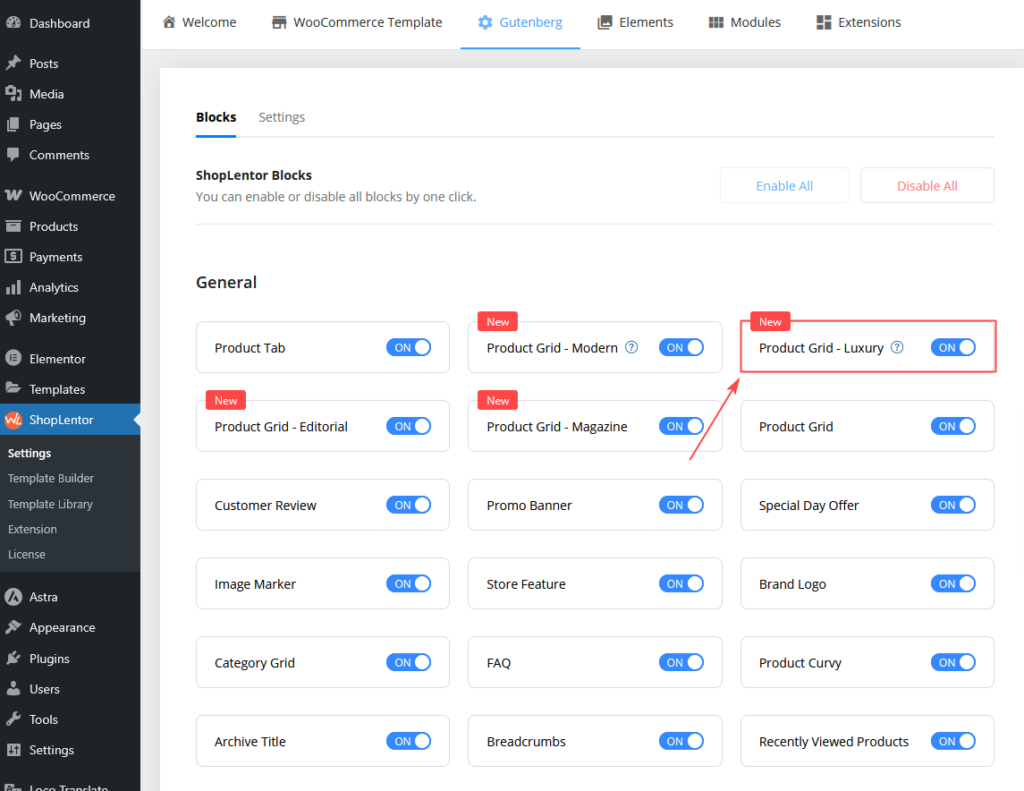
Step 2: How to Add the Product Grid – Luxury Block in Gutenberg
Once the block is enabled, you can insert it into any WordPress page.
Method 1: Add Inside a WordPress Page
- Open any page using the Block Editor (Gutenberg)
- Click the ( + ) Add Block button
- In the block search bar, type: “Product Grid – Luxury”
- Select the block
- The default luxury product grid will be inserted into your page
- Customize settings from the Block Sidebar Panel
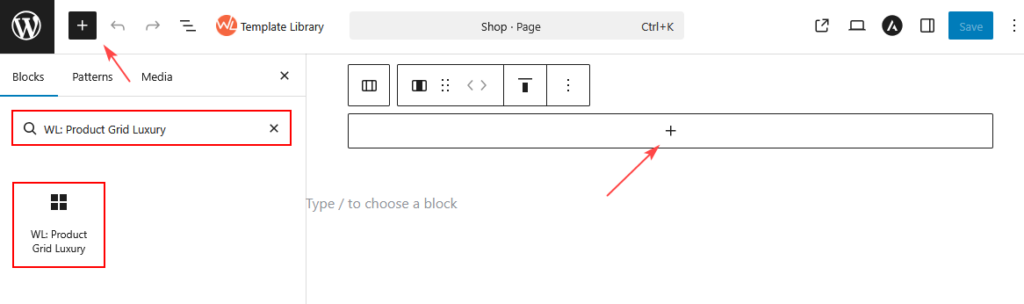
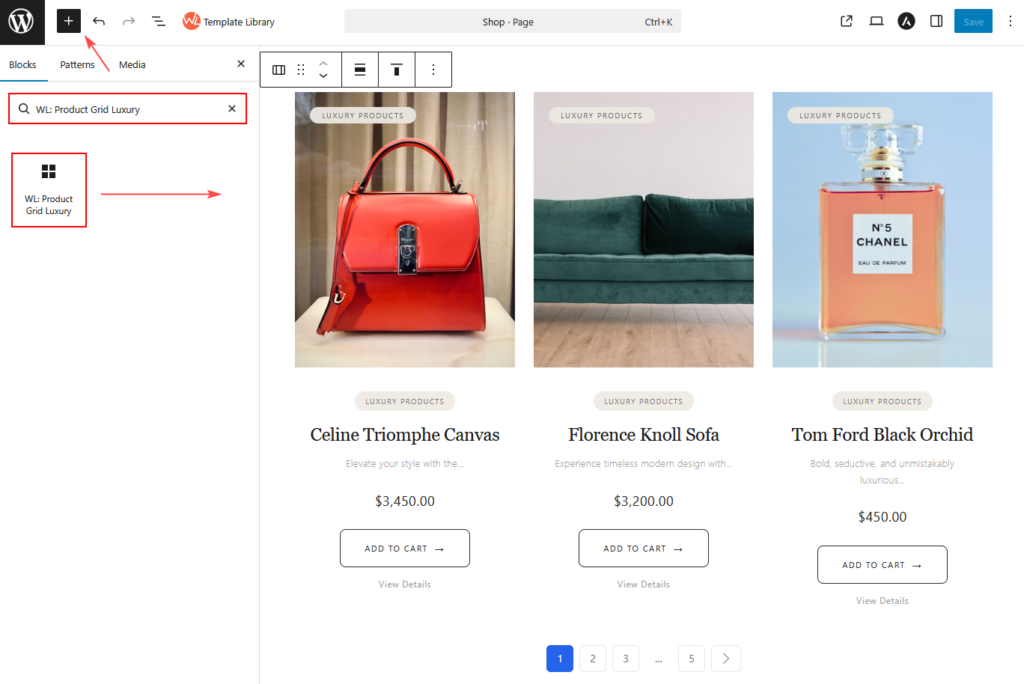
Method 2: Using the ShopLentor Template Builder.
- Go to Dashboard → ShopLentor → Template Builder
- Click Add New Template
- In the popup:
- Enter a Template Name
- Select Type → Shop or Archive
- Select Editor → Gutenberg
- Enable Set Default ( optional )
- Choose a Sample Design
- Click Save Settings
- If you selected a Sample Design, your template is ready to use.
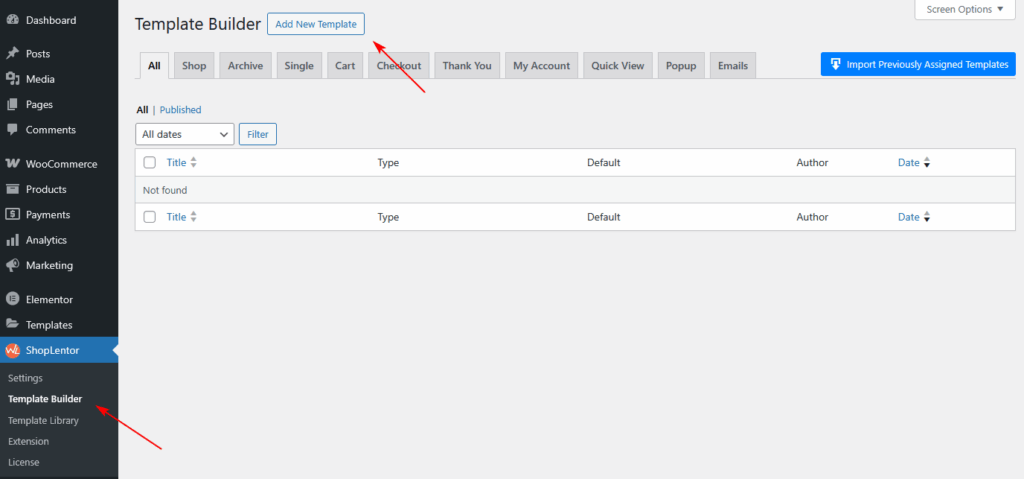
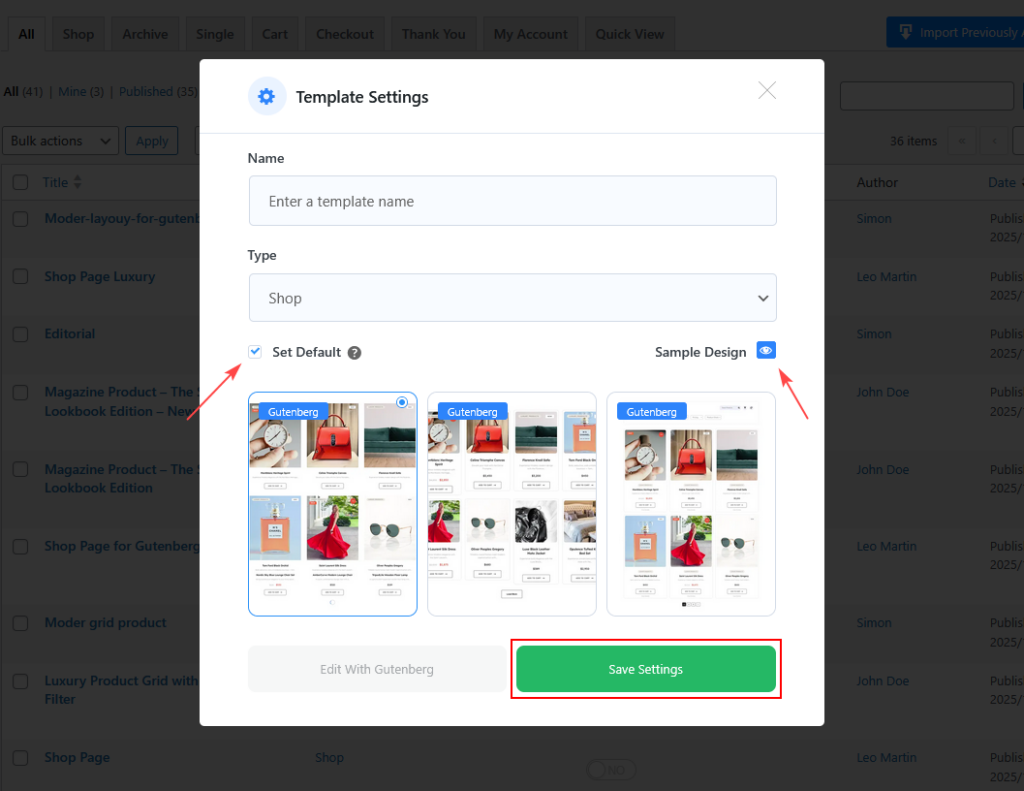
- To create a fully custom layout from scratch, follow the next steps:
- Select Edit with Gutenberg
- Click the + Block Inserter
- Search for Product Grid Luxury
- Insert the block into your Shop or Archive template
Product Grid – Luxury Block Options
All settings are available inside the General and Styles tabs.
GENERAL SETTINGS
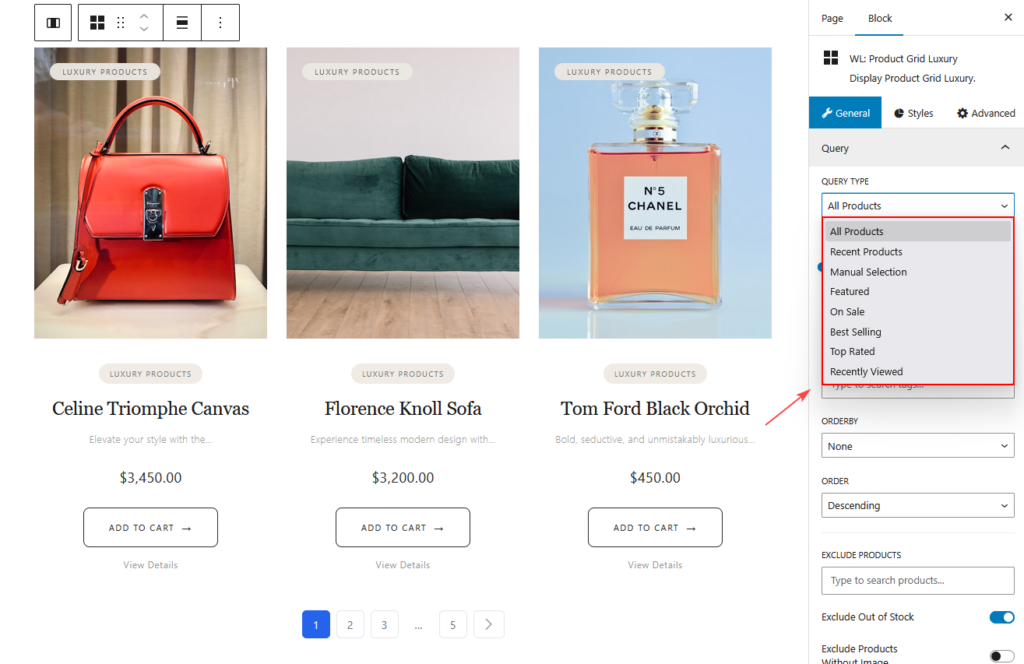
Query
- Query Type:
- All Products
- Recent Products
- Manual Selection
- Featured
- On Sale
- Best Selling
- Top Rated
- Recently Viewed.
- Number Of Products
- Categories / Tags
- Include / Exclude Products
- Order & Order By
- Exclude Out-of-Stock
- Exclude Products Without Image
- Filterable
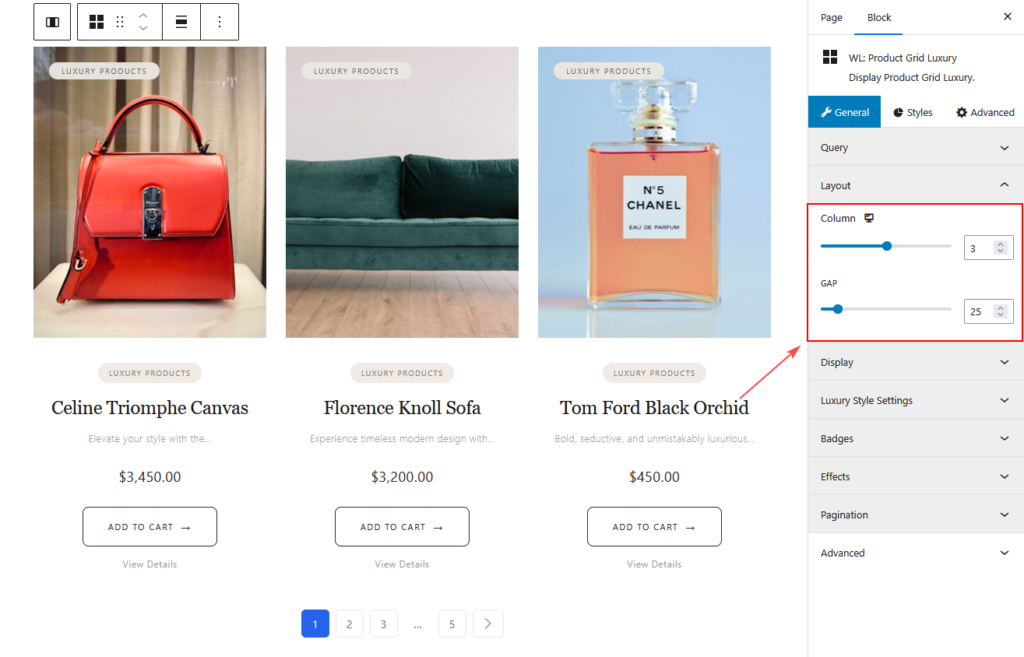
Layout
- Columns
- Gap
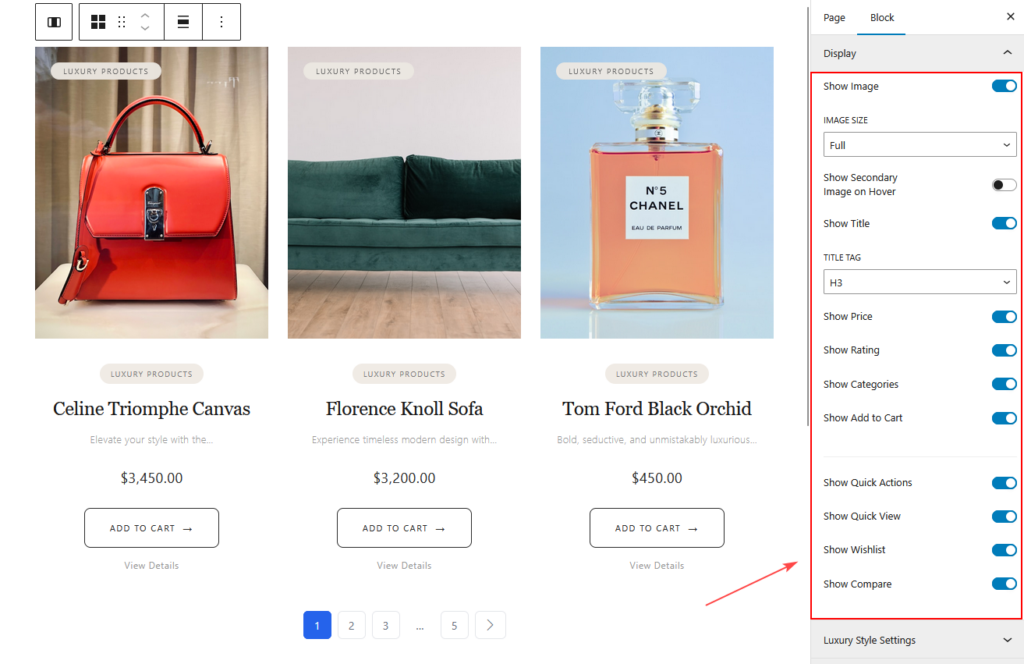
Display
- Image
- Image Resolution
- Secondary Image on Hover
- Title
- Price
- Rating
- Categories
- Add to Cart Button
- Quick View Button
- Wishlist Button
- Compare Button
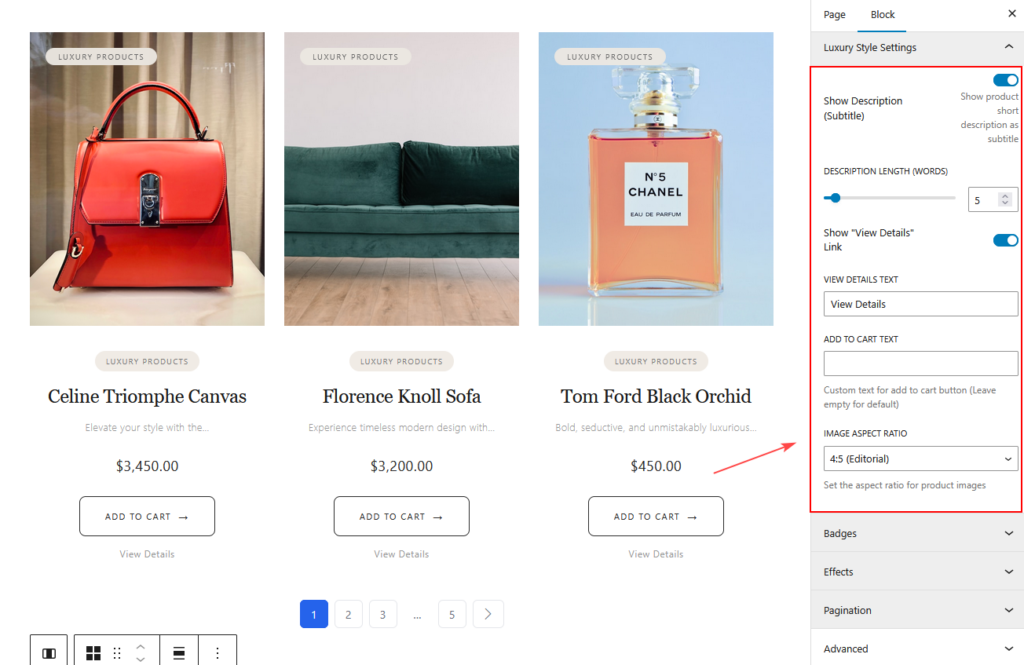
Luxury Style Settings
- Show Description
- Show product short description as subtitle
- Description Length (words)
- Show “View Details” Link
- View Details Text
- Add to Cart Text
- Custom text for add to cart button (Leave empty for default)
- Image Aspect Ratio
- Set the aspect ratio for product images
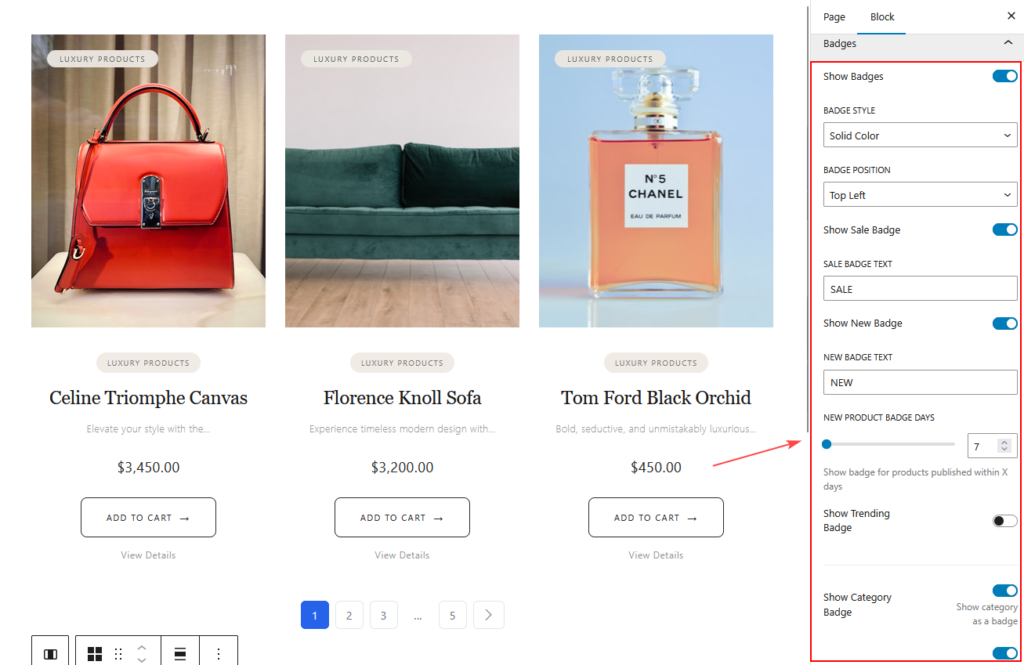
Badge Settings
- Show Badge
- Badge Style (Gradient, Solid, Outline)
- Badge Position (Top Left, Top Right)
- Sale Badge
- Sale Badge Text
- New Badge
- New Badge Text
- New Badge Days
- Trending Badge
- Note: If the Badge Module is enabled globally, these settings are overridden.
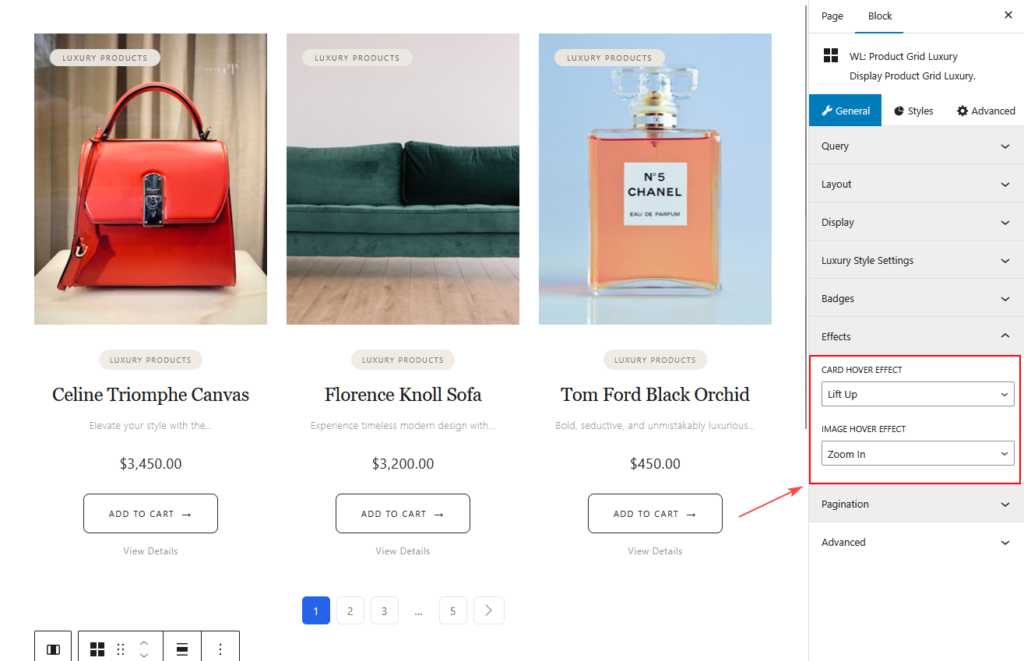
Effects
- Card Hover Effect
- Image Hover Effect
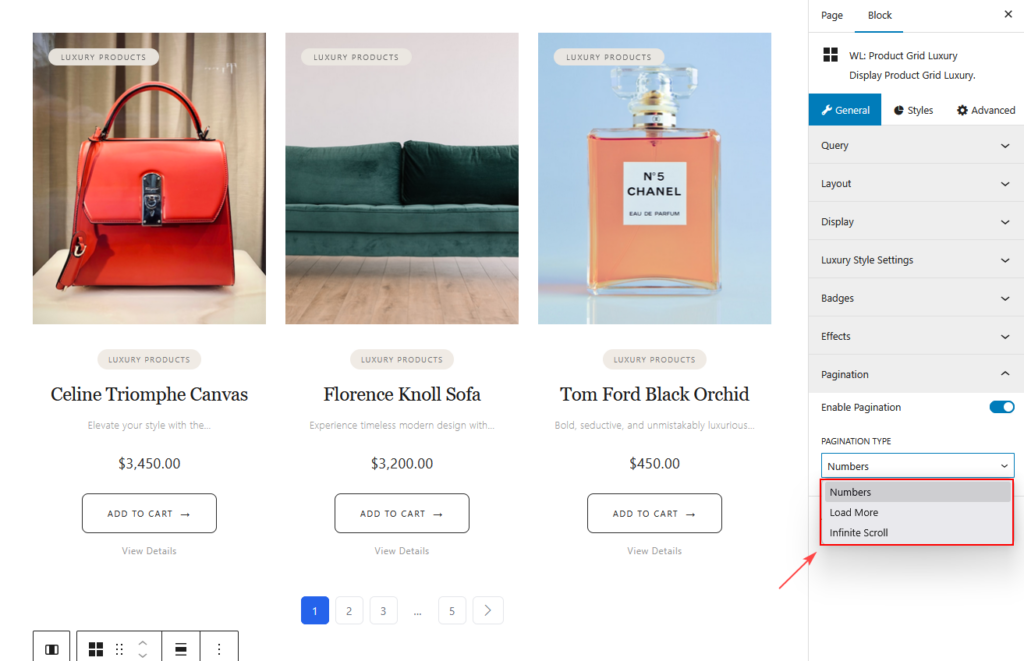
Pagination
- Enable Pagination
- Pagination Type:
- Numbers
- Load More
- Infinite Scroll
STYLES TAB
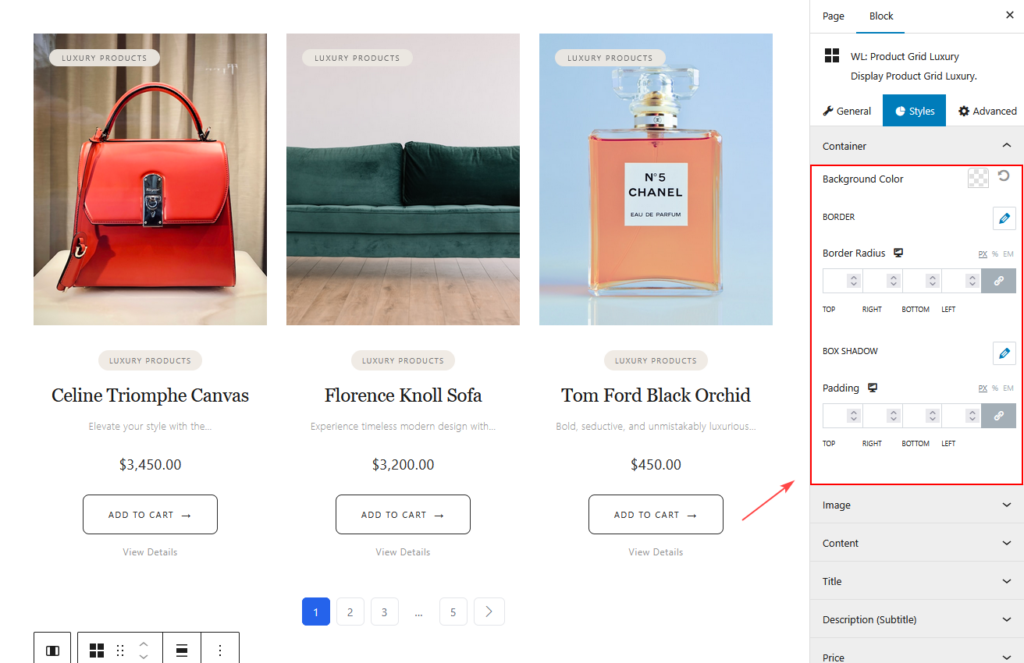
Container
- Background
- Border
- Border Radius
- Box Shadow
- Spacing
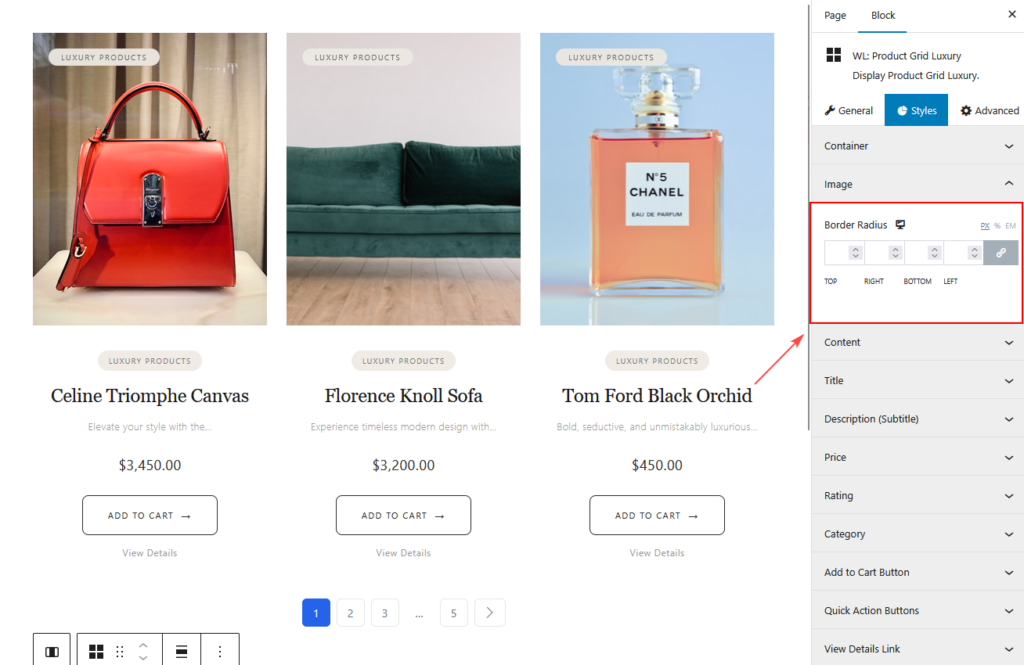
Image
- Image Border Radius
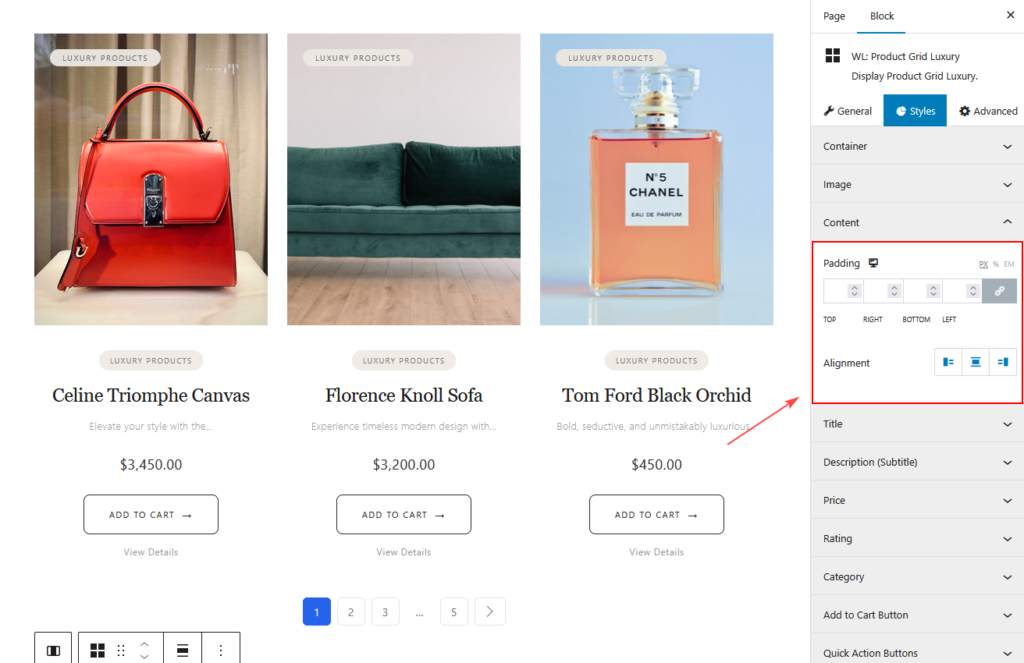
Content
- Content Padding
- Alignment
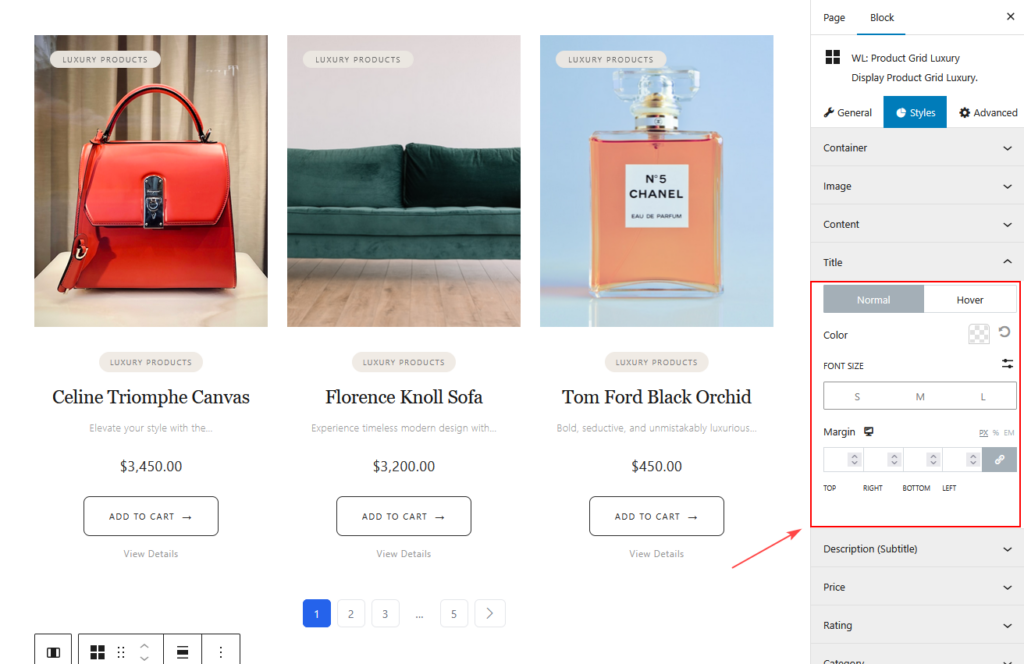
Title
- Typography
- Color
- Hover Color
- Spacing
Description
- Typography
- Color
- Margin
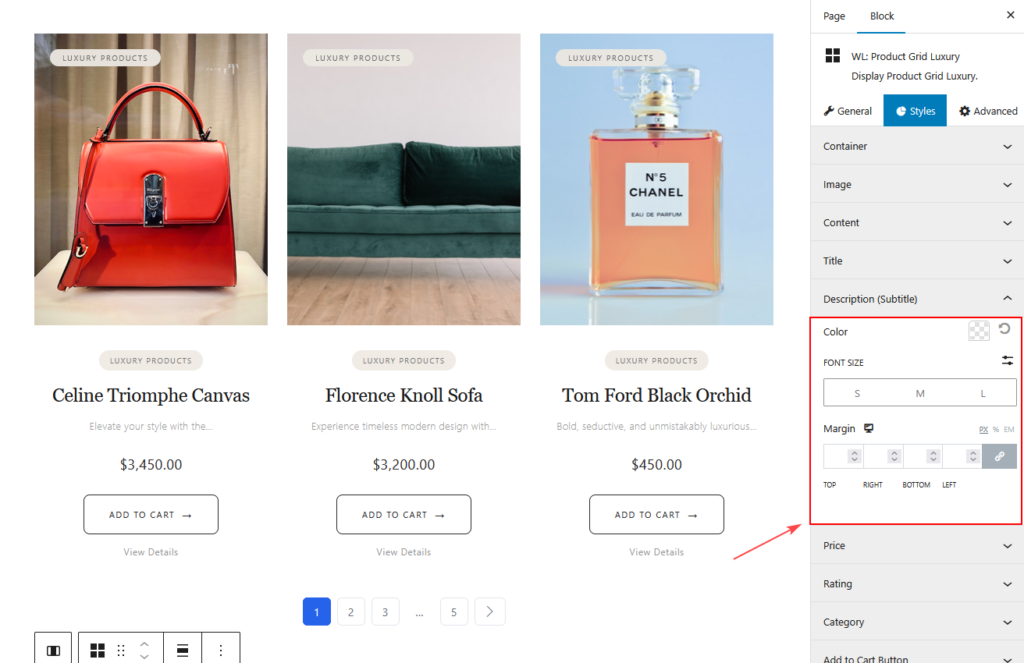
Price
- Regular Price Color
- Sale Price Color
- Typography
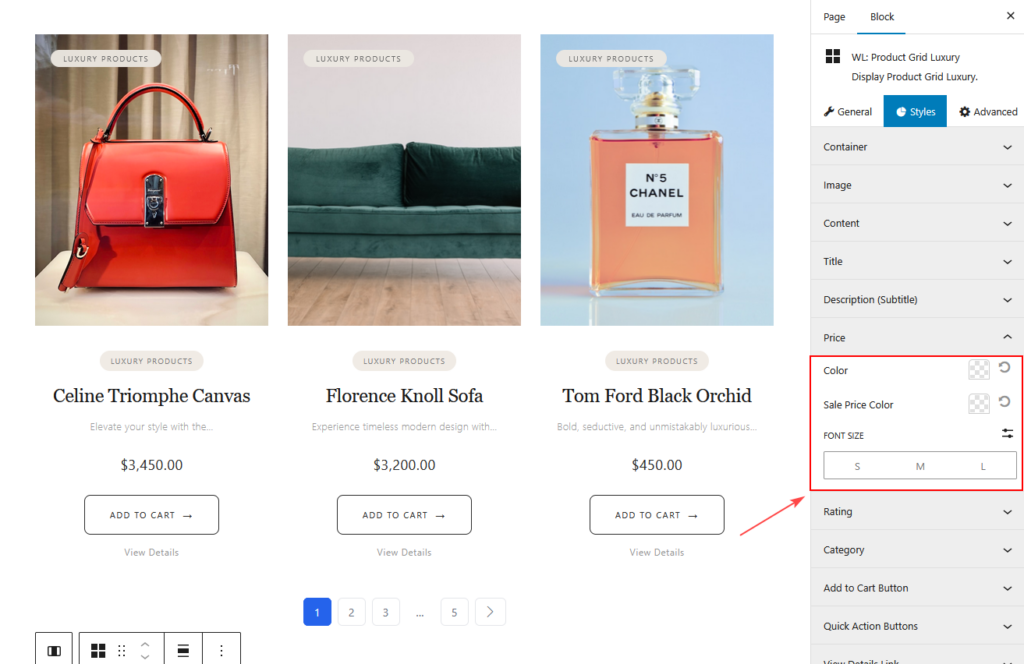
Rating
- Star Color (Filled / Empty)
- Star Size
- Star Spacing
- Review Count Typography
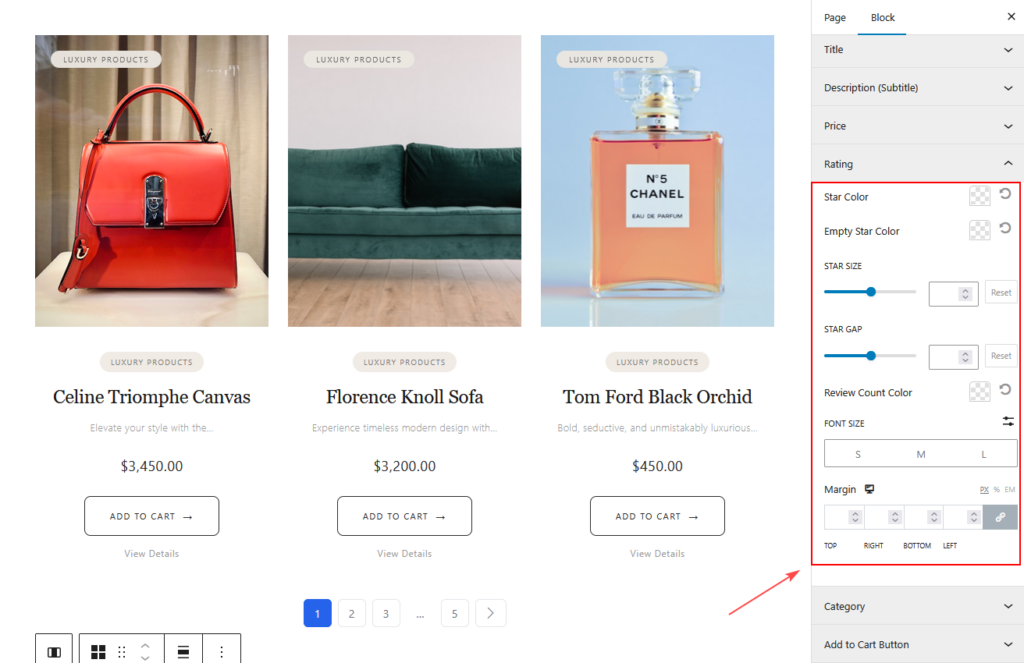
Category
- Typography
- Category Color
- Hover Color
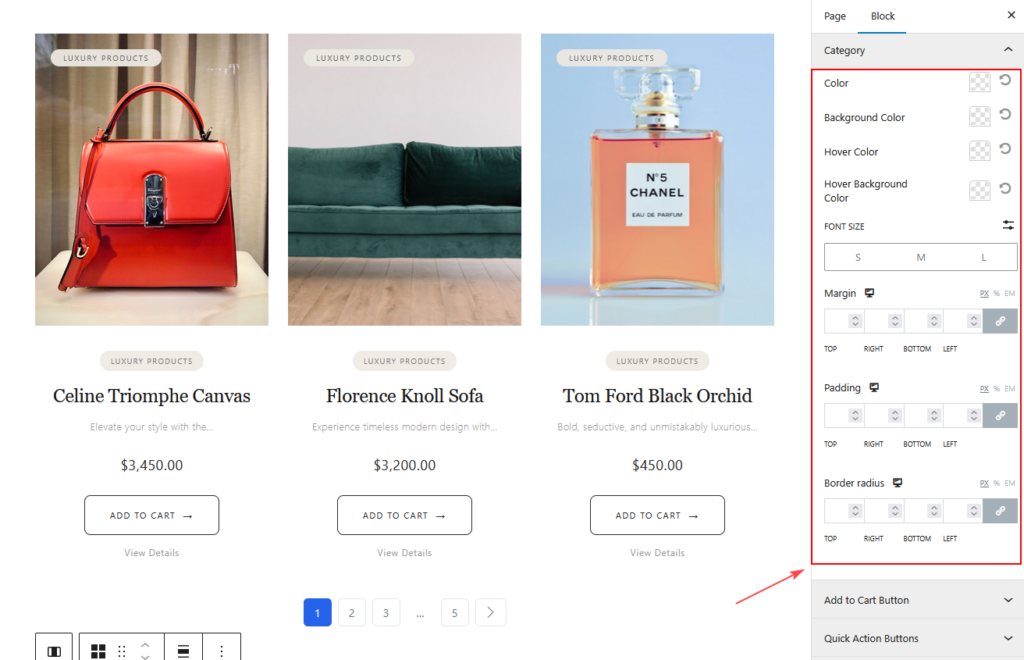
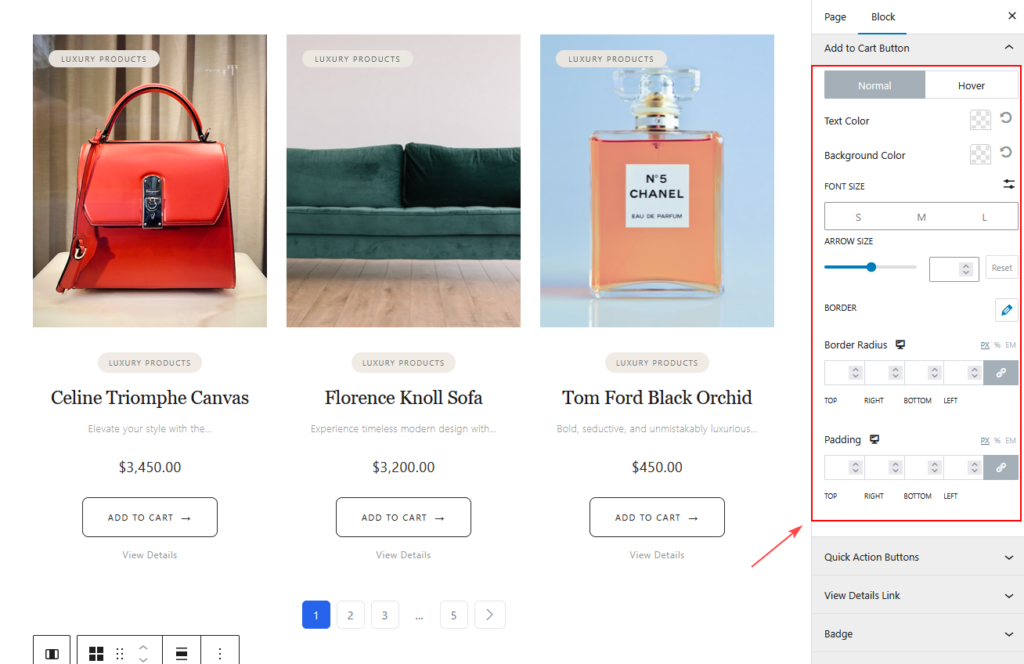
Add to Cart Button
- Normal and Hover Style
- Color
- Background Color
- Border
- Typography
- Border Radius
- Padding
- Icon Size (if used)
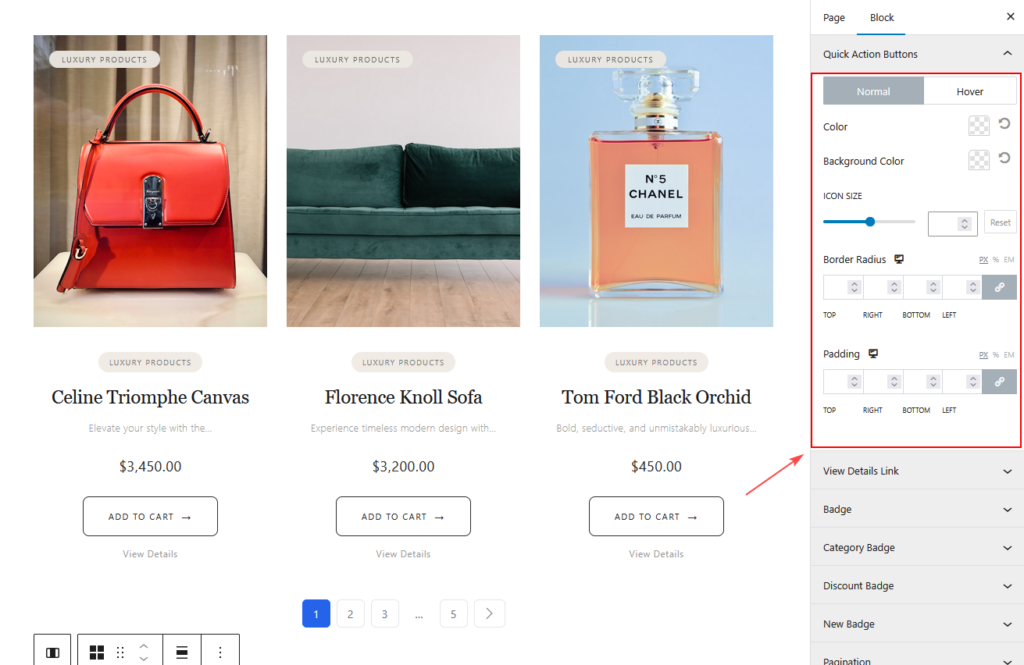
Quick Action Button
- Icon Size
- Color
- Background
- Border Radius
- Padding
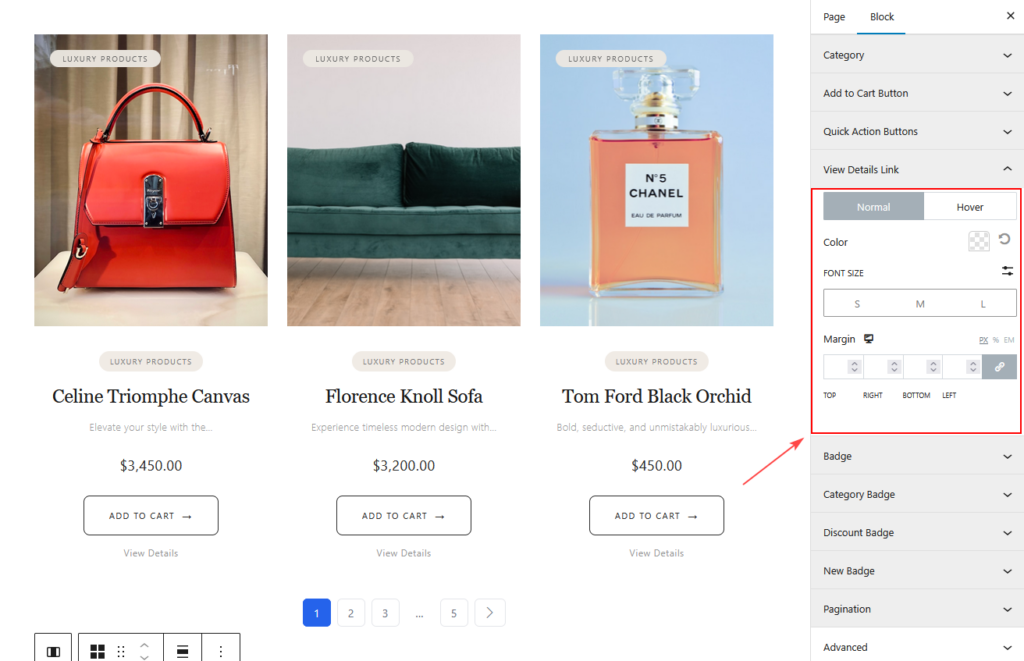
View Details Link
You’ll find two separate states:
- Normal – default state
- Hover – when the user hovers over the link
Available options in both states:
- Color
- Background Color
- Border Color
- Typography
- Border Type
- Border Radius
- Padding
- Margin
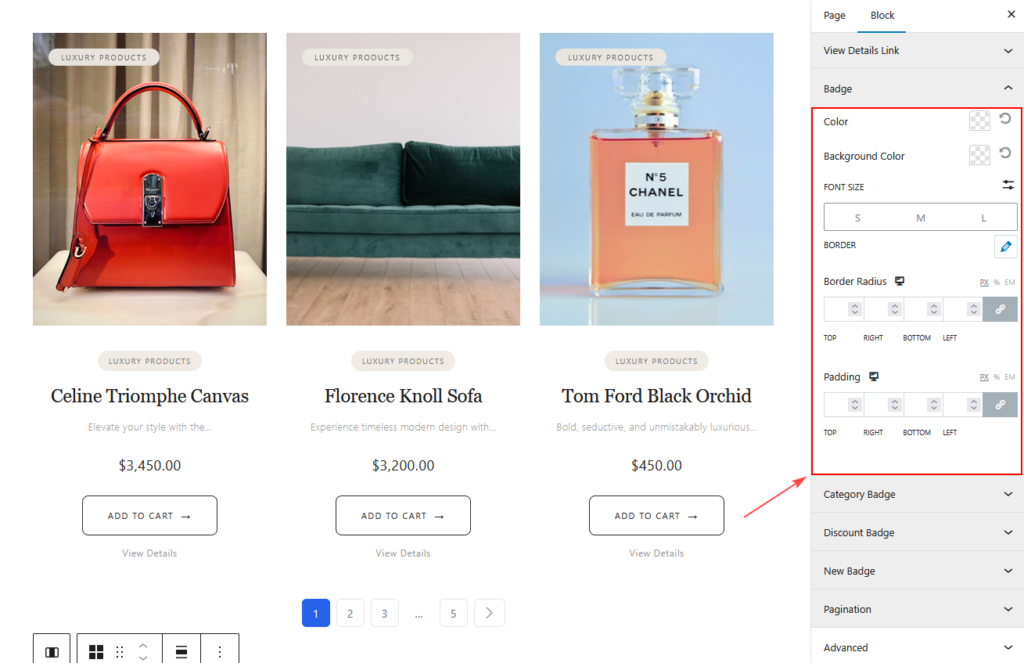
Badge
- Typography
- Color
- Background Color
- Border
- Border Radius
- Padding
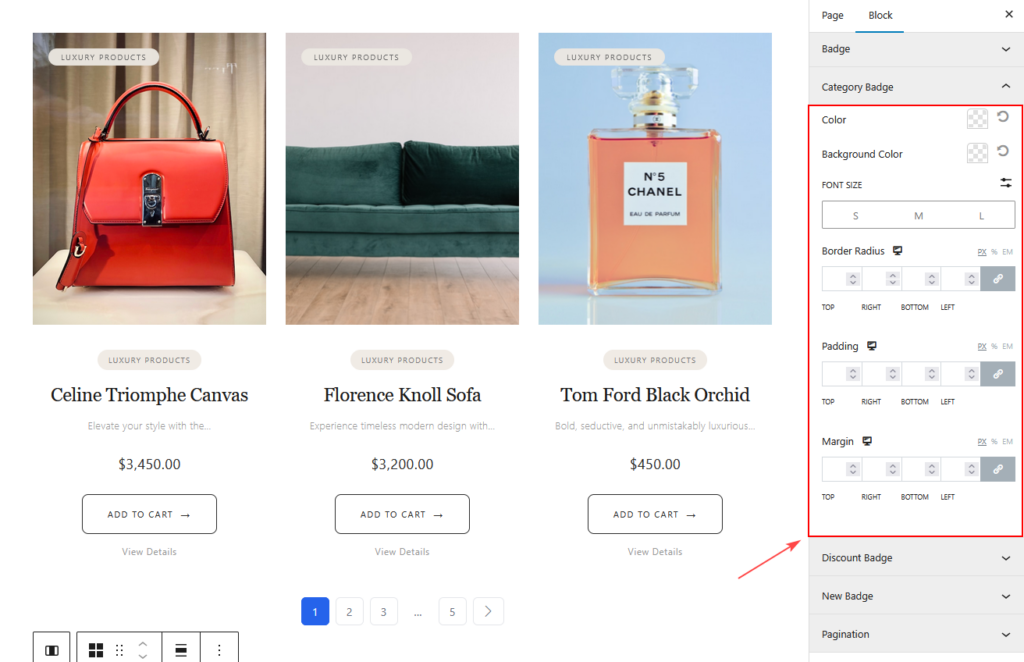
Category Badge
- Typography
- Color
- Background Color
- Border
- Border Radius
- Padding
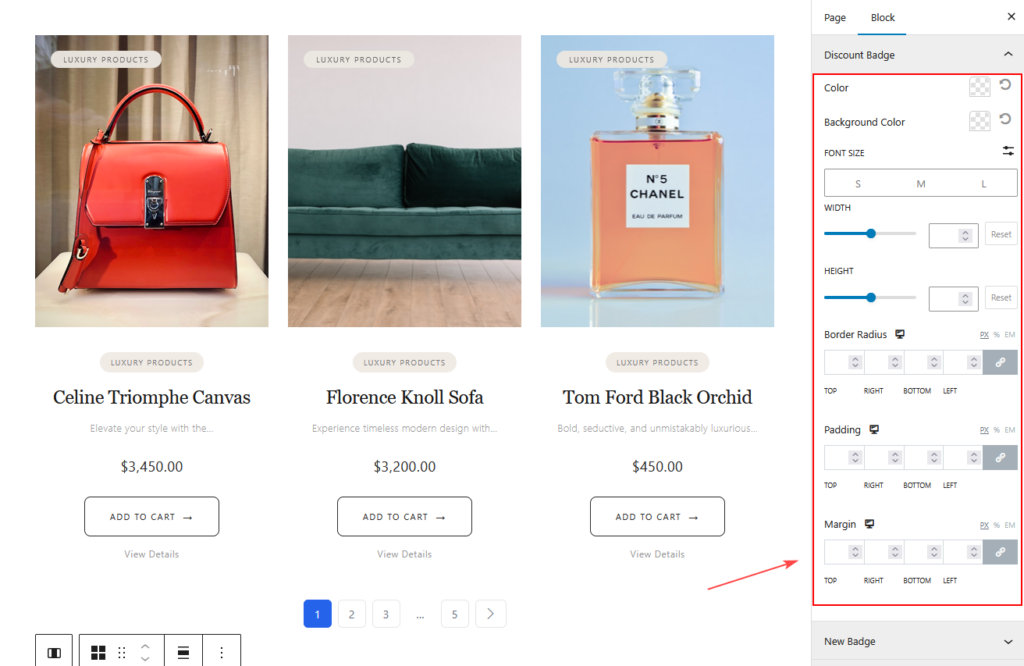
Discount Badge
- Typography
- Color
- Background Color
- Border
- Border Radius
- Padding
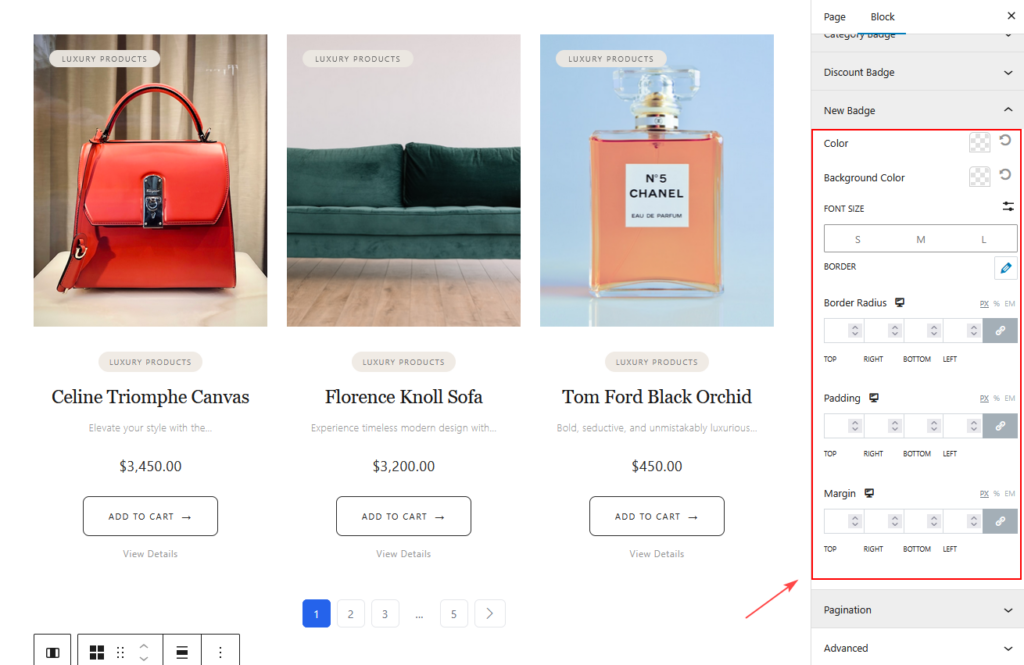
New Badge
- Typography
- Color
- Background Color
- Border
- Border Radius
- Padding
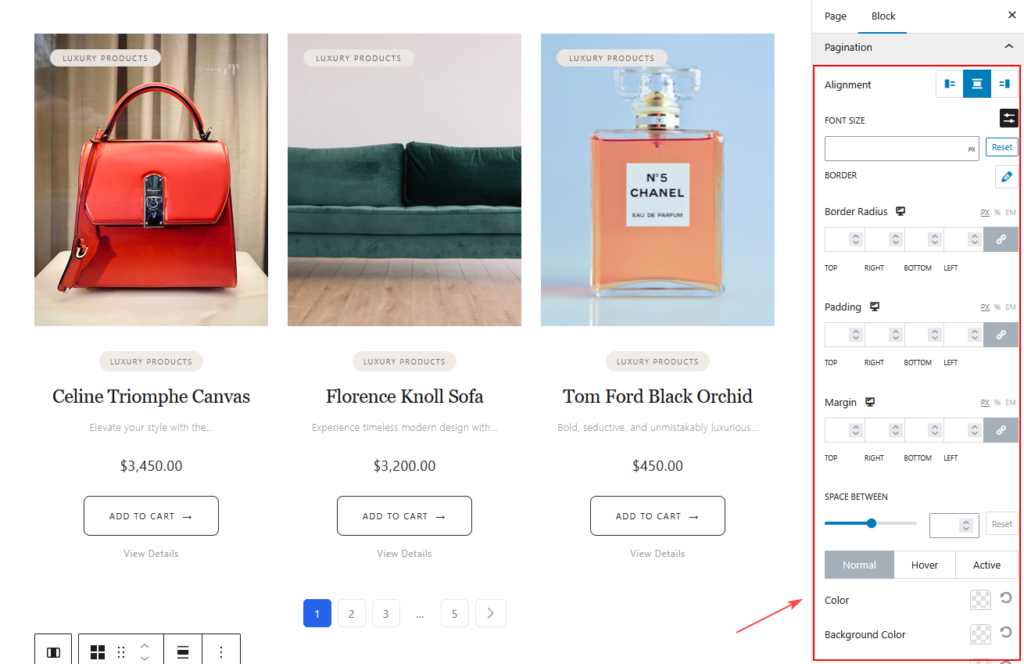
Pagination Style
- Pagination Alignment
- Typography
- Normal State Colors
- Hover State Colors
- Active State Colors
- Border Type
- Border Color
- Border Radius
- Padding
- Margin
Visit & Preview the Page
Once you finish customizing:
- Click Publish or Update
- Visit your Shop page
- Test both Grid and List views
- Check responsiveness on Mobile, Tablet, and Desktop
- Make any additional style adjustments
Your Product Grid – Modern Block is now live!
Tips for Best Visual Results
- Use Consistent Image Sizes
- Upload product photos with the same orientation to maintain a clean, uniform grid.
- Choose the Right Aspect Ratio
- Select the ratio that fits your photography style—4:5 for editorial looks, 1:1 for minimal square grids.
- Keep Product Titles Short
- Shorter titles create a more balanced, premium visual layout.
- Use Subtle Badge Styling
- Enable only the badges you need to avoid visual clutter and keep the grid elegant.
- Maintain Adequate Spacing
- Use comfortable gaps between products to achieve a luxury, breathable layout.
- Match Button and Text Colors to Your Brand
- Keep your styling simple and consistent for the highest-end appearance.
Conclusion
The Luxury Layout block offers a refined, editorial-style way to present your WooCommerce products with clarity and elegance. Its flexible layout options, clean typography, and premium badge system help create a visually engaging shop grid that enhances product value and elevates your brand identity. This block is ideal for anyone looking to build a modern, polished storefront with minimal effort.