

The Empty Cart Message – Aura widget for Elementor lets you create a customized empty cart page for your WooCommerce store. Instead of displaying the default WooCommerce empty cart message, you can show a branded section with an icon, heading, supporting text, and a Continue Shopping button.
The widget is part of ShopLentor’s Aura cart page collection and allows you to customize the empty cart experience without writing custom code.
Why use the Empty Cart Message – Aura widget?
An empty cart page doesn’t have to be a dead end. A clear message and shopping button can help customers return to your products.
Use this widget to:
- Replace the default WooCommerce empty cart message with a customized design.
- Display an icon, heading, and supporting text.
- Add a Continue Shopping button to guide customers back to your store.
- Link the button to your shop page or another destination.
- Customize typography, colors, spacing, and button styles.
- Create a consistent shopping experience across your WooCommerce cart pages.
Before you begin
Make sure WordPress, WooCommerce, Elementor, ShopLentor, and ShopLentor are installed and active.
The Empty Cart Message – Aura widget is available in ShopLentor Pro.
Important: This widget is designed for the Empty Cart template, not the regular Cart template. Although it can appear on standard Elementor pages, it does not automatically check whether the cart is empty. For correct behavior, use it inside a ShopLentor Empty Cart template.
1. Enable Empty Cart Message – Aura
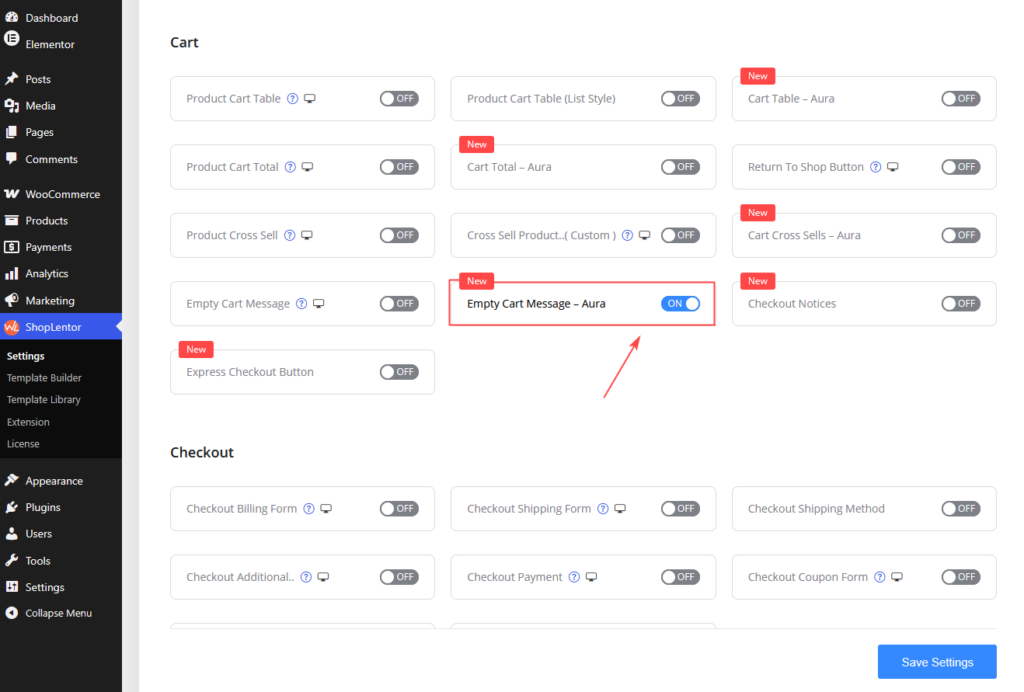
- Go to ShopLentor → Elements in your WordPress dashboard.
- Find the Cart section.
- Locate Empty Cart Message – Aura.
- Turn the widget ON.
- Save the changes.
The widget appears with a New badge in the ShopLentor widget settings.
2. Add the widget to an Empty Cart template
- Navigate to ShopLentor → Template Builder.
- Create a new template and select Empty Cart as the template type, or edit an existing Empty Cart template.
- Click Edit with Elementor.
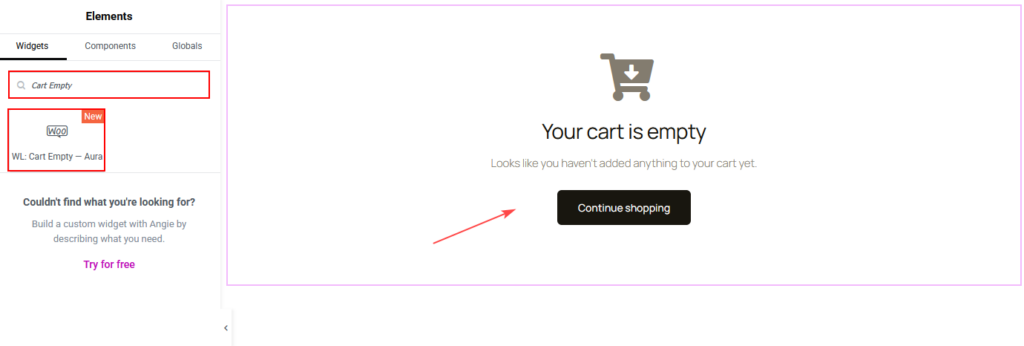
- Search for
auraorcart emptyin the Elementor Elements panel. - Find WL: Cart Empty – Aura under ShopLentor.
- Drag the widget into your preferred section or container.
- Open the Content tab to customize the empty cart message.
Important: The widget is not available in the regular Cart template. Use an Empty Cart template instead.
Also, searching for Empty Cart Message may not return the widget because its Elementor name is WL: Cart Empty – Aura. Search for aura or cart empty.
3. Customize the empty cart content
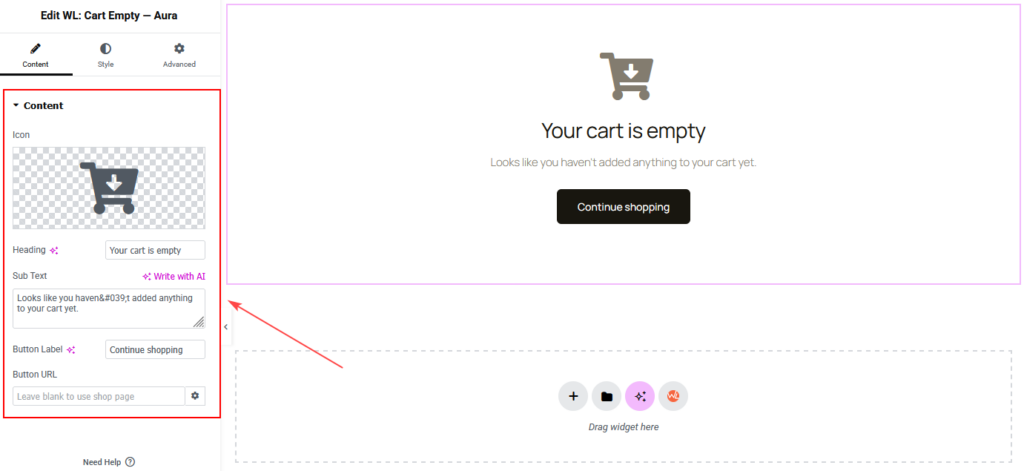
Open Content → Content to configure the icon, message, and shopping button.
| Setting | What it does | Default |
|---|---|---|
| Icon | Selects the icon displayed above the empty cart message. | Cart Arrow Down icon |
| Heading | Adds the main empty cart heading. | Your cart is empty |
| Sub Text | Adds supporting text below the heading. | Looks like you haven’t added anything to your cart yet. |
| Button Label | Sets the text displayed on the shopping button. | Continue shopping |
| Button URL | Sets the button destination. Supports opening in a new tab and adding a nofollow attribute. | WooCommerce Shop page |
Customize the shopping button destination
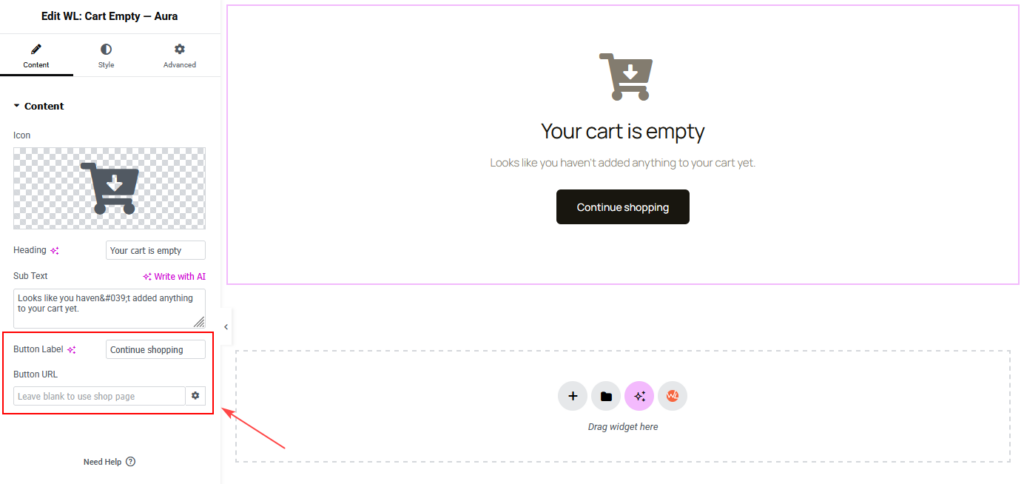
By default, the Continue Shopping button redirects customers to your WooCommerce Shop page.
To link the button to another page:
- Open Content → Content.
- Find Button URL.
- Enter your preferred destination URL.
- Update the template.
You can link customers to a product category, featured collection, promotional page, or another relevant destination.
Note: Leave Button URL empty to use the default WooCommerce Shop page.
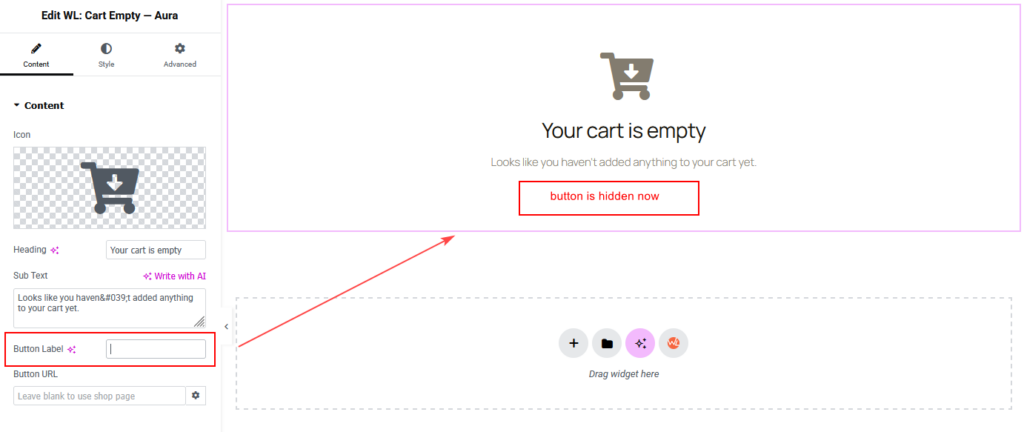
Show or hide individual elements
The widget allows you to control which elements appear in the empty cart section.
Leaving any of the following fields empty hides the corresponding element:
- Icon
- Heading
- Sub Text
- Button Label
For example, clearing the Sub Text field removes the supporting message while keeping the heading and shopping button visible.
4. Customize the icon, heading, and text
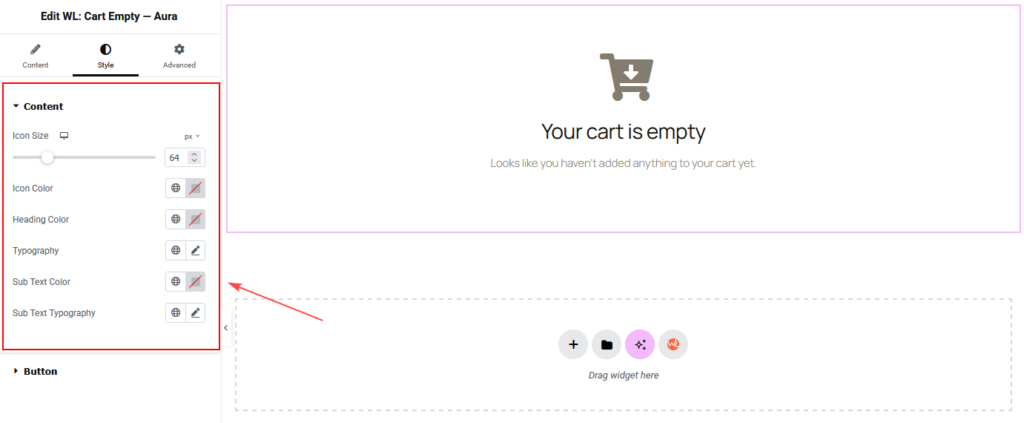
Open Style → Content to customize the appearance of the empty cart message.
| Setting | What it does |
|---|---|
| Icon Size | Adjusts the icon size using responsive controls. Supports 20–200px, with a default of 64px. |
| Icon Color | Changes the icon color. |
| Heading Color | Sets the heading text color. |
| Typography | Customizes the heading font, size, weight, and other typography properties. |
| Sub Text Color | Changes the supporting text color. |
| Sub Text Typography | Customizes the supporting text typography. |
Use a recognizable cart icon and a clear heading to help customers understand that their shopping cart is empty.
Keep the supporting text short and encourage customers to continue browsing.
5. Customize the Continue Shopping button
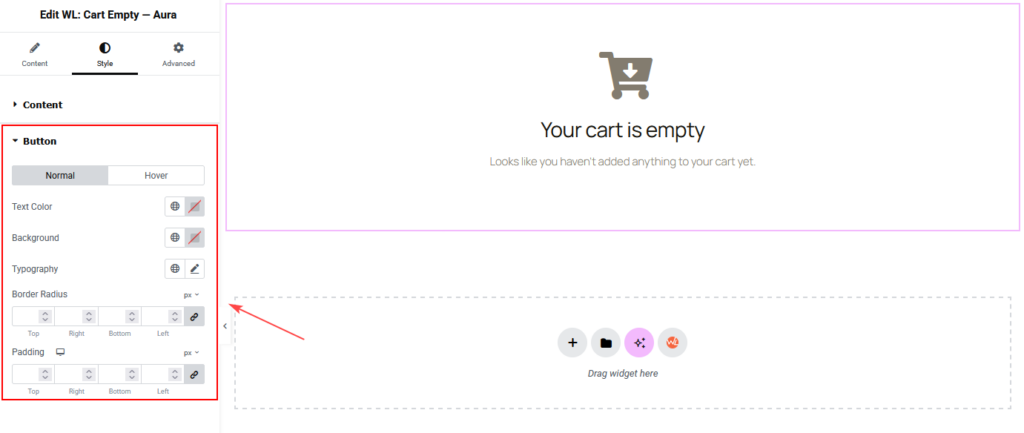
Open Style → Button to customize the shopping button.
| Setting | What it does |
|---|---|
| Normal / Hover | Switches between the default and hover styling states. |
| Text Color | Sets the button text color for the selected state. |
| Background | Sets the button background color for the selected state. |
| Typography | Customizes the button text typography. |
| Border Radius | Adjusts the roundness of the button corners. |
| Padding | Controls the internal button spacing using responsive controls. |
Use contrasting colors to make the Continue Shopping button easy to identify.
Check both Normal and Hover states to ensure the button remains readable and visually consistent.
6. Configure advanced settings
Open the Advanced tab to access Elementor’s standard customization options.
Depending on your Elementor version, these may include:
- Margin and padding.
- Responsive visibility.
- Positioning and layout settings.
- Motion effects.
- CSS classes and other advanced options.
Use these settings to fine-tune the widget’s placement and appearance.
7. How the Empty Cart Message – Aura widget works
The widget is designed to work with ShopLentor’s Empty Cart template system.
| Behavior | Description |
|---|---|
| Empty Cart Template | ShopLentor displays the Empty Cart template when the WooCommerce cart is empty. |
| Widget Visibility | The widget itself does not check the cart status. It renders its content whenever the widget is displayed. |
| Default Empty Cart Message | The widget hides WooCommerce’s default “Your cart is currently empty.” message to prevent duplication. |
| WooCommerce Notices | Other WooCommerce notices, such as an Undo link after removing a product, remain visible. |
| Default Button Destination | If Button URL is empty, the button links to the WooCommerce Shop page. |
| Empty Fields | Elements with empty content fields are not displayed. |
| Aura Styling | The widget loads its dedicated Aura cart page stylesheet. |
Important: Always place the widget inside the Empty Cart template to ensure customers see the message only when their cart is empty.
8. Responsive and usability tips
Review the widget using Elementor’s desktop, tablet, and mobile preview modes before publishing.
- Use a recognizable icon that communicates an empty shopping cart.
- Keep the heading short and descriptive.
- Write friendly supporting text that encourages further shopping.
- Make the Continue Shopping button prominent and easy to click.
- Use sufficient contrast between text and background colors.
- Adjust the icon size and button padding for smaller screens.
- Maintain consistent spacing between the icon, heading, description, and button.
- Test the button destination before publishing.
Recommended empty cart message
| Element | Suggested content |
|---|---|
| Icon | Cart Arrow Down |
| Heading | Your cart is empty |
| Sub Text | Looks like you haven’t added anything to your cart yet. |
| Button Label | Continue shopping |
| Button URL | WooCommerce Shop page |
This configuration provides a clear message and an immediate next step for customers.
9. Recommended placement
The Empty Cart Message – Aura widget is designed specifically for the ShopLentor Empty Cart template.
Place it in a prominent section of the template, preferably centered within the main content area.
For a clean empty cart layout:
- Position the icon above the heading.
- Keep the heading and supporting text centered.
- Place the Continue Shopping button below the description.
- Maintain enough whitespace around the content.
- Avoid adding unnecessary elements that distract from the shopping button.
Unlike the regular cart widgets, such as Cart Table – Aura, Cart Total – Aura, and Cart Cross Sells – Aura, this widget is intended for the empty cart state.
10. Troubleshooting
The widget does not appear in Elementor
Make sure Empty Cart Message – Aura is enabled under ShopLentor → Elements → Cart.
Also, confirm that you are editing an Empty Cart template.
Search for aura or cart empty instead of the full admin widget name.
The widget is not available in my Cart template
This is expected behavior. The widget is available in ShopLentor’s Empty Cart template, not the regular Cart template.
Create or edit an Empty Cart template to use it.
The Continue Shopping button does not redirect to my preferred page
Open Content → Content → Button URL and enter the correct destination.
If the field is empty, the button automatically links to the WooCommerce Shop page.
The icon, heading, or button is missing
Check the corresponding fields under Content → Content.
The widget hides elements when their content fields are empty.
The default WooCommerce empty cart message is also appearing
The widget automatically hides WooCommerce’s default empty cart message.
If duplicate messages still appear, check whether another widget, template, or customization is adding an additional empty cart message.
The empty cart message appears even when products are in the cart
The widget does not check cart status independently.
Make sure it is placed inside a ShopLentor Empty Cart template rather than a regular Elementor page or Cart template.
Changes do not appear on the live page
- Update or publish the template in Elementor.
- Clear your browser cache.
- Clear WordPress, server, or CDN caches if applicable.
- Regenerate Elementor CSS and data if needed.
- Test the empty cart page in a private browser window.
Frequently asked questions
What is the Empty Cart Message – Aura widget?
The Empty Cart Message – Aura widget is a ShopLentor Pro Elementor widget that displays a customizable empty cart message with an icon, heading, description, and shopping button.
Is the Empty Cart Message – Aura widget free?
No. This widget is part of ShopLentor Pro.
Why can’t I find the widget in Elementor?
Make sure the widget is enabled in ShopLentor’s Elements settings and that you are editing an Empty Cart template. Search for aura or cart empty to find WL: Cart Empty – Aura.
Can I change the empty cart heading and description?
Yes. Open Content → Content to customize the Heading and Sub Text fields.
Can I redirect the Continue Shopping button to a custom page?
Yes. Enter your preferred URL in the Button URL field. If left empty, the button links to the WooCommerce Shop page.
Can I hide the icon or shopping button?
Yes. Clear the corresponding Icon or Button Label field to hide that element.
Does the widget replace WooCommerce’s default empty cart message?
Yes. The widget hides the default WooCommerce empty cart message to prevent duplicate messages while preserving other WooCommerce notices.
Can I use this widget on a regular Elementor page?
The widget can appear on standard Elementor pages, but it does not automatically check whether the cart is empty. For the intended behavior, use it inside a ShopLentor Empty Cart template.